1. 서론
This manual provides essential information for the safe and efficient use of your Acer B326HK 32-inch UHD 4K monitor. Please read this manual thoroughly before operating the device and retain it for future reference.
The Acer B326HK monitor features a 32-inch Ultra HD (4K2K) display with a resolution of 3840 x 2160 pixels, offering detailed imagery. It includes an ergonomic stand and supports VESA mounting for flexible placement. Connectivity options include DVI, MHL, DisplayPort, Mini DisplayPort, and a 5-port USB 3.0 hub.
2. 안전 정보
- 모니터가 떨어지는 것을 방지하려면 항상 안정적이고 평평한 표면에 놓으세요.
- 모니터 주변의 통풍이 잘 되도록 하십시오. 통풍구를 막지 마십시오.
- 제조업체에서 제공한 전원 어댑터와 케이블만 사용하세요.
- 모니터를 습기, 비 또는 극한 온도에 노출시키지 마십시오.
- 모니터를 직접 수리하려고 하지 마십시오. 모든 수리는 자격을 갖춘 기술자에게 맡기십시오.
- 청소하기 전에 모니터를 전원 콘센트에서 분리하십시오.
- 모니터를 강한 자기장으로부터 멀리하세요.
3. 패키지 내용
패키지에 모든 품목이 들어 있는지 확인하세요.
- Acer B326HK LED-backlit LCD monitor - 32"
- 디스플레이포트 케이블
- DVI 케이블
- 슈퍼스피드 USB 케이블
- 전원 코드
- 사용 설명서 (본 문서)
4. 설정
4.1 모니터 스탠드 조립
Carefully remove the monitor and stand components from the packaging. Follow the instructions below to attach the stand to the monitor panel.

그림 4.1: 전면 view of the Acer B326HK monitor with its ergonomic stand.
- 모니터 패널에 흠집이 생기지 않도록 부드럽고 깨끗한 천 위에 패널이 아래로 향하게 놓으십시오.
- 스탠드 암을 모니터 뒷면의 장착 슬롯에 맞춰 정렬합니다.
- 제공된 나사를 사용하여 스탠드 암을 모니터에 고정하십시오.
- 받침대를 스탠드 암에 부착하고 아래쪽에서 엄지 나사를 조여줍니다.
- Carefully lift the assembled monitor and place it on your desired surface.
The monitor also supports VESA compatible mounting (100x100mm) for wall mounts or alternative stands. Refer to your VESA mount's instructions for installation.
4.2 연결 케이블
필요한 케이블을 모니터 뒷면과 컴퓨터의 해당 포트에 연결하세요.
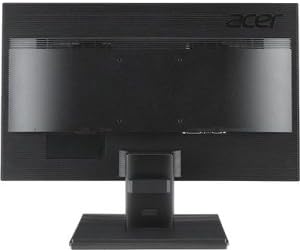
그림 4.2: 후면 view of the Acer B326HK monitor, highlighting the various input ports.
- 비디오 입력 : Connect one of the following video cables from your computer's graphics card to the monitor:
- DisplayPort cable (recommended for 4K resolution at 60Hz)
- Mini DisplayPort cable
- DVI cable (supports HDCP)
- MHL cable (for compatible mobile devices)
- USB 업스트림: Connect the SuperSpeed USB cable from your computer to the monitor's USB upstream port to enable the monitor's USB 3.0 hub.
- USB 다운스트림: Use the 5 high-speed USB 3.0 ports on the monitor to connect peripherals like a mouse, keyboard, or for charging mobile devices.
- 힘: 전원 코드를 모니터의 전원 입력 단자에 연결한 다음, 다른 쪽 끝을 접지된 전기 콘센트에 꽂습니다.
5. 모니터 작동하기
5.1 전원 켜기/끄기
Press the power button, usually located on the bottom right bezel, to turn the monitor on or off. The power indicator light will illuminate when the monitor is on.
5.2 Adjusting the Display (OSD Menu)
The On-Screen Display (OSD) menu allows you to adjust various monitor settings such as brightness, contrast, color, input source, and more. Use the control buttons located on the monitor's bezel to navigate the OSD menu.
- OSD 버튼을 눌러 OSD 메뉴를 활성화하세요.
- Use the navigation buttons (usually arrows) to move through the menu options.
- 선택 버튼을 눌러 하위 메뉴로 들어가거나 설정을 확인하세요.
- Use the navigation buttons to adjust values or select options.
- Press the exit button to leave the OSD menu.
5.3 입력 소스 선택
The monitor can automatically detect an active input source. If multiple sources are connected, you may need to manually select the desired input via the OSD menu. Navigate to the "Input" or "Source" section in the OSD and select your preferred input (e.g., DisplayPort, DVI, MHL).
5.4 인체공학적 조정
인체공학적 스탠드는 다양한 조절 기능을 통해 최적의 사용 환경을 제공합니다. view편안함:
- 높이 조정: 모니터 패널을 위아래로 살살 밀거나 당기세요.
- 기울기 조정: Tilt the monitor panel forward or backward to find the optimal view잉 각도.
- 회전 조정: 모니터를 받침대를 기준으로 좌우로 회전합니다.
- 피벗 조정: Rotate the monitor 90 degrees for portrait mode (ensure sufficient clearance).
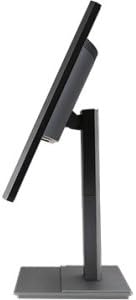
그림 5.1: 측면 view of the Acer B326HK monitor, demonstrating its tilt capability.
6. 유지관리
적절한 관리를 통해 모니터의 수명을 연장할 수 있습니다.
- 화면 청소:
- 모니터를 끄고 전원 코드를 뽑습니다.
- 부드럽고 보풀이 없는 천(예: 극세사 천)을 사용하여 살짝 닦아주세요.ampened with water or a non-ammonia, non-alcohol based screen cleaner.
- Wipe the screen gently. Do not spray cleaner directly onto the screen.
- C 청소asing:
- 부드럽고 마른 천을 사용하여 모니터를 닦으세요.asing.
- 연마성 세척제나 용제를 사용하지 마십시오.
- 통풍: Ensure the ventilation openings on the monitor are clear of dust and debris.
7. 문제 해결
모니터에 문제가 발생하면 다음의 일반적인 해결책을 참조하세요.
| 문제 | 가능한 해결책 |
|---|---|
| 전원이 없습니다 |
|
| 이미지 없음 / "신호 없음" 메시지 |
|
| 이미지가 흐릿하거나 왜곡됩니다. |
|
| Color issues or incorrect display |
|
| 스피커에서 소리가 나지 않음 |
|
8. 사양
Key technical specifications for the Acer B326HK monitor:
| 특징 | 세부 사항 |
|---|---|
| 모델 번호 | B326HK ymjdpphz |
| 화면 크기 | 32 인치 |
| 최대 화면 해상도 | 3840 x 2160 픽셀 (4K UHD 2160p) |
| 종횡비 | 16시 9분 |
| 응답 시간 | 6ms |
| 대비율 | 100,000,000 : 1 (동적) |
| 신호 입력 | 1 x DVI (w/HDCP), 1 x MHL, 1 x Display Port, 1 x Mini Display Port |
| USB 포트 | 5 x USB 3.0 (1 upstream, 4 downstream) |
| VESA 마운트 호환 | 예 |
| 품목 무게 | 26.4파운드 |
| 제품 크기(LxWxH) | 10.49 x 29.05 x 18.63 인치 |
| 제조업체 | 에이서 컴퓨터 |
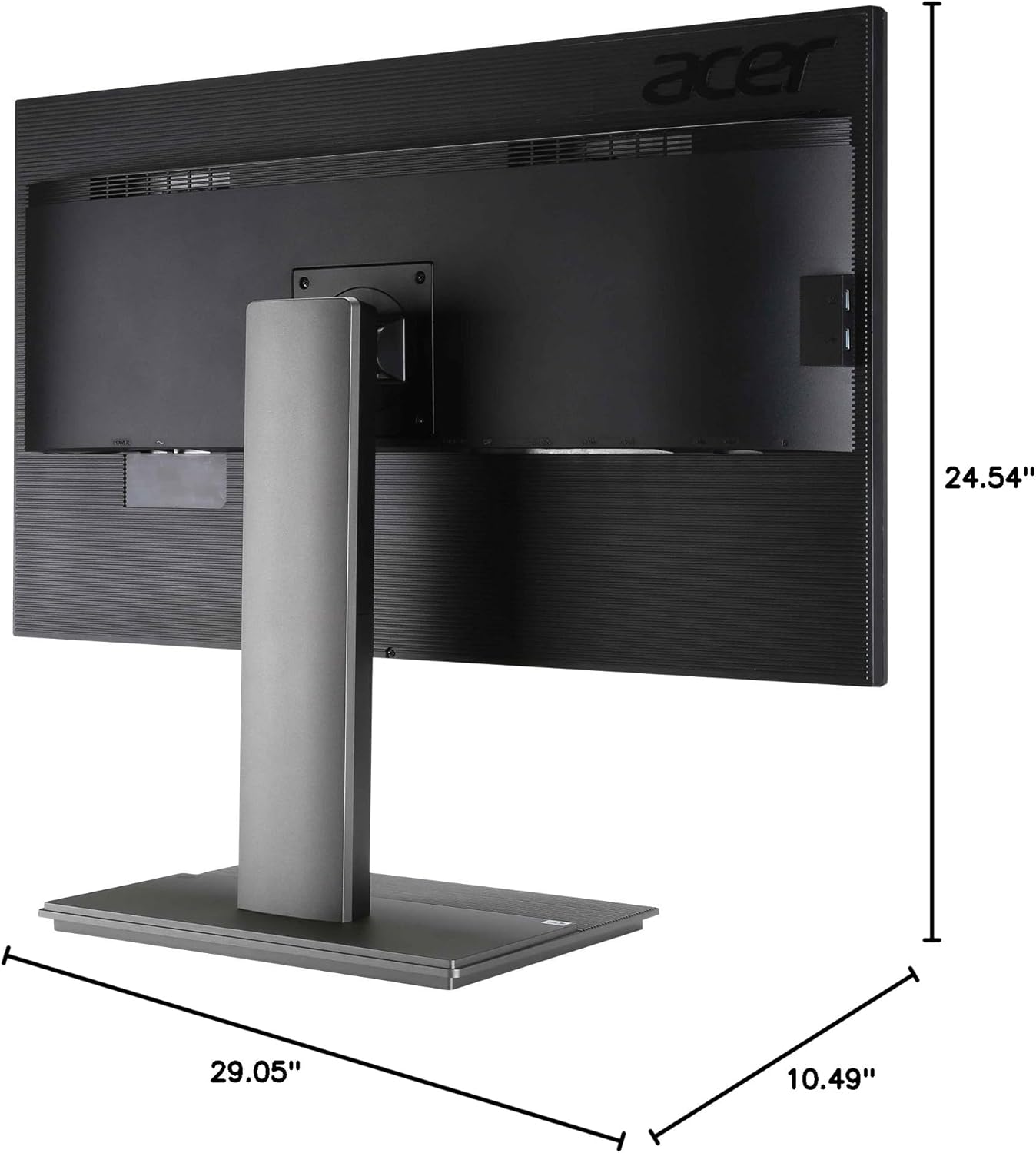
그림 8.1: 차원 view of the Acer B326HK monitor.
9. 보증 및 지원
보증 정보 및 기술 지원은 제품에 포함된 보증 카드를 참조하거나 Acer 공식 지원 웹사이트를 방문하십시오. website. You may need your monitor's serial number, which is typically located on a label on the back of the monitor.
에이서 공식 웹사이트 Web대지: https://www.acer.com/support