소개
This user manual provides essential information for setting up, operating, maintaining, and troubleshooting your Vibox Standard 3XL Gaming PC. Please read this manual thoroughly before using your computer to ensure proper function and longevity of the product. Keep this manual for future reference.
안전 정보
- PC를 통풍이 잘 되는 안정적이고 평평한 표면에 놓으십시오.
- Do not block ventilation openings. Overheating can damage components.
- PC를 직사광선, 열원 및 액체로부터 멀리하십시오.
- Use only the power supply unit provided with the PC.
- Disconnect the power cable before cleaning or performing any maintenance.
- Do not open the PC casing unless instructed by a qualified technician.
- Avoid placing heavy objects on the PC or its cables.
패키지 내용
아래 나열된 모든 품목이 패키지에 들어 있는지 확인하세요.
- Vibox Standard 3XL Gaming PC Tower
- 21.5-inch LED HD Monitor
- UK QWERTY Gamer Keyboard
- 게이머 마우스
- 전원 케이블
- HDMI 케이블
- Windows 10 Operating System Disk/License Key
- 사용 설명서 (본 문서)
설치 가이드
1. 풀기 및 배치
Carefully remove all components from their packaging. Place the PC tower on a flat, stable surface, ensuring sufficient space around it for airflow. Avoid placing it in enclosed cabinets.

그림 1: 전면 view of the Vibox Standard 3XL Gaming PC tower, showcasing its design and blue LED accents.
2. 주변기기 연결하기
- 감시 장치: Connect the HDMI cable from your monitor to the HDMI port on the back of the PC.
- 키보드 및 마우스: Connect the USB cables from your keyboard and mouse to any available USB ports on the back or front of the PC.
- 힘: Connect the power cable to the power supply unit on the back of the PC, then plug the other end into a wall outlet. Connect the monitor's power cable to an outlet as well.
- 네트워크(선택 사항): For a wired internet connection, connect an Ethernet cable from your router to the Ethernet port on the back of the PC. For Wi-Fi, ensure the Wi-Fi antenna (if provided) is connected.

그림 2: 상향식 view of the PC, illustrating the location of top-mounted USB ports and ventilation.
3. 초기 전원 켜기 및 Windows 설정
- Press the power button on the front of the PC tower.
- 모니터를 켜세요.
- Follow the on-screen instructions to complete the Windows 10 setup process. This typically involves selecting your region, language, creating a user account, and accepting terms.
- Once Windows 10 is set up, you may need to install drivers for any additional peripherals or update existing drivers.
작동 지침
켜기/끄기
- 켜려면: PC 전면의 전원 버튼을 누르세요.
- 종료하려면: Click the Start button in Windows 10, then select Power > Shut down. Do not force shut down by holding the power button unless absolutely necessary to prevent data loss.
- 재시작하기 위해: 시작 버튼을 클릭한 다음 전원 > 다시 시작을 선택합니다.
USB 장치 연결
Your PC is equipped with multiple USB 2.0 and USB 3.0 ports. USB 3.0 ports are typically blue and offer faster data transfer speeds. Simply plug your USB device into an available port.
카드 리더기 사용
The integrated card reader supports various memory card formats. Insert your memory card into the appropriate slot on the PC. The card will appear as a removable drive in 'This PC' (or 'My Computer').
유지
청소
- 외부: 부드러운 d를 사용하세요amp cloth to wipe the exterior of the PC. Avoid abrasive cleaners or solvents.
- 통풍: Periodically use compressed air to clear dust from the ventilation grilles to ensure optimal airflow and prevent overheating. Ensure the PC is powered off and unplugged before doing so.
- 감시 장치: Use a specialized screen cleaner and a microfiber cloth for the monitor display.
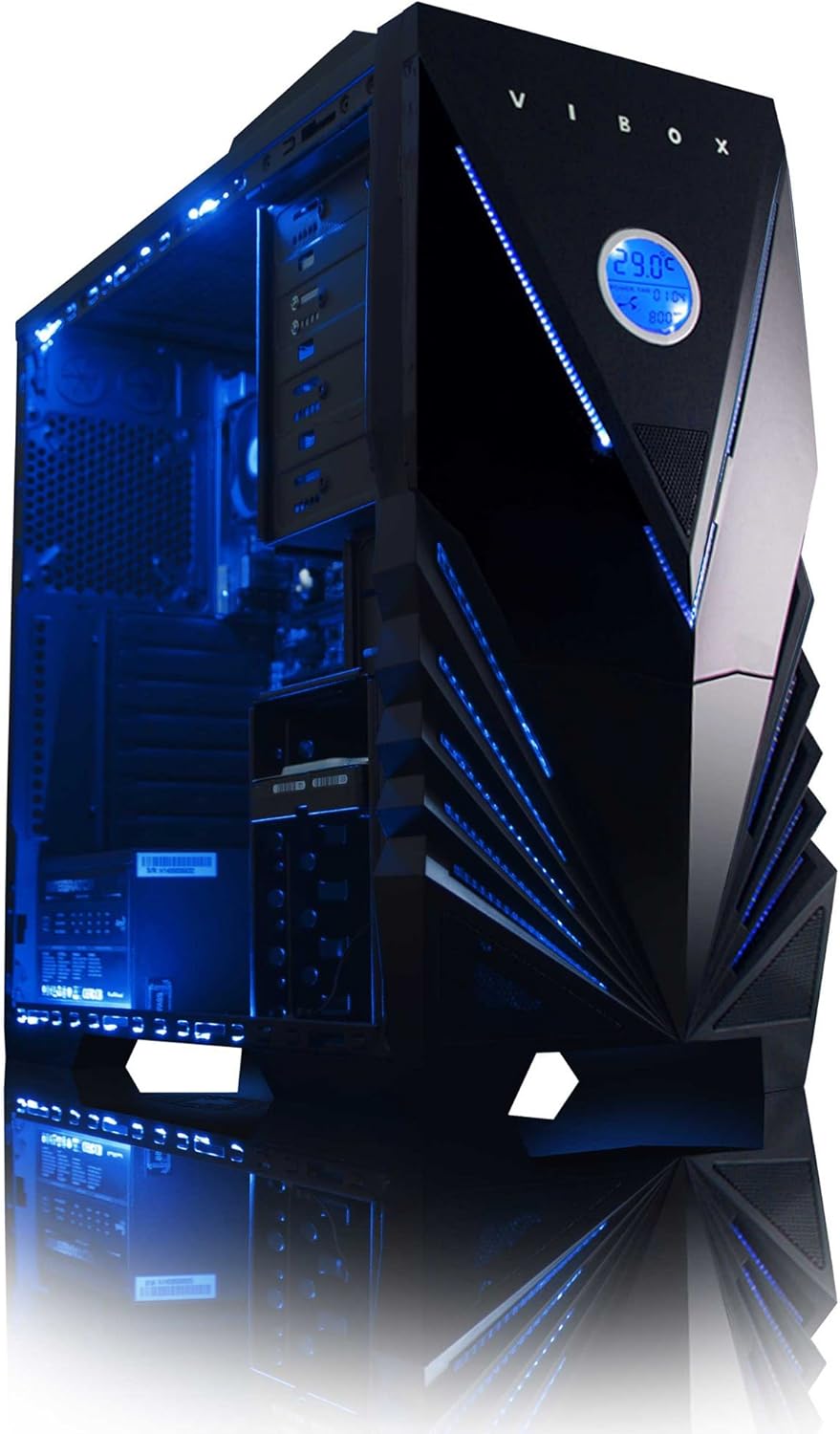
그림 3: 내부 view of the Vibox Standard 3XL Gaming PC, highlighting the arrangement of components and cooling system.
소프트웨어 업데이트
Regularly update your Windows operating system, drivers, and antivirus software to ensure system stability, security, and optimal performance.
데이터 백업
It is recommended to regularly back up important data to an external drive or cloud storage to prevent data loss in case of system failure.
문제 해결
| 문제 | 가능한 원인 | 해결책 |
|---|---|---|
| PC 전원이 켜지지 않습니다. | Power cable loose, power supply issue, power button malfunction. | Check all power connections. Ensure the wall outlet is functional. Try a different power cable if available. |
| 모니터에 표시되지 않습니다. | Monitor not powered, video cable loose, incorrect input selected on monitor. | Ensure monitor is powered on and connected. Check video cable connections. Select correct input source on monitor (e.g., HDMI). |
| PC is running slow. | Too many programs running, insufficient RAM, hard drive full, malware. | Close unnecessary applications. Check disk space. Run antivirus scans. Consider upgrading RAM if consistently slow. |
| 주변기기(키보드/마우스)가 반응하지 않습니다. | USB 연결이 불안정하거나 드라이버 문제일 수 있습니다. | Reconnect the peripheral to a different USB port. Restart the PC. Check device manager for driver issues. |
If you encounter issues not covered here or require further assistance, please refer to the Support section.
명세서
| 특징 | 세부 사항 |
|---|---|
| 상표 | 비박스 |
| 모델 번호 | VBX-PC-6450 |
| 시리즈 | VIBOX Standard |
| 운영 체제 | 윈도우 10 |
| 프로세서 브랜드 | (주)에스디에이치디(주) |
| 프로세서 유형 | Athlon 64 FX (AMD A8 Quad-Core) |
| 프로세서 속도 | 3.1GHz(3.8GHz 터보) |
| 코어 수 | 4 |
| 숫양 | 32GB DDR3 1600MHz |
| 지원되는 최대 메모리 | 32GB (XNUMX기가바이트) |
| 하드 드라이브 크기 | 2000GB(2TB) |
| 하드 드라이브 기술 | HDD (7200 RPM, Serial ATA 600) |
| 그래픽 칩셋 브랜드 | 라데온 |
| 그래픽 카드 설명 | AMD 라데온 R7 (내장형) |
| 디스플레이 기술 | 비접촉 |
| Screen Size (Included Monitor) | 21.5 인치 |
| Screen Resolution (Included Monitor) | 1920 x 1080 (1080p 풀 HD) |
| 종횡비 | 16시 9분 |
| 연결 유형 | 와이파이(802.11bgn) |
| 블루투스 호환 | 아니요 |
| HDMI 포트 | 1 |
| USB 2.0 포트 | 6 |
| USB 3.0 포트 | 3 |
| 이더넷 포트 | 1 |
| 특별 기능 | 카드 리더기 |
| 치수(길이 x 너비 x 높이) | 51.5 x 19 x 44cm |
| 제품 무게 | 16 Grams (PC Tower only) |
보증 정보
Your Vibox Standard 3XL Gaming PC comes with a 평생 보증. This warranty covers manufacturing defects and hardware failures under normal use conditions. For specific terms and conditions, please refer to the warranty documentation included with your purchase or contact Vibox customer support.
To claim warranty service, you will typically need your proof of purchase and the product's serial number. Do not attempt to repair the product yourself, as this may void your warranty.
고객 지원
For technical assistance, troubleshooting beyond this manual, or warranty inquiries, please contact Vibox customer support. You can usually find contact information (phone number, email, or support web제조업체의 공식 웹사이트에서 web현장 또는 포장재에 표시되어 있습니다.
When contacting support, please have your product model number (VBX-PC-6450) and serial number ready to expedite the service process.


