1. 서론
This manual provides instructions for the setup, operation, and maintenance of your Logitech M557 Bluetooth Mouse. The Logitech M557 is designed for seamless wireless connectivity with Bluetooth-enabled computers, laptops, and tablets, supporting various operating systems including Windows, macOS, Chrome OS, and Android.
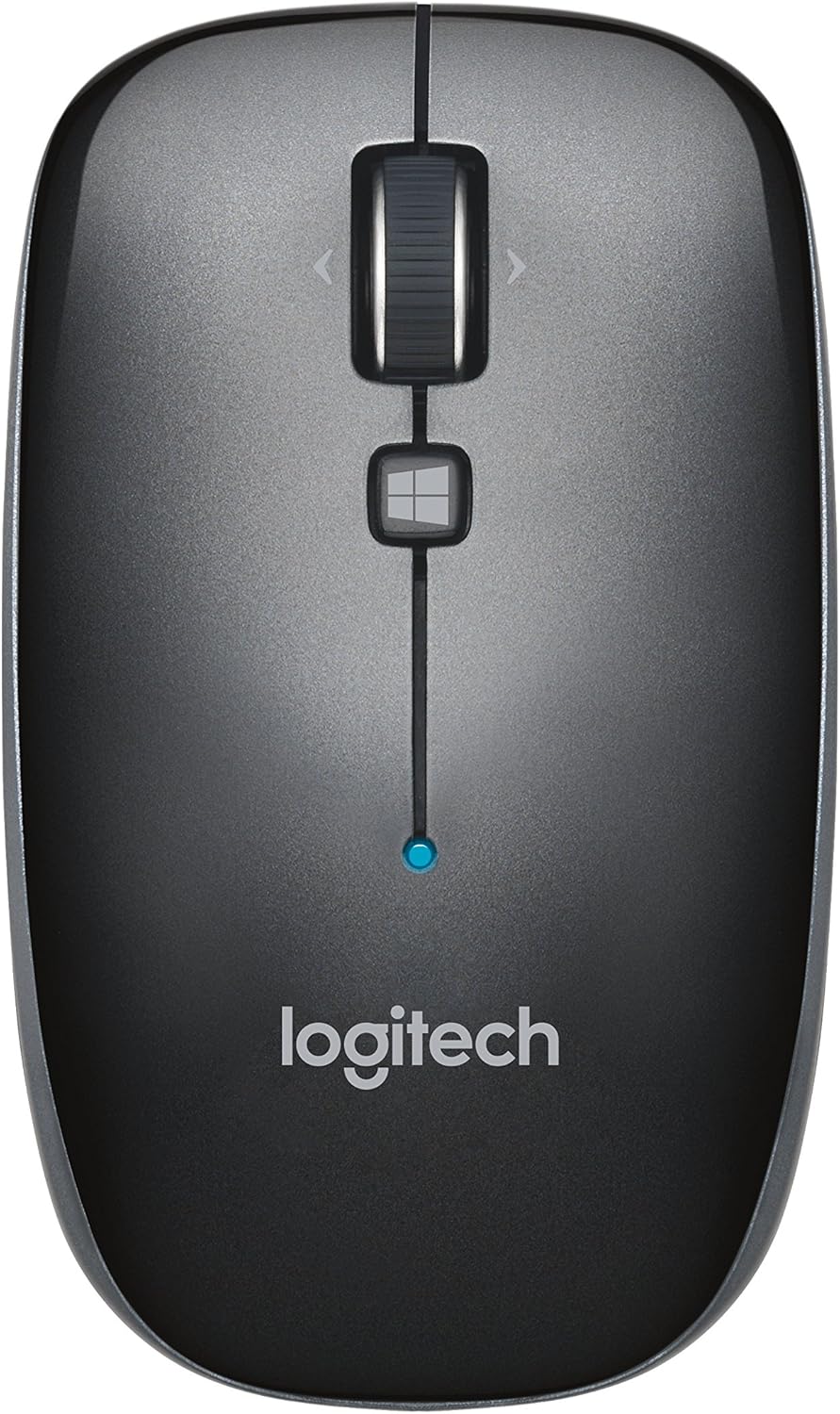
그림 1: 맨 위 view of the Logitech M557 Bluetooth Mouse, showing the scroll wheel, Windows button, and Logitech logo.
2. 패키지 내용
패키지에 다음 품목이 포함되어 있는지 확인하십시오.
- Logitech M557 블루투스 마우스
- AAA 배터리 1개 (사전 장착 또는 별도 구매)
- 빠른 시작 가이드 (본 설명서는 자세한 안내서 역할을 합니다)
3. 설정
3.1. 배터리 설치
- 마우스 밑면에서 배터리 칸을 찾으세요.
- 배터리실 커버를 밀어서 엽니다.
- 동봉된 AAA 배터리를 삽입할 때 극성(+/-)을 정확히 확인하십시오.
- 배터리 덮개를 닫습니다.

그림 2: Underside of the Logitech M557 mouse, showing the ON/OFF switch, Connect button, and optical sensor. The battery compartment is typically located here.
3.2. 블루투스로 연결하기
The Logitech M557 connects wirelessly via Bluetooth, requiring no USB receiver.
- 전원 켜기: Slide the ON/OFF switch on the bottom of the mouse to the "ON" position. A small LED indicator on the top of the mouse may light up briefly.
- 페어링 모드 활성화: 를 누르고 계세요 연결하다 button on the bottom of the mouse for a few seconds until the LED indicator on the top of the mouse begins to blink rapidly. This indicates the mouse is in pairing mode.
- 기기에서 Bluetooth를 활성화하세요:
- 윈도우: 이동하다 설정 > 기기 > Bluetooth 및 기타 기기. Ensure Bluetooth is turned on.
- 맥 OS : 이동하다 System Settings > Bluetooth. Ensure Bluetooth is turned on.
- Chrome OS/Android: 이동하다 설정 > 연결된 기기 > 블루투스. Ensure Bluetooth is turned on.
- 마우스를 페어링하세요: In your device's Bluetooth settings, look for "Logitech M557" in the list of available devices. Select it to initiate the pairing process.
- 확인: Once paired, the LED indicator on the mouse will stop blinking and remain solid for a few seconds, then turn off. Your mouse is now ready for use.
Note: If the connection is lost or you wish to pair with a different device, repeat steps 2-5.
4. 마우스 조작하기
4.1. 기본 기능
- 왼쪽 클릭 버튼: 1차 선택 및 활성화.
- 마우스 오른쪽 버튼 클릭: 상황에 맞는 메뉴에 접근합니다.
- 스크롤 휠: 문서를 수직으로 스크롤합니다. web 페이지.
- 틸트 휠: The scroll wheel can also be tilted left or right for horizontal scrolling (if supported by your operating system/application).
- 스크롤 휠 버튼: Pressing the scroll wheel acts as a middle-click button, often used for opening links in new tabs or activating specific application functions.
- Windows Button: Located below the scroll wheel. By default, this button opens the Start Menu or Search function on Windows. Its function may be customizable using Logitech Options software (if available for your OS).

그림 3: 각진 view of the Logitech M557 mouse, highlighting its ergonomic design and button placement.
4.2. Customizing Your Mouse (Optional)
For advanced customization of button functions and scroll behavior, Logitech may offer software such as Logitech Options. Visit the official Logitech support website for your product model to check for compatible software downloads.
5. 유지관리
5.1. 청소
To maintain optimal performance, clean your mouse periodically:
- 부드럽고 털이 없는 천을 살짝 사용하세요.amp물이나 전자제품에 안전한 세척액으로 헹구십시오.
- 가혹한 화학물질이나 연마재는 피하세요.
- Clean the optical sensor area on the bottom of the mouse to ensure accurate tracking.
5.2. 배터리 교체
The Logitech M557 uses one AAA battery. The average battery life is approximately 12 months, but actual life may vary based on usage.
- When the battery is low, the LED indicator on the mouse may flash red.
- Turn off the mouse using the ON/OFF switch on the bottom.
- 배터리 칸을 엽니다.
- Remove the old AAA battery and dispose of it according to local regulations.
- Insert a new AAA battery, observing correct polarity.
- Close the battery compartment and turn the mouse back on.
6. 문제 해결
6.1. Mouse Not Connecting or Disconnecting
- 배터리 확인: 배터리가 올바르게 설치되었고 충전량이 충분한지 확인하세요. 필요한 경우 교체하세요.
- 전원 주기: 마우스를 껐다가 다시 켜십시오.
- 수리하다: Remove "Logitech M557" from your device's Bluetooth list and repeat the pairing process (Section 3.2).
- 장치 Bluetooth: Ensure Bluetooth is enabled on your computer or tablet.
- 간섭: Bluetooth can be affected by other wireless devices (e.g., Wi-Fi routers, other Bluetooth devices). Try moving closer to your device or away from potential sources of interference.
- 운영 체제 업데이트: Ensure your device's operating system and Bluetooth drivers are up to date.
6.2. Cursor Movement is Erratic or Non-Responsive
- 센서 청소: 마우스 바닥의 광학 센서를 청소하세요.
- 표면: 마우스를 사용할 때는 적절한 표면을 사용하십시오. 반사율이 높거나 투명한 표면은 트래킹에 영향을 줄 수 있습니다. 마우스 패드를 사용하는 것이 좋습니다.
- 배터리: Low battery can affect performance. Replace the battery.
6.3. Buttons or Scroll Wheel Not Functioning
- 수리하다: 마우스를 기기와 다시 페어링해 보세요.
- 소프트웨어: If using customization software, ensure it is correctly installed and configured. Temporarily uninstalling and reinstalling the software might resolve issues.
- 다른 장치에서 테스트: If possible, test the mouse on another Bluetooth-enabled device to determine if the issue is with the mouse or the original device.
7. 사양
| 특징 | 세부 사항 |
|---|---|
| 상표 | 로지텍 |
| 모델 | M557 (P/N: 910-003971) |
| 연결 기술 | 블루투스 |
| 움직임 감지 | 광학 |
| 운영 체제 호환성 | Windows 10, 11 or later, macOS, Chrome OS, Android |
| 전원 | 배터리 구동 |
| 배터리 유형 | AAA 배터리 1개(포함) |
| 평균 배터리 수명 | 12개월 |
| 색상 | 회색 |
| 품목 무게 | 2.16 온스(약 61그램) |
| 제품 크기(LxWxH) | 3.93 x 2.28 x 1.34인치(약 10 x 5.8 x 3.4cm) |

그림 4: Logitech M557 mouse displaying its physical dimensions.
8. 보증 및 지원
보증 정보 및 기술 지원에 대해서는 공식 Logitech를 참조하십시오. website. You can find detailed support resources, FAQs, and contact information by visiting support.logi.com and searching for "Logitech M557".
Note: Product specifications and warranty terms are subject to change without notice. Please consult the official Logitech web최신 정보를 제공하는 사이트.


