1. 서론
This manual provides detailed instructions for the installation, operation, and maintenance of your Axis P1355 Surveillance/Network Camera. The Axis P13 series offers high-performance fixed cameras designed for both indoor and outdoor surveillance, delivering superb image quality with H.264 compression. These models support HDTV 720p/1080p video and are equipped with features like Wide Dynamic Range and Day/Night functionality for clear imaging in various lighting conditions. Specific models within the P13 series, including HDTV 720p, incorporate Axis Lightfinder technology for enhanced low-light sensitivity, while HDTV 1080p and 5-megapixel cameras feature P-iris control for optimized depth of field and lens resolution.
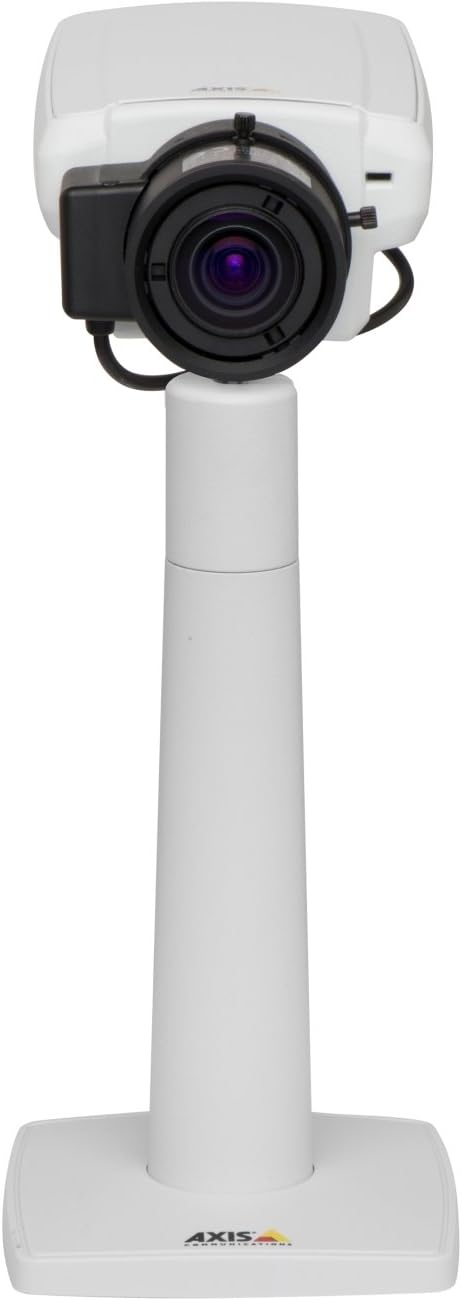
그림 1: The Axis P1355 Surveillance Camera shown mounted on its stand. This image illustrates the camera's physical appearance and typical mounting configuration.
2. 안전 정보
Please read all safety instructions before installing or operating the camera.
- Ensure the power source matches the camera's requirements to prevent electrical hazards.
- 설치는 해당 지역의 전기 규정에 따라 자격을 갖춘 인력이 수행해야 합니다.
- 카메라를 극한의 온도, 습도 또는 부식성 환경에 노출시키지 마십시오.
- 렌즈가 태양과 같은 강한 광원에 직접 노출되지 않도록 하십시오. 이미지 센서가 손상될 수 있습니다.
- 카메라를 청소하거나 정비하기 전에 전원을 차단하십시오.
3. 설정 및 설치
The Axis P1355 camera is designed for both indoor and outdoor use and supports various mounting options.
3.1 장착
The camera is typically designed for wall mount installation. Ensure the mounting surface is strong enough to support the camera's weight (approximately 2 pounds). Use appropriate screws and anchors for the chosen surface.
- 최적의 감시 범위를 확보할 수 있는 적절한 위치를 선택하십시오.
- 벽에 장착 브래킷을 단단히 고정하십시오.
- Mount the camera onto the bracket, ensuring it is firmly in place.
- Adjust the camera's angle for the desired field of view.
3.2 연결
The Axis P1355 camera primarily uses wired connectivity for reliable data transmission and power.
- 전원 연결: Connect the provided power adapter to the camera's power input and then to a suitable electrical outlet. The camera operates on a corded electric power source.
- 네트워크 연결 : Connect an Ethernet cable from the camera's network port to your network switch or router. This provides wired connectivity for video streaming and control.
- Wireless Connectivity (Optional/Configuration): While primarily wired, the camera supports Wi-Fi for certain configurations. Refer to the Axis product documentation for specific wireless setup instructions if applicable to your model variant.
4. 사용 설명서
Once installed and connected, the Axis P1355 camera can be configured and operated via a network interface.
4.1 초기 액세스 및 구성
- Axis IP 유틸리티 또는 유사한 네트워크 검색 도구를 사용하여 네트워크에서 카메라의 IP 주소를 찾으십시오.
- 열기 web 웹 브라우저에 접속하여 카메라의 IP 주소를 입력하면 카메라에 접근할 수 있습니다. web 인터페이스.
- Log in using the default credentials (refer to Axis documentation for default username/password, typically 'root' and 'pass' or similar, which should be changed immediately).
- 화면 안내에 따라 기본 네트워크 설정, 날짜/시간 및 사용자 계정을 설정하십시오.
4.2 Video Monitoring and Features
- 살다 View: 다음 링크를 통해 실시간 영상 피드를 시청하세요. web interface or compatible video management software.
- 해결: The camera supports video capture resolutions up to 720p and effective video resolutions of 1080 pixels, with effective still resolution of 2 MP.
- Color and Monochrome Modes: The camera can operate in both color and monochrome (black and white) modes, automatically switching based on light conditions or configured manually.
- 야간 투시경: Utilize the integrated night vision capabilities for surveillance in low-light or complete darkness.
- 광학 줌: Adjust the optical zoom for detailed view특정 지역의 s.
- P-Iris Control: For models equipped with P-iris, this feature allows precise control over the iris position to optimize depth of field and lens resolution, enhancing image sharpness. This can be configured via the web 인터페이스.
- 비디오 형식: Video is typically captured in MP4 format.
- 원격 제어: The camera supports remote control for various settings and adjustments.
5. 유지관리
Regular maintenance ensures optimal performance and longevity of your Axis P1355 camera.
- 청소: 카메라 렌즈와 하우징을 부드러운 천으로 살살 닦아주세요.amp 천으로 닦으세요. 연마성 세제나 용제는 사용하지 마세요.
- 펌웨어 업데이트: Axis Communications를 주기적으로 점검하십시오. web펌웨어 업데이트 사이트입니다. 펌웨어를 최신 상태로 유지하면 최신 기능, 보안 패치 및 성능 향상 기능을 이용할 수 있습니다.
- 케이블 검사: Regularly inspect all cables for signs of wear or damage, especially for outdoor installations.
- 환경 점검: 카메라 작동 환경이 지정된 온도 및 습도 범위 내에 유지되도록 하십시오.
6. 문제 해결
This section addresses common issues you might encounter with your Axis P1355 camera.
- 전원 없음:
- 전원 어댑터가 카메라와 작동하는 전원 콘센트에 제대로 연결되어 있는지 확인하십시오.
- 전원 케이블에 손상이 있는지 확인하세요.
- 네트워크 연결 없음:
- Ensure the Ethernet cable is properly connected to the camera and the network switch/router.
- Check network switch/router status.
- Confirm the camera has a valid IP address and is on the same network segment as your view장치를 사용하고 있습니다.
- 이미지 품질이 좋지 않음:
- 카메라 렌즈를 청소하세요.
- 초점 및 줌 설정을 조정하세요 web 인터페이스.
- Check lighting conditions; enable night vision or adjust exposure settings if necessary.
- Ensure P-iris control is correctly configured for optimal sharpness (if applicable).
- 접근할 수 없습니다 Web 인터페이스:
- Verify the camera's IP address.
- 컴퓨터와 카메라가 동일한 네트워크에 연결되어 있는지 확인하십시오.
- 카메라와 네트워크 장비를 재시작해 보세요.
7. 사양
| 특징 | 세부 사항 |
|---|---|
| 상표 | 액시스 커뮤니케이션 |
| 모델 번호 | 축 P1355 |
| 실내/실외 사용 | 실내, 실외 |
| 연결 기술 | Wired (Wi-Fi capable for certain configurations) |
| 특징 | 나이트 비전 |
| 전원 | 코드식 전기(7.1와트) |
| 비디오 캡처 해상도 | 720p |
| 효과적인 비디오 해상도 | 1080 픽셀 |
| 효과적인 스틸 해상도 | 2 MP |
| 줌 타입 | Optical Zoom (2.9x Optical) |
| 컨트롤러 유형 | Iris (P-iris control) |
| 장착 유형 | 벽걸이형 |
| 제품 크기(L x W x H) | 3.07 x 5.94 x 1.69 인치 |
| 품목 무게 | 2파운드 |
| 국제 보호 등급 | IP54 |
| 비디오 캡처 형식 | MP4 |
8. 보증 및 지원
자세한 보증 정보 및 기술 지원은 Axis Communications 공식 웹사이트를 참조하십시오. web사이트를 방문하거나 고객 서비스에 직접 문의하세요.
제조업체: AXIS COMMUNICATION INC.
Web대지: www.axis.com (공식 홈페이지를 방문해주세요. website for the most current support resources, drivers, and documentation.)


