소개
The Apple Lightning to USB Camera Adapter provides a simple way to transfer photos and videos from your digital camera to your Lightning-enabled iPhone or iPad. This adapter allows you to view your media on your device's Retina display and share it with others.
상자 안에 무엇이 들어있나요?
- Lightning to USB 카메라 어댑터
호환성
시스템 요구 사항
- iPhone and iPod touch models running iOS 9 or later.
- iPad models running iPadOS.
호환 장치
- 아이폰 모델: iPhone 5 through iPhone 14 / 14 Plus / 14 Pro / 14 Pro Max.
- 아이패드 모델: iPad Pro 12.9-inch (1st and 2nd generations), iPad Pro 10.5-inch, iPad Pro 9.7-inch, iPad (5th, 6th, 7th, 8th, and 9th generations), iPad Air (1st, 2nd, and 3rd generations), iPad mini (1st, 2nd, 3rd, 4th, and 5th generations).
- iPod touch Models: iPod touch (6th and 7th generations).
지원되는 미디어 형식
The adapter supports standard photo formats including JPEG and RAW, as well as SD and HD video formats including H.264 and MPEG-4.
설정
- 어댑터를 연결하십시오: Plug the Lightning connector of the adapter into the Lightning port on your iPhone or iPad.
- Connect Your Camera: Connect your digital camera to the USB-A port on the adapter using your camera's USB cable. Alternatively, you can connect a USB-based SD card reader with your camera's memory card inserted.
- 자동 인식: Your iPhone or iPad will automatically open the Photos app upon successful connection.
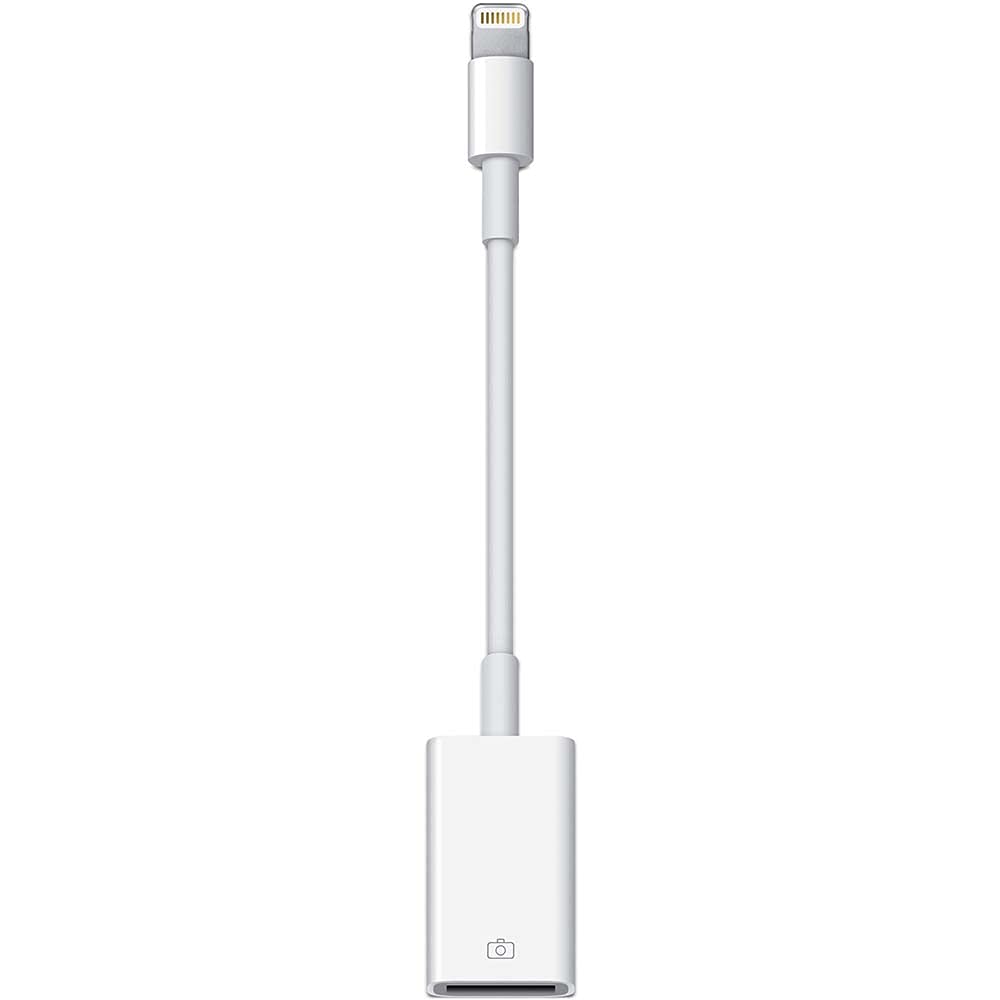
Image: The Apple Lightning to USB Camera Adapter. This image shows the compact white adapter with a Lightning connector on one end and a USB-A port on the other, ready to connect to an iPhone and a camera's USB cable for data transfer.
작동 지침
사진 및 비디오 가져오기
- After connecting your camera or card reader, the Photos app will display the photos and videos available for import.
- Select the specific photos and videos you wish to import, or choose to import all items.
- Once imported, you can organize them into albums within the Photos app.
Synchronization with Computer
When you synchronize your iPhone or iPad with a PC or Mac, the photos and videos imported via the adapter will be added to your computer's photo library.
Connecting Other USB Peripherals
While primarily designed for cameras, this adapter can also be used to connect certain USB peripherals such as MIDI keyboards, microphones, and other compatible audio interfaces to your iPhone or iPad for use with music creation apps like GarageBand. Ensure your peripheral is compatible with iOS/iPadOS and does not require excessive power, as the adapter draws power from your iOS/iPadOS device.
유지
- 어댑터를 건조하게 보관하고 극한 온도에 두지 마세요.
- Clean the adapter with a soft, dry, lint-free cloth. Avoid using liquids or abrasive cleaners.
- Handle the adapter and its connectors with care to prevent damage.
문제 해결
Adapter Not Recognized / Photos App Not Opening
- Ensure your iPhone or iPad is running iOS 9.2 or later, or iPadOS.
- Verify that the adapter and your camera's USB cable are securely connected.
- Restart your iPhone or iPad and try again.
- Ensure your camera is turned on and in the correct mode for photo transfer (refer to your camera's manual).
Cannot Import Files
- Confirm that the photo and video formats are supported (JPEG, RAW, H.264, MPEG-4).
- Ensure your camera's memory card is not full or corrupted.
Important Note on USB Devices
This adapter is specifically designed for digital cameras and certain USB audio/MIDI devices. It is generally ~ 아니다 intended for connecting standard USB flash drives or other general-purpose USB storage devices for direct file transfer, as iOS/iPadOS may not support this functionality without specific apps or system versions.
명세서
| 상표 | 사과 |
| 모델 번호 | MD821ZM/A |
| 색상 | 하얀색 |
| 커넥터 유형 | 번개 |
| 호환 장치 | iPad, iPhone |
| 포트 수 | 1(USB-A) |
| 치수(길이 x 너비 x 높이) | 6.7 x 1.7 x 15.5 센티미터 |
| 무게 | 1그램 |
| 마무리 유형 | 매트 |
보증 정보
This product is covered by a Limited Warranty. For detailed information regarding warranty terms, conditions, and duration, please refer to the official Apple warranty documentation included with your purchase or visit the official Apple support web대지.
지원하다
For further assistance, technical support, or additional product information, please visit the official Apple Support web대지:


