소개
This manual provides detailed instructions for the installation, operation, and maintenance of your GIGABYTE GA-990FXA-UD3 motherboard. Please read this manual thoroughly before proceeding with installation or use to ensure proper functionality and safety.
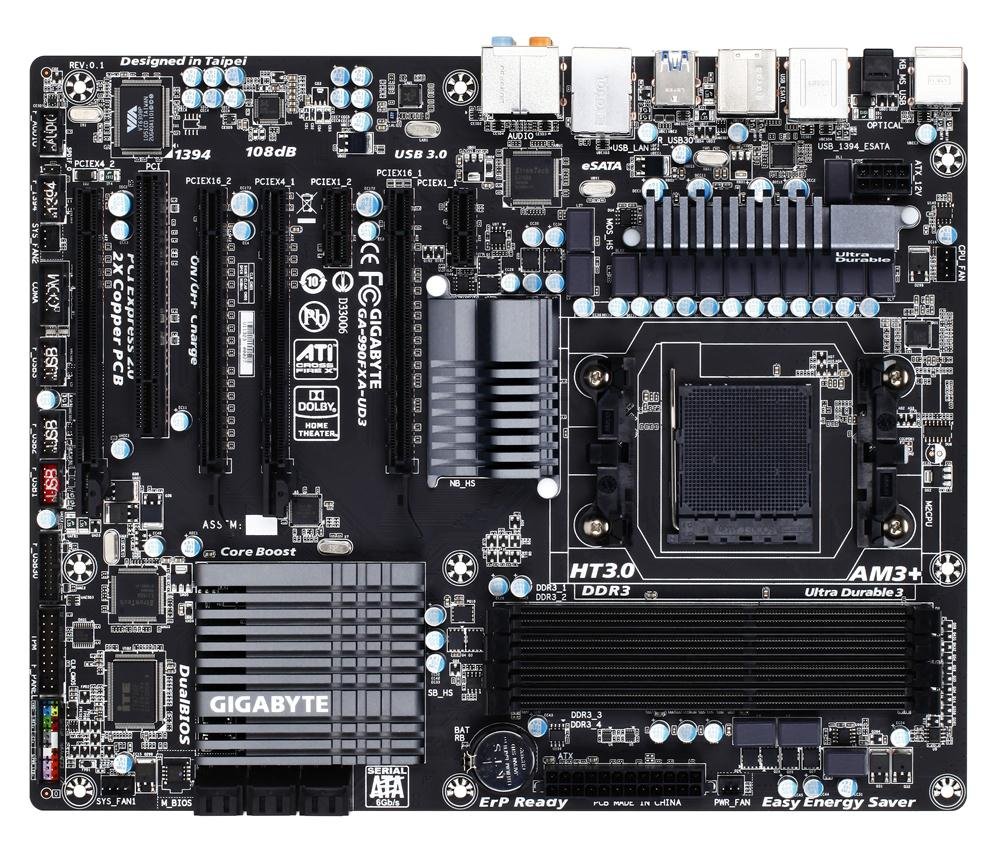
Image showing the GIGABYTE GA-990FXA-UD3 motherboard with its black and gray color scheme, highlighting the CPU socket, DIMM slots, and PCIe slots.
제품 끝view
The GIGABYTE GA-990FXA-UD3 is an ATX motherboard designed for AMD AM3+ and AM3 processors. It features the AMD 990FX and SB950 chipsets, offering robust performance and extensive connectivity options for building a high-performance personal computer.
주요 특징:
- Supports AMD AM3+ FX/AM3 Phenom II series processors.
- Advanced 8+2 phase CPU VRM power design for high-TDP CPU support.
- Multiple PCI-E 2.0 interfaces for 2-way AMD CrossFireX and NVIDIA SLI multi-graphics support.
- AMD SB950 provides 6 native SATA 6Gb/s ports with RAID 0, 1, 5, 10 support.
- Integrated USB 3.0 with superfast transfer rates of up to 5 Gbps.
- GIGABYTE 3x USB Power with On/Off Charge USB ports.
- Ultra Durable 3 Classic Technology for enhanced durability and lower operating temperatures.
- Realtek ALC889 codec with High Definition Audio and Dolby Home Theater support.
- Patented DualBIOS with Hybrid EFI technology for 3TB+ HDD support.
설정
패키지 내용:
마더보드 패키지에 모든 품목이 들어 있는지 확인하세요.
- GIGABYTE GA-990FXA-UD3 Motherboard
- 사용자 설명서
- 드라이버 CD
- SATA 6Gb/s Cables (typically 2-4)
- I / O 실드
- SLI Bridge Connector (for multi-GPU configurations)
안전 정보:
- 구성품을 설치하거나 제거하기 전에 항상 전원 코드를 벽면 콘센트에서 분리하십시오.
- 정전기 방전(ESD)으로 인한 부품 손상을 방지하려면 정전기 방지 손목 스트랩을 착용하세요.
- 부품은 가장자리를 잡고 다루고 핀이나 회로에 손이 닿지 않도록 하십시오.
- 컴퓨터 케이스 내부의 적절한 환기를 확보하십시오.
Motherboard Layout and Connectors:
Familiarize yourself with the various connectors and components on the motherboard:
- CPU Socket (AM3+): Located centrally, for installing your AMD processor.
- DDR3 DIMM Sockets: Four 1.5V DDR3 sockets for system memory, supporting up to 32 GB.
- PCI Express x16 슬롯: Two slots for graphics cards, supporting 2-Way CrossFireX and SLI.
- PCI Express x1/x4 Slots: For expansion cards like sound cards or network adapters.
- PCI Slots: For legacy expansion cards.
- SATA 6Gb/s 커넥터: Six ports for connecting storage devices (HDDs, SSDs).
- USB 헤더: Internal headers for additional USB 2.0/1.1 and USB 3.0/2.0 ports.
- 전면 패널 헤더: For connecting case buttons, LEDs, and front audio/USB ports.
- 후면 패널 커넥터:
- 1 x PS/2 키보드/마우스 포트
- 광 S/PDIF 출력 커넥터 1개
- 1 x IEEE 1394 port
- 8 x USB 2.0 / 1.1 포트
- 2 x USB 3.0 / 2.0 포트
- 2 x eSATA 6Gb/s connectors
- 1 x RJ-45 LAN 포트
- 오디오 잭 6개
설치 단계:
- 사례 준비: 컴퓨터 케이스의 뒤쪽 개구부에 I/O 실드를 설치합니다.
- CPU 설치: Open the CPU socket lever, align the CPU with the socket (match the golden triangle on the CPU to the triangle on the socket), gently place the CPU into the socket, and close the lever.
- CPU 쿨러 설치: Follow the cooler manufacturer's instructions to install the CPU cooler onto the motherboard. Connect the CPU fan cable to the CPU_FAN header.
- 메모리 모듈 설치: Open the clips on the DIMM slots. Align the memory module notch with the slot key, insert the module firmly until the clips snap into place. For dual-channel operation, refer to the motherboard manual for correct slot pairing.
- 마더보드 장착: 마더보드를 케이스에 조심스럽게 넣고 나사 구멍과 스탠드오프를 맞춰주세요. 나사를 사용하여 마더보드를 고정합니다.
- Install Graphics Card(s): Insert your PCI Express graphics card(s) into the appropriate PCIe x16 slot(s) until it clicks into place. Secure with a screw or retention clip.
- 저장 장치 설치: Connect your SATA HDDs/SSDs to the SATA 6Gb/s ports using the provided SATA cables.
- 전원 공급 장치 연결: Connect the 24-pin ATX main power connector and the 8-pin ATX 12V power connector from your power supply to the motherboard. Connect power to graphics cards and storage devices.
- 전면 패널 케이블 연결: Connect the power button, reset button, HDD LED, power LED, and front panel audio/USB cables to their respective headers on the motherboard.
운영
BIOS 설정 :
The BIOS (Basic Input/Output System) is firmware that initializes hardware during the boot process. To enter the BIOS setup utility, press the 델 key repeatedly during system startup. Here you can configure various system settings such as boot order, date/time, CPU/memory settings, and enable/disable integrated peripherals. The GA-990FXA-UD3 features GIGABYTE's DualBIOS with Hybrid EFI technology, providing redundancy and support for large hard drives.
드라이버 설치:
After installing your operating system, install the necessary drivers for the motherboard's components. You can use the driver CD included in your package or download the latest drivers from the official GIGABYTE web사이트 (www.기가바이트.com) for optimal performance and compatibility.
유지
- 깨끗하게 유지하십시오: Regularly clean dust from the motherboard and components using compressed air. Ensure fans are free of obstructions.
- BIOS 업데이트: 기가바이트를 주기적으로 확인하세요 website for BIOS updates. BIOS updates can improve system stability, add support for new hardware, or fix bugs. Follow GIGABYTE's instructions carefully when updating the BIOS.
- 연결 확인: Ensure all power cables, data cables, and expansion cards are securely seated. Loose connections can cause intermittent issues.
문제 해결
- 전원 없음: Ensure the power supply is connected correctly to the motherboard (24-pin and 8-pin connectors) and that the power supply switch is on. Check front panel power button connection.
- 디스플레이 없음: Verify that the graphics card is properly seated in its PCIe slot and that all necessary power connectors are attached. Ensure the monitor cable is securely connected to the graphics card.
- 시스템 부팅 실패: Check memory modules are correctly installed. Try booting with only one memory module. Verify boot order in BIOS.
- Unexplained Slow Boot Times: Some users have reported slow boot times with this motherboard, even with SSDs. Ensure your BIOS is updated to the latest stable version. Verify that the SSD/HDD is set as the first boot device in the BIOS.
- Linux Compatibility (IOMMU/USB/Network Issues): For Linux users experiencing issues with network or USB 2.0 ports, it may be necessary to disable IOMMU in the BIOS and add "iommu=soft" to your GRUB boot options.
- Overclocking Instability: If overclocking, ensure adequate cooling and gradually increase voltages and frequencies. Refer to online resources and community forums for stable overclocking profiles for your specific CPU and memory.
- Audio Crackling: If experiencing audio crackling, try reinstalling the audio drivers. Ensure no conflicting audio software is running.
명세서
| 특징 | 사양 |
|---|---|
| CPU 소켓 | 소켓 AM3+ |
| 호환 프로세서 | AMD AM3+ FX / AM3 Phenom II / Athlon II series processors |
| 칩셋 | AMD 990FX / SB950 |
| 메모리 | 4 x DDR3 DIMM sockets, up to 32 GB, DDR3 2000(O.C.)/1866/1600/1333/1066 MHz |
| 확장 슬롯 | 2 x PCI Express x16, 1 x PCI Express x4, 2 x PCI Express x1, 1 x PCI |
| 저장 인터페이스 | 6 x SATA 6Gb/s (RAID 0, 1, 5, 10, JBOD), 2 x eSATA 6Gb/s (RAID 0, 1) |
| USB 포트 | Up to 14 x USB 2.0/1.1, Up to 4 x USB 3.0/2.0 |
| 오디오 | Realtek ALC889 codec, High Definition Audio, Dolby Home Theater, 2/4/5.1/7.1-channel |
| 랜 | 10/100/1000메가비트 |
| 폼 팩터 | 에이티엑스 |
| 치수 | 13 x 11 x 3인치(제품 크기) |
| 무게 | 3.6파운드 |
보증 및 지원
GIGABYTE products are covered by a limited warranty. Please refer to the warranty card included with your product or visit the official GIGABYTE website for detailed warranty terms and conditions. For technical support, driver downloads, and further assistance, please visit the GIGABYTE support page at www.gigabyte.com/Support.