1. 서론
The Genius Wireless Ring Mouse is a compact, innovative input device designed for convenient in-air cursor control and scrolling. It features a 2.4GHz wireless connection, a 1000 dpi optical sensor, and Genius Touch Control Technology for intuitive operation. This manual provides essential information for its proper use and care.
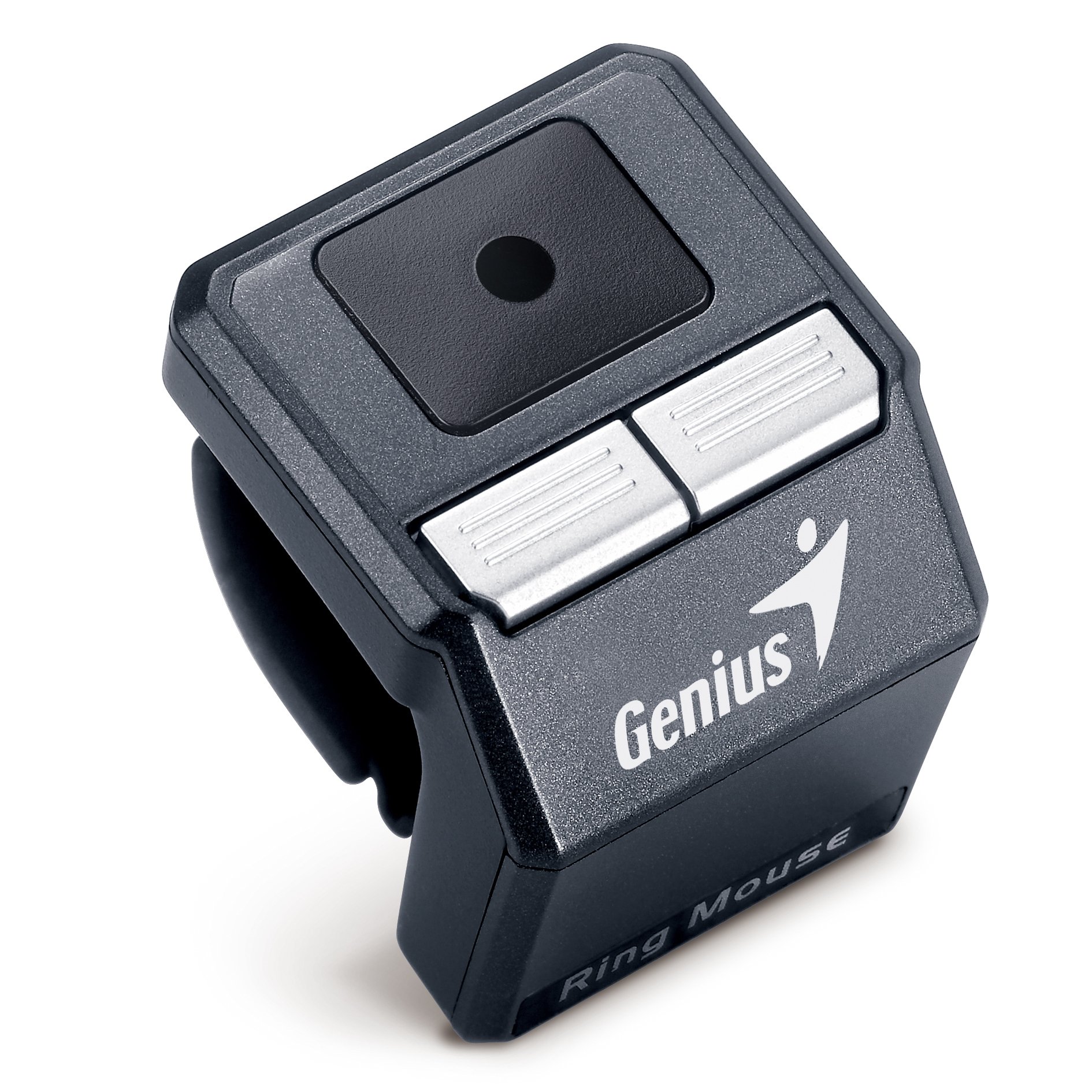
Image 1.1: The Genius Wireless Ring Mouse and its retail packaging.
2. 제품 특징
- Ring Design: Unique ring concept with comfortable rubber grip for secure wear.
- 2.4GHz 무선: Minimizes interference and extends working distance up to 10 meters.
- OptoWheel Touch Control: Innovative Touch Control technology with a 1000 dpi optical sensor for precise movement.
- Air Cursor Movement and Scrolling: Slide your thumb on the touch panel area for in-air cursor control and scrolling.
- Portable USB Charger: Charge the built-in Li-ion battery from a notebook or PC.
- 운반 케이스: Provides reliable protection for the Ring Mouse.

Image 2.1: Key features of the Genius Wireless Ring Mouse, including 2.4GHz wireless, OptoWheel Touch Control, and air cursor functionality.
3. 설정
3.1. 장치 충전
- Locate the portable USB charger.
- Connect the Ring Mouse to the USB charger.
- Plug the USB charger into an available USB port on your notebook or PC.
- Allow the device to charge fully before first use. The charging indicator light (if present) will typically change color or turn off when charging is complete.
3.2. 수신기 연결
- Locate the Pico Receiver.
- Insert the Pico Receiver into an available USB port on your computer.
- 컴퓨터가 필요한 드라이버를 자동으로 감지하고 설치해야 합니다. 이 제품은 플러그 앤 플레이 장치입니다.

Image 3.1: Illustrations of the Ring Mouse design, how to charge it via USB, and the compact Pico Receiver.
4. 사용 설명서
4.1. Wearing the Ring Mouse
Slide the Ring Mouse onto your index finger. Ensure the touch panel is positioned conveniently for your thumb to access. The comfortable rubber grip should provide a secure fit.
4.2. Cursor Movement and Scrolling
- 커서 이동: Gently slide your thumb across the central touch panel area to move the cursor on your screen. The 1000 dpi optical sensor provides responsive tracking.
- 스크롤링: Use specific gestures on the touch panel (refer to the device's quick start guide or manufacturer's software for detailed gestures) to scroll through documents or web 페이지.
4.3. 버튼 기능
The Ring Mouse features buttons for various functions. Typically, these include left-click, right-click, and a scroll lock or mode switch. Consult the specific button layout on your device and any accompanying software for customization options.
- Mouse Mode (Default): Standard mouse functionality for everyday computing.
- 프레젠테이션 모드: Optimized for presentations, allowing easy slide navigation.
- Media Center Mode: Designed for controlling media playback.
Switch between modes using the designated button or software settings to adapt the mouse's functionality to your task.
5. 유지관리
5.1. 청소
To clean the Ring Mouse, gently wipe its surface with a soft, dry, or slightly damp 천을 사용하십시오. 강한 화학 물질, 연마성 세척제 또는 과도한 습기는 기기를 손상시킬 수 있으므로 사용하지 마십시오.
5.2. 배터리 관리
- The device uses a built-in Li-ion battery. For optimal battery life, avoid fully discharging the battery frequently.
- 장기간 사용하지 않을 때는 기기를 서늘하고 건조한 곳에 보관하세요.
- Use only the provided USB charger or a compatible charging cable.
5.3. 보관
When transporting or storing the Ring Mouse, use the provided carrying case to protect it from dust, scratches, and impacts.
6. 문제 해결
6.1. 장치가 응답하지 않음
- 배터리 확인: Ensure the Ring Mouse is sufficiently charged. Connect it to a USB power source and allow it to charge.
- 수신기 확인: Verify that the Pico Receiver is securely plugged into a working USB port on your computer. Try a different USB port.
- 연결 재설정: If the connection is lost, try unplugging and re-plugging the Pico Receiver. Some devices may have a re-pairing button; consult the manufacturer's website if this is the case.
- 간섭: 마우스를 수신기에 더 가까이 옮기거나 간섭을 일으킬 수 있는 다른 무선 장치에서 멀리 옮기세요.
6.2. Inaccurate Cursor Movement
- 센서 청소: Ensure the optical sensor on the underside of the mouse is clean and free from dust or debris.
- Thumb Placement: Ensure your thumb is making consistent contact with the touch panel. Practice delicate movements for precision.
- 표면: While designed for in-air use, ensure there are no obstructions between the mouse and the receiver.
6.3. Difficulty with Clicking/Dragging
- 관행: The unique design may require practice to achieve precise clicks and drag actions without inadvertently moving the cursor.
- 소프트웨어 설정: Check if there are any software settings from Genius that allow adjustment of click sensitivity or drag functionality.
7. 사양
| 특징 | 세부 사항 |
|---|---|
| 제품 치수 | 1.2 x 1.3 x 1.3 인치 |
| 품목 무게 | 4.2 온스 |
| 모델 번호 | 31030048102 |
| ASIN | B004RF52DO |
| 배터리 | 1개의 리튬 이온 배터리(포함) |
| 무선 기술 | 2.4GHz RF |
| 센서 기술 | 1000 dpi Optical (OptoWheel Touch Control) |
| 제조업체 | 천재 |
| 첫 번째 가능한 날짜 | 25년 2011월 XNUMX일 |
8. 보증 정보
For detailed warranty information regarding your Genius Wireless Ring Mouse, please refer to the warranty card included with your product or visit the official Genius web사이트. 보증 약관은 지역 및 구매일자에 따라 다를 수 있습니다.
9. 고객 지원
If you require further assistance or have questions not covered in this manual, please contact Genius customer support. You can typically find contact information (phone numbers, email, or support portals) on the official Genius web대지: www.geniusnet.com.


