1. 서론
The M-AUDIO Avid KeyStudio is a 49-key, velocity-sensitive, synth-action USB MIDI keyboard controller designed for music creation and performance. It provides essential controls for interacting with digital audio workstations (DAWs) and virtual instruments.
주요 특징은 다음과 같습니다.
- 표현력 있는 연주를 위한 49개의 벨로시티 감지 키.
- Assignable modulation wheel for vibrato and filter effects.
- Pitch bend wheel for expressive performances.
- Volume slider for output level control.
- Octave and transpose buttons to adjust the keyboard's range.

그림 1: 각도 view of the M-AUDIO Avid KeyStudio 49-Key USB MIDI Keyboard Controller.
2. 안전 정보
Please read and understand the following safety precautions before operating the Avid KeyStudio:
- 전원: Connect the device only to a USB port that meets the specified power requirements.
- 수분: 본 제품을 비, 습기 또는 과도한 습도에 노출시키지 마십시오.
- 열: 장치를 라디에이터, 난방 조절기, 스토브 또는 기타 열을 발생시키는 기기와 같은 열원으로부터 멀리 두십시오.
- 청소: 마른 천으로만 닦으십시오. 액체 세제나 스프레이형 세척제를 사용하지 마십시오.
- 서비스: 이 제품을 직접 수리하려고 하지 마십시오. 모든 서비스는 자격을 갖춘 서비스 담당자에게 문의하십시오.
- 놓기: 제품이 넘어지는 것을 방지하기 위해 안정적이고 평평한 표면에 놓으십시오.
3. 패키지 내용
패키지에 모든 품목이 들어 있는지 확인하세요.
- Avid KeyStudio 49-Key USB MIDI Keyboard Controller
- USB 케이블
- M-Audio Micro USB Audio Interface (may be included with some bundles)
- Software Installation Disc (e.g., Pro Tools SE)
- 사용 설명서 (본 문서)

Figure 2: Avid KeyStudio product packaging, indicating included components.

Figure 3: The M-Audio Micro USB Audio Interface, often bundled with the KeyStudio.
4. 설정
4.1 하드웨어 연결
- Connect one end of the supplied USB cable to the USB port on the back of the Avid KeyStudio.
- Connect the other end of the USB cable to an available USB port on your computer. The KeyStudio is USB bus-powered and does not require an external power adapter.
- If using the M-Audio Micro USB Audio Interface, connect it to another available USB port on your computer.

Figure 4: Rear panel of the Avid KeyStudio with the USB port for computer connection.
4.2 소프트웨어 설치
The Avid KeyStudio typically includes a software bundle, such as Pro Tools SE, and requires drivers for full functionality. Follow these steps:
- Insert the software installation disc into your computer's optical drive. If no disc is provided or your computer lacks an optical drive, download the latest drivers and software from the official M-Audio web대지.
- Follow the on-screen instructions to install the necessary drivers for the Avid KeyStudio. It is recommended to install drivers before connecting the keyboard for the first time.
- Install the bundled software (e.g., Pro Tools SE) as per its specific instructions.
- 설치 후 메시지가 나타나면 컴퓨터를 다시 시작하십시오.
- Once your computer has restarted, connect the Avid KeyStudio via USB. The operating system should recognize the device.

Figure 5: The Avid KeyStudio connected to a computer, ready for use with music production software.
5. 사용 설명서
5.1 컨트롤 오버view
The Avid KeyStudio features a straightforward layout for intuitive control:

그림 6: 상단 view of the Avid KeyStudio, highlighting its main controls.
- 49개의 속도 감지 키: These keys respond to how hard you press them, allowing for dynamic musical expression.
- 피치 벤드 휠 : Located on the left, this wheel allows you to momentarily raise or lower the pitch of notes for expressive effects.
- 변조 휠: Also on the left, this wheel is typically assigned to control vibrato, filter cutoff, or other continuous parameters within your software.
- 볼륨 슬라이더 : Adjusts the MIDI output volume. This controls the volume within your software, not the physical output of the keyboard itself.
- 옥타브 버튼: Use these buttons to shift the entire keyboard's range up or down in octaves. This allows access to a wider range of notes than the 49 physical keys provide.
- Transpose Buttons: These buttons allow you to shift the pitch of the keyboard up or down in semitone increments.
- Edit Mode Button: This button is used to access advanced configuration options. Refer to the software documentation for specific functions.
5.2 소프트웨어와의 연동 사용
The Avid KeyStudio functions as a MIDI controller, sending MIDI data to your computer. It is compatible with most Digital Audio Workstations (DAWs) and music software, including the bundled Pro Tools SE, GarageBand, FL Studio, and REAPER.
- Launch your DAW: Open your preferred music software (e.g., Pro Tools SE).
- Select MIDI Input: In your DAW's preferences or settings, ensure that the Avid KeyStudio is selected as a MIDI input device.
- Load an Instrument: Create a new track and load a virtual instrument (e.g., piano, synth, drums).
- Play and Record: You can now play the virtual instrument using the KeyStudio's keys and controls. Use the DAW's recording functions to capture your performance.
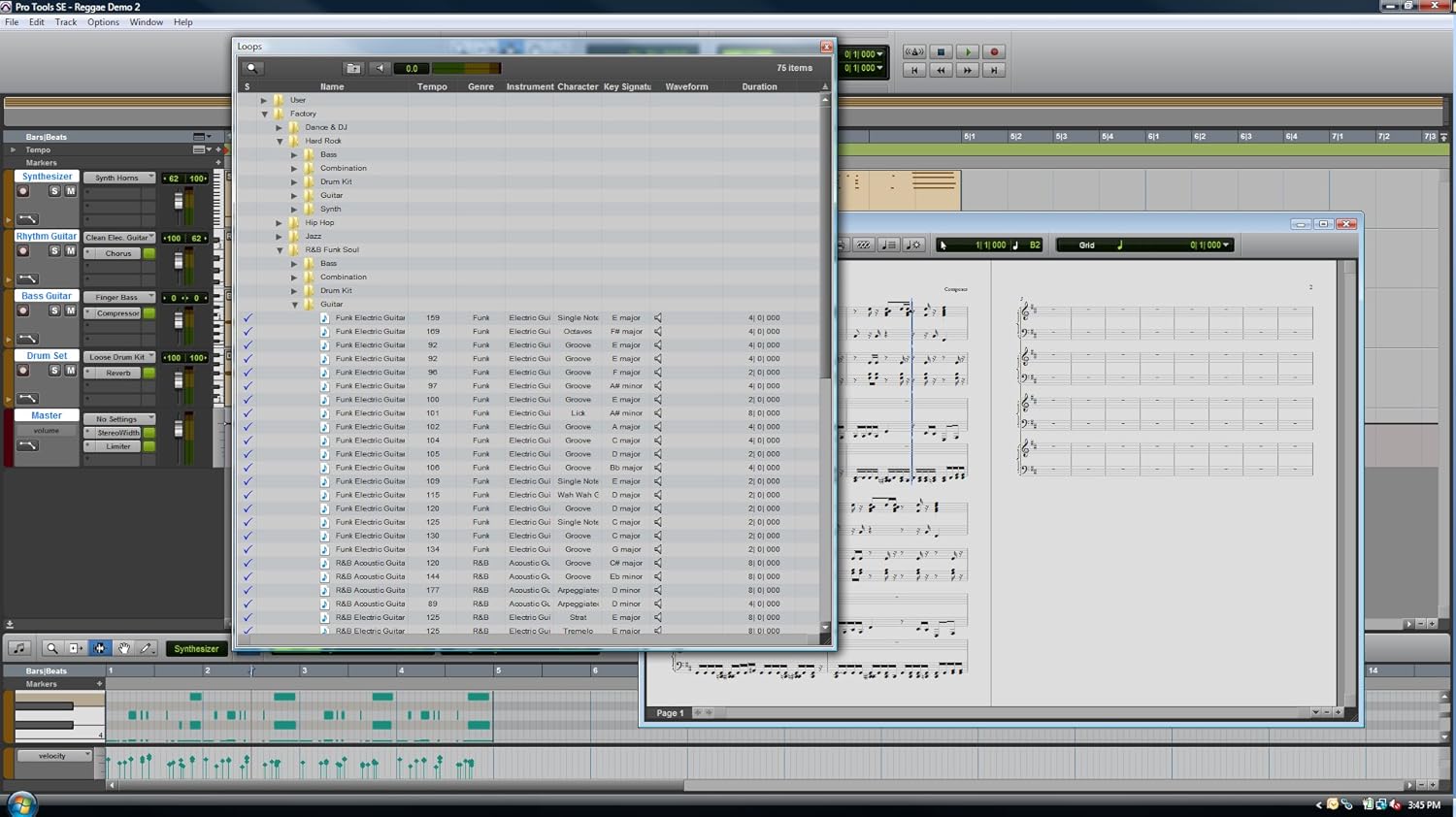
그림 7: 예ample of the Pro Tools SE software interface, where the KeyStudio can control virtual instruments.

Figure 8: Pro Tools SE 'New Session' screen, allowing selection of various project templates.

Figure 9: Selecting a virtual instrument (Guitars) within Pro Tools SE.
6. 유지관리
Proper maintenance ensures the longevity and optimal performance of your Avid KeyStudio.
- 청소: Use a soft, dry, lint-free cloth to wipe the surface of the keyboard. Avoid abrasive cleaners, solvents, or waxes.
- 저장: When not in use, store the keyboard in a clean, dry environment, away from direct sunlight and extreme temperatures. Consider using a dust cover.
- 손질: 키보드를 떨어뜨리거나 강한 충격을 가하지 마십시오. 키보드 위에 무거운 물건을 올려놓지 마십시오.
7. 문제 해결
If you encounter issues with your Avid KeyStudio, refer to the following common problems and solutions:
| 문제 | 가능한 원인 / 해결책 |
|---|---|
| Keyboard not recognized by computer/software. |
|
| No sound when playing keys. |
|
| Keys feel unresponsive or inconsistent velocity. |
|
| Software crashes during installation or use. |
|
8. 사양
| 특징 | 세부 사항 |
|---|---|
| 키 | 49, velocity-sensitive, synth-action |
| 연결성 | USB |
| 통제 수단 | Pitch Bend Wheel, Modulation Wheel, Volume Slider, Octave Up/Down Buttons, Transpose Buttons, Edit Mode Button |
| 힘 | USB 버스 전원 |
| 품목 무게 | 6.5파운드(2.95kg) |
| 제품 치수 | 34 x 4 x 9.5인치(86.36 x 10.16 x 24.13cm) |
| 모델 번호 | Avid KeyStudio |
| 한국어: | 763615778978, 777785735495, 613570227335 |
| 첫 번째 이용 가능 | 16년 2010월 XNUMX일 |
9. 보증 및 지원
M-AUDIO products are covered by a limited warranty. For specific warranty terms and conditions, please refer to the warranty card included with your product or visit the official M-AUDIO web대지.
For technical support, driver downloads, and additional resources, please visit the M-AUDIO support page:
https://www.m-audio.com/support
When contacting support, please have your product model (Avid KeyStudio) and serial number ready.


