1. 서론
The Microsoft Arc Touch Mouse is a portable and innovative wireless mouse designed for mobile computing. Its unique flexible design allows it to be curved for comfortable use and flattened for easy storage. Featuring Microsoft's BlueTrack Technology, it offers precise tracking on a wide variety of surfaces. This manual provides essential information for setting up, operating, maintaining, and troubleshooting your Arc Touch Mouse.
2. 주요 특징
- 유연한 디자인: Curve for comfort during use, flatten for ultimate portability and storage.
- 전원 켜기 및 끄기: The mouse automatically powers on when curved and powers off when flattened, conserving battery life.
- Touch to Scroll: Utilize the touch strip for smooth, intuitive vertical scrolling with haptic feedback.
- 블루트랙 기술: Enables precise tracking on virtually any surface, combining optical power with laser precision.
- Plug-and-go Nano Transceiver: A compact USB transceiver that can be left plugged into your computer or magnetically stowed in the mouse.
- 양손잡이 디자인: Suitable for use with either hand.
3. 설정
3.1. 배터리 설치
The Microsoft Arc Touch Mouse requires two AAA alkaline batteries (included). To install:
- 마우스 밑면에서 배터리 칸을 찾으세요.
- 배터리 덮개를 엽니다.
- AAA 배터리 2개를 올바른 극성(+/-)에 맞춰 삽입합니다.
- 배터리 덮개를 단단히 닫으세요.
3.2. 송수신기 연결
The mouse connects wirelessly to your computer via a USB Nano Transceiver.
- Locate the Nano Transceiver, which may be magnetically stowed in the underside of the mouse for transport.
- Plug the Nano Transceiver into an available USB port on your computer.
- 컴퓨터가 필요한 드라이버를 자동으로 감지하여 설치합니다. 이 작업에는 몇 분 정도 걸릴 수 있습니다.
- 드라이버 설치가 완료되면 마우스를 바로 사용할 수 있습니다.
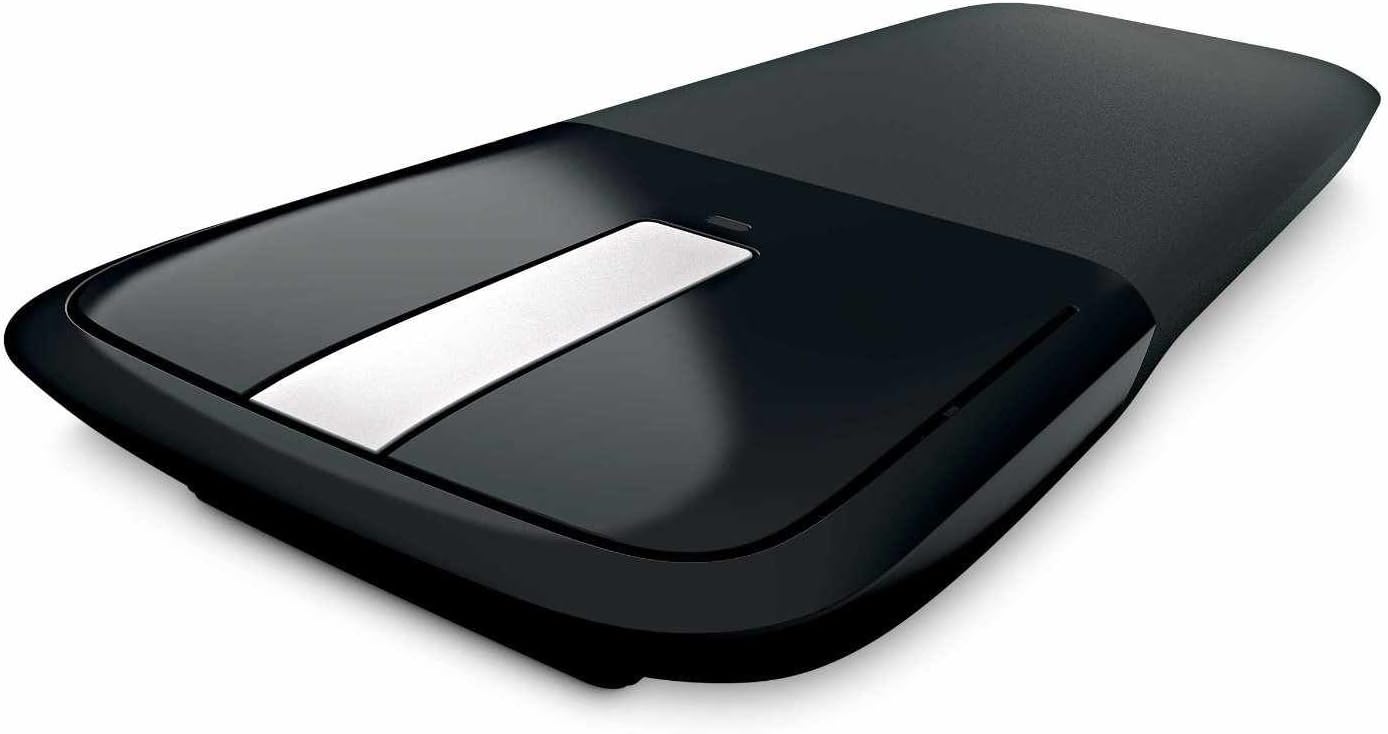
Image: The Microsoft Arc Touch Mouse in its flattened state, showing the USB Nano Transceiver magnetically attached to its underside for storage.
4. 마우스 작동
4.1. Power On/Off (Flexible Design)
The Arc Touch Mouse features an intuitive power mechanism:
- To turn the mouse on, curve the mouse into its ergonomic arc shape. A green light will briefly flash to indicate it is powered on.
- To turn the mouse 끄다, flatten the mouse. This action conserves battery life and makes the mouse compact for storage.

Image: The Microsoft Arc Touch Mouse in its curved, ready-to-use position, displaying its touch strip and power indicator light.
4.2. Touch Scrolling
The central touch strip allows for precise vertical scrolling:
- 위/아래로 스크롤: Gently brush your finger up or down the touch strip to scroll through documents or web 페이지.
- Hyperfast Scrolling: Flick your finger quickly up or down for rapid scrolling.
- 촉각적 피드백: The touch strip provides light vibrations to signal scrolling speed, enhancing the tactile experience.
- Tap to Stop: Tap the touch strip to stop scrolling.
4.3. BlueTrack Technology
BlueTrack Technology allows the Arc Touch Mouse to track on a wide range of surfaces that traditional optical or laser mice may struggle with. This includes rough wood, carpet, and other challenging textures. For optimal performance, avoid using the mouse on clear glass or mirrored surfaces.
5. 유지관리
5.1. 배터리 교체
When the mouse's performance degrades or the power indicator light no longer flashes green upon curving, it's time to replace the batteries. Follow the steps in Section 3.1 to replace the two AAA batteries.
5.2. 청소
To clean your Arc Touch Mouse:
- Ensure the mouse is flattened and powered off.
- 부드럽고 보풀이 없는 천을 살짝 사용하십시오. damp물 또는 순한 세척액으로 세척하십시오.
- Wipe the surface of the mouse gently. Avoid excessive moisture.
- 연마성 세척제나 용제를 사용하지 마십시오.
6. 문제 해결
- 마우스가 응답하지 않습니다. Ensure the mouse is curved to power on. Check battery levels and replace if necessary. Verify the Nano Transceiver is securely plugged into a USB port. Try a different USB port.
- 커서 움직임이 불규칙하거나 추적이 안 됨: Ensure the BlueTrack sensor on the underside of the mouse is clean and free of obstructions. Try using the mouse on a different surface. Avoid clear glass or mirrored surfaces.
- Wireless interference: Move the mouse closer to the Nano Transceiver. Avoid placing the transceiver near other wireless devices or large metal objects that could cause interference.
- Scroll strip not working: Ensure the mouse is powered on. Gently clean the touch strip with a soft cloth.
7. 사양
| 특징 | 세부 사항 |
|---|---|
| 제품 치수 | 1.38 x 6.25 x 4 인치 |
| 품목 무게 | 3 온스 |
| 모델 번호 | RVF-00001 |
| 배터리 | AAA 배터리 2개 (포함) |
| 연결 기술 | 무선 주파수(2.4GHz) |
| 움직임 감지 기술 | BlueTrack (Laser, Optical) |
| 색상 | 검은색 |
| 제조업체 | 마이크로소프트 |
8. 시스템 요구 사항
To use the Microsoft Arc Touch Mouse, your computer must meet the following requirements:
- 운영 체제: Windows 8, Windows 7, Windows Vista, Windows XP (excluding Windows XP 64-bit)
- 하드 드라이브: 100 MB free space
- 다른: USB 포트
9. 보증 및 지원
The Microsoft Arc Touch Mouse comes with a 3년 제한 하드웨어 보증. For detailed warranty information, terms, and conditions, please refer to the warranty documentation included with your product or visit the official Microsoft support web대지.
For technical support, driver downloads, or additional assistance, please visit the Microsoft 지원 web대지 or contact Microsoft customer service.


