Cisco Catalyst 2960 시리즈 스위치 WS-C2960S-48TS-L 사용자 설명서
Model: WS-C2960S-48TS-L
소개
This manual provides comprehensive instructions for the installation, operation, maintenance, and troubleshooting of the Cisco Catalyst 2960 Series Switch, model WS-C2960S-48TS-L. Designed for optimal power efficiency and robust network performance, this switch is a key component for various network environments. Please read this manual thoroughly before operating the device.
안전 정보
일반 안전 지침:
- 기기의 접지가 제대로 되어 있는지 확인하십시오.
- 습하거나 지나치게 습한 환경에서 스위치를 작동하지 마십시오.
- Use only the power supply unit provided or specified by Cisco.
- Refer to local electrical codes and regulations for proper installation.
- 과열을 방지하려면 환기구를 막지 마십시오.
패키지 내용
The Cisco Catalyst 2960 Series Switch WS-C2960S-48TS-L package should contain the following items:
- Cisco Catalyst 2960 Series Switch (WS-C2960S-48TS-L)
- 전원 공급 장치
Note: Rack mount kits and power cables are typically included but may vary by seller or region.
제품 끝view
The Cisco Catalyst 2960 Series Switch WS-C2960S-48TS-L is a high-performance network switch designed for enterprise-class access. It features 48 Gigabit Ethernet ports and supports advanced power management capabilities for efficient network operation.
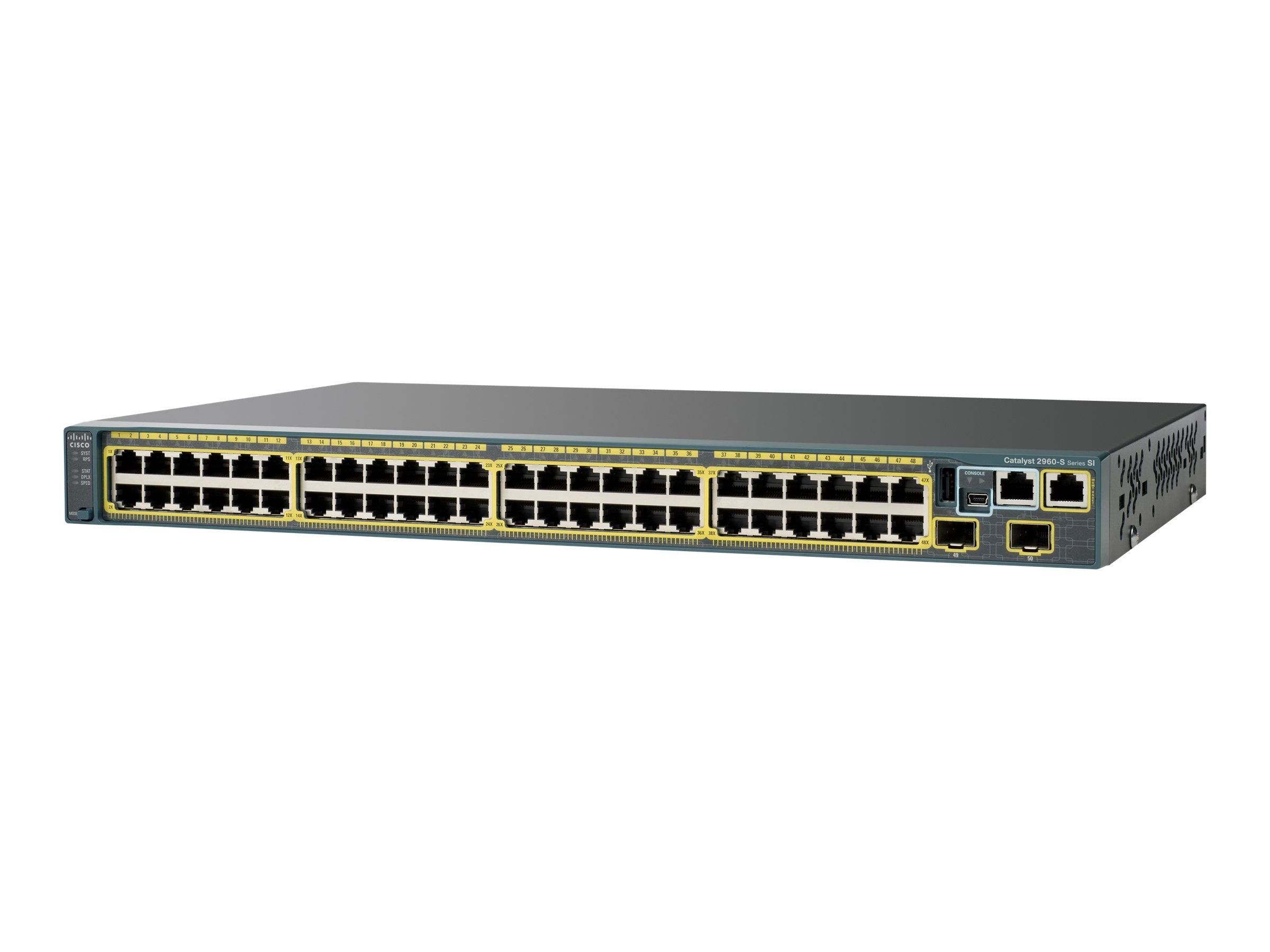
그림 1: 전면 view of the Cisco Catalyst 2960 Series Switch WS-C2960S-48TS-L, displaying its 48 RJ45 ports and various indicator lights.
설정
1. 현장준비
Ensure the installation site is clean, dry, and has adequate ventilation. Maintain appropriate temperature and humidity levels as per environmental specifications to ensure optimal performance and longevity of the switch.
2. 스위치 장착
The switch can be mounted in a standard 19-inch equipment rack. Secure the rack-mount brackets (if provided) to the sides of the switch using the appropriate screws. Then, attach the switch to the rack using suitable rack screws, ensuring it is stable and level.
3. 전원 연결하기
Connect the power cable to the power supply unit on the rear of the switch and then to a grounded AC power outlet. Verify that the power source meets the switch's voltage 요구 사항(240볼트).
4. 초기 네트워크 연결
Connect your network devices (e.g., computers, servers, other switches) to the RJ45 ports on the front panel using standard Ethernet cables. The switch supports a data transfer rate of 1000 Megabits Per Second (Gigabit Ethernet) for high-speed connectivity.
스위치 조작
전원 켜기
After connecting the power cable, the switch will automatically power on. Observe the system LED indicators on the front panel for boot-up status. The system LED should turn green once the switch has successfully initialized.
표시등
The front panel features various LED indicators that display the operational status of the switch and its individual ports. These LEDs provide visual feedback on link status, activity, and potential errors. Refer to the official Cisco documentation for a detailed explanation of each LED's behavior and meaning.
기본 구성
For initial configuration and management, connect a console cable to the console port (if available) and use a terminal emulation program on a computer. Alternatively, if the switch has already acquired an IP address, you may be able to access its management interface via a web browser or command-line interface (Telnet/SSH).
유지
청소
Periodically clean the exterior of the switch with a soft, dry, lint-free cloth. Ensure that all ventilation openings are free from dust and obstructions to maintain proper airflow. Do not use liquid cleaners or aerosol sprays directly on the switch.
펌웨어 업데이트
Regularly check the official Cisco support website for available firmware updates for your specific model. Keeping the firmware current ensures optimal performance, security, and access to new features. Always follow Cisco's official procedures for firmware upgrades to avoid potential issues.
환경 고려 사항
Operate the switch within its specified temperature and humidity ranges. Extreme environmental conditions can lead to device malfunction or premature failure. Ensure the operating environment is stable and within recommended limits.
문제 해결
전원이 없습니다
- Verify the power cable is securely connected to both the switch and a functional power outlet.
- Check the power source (e.g., wall outlet, power strip) for functionality.
- Ensure the power supply unit is correctly seated and connected to the switch.
네트워크 연결 없음
- Check the link status LEDs on the connected ports. If an LED is off, verify the Ethernet cable connection at both ends.
- Ensure the connected device (e.g., computer, server) is powered on and functioning correctly.
- Verify that the network configuration (IP addresses, VLANs) is correct for the connected devices and the switch.
시스템 오작동
If the switch exhibits unusual behavior or error messages, consult the official Cisco documentation for specific error codes or LED patterns. A factory reset might be necessary as a last resort, but be aware that this will erase all custom configurations on the switch.
명세서
The following are key specifications for the Cisco Catalyst 2960 Series Switch WS-C2960S-48TS-L:
| 특징 | 세부 사항 |
|---|---|
| 모델 번호 | WS-C2960S-48TS-L |
| 상표 | 시스코 |
| 포트 수 | 48(RJ45) |
| 데이터 전송 속도 | 초당 1000메가비트(기가비트 이더넷) |
| 인터페이스 유형 | RJ45 |
| 권tage | 240 볼트 |
| 품목 무게 | 10.6파운드(약 4.81kg) |
| 제품 치수 | 17.52 x 11.77 x 1.77인치(약 44.5 x 29.9 x 4.5cm) |
| 호환 장치 | 데스크톱(및 기타 네트워크 장치) |
보증 정보
This Cisco Catalyst 2960 Series Switch WS-C2960S-48TS-L typically comes with a standard manufacturer's warranty. For specific warranty terms and conditions, including duration and coverage, please refer to the documentation provided with your purchase or visit the official Cisco website. Any additional warranties offered by sellers are separate and should be verified with your point of purchase.
고객 지원
For technical assistance, product documentation, or further support regarding your Cisco Catalyst 2960 Series Switch, please visit the official Cisco support website. You can find detailed contact information, knowledge bases, and resources on Cisco's Support Portal. Ensure you have your product model number (WS-C2960S-48TS-L) ready when contacting support.


