1. 서론
The Logitech Alto Notebook Stand with Wireless Keyboard is designed to improve your laptop ergonomics and expand connectivity. It elevates your notebook screen to a more comfortable viewing height and provides a full-sized wireless keyboard for efficient typing, along with an integrated USB hub.
2. 패키지 내용
- Logitech Alto Notebook Stand
- 로지텍 무선 키보드
- AC 전원 어댑터
- USB 케이블
- 설치 가이드
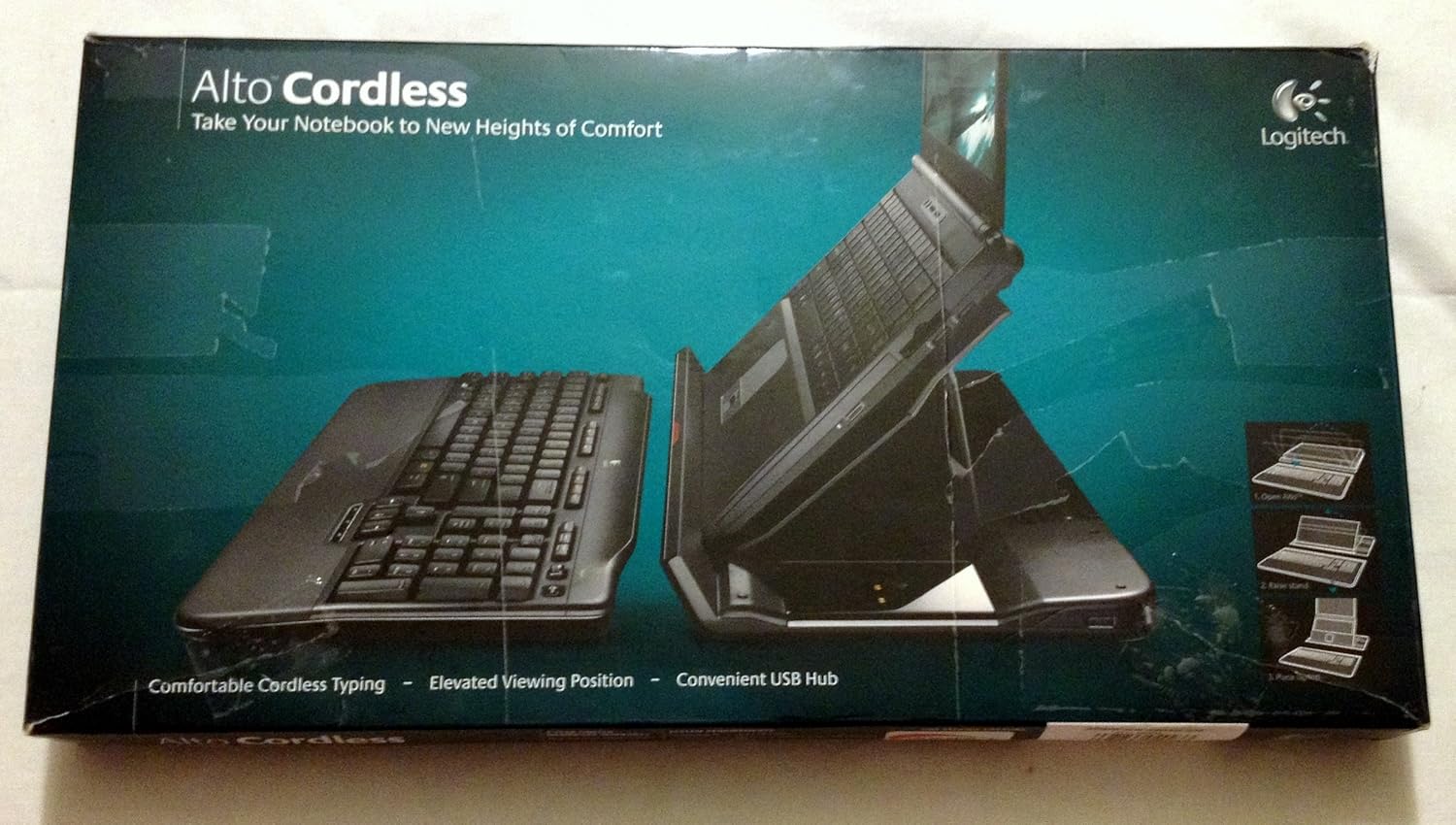
Image: The Logitech Alto Notebook Stand and Wireless Keyboard, as seen in its retail packaging. This image displays the stand in its elevated position with a laptop, alongside the detached wireless keyboard.
3. 설정 지침
- 구성 요소 풀기: 모든 품목을 포장에서 조심스럽게 꺼내세요.
- 스탠드 위치: Place the Alto Notebook Stand on a stable, flat surface.
- 전원 연결: Plug the AC power adapter into the stand's power input, then connect it to a wall outlet. The stand requires external power for its USB hub to function and to power the keyboard when connected via USB.
- Connect to Notebook: Connect the provided USB cable from the stand to an available USB port on your notebook. This enables the integrated USB hub and allows the wireless keyboard to communicate with your notebook.
- Place Notebook: Open your notebook and place it securely on the stand. Ensure the notebook's base fits within the stand's support area. The stand is designed to hold notebooks up to 15.4 inches.
- Install Keyboard Batteries: Open the battery compartment on the underside of the wireless keyboard and insert 1 AA battery (included). Close the compartment.
- 키보드 연결: The wireless keyboard should automatically connect to the stand via its integrated receiver. If connection issues occur, refer to the Troubleshooting section.

Image: A laptop positioned on the Logitech Alto Notebook Stand, demonstrating the elevated screen height. The wireless keyboard is placed in front of the stand, ready for use.
4. 사용 설명서
4.1. Using the Notebook Stand
The Alto stand elevates your notebook screen to a fixed, ergonomic height, promoting a more comfortable viewing angle and reducing neck strain. The stand is not adjustable in height or angle.
메모: Depending on your notebook model, access to front-facing ports or buttons on your laptop may be obstructed when placed on the stand. This design prioritizes screen elevation and external keyboard use.
4.2. Using the Wireless Keyboard
The full-sized wireless keyboard provides a comfortable typing experience with a 10-key numeric pad. It connects wirelessly to the stand's integrated receiver, which then communicates with your notebook via the USB connection.

이미지: 자세한 view of the Logitech wireless keyboard, highlighting its full-size layout, function keys, and media controls.
Function Keys and Media Controls:
The keyboard includes dedicated function keys (F1-F12) and media control keys (e.g., volume, play/pause, mute) for quick access to common functions. Refer to the key labels for specific actions.
4.3. Using the Integrated USB Hub
The Alto stand features an integrated USB hub with three additional USB ports. These ports allow you to connect peripherals such as a mouse, USB flash drives, or other low-power USB devices directly to the stand, expanding your notebook's connectivity.
Important Considerations for USB Hub:
- The USB hub requires the stand's AC power adapter to be connected to function.
- High-power devices, such as some external hard drives, may not function correctly when connected to the stand's USB hub due to power limitations. For such devices, direct connection to your notebook's USB port is recommended.
- If you use a wireless mouse with a USB receiver, one of the hub's ports will be occupied by the receiver.

Image: The Logitech Alto Notebook Stand and its wireless keyboard displayed separately. This view highlights the design of both components and the space for the laptop on the stand.
5. 유지관리
5.1. 청소
To clean the stand and keyboard, use a soft, damp cloth. Avoid abrasive cleaners or solvents, as these can damage the surfaces. Ensure all components are dry before reconnecting power or using the devices.
5.2. Keyboard Battery Replacement
The wireless keyboard requires 1 AA battery. When the battery level is low, the keyboard's indicator light may flash or performance may degrade. To replace the battery:
- 키보드 아랫부분에서 배터리 칸을 찾으세요.
- 구획 덮개를 엽니다.
- 오래된 AA 배터리를 제거하세요.
- 올바른 극성(+/-)을 확인하여 새 AA 배터리를 삽입합니다.
- 배터리 덮개를 닫습니다.
6. 문제 해결
- 키보드가 응답하지 않음:
- Ensure the keyboard has a fresh AA battery installed with correct polarity.
- Verify that the stand is properly connected to your notebook via the USB cable.
- Confirm the stand's AC power adapter is plugged in and providing power. The keyboard relies on the stand's powered USB connection for communication.
- Try reconnecting the USB cable between the stand and your notebook.
- USB Hub Devices Not Working:
- Ensure the stand's AC power adapter is connected and powered. The USB hub requires external power.
- Verify the USB cable connecting the stand to your notebook is secure.
- If connecting a high-power device (e.g., some external hard drives), try connecting it directly to your notebook's USB port, as the stand's hub may have power limitations.
- Test the device in another USB port on the stand or directly on your notebook to rule out device-specific issues.
- Laptop Buttons/Ports Obstructed:
The design of the Alto stand prioritizes screen elevation. Some front-facing ports (e.g., headphone jacks) or buttons on your laptop may be inaccessible when the laptop is placed on the stand. This is a design characteristic and not a malfunction. Consider using alternative ports on the sides or rear of your laptop, or external audio solutions.
7. 사양
| 제품 이름 | Logitech Alto Notebook Stand with Wireless Keyboard |
| 모델 번호 | 920-000223 |
| 치수(길이 x 너비 x 높이) | 17.56 x 9.92 x 2.05인치(44.6 x 25.2 x 5.2cm) |
| 품목 무게 | 0.96 온스(27.2그램) |
| Compatible Notebook Size | 최대 15.4인치 |
| 키보드 배터리 | 1 AA battery (required) |
| USB 포트 | 3 (integrated USB hub) |
| 제조업체 | 로지텍 |
| 첫 번째 가능한 날짜 | 7년 2007월 XNUMX일 |
8. 보증 정보
Logitech products are typically covered by a limited hardware warranty. Specific warranty terms and duration may vary by region and product. Please refer to the warranty card included with your product or visit the official Logitech web자세한 보증 정보와 등록 절차는 해당 사이트를 참조하세요.
보증 청구를 위해 구매 증빙서류를 보관하세요.
9. 고객 지원
추가 지원, 기술 지원 또는 업데이트된 드라이버 및 소프트웨어에 액세스하려면 Logitech 공식 지원 웹사이트를 방문하십시오. web대지:
You may also find helpful resources and FAQs on the product support pages.


