1. 이상view
The JVC CU-VD20 Share Station is an external DVD burner designed to simplify the creation of DVD-Video discs directly from compatible JVC Everio camcorders. This device allows users to burn video content without the need for a personal computer, offering a convenient solution for archiving and sharing recorded footage. It can also function as a standard external DVD burner when connected to a PC.

그림 1: 전면 view of the JVC CU-VD20 Share Station DVD Burner.
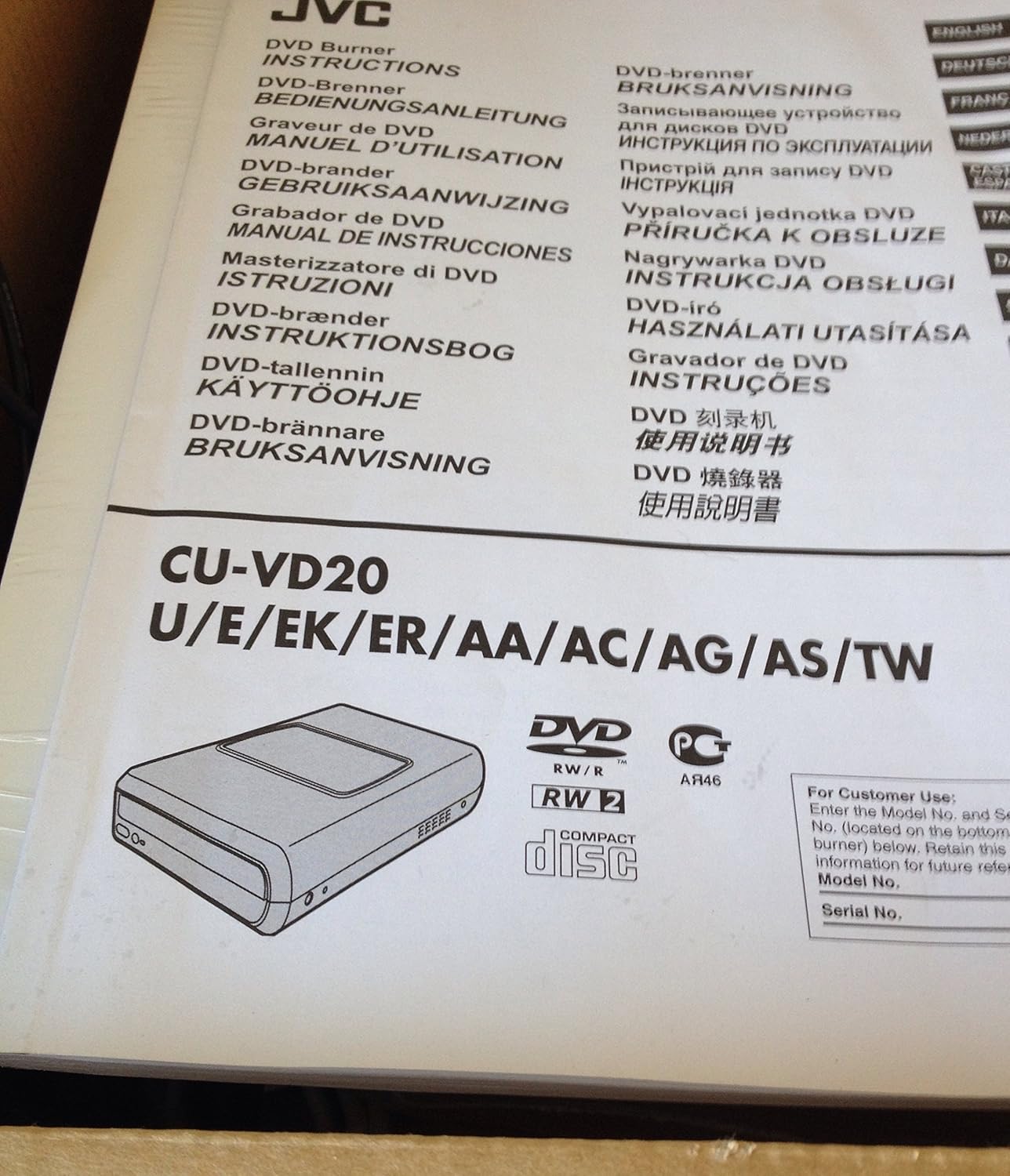
그림 2: 후면 view of the JVC CU-VD20, showing connectivity ports.
2. 설정
2.1 풀기
모든 구성품을 포장에서 조심스럽게 꺼내세요. 다음 품목이 모두 있는지 확인하세요.
- JVC CU-VD20 Share Station unit
- AC 전원 어댑터
- USB 케이블
- 사용 설명서(본 문서)

Figure 3: JVC CU-VD20 product packaging, indicating contents and model information.
2.2 Connecting to a JVC Everio Camcorder
- Connect the AC power adapter to the CU-VD20 unit and then to a power outlet.
- Connect one end of the supplied USB cable to the USB 2.0 port on the CU-VD20.
- Connect the other end of the USB cable to the docking station or direct USB port of your compatible JVC Everio camcorder.
- Power on the CU-VD20 unit.
- Power on your Everio camcorder. The camcorder's display will typically indicate a connection to the Share Station.
2.3 Connecting to a Personal Computer (PC)
The CU-VD20 can also function as a standard external DVD burner for your PC.
- Connect the AC power adapter to the CU-VD20 unit and then to a power outlet.
- Connect one end of the supplied USB cable to the USB 2.0 port on the CU-VD20.
- USB 케이블의 다른 쪽 끝을 PC의 사용 가능한 USB 포트에 연결하십시오.
- Power on the CU-VD20 unit. Your PC should automatically detect the device.
3. 운영
3.1 Creating DVD-Video Discs from Everio Camcorder
This feature allows direct DVD burning without a PC. Ensure your Everio camcorder is connected and powered on as described in Section 2.2.
- Insert a blank DVD-R disc into the CU-VD20's disc tray. The CU-VD20 is compatible with DVD-R media only.
- Control the burning operation directly from your Everio camcorder's LCD screen and menu system. Refer to your Everio camcorder's instruction manual for specific menu navigation steps for DVD burning.
- The camcorder will guide you through selecting videos and initiating the burning process.
- Once burning is complete, the camcorder will prompt you to finalize the disc or insert another disc if more content needs to be transferred.
메모: The CU-VD20 primarily supports DVD-R discs for direct burning from Everio camcorders. Other disc formats may not be compatible for this function.
3.2 Compatible Everio Camcorder Models
The JVC CU-VD20 is compatible with the following JVC Everio camcorder models:
- JVC GZ-MG555
- JVC GZ-MG255
- JVC GZ-MG155
- JVC GZ-MG505
- JVC GZ-MG77
- JVC GZ-MG67
- JVC GZ-MG47
Compatibility with other Everio models should be verified with JVC support or your camcorder's documentation.
3.3 Using as a Playback Unit
When connected to a compatible Everio camcorder, the CU-VD20 can also serve as a playback unit. Insert a recorded DVD-Video disc into the CU-VD20, and you can view the content on the camcorder's LCD screen. This is useful in situations where a television with RCA input jacks is not available.
4. 유지관리
4.1 청소
- 외부: 기기 외부를 부드럽고 마른 천으로 닦아주세요. 잘 지워지지 않는 얼룩은 약간 건조한 천으로 닦아주세요.amp물에 적신 천으로 마른 천을 닦아주세요. 연마성 세제, 용제 또는 알코올은 마감재를 손상시킬 수 있으므로 사용하지 마세요.
- 디스크 트레이: Keep the disc tray free of dust and debris. Do not use compressed air directly into the disc drive as it can push dust further inside.
- 디스크: 디스크를 다룰 때는 가장자리를 잡으세요. 더러워진 디스크는 부드럽고 보푸라기가 없는 천으로 가운데에서 바깥쪽으로 닦아주세요.
4.2 보관
Store the CU-VD20 in a cool, dry place away from direct sunlight, extreme temperatures, and high humidity. When not in use for extended periods, disconnect the power adapter.
5. 문제 해결
If you encounter issues with your JVC CU-VD20, refer to the following common problems and solutions:
5.1 전원 문제
- 장치의 전원이 켜지지 않습니다.
- Ensure the AC power adapter is securely connected to both the CU-VD20 and a working power outlet.
- 다른 장치를 연결하여 전원 콘센트가 작동하는지 확인하세요.
5.2 연결 문제
- Everio camcorder does not recognize the CU-VD20:
- Ensure the USB cable is securely connected to both the CU-VD20 and the camcorder/docking station.
- Verify that both the CU-VD20 and the camcorder are powered on.
- Check your Everio camcorder's settings to ensure it is configured for external device connection.
- 가능하다면 다른 USB 케이블을 사용해 보세요.
- PC does not recognize the CU-VD20:
- Ensure the USB cable is securely connected to both the CU-VD20 and the PC.
- PC의 다른 USB 포트에 연결해 보세요.
- PC를 다시 시작하세요.
5.3 Disc Burning/Reading Issues
- Disc not recognized or burning fails:
- Ensure you are using a blank DVD-R disc. The CU-VD20 is primarily designed for DVD-R media.
- Check the disc for scratches, smudges, or damage. Use a clean, undamaged disc.
- Ensure the disc is inserted correctly into the disc tray with the label side facing up.
- If the disc tray does not close properly, gently push it until it clicks into place. Do not force it.
- For camcorder-controlled burning, ensure there is sufficient free space on the camcorder's hard drive for temporary files, if applicable, and that the camcorder's settings are correct.
If problems persist, consult your Everio camcorder's manual for further troubleshooting specific to its interaction with external burners, or contact JVC customer support.
6. 사양
| 모델 번호 | CU-VD20 |
| 상표 | 제이비씨(JVC) |
| 미디어 유형 | DVD (primarily DVD-R for direct burning) |
| 연결 기술 | USB 2.0 |
| 색상 | 검은색 |
| 제품 치수 | 10.31 x 6.73 x 2.2인치(26.19 x 17.10 x 5.59cm) |
| 품목 무게 | 7.2파운드(3.27kg) |
| 제조업체 | 제이비씨(JVC) |
| 첫 번째 이용 가능 날짜 | 2년 2001월 XNUMX일 |
| 호환 장치 | JVC Everio Camcorders (GZ-MG555, GZ-MG255, GZ-MG155, GZ-MG505, GZ-MG77, GZ-MG67, GZ-MG47) |
7. 보증 및 지원
7.1 보증 정보
Specific warranty terms and conditions for the JVC CU-VD20 Share Station DVD Burner may vary by region and purchase date. Please refer to the warranty card included with your product or visit the official JVC web자세한 보증 정보는 해당 사이트를 참조하세요. 보증 청구를 위해 구매 증빙 자료를 보관하세요.
7.2 고객 지원
For technical assistance, service, or further inquiries regarding your JVC CU-VD20, please contact JVC customer support. Contact information can typically be found on the official JVC web사이트 또는 제품과 함께 제공된 설명서를 참조하세요.
JVC 공식 Web대지: www.jvc.com


