소개
This manual provides instructions for the setup, operation, maintenance, and troubleshooting of your Microsoft Wireless Optical Mouse Blue, Model K80-00004. Please read this manual thoroughly before using your device.
상자 안에 무엇이 들어있나요?
패키지에 모든 품목이 들어 있는지 확인하세요.
- Microsoft Wireless Optical Mouse
- 무선 수신기
- AA 배터리 2개(사전 설치 또는 별도 포함)
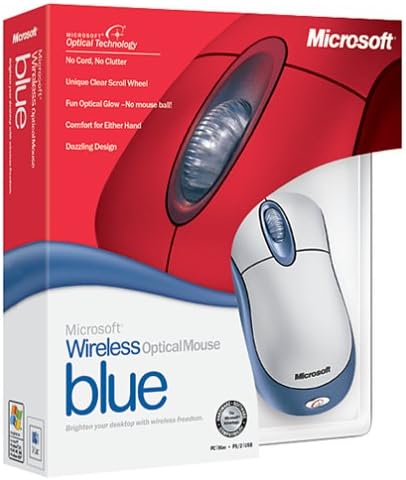
Image: Retail packaging of the Microsoft Wireless Optical Mouse Blue, showing the mouse and receiver.
설정
1. 배터리 설치
- 마우스 밑면에서 배터리 칸을 찾으세요.
- 배터리 덮개를 엽니다.
- AA 배터리 2개를 올바른 극성(+/-)에 맞춰 삽입하세요.
- 배터리 덮개를 닫습니다.

이미지: 앞면 view of the Microsoft Wireless Optical Mouse Blue, showing the top buttons and scroll wheel. The battery compartment is on the underside.
2. Connect the Wireless Receiver
- USB 무선 수신기를 컴퓨터의 사용 가능한 USB 포트에 꽂으세요.
- Allow your operating system to detect and install the necessary drivers. This process is usually automatic.
- For optimal performance, ensure the receiver is placed at least 12 inches away from other wireless devices or large metal objects.
3. Optional Software Installation (IntelliPoint)
- While not required for basic functionality, installing Microsoft IntelliPoint software provides advanced customization options for your mouse buttons and scroll wheel.
- Refer to the Microsoft support website for the latest IntelliPoint software compatible with your operating system.
4. Set Orientation (Calibration)
- After initial setup, it is recommended to perform an "Orientation Set" or calibration if available through the IntelliPoint software or your operating system's mouse settings. This helps optimize tracking performance.
작동 지침
The Microsoft Wireless Optical Mouse Blue is designed for comfortable and precise navigation.
기본 기능
- 좌 클릭: 항목 선택, 열기를 위한 기본 버튼 files, 그리고 소프트웨어와의 상호작용.
- 마우스 오른쪽 버튼으로 클릭: 상황에 맞는 메뉴와 추가 옵션에 접근하기 위한 보조 버튼입니다.
- 스크롤 휠: 휠을 위아래로 돌려 문서를 스크롤하세요. web pages. The scroll wheel may also function as a clickable button for additional commands, depending on software configuration.
무선 작동
- The mouse operates wirelessly up to 6 feet (approximately 1.8 meters) from its receiver.
- Optical technology scans the desktop surface for precise cursor movement without the need for a mouse pad on most surfaces.
- The mouse is designed for comfortable use with either the right or left hand.

이미지: 각도 view of the Microsoft Wireless Optical Mouse Blue, highlighting its ergonomic shape and blue/silver design.
유지
배터리 교체
- The mouse requires two AA batteries.
- When battery power is low, your computer may display a notification (if IntelliPoint software is installed) or mouse performance may degrade.
- Replace batteries as described in the "Install Batteries" section under Setup.
- 최적의 성능을 위해 항상 새롭고 품질 좋은 배터리를 사용하십시오.
청소
- To clean the mouse, gently wipe the surface with a soft, damp 옷감.
- 독한 화학 약품이나 연마성 세척제는 마감재를 손상시킬 수 있으므로 사용하지 마십시오.
- 마우스 내부 부품에 액체가 들어가지 않도록 하십시오.
Travel Considerations
- The Microsoft Wireless Optical Mouse is a transmitting device. When traveling by air, it is recommended to remove the batteries from the mouse before boarding to comply with airline regulations regarding electronic devices.
문제 해결
Mouse Not Responding or Lagging
- 배터리 확인: 배터리가 올바르게 설치되었고 충전량이 충분한지 확인하세요. 필요한 경우 교체하세요.
- 수신기 연결 상태를 확인하십시오. Ensure the wireless receiver is securely plugged into a functioning USB port. Try a different USB port.
- 근접성: Ensure the mouse is within 6 feet of the receiver. Reduce obstacles between the mouse and receiver.
- 간섭: Other wireless devices (e.g., Wi-Fi routers, cordless phones) can cause interference. Move the receiver away from such devices.
- 표면: Ensure the mouse is used on a suitable surface. Highly reflective or transparent surfaces may affect optical tracking.
- 재동기화: Some wireless mice have a re-sync button on both the mouse and receiver. Consult the full product manual or Microsoft support for specific re-sync procedures for this model if issues persist.
Clicking Issues
- If clicks are not registering or require multiple presses, check for physical obstructions or debris around the buttons.
- 마우스의 전원이 켜져 있고 연결되어 있는지 확인하세요.
소프트웨어 호환성
- The IntelliPoint software may have specific operating system requirements. For example, older versions may not be compatible with newer operating systems like Windows Vista or later.
- Always download the latest software from the official Microsoft support web사용하시는 운영체제에 맞는 사이트입니다.
명세서
| 특징 | 세부 사항 |
|---|---|
| 모델 번호 | K80-00004 |
| 상표 | 마이크로소프트 |
| 연결 기술 | 무선 전화 |
| 움직임 감지 | 광학 |
| 색상 | Blue / Silver |
| 배터리 | AA 배터리 2개 (포함) |
| 품목 무게 | 13.6 온스(약 385.5그램) |
| 제품 치수 | 9.3 x 8.9 x 2.1인치(약 23.6 x 22.6 x 5.3cm) |
| 첫 번째 가능한 날짜 | 1년 2002월 XNUMX일 |
보증 정보
According to the legal disclaimer, this product is sold without a warranty. Please refer to your point of purchase for any return or exchange policies.
지원하다
For further assistance, driver downloads, or updated information regarding your Microsoft Wireless Optical Mouse Blue, please visit the official Microsoft support web대지.
You can typically find support resources by searching for "Microsoft support" and your product model number (K80-00004).


