1. 서론
The DYMO LabelMANAGER 300 (LM300) is an electronic labelmaker designed for various labeling applications, including industrial and professional use. It features a QWERTY keyboard and a 15-character LCD display for easy label creation and previewing. This device supports printing on multiple D1 tape widths and offers advanced features such as barcode printing and various text formatting options.
제품 끝view
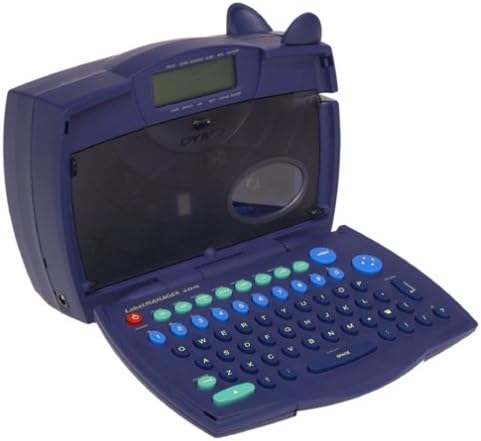
Image 1.1: The DYMO LabelMANAGER 300 in an open position, revealing its QWERTY keyboard and LCD screen. The device is dark blue with light blue and green function keys.
Key features of the LabelMANAGER 300 include:
- Designed for engineering and shop floor applications.
- 15-character LCD display for easy editing and preview주고받음.
- Prints on D1 tape widths: 0.25, 0.325, 0.5, and 0.75 inches.
- Features a QWERTY keyboard with profiled keys for efficient input.
- Capable of printing electrical symbols and various barcode types.
2. 설정
장치 풀기
Carefully remove all components from the packaging. Ensure all items are present before proceeding with setup.

Image 2.1: The DYMO LabelMANAGER 300 shown with its standard accessories, including a D1 tape cassette and the product documentation.
패키지에는 다음이 포함되어야 합니다.
- DYMO LabelMANAGER 300 Printer
- D1 Label Tape Cassette (starter roll)
- 사용 설명서 (본 문서)
- AA 배터리 2개 (포함)
배터리 설치
- Locate the battery compartment on the underside of the labelmaker.
- 배터리실 커버를 밀어서 엽니다.
- 배터리 2개를 넣고, 배터리 칸 안쪽에 표시된 대로 극성(+/-)을 올바르게 맞춰 넣으세요.
- 배터리 칸 덮개를 딸깍 소리가 나며 제자리에 단단히 고정될 때까지 다시 끼웁니다.
테이프 카세트 설치
- Open the labelmaker cover by gently lifting it from the front.
- Locate the tape cassette compartment.
- Insert a DYMO D1 label tape cassette into the compartment, ensuring the tape feeds correctly into the print head mechanism.
- Close the labelmaker cover until it latches securely.
3. 사용 설명서
전원 켜기/끄기
- 전원을 켜려면: 누르세요 힘 버튼을 누르면 LCD 화면에 불이 들어옵니다.
- 전원을 끄려면: 길게 누르세요. 힘 button until the display turns off. The device also features an automatic shut-off to conserve battery power after a period of inactivity.
Basic Label Creation
- 장치의 전원이 켜져 있는지 확인합니다.
- Use the QWERTY keyboard to type your desired text. The text will appear on the 15-character, two-line LCD display.
- Review the text on the display for accuracy. Use the arrow keys to navigate and edit if necessary.
- 를 누르세요 인쇄 button to print the label.
- Once printed, use the integrated cutter to cut the label.
텍스트 서식
The LabelMANAGER 300 offers various text formatting options:
- 인쇄 스타일: Select from normal, narrow, bold, vertical, outline, shadow, mirror, and boxed styles. Refer to the device's menu for specific style selection.
- Text Effects: Apply underline, shadow, or box effects to your text.
- 정당화: Labels can be printed with left, center, or right justification.
- 여러 줄 인쇄: Print one, two, three, or four lines on a single label, depending on the tape width.
고급 기능
- Incremental Numbering: Automatically print a series of labels with sequential numbers.
- Repeat Printing: Print multiple copies of the same label.
- Barcode Printing: The LM300 supports printing various barcode types, including UPC-A, UPC-E, EAN-8, EAN-13, Code-39, and Code-128. Access this feature through the device's menu.
- 전기 기호: Embed common electrical symbols into your labels for specialized applications.
- Last-Label Memory: The device retains the last printed label in memory for quick reprinting.
4. 유지관리
장치 청소
- Ensure the labelmaker is powered off before cleaning.
- 부드러운 천으로 기기 외부를 닦아주세요.amp 천. 연마성 세척제나 용매를 사용하지 마십시오.
- To clean the print head, open the cover and gently wipe the print head with a cotton swab lightly dampened with isopropyl alcohol. Allow it to dry completely before closing the cover.
저장
When not in use, store the DYMO LabelMANAGER 300 in a cool, dry place away from direct sunlight and extreme temperatures. If storing for an extended period, it is recommended to remove the batteries to prevent leakage.
5. 문제 해결
If you encounter issues with your LabelMANAGER 300, refer to the following common problems and solutions:
- 전원 없음:
- Check if batteries are inserted correctly with proper polarity.
- Replace old or depleted batteries with new AA batteries. - 인쇄 품질 불량:
- Ensure the tape cassette is installed correctly.
- Clean the print head as described in the Maintenance section.
- Try a new tape cassette, as old tape may affect print quality. - Tape Jams:
- Open the cover and carefully remove any jammed tape. Ensure no adhesive residue is left in the mechanism.
- Make sure the tape cassette is seated properly. - 디스플레이가 작동하지 않음:
- Check battery power. If the display is dim or blank, replace batteries.
- Power cycle the device (turn off, then on again). - 장치가 응답하지 않음:
- Remove and reinsert batteries to perform a soft reset.
- If the issue persists, contact customer support.
6. 사양
| 특징 | 세부 사항 |
|---|---|
| 모델명 | LM300 |
| 상표 | DYMO |
| 인쇄 기술 | 열의 |
| 표시하다 | 15-character, 2-line LCD |
| 키보드 레이아웃 | 쿼티 |
| 지원되는 테이프 너비 | 0.25, 0.325, 0.5, 0.75 inches (D1 tapes) |
| Print Styles | Normal, Narrow, Bold, Vertical, Outline, Shadow, Mirror, Boxed |
| 텍스트 효과 | Underline, Shadow, Box |
| 바코드 지원 | UPC-A, UPC-E, EAN-8, EAN-13, Code-39, Code-128 |
| 전원 | AA 배터리 2개 (포함) |
| 품목 무게 | 2.3파운드 |
| 패키지 크기 | 11.1 x 8 x 4.4 인치 |
| 최대 복사 해상도(흑백) | 300dpi |
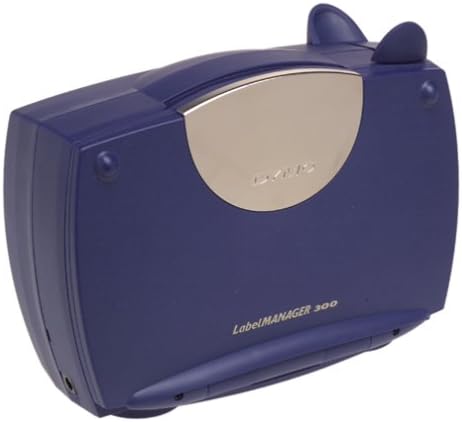
Image 6.1: The DYMO LabelMANAGER 300 in its closed position, showcasin컴팩트하고 휴대하기 편리한 디자인이 특징입니다.
7. 보증 및 지원
보증 정보
The DYMO LabelMANAGER 300 comes with a limited warranty. Please refer to the warranty card included with your product for specific terms and conditions, or visit the official DYMO web자세한 보증 정보는 사이트를 참조하십시오.
고객 지원
For further assistance, technical support, or to purchase accessories and replacement tape, please visit the official DYMO website or contact their customer service department. Contact information can typically be found on the DYMO web사이트 또는 제품 포장.


