
1. 서론
The Huawei OptiXstar K251a-21 is a sub-FTTR (Fiber to the Room) unit designed to extend the high-speed network provided by the Huawei FTTR OptiXstar F50 Plus main unit. This device supports ultra-Gigabit high-speed access via upstream fiber optic lines and delivers Ultra Gigabit dual-band Wi-Fi and ultra-Gigabit network ports to users. It integrates next-generation Wi-Fi 7 technology for higher speeds and lower latency, ensuring a superior home network experience.
2. 안전 정보
Please read and understand all safety instructions before using this device. Failure to follow these instructions may result in injury, damage to the device, or property damage.
- 장치와 함께 제공된 전원 어댑터만 사용하십시오.
- 기기를 물, 습기 또는 극한 온도에 노출시키지 마세요.
- 열원 근처나 직사광선에 장치를 두지 마십시오.
- 과열을 방지하려면 적절한 환기를 유지하세요.
- 기기를 직접 열거나 수리하려고 하지 마십시오. 자격을 갖춘 서비스 담당자에게 도움을 요청하십시오.
- 기기를 어린이와 애완동물의 손이 닿지 않는 곳에 보관하세요.
3. 패키지 내용
패키지에 모든 품목이 들어 있는지 확인하세요.
- Huawei OptiXstar K251a-21 Sub FTTR Device
- 전원 케이블
- 빠른 시작 가이드(포함된 경우)
4. 제품 오버view
기기의 구성 요소와 표시기를 숙지하십시오.
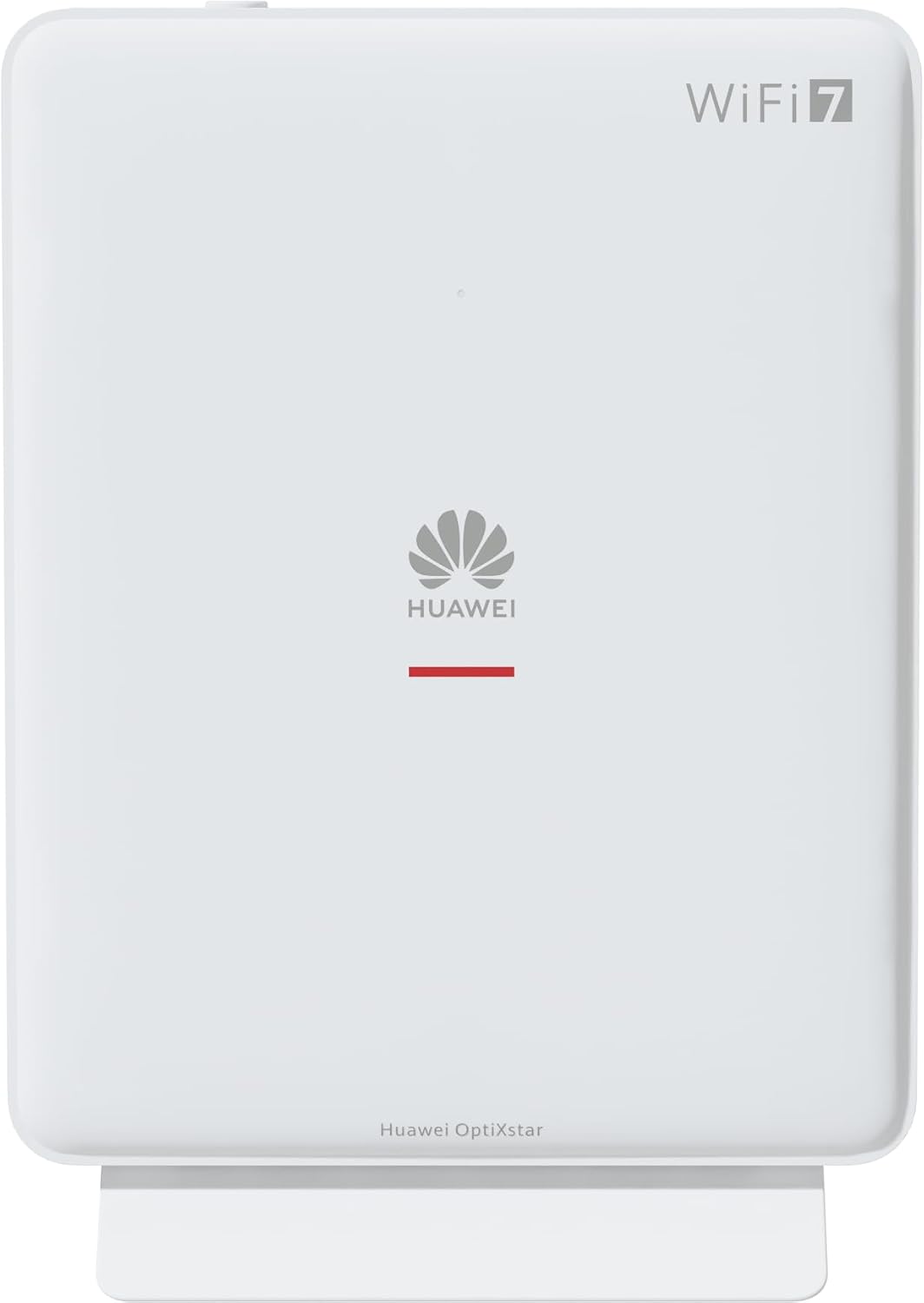
그림 1: 전면 view of the Huawei OptiXstar K251a-21 Sub FTTR device, showing the Huawei logo and "WiFi 7" branding.

그림 2: 경사진 전면 view of the Huawei OptiXstar K251a-21 Sub FTTR, highlighting its sleek design and ventilation.

그림 3: 후면 view of the Huawei OptiXstar K251a-21 Sub FTTR, displaying the ports (Reset, 2-GE, 1-2.5GE, Power, FTTR) and mounting options.

그림 4: 사이드 프로file of the Huawei OptiXstar K251a-21 Sub FTTR, showing its slim form factor and ventilation grilles.

그림 5: 각진 후면 view of the Huawei OptiXstar K251a-21 Sub FTTR, providing a clear look at the port labels and layout.

그림 6: 상단 view of the Huawei OptiXstar K251a-21 Sub FTTR, featuring the WPS/LED button.
포트 및 버튼:
- FTTR Port: Connects to the main FTTR unit via a fiber optic cable.
- 1-2.5GE Port: Gigabit Ethernet port for high-speed wired connections.
- 2-GE Port: 유선 연결용 기가비트 이더넷 포트.
- 전원 포트: 전원 어댑터에 연결합니다.
- 재설정 버튼: Used to restore factory settings (press and hold for 5-10 seconds).
- WPS/LED Button: Initiates Wi-Fi Protected Setup (WPS) for easy device connection and controls LED indicators.
5. 설정
Follow these steps to set up your Huawei OptiXstar K251a-21 Sub FTTR device:
- 놓기: Choose a central location in your home for optimal Wi-Fi coverage. The device is suitable for various installation scenarios, including vertical placement on a desk, wall-mounting, plugging into a power strip, or mounting in an 86mm junction box with a bracket.
- 광섬유 케이블 연결: Connect one end of the fiber optic cable to the FTTR port on the Sub FTTR unit and the other end to the corresponding FTTR port on your Huawei FTTR OptiXstar F50 Plus main unit or wall outlet. Ensure the connection is secure.
- 전원 연결: Plug the power adapter into the Power port on the Sub FTTR unit, then plug the other end into a power outlet.
- 전원 켜기: The device will automatically power on. Wait for the indicator lights to stabilize, typically indicating a successful connection to the main FTTR unit and active Wi-Fi.
- Wired Connections (Optional): For wired devices, connect an Ethernet cable from the 1-2.5GE or 2-GE ports on the Sub FTTR to your computer, gaming console, or other network devices.
6. 운영
Once set up, your OptiXstar K251a-21 provides seamless Wi-Fi 7 connectivity.
- Wi-Fi 연결: 검색 the Wi-Fi network name (SSID) broadcast by your FTTR system on your devices (smartphones, laptops, etc.). Enter the Wi-Fi password. The system's unique SRCN (Seamless Roaming Coordinate Network) technology ensures seamless roaming throughout your home.
- C-WAN Architecture: The C-WAN architecture centrally controls and coordinates network-wide Wi-Fi resources via the Main FTTR, providing an ultra-Gigabit high-speed experience.
- IoT Casing: The device features an IoT casing designed to protect home network security and privacy.
- WPS 기능: Press the WPS/LED button briefly to use Wi-Fi Protected Setup (WPS) for quick connection of compatible devices without entering the password.
- LED 표시등: The LED indicators provide status information. Refer to the main FTTR unit's manual or the device's specific documentation for detailed LED status meanings.
7. 유지관리
Regular maintenance helps ensure optimal performance and longevity of your device.
- 청소: 부드럽고 마른 천으로 기기를 살살 닦아주세요. 액체 세척제나 연마성 재질은 사용하지 마세요.
- 펌웨어 업데이트: Huawei periodically releases firmware updates to improve performance and security. These updates are typically managed through the main FTTR unit or a dedicated mobile application. Ensure your system is always running the latest firmware.
- 통풍: 과열을 방지하려면 통풍구가 막히지 않도록 주의하세요.
- 케이블 관리 : Keep fiber optic and power cables neatly organized and free from kinks or excessive bending.
8. 문제 해결
문제가 발생하면 다음 문제 해결 단계를 시도해 보세요.
- 전원 없음: Check if the power cable is securely connected to both the device and the power outlet. Try a different outlet.
- 인터넷에 연결되지 않음:
- Verify that the fiber optic cable is correctly connected to the FTTR port.
- Check the status indicators on both the Sub FTTR and the main FTTR unit.
- Restart both the Sub FTTR and the main FTTR unit by unplugging them from power for 30 seconds and then plugging them back in.
- Ensure your main FTTR unit has an active internet connection.
- 느린 Wi-Fi 속도:
- Ensure the device is placed optimally, away from obstructions and interference sources.
- Check if too many devices are connected to the network.
- Update the firmware of your FTTR system.
- Consider using a wired connection for bandwidth-intensive tasks.
- Wi-Fi에 연결할 수 없습니다:
- 올바른 Wi-Fi 비밀번호를 입력했는지 확인하세요.
- Try using the WPS button to connect.
- Restart your device and the Sub FTTR unit.
- 공장 초기화 : If issues persist, you may need to perform a factory reset. With the device powered on, use a pointed object (like a paperclip) to press and hold the Reset button for 5-10 seconds until the indicators change. Note that this will erase all custom settings.
9. 사양
| 특징 | 사양 |
|---|---|
| 상표 | 화웨이 |
| 모델 번호 | K8M251a-21G02 |
| 치수(패키지) | 24.5 x 23.7 x 7.4cm |
| 무게(패키지) | 300그램 |
| 특징 | 인터넷 보안 |
| 주파수 대역 클래스 | 듀얼 밴드 |
| 무선 통신 표준 | 802.11ax (Wi-Fi 7 Generation) |
| 호환 장치 | 개인용 컴퓨터 |
| 추천 용도 | 집 |
| 포함된 구성 요소 | 전원 케이블 |
| 연결 기술 | Ethernet, FTTR, Wi-Fi, Fiberglass |
| 색상 | 하얀색 |
| 포트 수 | 4 (FTTR, 1-2.5GE, 2-GE, Power) |
| 데이터 전송 속도 | 초당 1기가비트 |
| 스마트 홈 호환성 | Compatible with smart home systems |
| 인터넷 연결 | 예 |
| 연결 프로토콜 | 와이파이 |
10. 보증 및 지원
보증 정보 및 기술 지원에 대해서는 화웨이 공식 웹사이트를 참조하십시오. website or contact your local Huawei customer service. Keep your purchase receipt for warranty claims.
온라인 리소스: Visit the official Huawei support webFAQ, 업데이트된 매뉴얼, 소프트웨어 다운로드 사이트입니다.
고객 서비스: Contact details for customer support can typically be found on the Huawei website or in the documentation provided with your main FTTR unit.