
1. 서론
The TP-Link UB600 is a compact Bluetooth 6.0 USB adapter designed for PCs. It enhances connection security and stability compared to previous Bluetooth generations, providing reliable wireless connectivity for various Bluetooth-enabled devices. Its ultra-small nano design allows it to remain discreetly plugged into a USB port, making it ideal for mobile use or permanent connection.
This adapter supports Windows 11, 10, 8.1, and 7. For Windows 11, 10, and 8.1, it offers Plug & Play functionality. For Windows 7, driver installation is required.
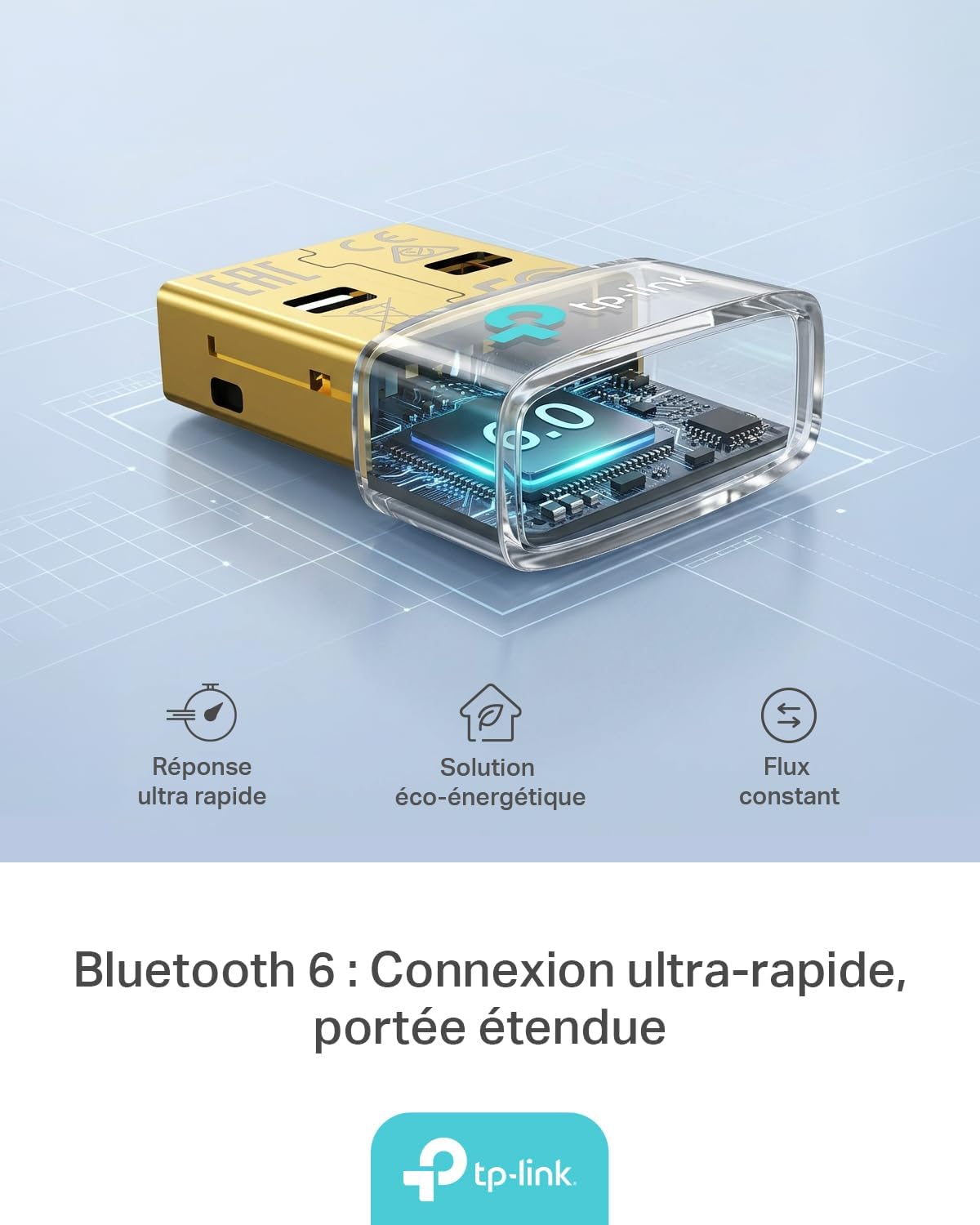
Figure 1: TP-Link UB600 Bluetooth 6.0 USB Adapter showcasing its key features: ultra-fast response, energy-saving solution, and constant data flow.
2. 설정 지침
2.1 시스템 요구 사항
- Operating System: Windows 11, Windows 10, Windows 8.1, Windows 7.
- 사용 가능한 USB 포트가 있습니다.
2.2 설치
- 어댑터를 삽입합니다: Plug the TP-Link UB600 Bluetooth USB adapter into an available USB port on your computer.

Figure 2: The UB600 adapter discreetly plugged into a laptop's USB port, demonstrating its compact design.
- 드라이버 설치:
- For Windows 11, 10, 8.1: The adapter is Plug & Play. Your operating system should automatically detect and install the necessary drivers. No manual installation is typically required.
- Windows 7의 경우: Driver installation is required. Please visit the official TP-Link web사이트 (www.tp-link.com) to download the latest drivers for the UB600 model. Follow the on-screen instructions to complete the installation.

Figure 3: Visual representation of the UB600's compatibility with different Windows versions and various Bluetooth peripherals like smartphones, headphones, controllers, and keyboards.
- 확인: After installation, check your computer's Device Manager to ensure the Bluetooth adapter is recognized and functioning correctly.
3. 사용 설명서
3.1 블루투스 기기 페어링
Once the UB600 adapter is installed, you can pair it with your Bluetooth-enabled devices:
- 블루투스 활성화: Ensure Bluetooth is enabled on your computer. You can usually find this in the Windows Settings (Settings > Devices > Bluetooth & other devices).
- 기기를 페어링 모드로 전환하세요: Place your Bluetooth device (e.g., headphones, mouse, keyboard) into pairing mode. Refer to your device's manual for specific instructions.
- 장치 추가: 컴퓨터에서 "블루투스 또는 기타 장치 추가"를 클릭하고 "블루투스"를 선택하세요.
- 장치 선택: 컴퓨터가 근처의 Bluetooth 기기를 검색합니다. 목록에서 기기를 선택하고 화면의 안내에 따라 페어링을 완료하세요.
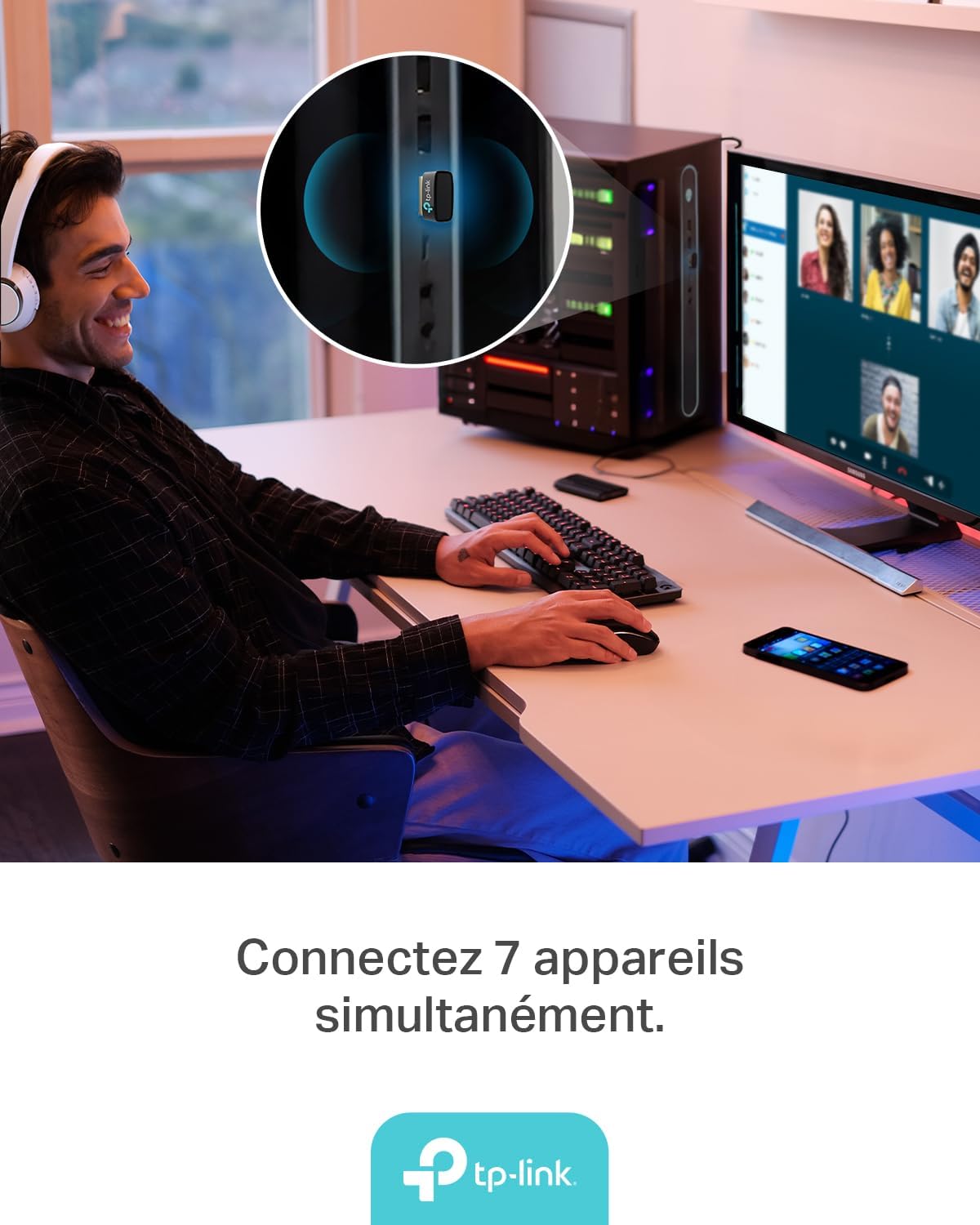
Figure 4: The UB600 adapter allows simultaneous connection of up to 7 Bluetooth devices, enhancing productivity and convenience.
3.2 블루투스 6.0 어드밴tages
The UB600 utilizes Bluetooth 6.0 technology, offering several improvements:
- 강화된 보안: Provides improved security features for your wireless connections.
- 안정성 향상: Offers a more stable and reliable connection compared to older Bluetooth versions.
- Faster Speeds (EDR): Supports Enhanced Data Rate (EDR) for quicker data transfer.
- Reduced Power Consumption (BLE): Utilizes Bluetooth Low Energy (BLE) for energy-efficient operation, especially beneficial for battery-powered devices.

Figure 5: The UB600 adapter contributes to daily efficiency with faster speeds (EDR) and reduced power consumption (BLE).
4. 유지관리
The TP-Link UB600 is designed for durability and requires minimal maintenance. To ensure optimal performance and longevity:
- 깨끗하게 유지하십시오: 어댑터 외부를 주기적으로 부드럽고 마른 천으로 닦아주세요. 액체 세척제나 용제 사용은 피해주세요.
- 손상으로부터 보호: While compact, avoid subjecting the adapter to physical shocks, extreme temperatures, or moisture.
- 확고한 연결: Ensure the adapter is securely plugged into the USB port to prevent intermittent connections.
5. 문제 해결
If you encounter issues with your TP-Link UB600 adapter, consider the following steps:
- 어댑터가 감지되지 않음:
- 어댑터를 다른 USB 포트에 연결해 보세요.
- 컴퓨터를 다시 시작하세요.
- For Windows 7, ensure drivers are correctly installed from the TP-Link web대지.
- 기기를 페어링할 수 없습니다:
- Ensure Bluetooth is enabled on your computer and the device you are trying to pair.
- Make sure your device is in pairing mode.
- Check if the device is already paired with another computer or adapter.
- Move the device closer to the computer to rule out range issues.
- 간헐적인 연결:
- Ensure there are no major obstructions between the adapter and the Bluetooth device.
- Avoid placing the adapter near sources of strong electromagnetic interference (e.g., Wi-Fi routers, microwaves).
- 컴퓨터의 운영 체제와 블루투스 드라이버를 최신 버전으로 업데이트하세요.
추가 지원이 필요하면 공식 TP-Link 지원을 방문하세요. web대지.
6. 사양
| 특징 | 세부 사항 |
|---|---|
| 모델 번호 | UB600 |
| 인터페이스 | USB |
| 블루투스 버전 | 블루투스 6.0 |
| 데이터 전송 속도 | 2Mbps |
| 호환되는 운영 체제 | 윈도우 11, 윈도우 10, 윈도우 8.1, 윈도우 7 |
| 호환 장치 | Computer, Laptop (for connecting mouse, keyboard, headset, smartphone, controller, etc.) |
| 치수(길이 x 너비 x 높이) | 0.68 x 1.89 x 1.48cm |
| 무게 | 10그램 |
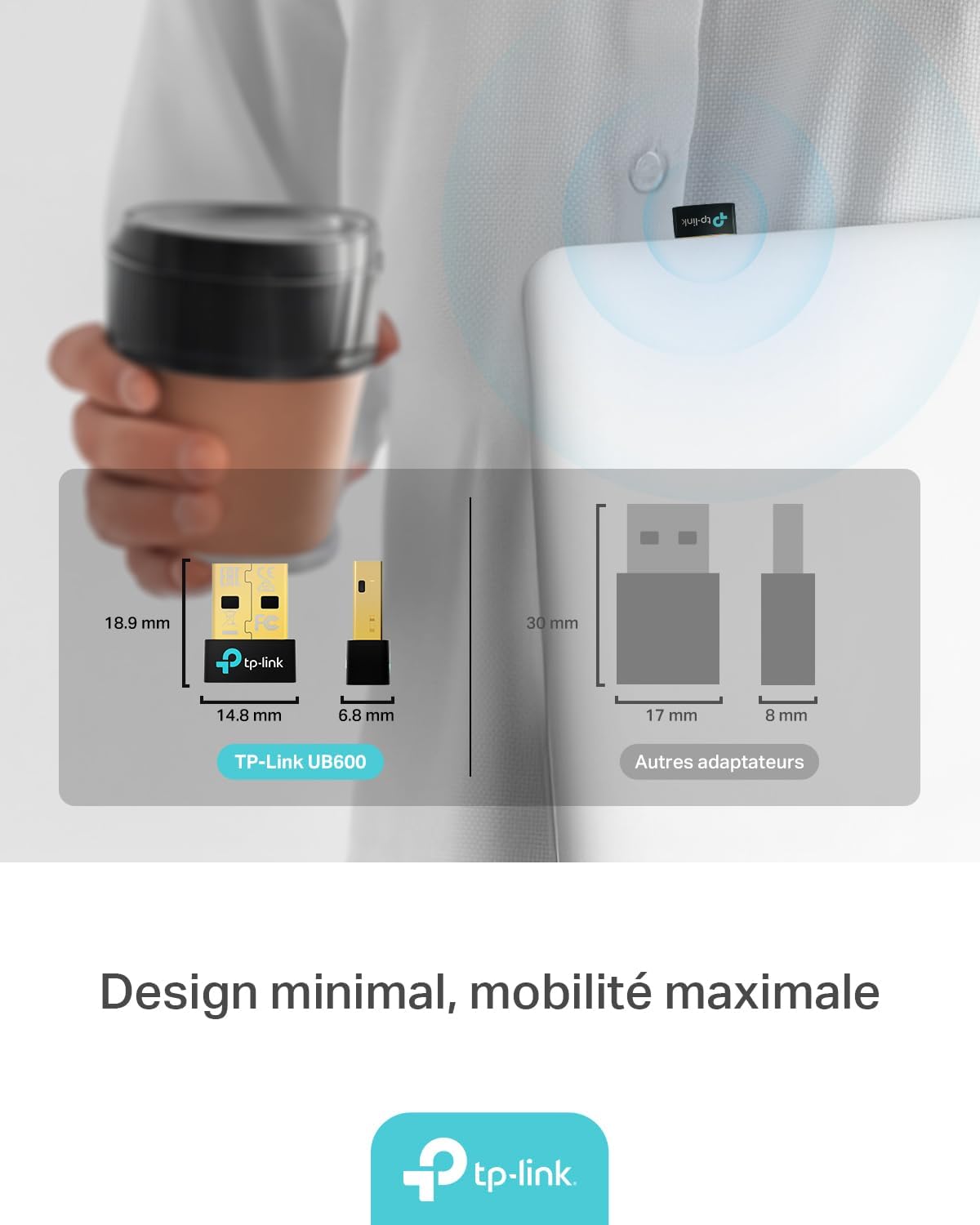
Figure 6: The UB600's minimal design ensures maximum mobility and discreet integration with your device.
7. 보증 정보
자세한 보증 정보는 제품에 동봉된 보증 카드를 참조하거나 TP-Link 공식 웹사이트를 방문하십시오. web사이트. 보증 약관은 지역에 따라 다를 수 있습니다.
8. 기술 지원
If you require technical assistance or have questions regarding your TP-Link UB600 Bluetooth USB Adapter, please visit the TP-Link support web대지:
FAQ, 드라이버 다운로드 및 고객 서비스 연락처 정보는 해당 웹사이트에서 찾을 수 있습니다. web대지.