
1. 설정
Follow these steps to set up your ATTACK SHARK R68HE wired gaming keyboard:
- 키보드 풀기: 키보드와 모든 액세서리를 포장에서 조심스럽게 꺼내세요.
- USB-C 케이블을 연결합니다. Locate the USB-C port on the back of the keyboard. Connect one end of the provided USB-C cable to the keyboard and the other end to an available USB port on your computer, laptop, or compatible gaming console.
- 드라이버 설치(선택 사항): For advanced customization and features, download the official driver software from the ATTACK SHARK website. The driver link is typically provided in the product packaging or can be found at www.QMK.TOP. 화면의 지시에 따라 설치를 진행하세요.

Image: The ATTACK SHARK R68HE keyboard connected to a device using its coiled USB-C cable, illustrating the wired connection.
The keyboard is compatible with various devices including PCs, notebooks, tablets, and gaming consoles.
2. 사용 설명서
The ATTACK SHARK R68HE keyboard features a 68-key QWERTY layout with Magnetic Hall Effect Switches and Rapid Trigger technology for precise and responsive input.

Image: The ATTACK SHARK R68HE keyboard, emphasizing its 8000Hz polling rate and 256K scan rate for instant response and ultimate precision.
주요 특징:
- 자기 홀 효과 스위치: These switches offer adjustable actuation points and rapid trigger functionality, allowing for quick key resets and repeated inputs.
- 고성능: Features an 8000Hz polling rate, 256K scanning sampling rate, and 16K global sampling rate for minimal latency.
- 동적 RGB 백라이트: Customize your keyboard's appearance with over 20 preset lighting effects.
- 내구성 있는 구조: Built with CNC aluminum alloy and carbon fiber composite material for enhanced durability.
- 사운드 품질: Incorporates a six-layer padding system for improved acoustic performance.
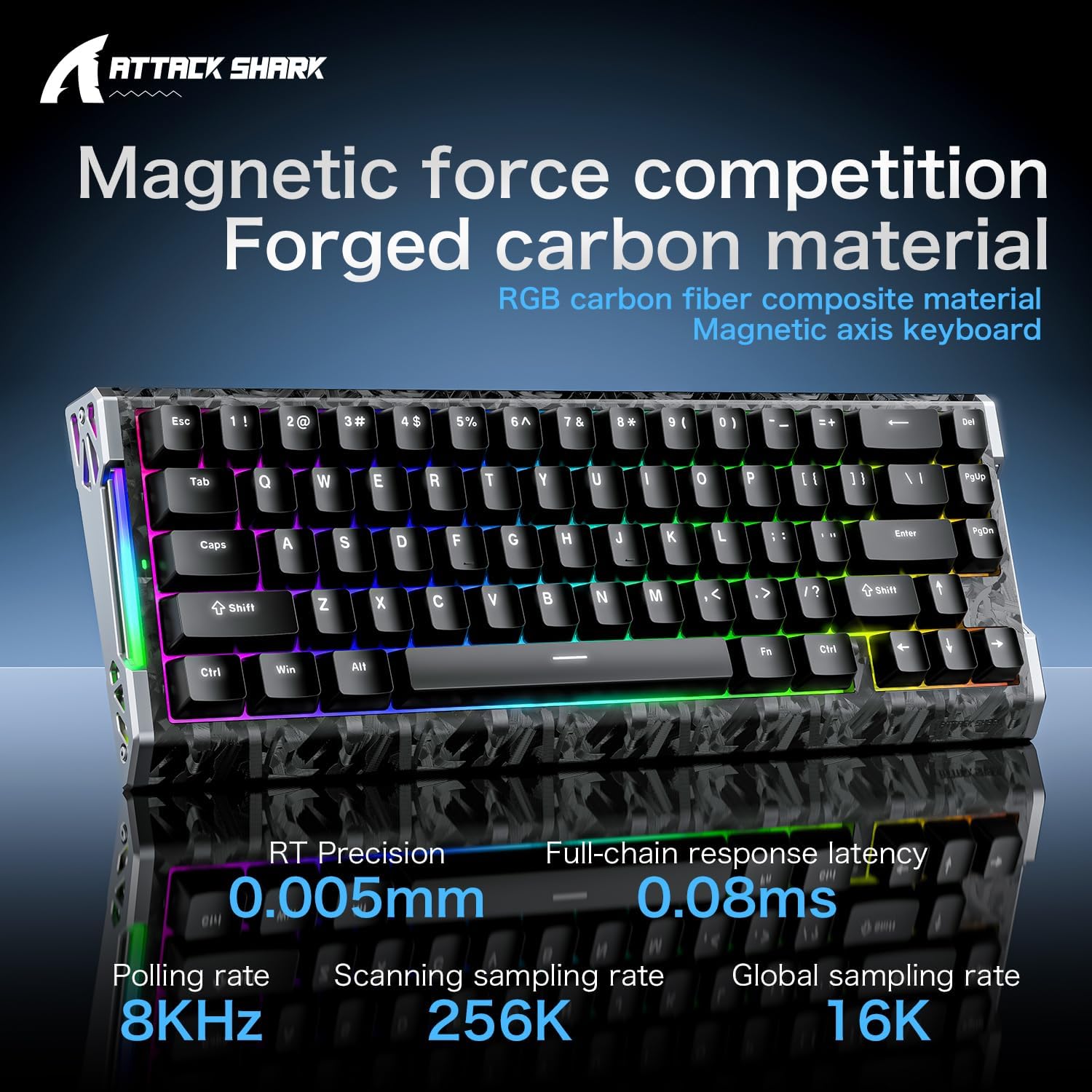
Image: The ATTACK SHARK R68HE keyboard showcasing its magnetic force competition features, including 0.005mm RT precision and 0.08ms full-chain response latency.
RGB 조명 제어:
Use the Function (Fn) key in combination with other keys to control the keyboard's lighting:
- Fn + Z: Switch light effects for the side RGB lighting strips.
- Fn + X: Switch light color for the side RGB lighting strips.
- 에프앤씨: Turn the side RGB lighting strips on/off.
- Fn + Enter: Switch backlight color for the keycaps.
- Fn + \|: Switch backlight effects for the keycaps.
- Fn + 탭: Activate white light backlight for the keycaps.

이미지: 자세한 view of the ATTACK SHARK R68HE keyboard's CNC aluminum alloy frame and RGB lighting strips, with key combinations for controlling the side lights.

Image: The ATTACK SHARK R68HE keyboard displaying its dynamic RGB backlighting with over 20 preset light effects, along with key combinations for controlling the keycap backlights.
Magnetic Hall Effect Switches and Rapid Trigger:
The keyboard features linear magnetic switches with an actuation range of 0.005-3.4mm and a lifespan of 100 million clicks. The Rapid Trigger function allows for instant key reset upon release, providing a competitive edge in fast-paced applications.

Image: An illustration explaining the Magnetic Hall Effect Switches and the Rapid Trigger mechanism, comparing it to a regular switch's activation and reset points.
맞춤형 소프트웨어:
Utilize the dedicated software (available via the driver link mentioned in Setup) to tailor your gaming setup. This software allows for:
- RGB 조명 설정
- 프로그래밍 가능한 키 기능
- FN Layer Settings
- 매크로 설정
- Advanced Key Mapping

Image: A screenshot of the ATTACK SHARK keyboard's web driver interface, showing options for RGB lighting, key settings, macro creation, and advanced key mapping.
3. 유지관리
적절한 유지관리는 키보드의 수명과 최적의 성능을 보장합니다.
- 청소: Regularly clean the keyboard with a soft, dry cloth. For dust and debris between keycaps, use compressed air. Avoid using harsh chemicals or abrasive materials.
- 액체 노출: Keep liquids away from the keyboard. In case of accidental spills, immediately disconnect the keyboard and allow it to dry completely before reconnecting.
- 키캡 및 스위치 제거: The keyboard is hot-swappable, meaning switches can be replaced. A 'DIY tool' is typically provided for safe removal of keycaps and switches. Exercise caution to avoid damaging the components.
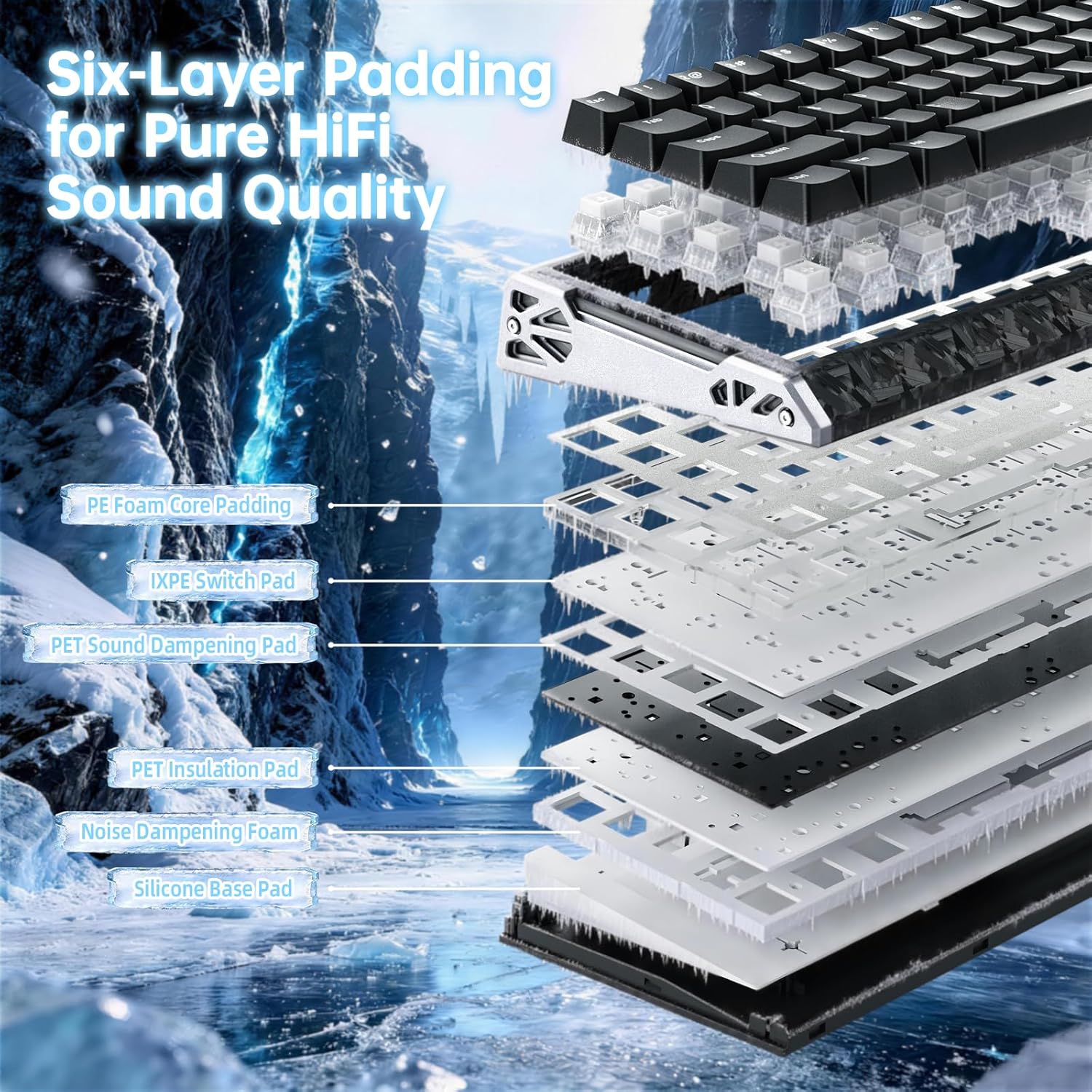
이미지: 폭발된 view of the ATTACK SHARK R68HE keyboard, illustrating its internal six-layer padding structure designed for pure HiFi sound quality, including PE foam, IXPE switch pad, and sound damp층을 쌓아 올리다.
4. 문제 해결
ATTACK SHARK R68HE 키보드 사용 중 문제가 발생하면 다음의 일반적인 해결 방법을 참조하십시오.
- 키보드가 응답하지 않음:
- USB-C 케이블이 키보드와 기기에 제대로 연결되어 있는지 확인하십시오.
- 키보드를 기기의 다른 USB 포트에 연결해 보세요.
- 기기 자체의 문제인지 확인하기 위해 다른 컴퓨터에서 키보드를 테스트해 보세요.
- RGB 조명이 작동하지 않음:
- Check if the lighting is turned off using the Fn + C key combination.
- 밝기가 최소로 설정되어 있지 않은지 확인하십시오.
- If using the customization software, verify that lighting effects are enabled and configured correctly.
- 키가 등록되지 않거나 두 번 입력됨:
- This can sometimes be resolved by updating the keyboard firmware via the official software.
- 특정 스위치에 결함이 있는 경우, 핫스왑 설계 덕분에 해당 스위치를 교체할 수 있습니다.
- 소프트웨어 문제:
- Ensure you have the latest version of the ATTACK SHARK driver software installed.
- Try reinstalling the software if problems persist.
For further assistance, consult the official ATTACK SHARK support resources.
5. 사양
| 상표 | 공격상어 |
| 모델 | R68HE |
| 연결 기술 | USB-C(유선) |
| 호환 장치 | PC, Notebook, Tablet, Gaming Console |
| 키보드 레이아웃 | 쿼티 |
| 키의 개수 | 68 |
| 스위치 유형 | Magnetic Hall Effect Switches (Linear) |
| 작동 범위 | 0.005~3.4mm |
| 폴링 속도 | 8000Hz |
| 스캐닝 Samp링율 | 256K |
| Global Samp링율 | 16K |
| 백라이트 | RGB (20+ preset effects) |
| 특별 기능 | Ergonomic, Rapid Trigger, Hot-swappable switches |
| 재료 | Carbon Fiber, Aluminum |
6. 보증 및 지원
보증 정보:
Specific warranty details for the ATTACK SHARK R68HE keyboard are not provided in this manual. Please refer to the product packaging, the official ATTACK SHARK website, or your point of purchase for comprehensive warranty terms and conditions.
고객 지원:
For technical support, troubleshooting assistance, or inquiries regarding your ATTACK SHARK R68HE keyboard, please visit the official ATTACK SHARK website. The driver software portal at www.QMK.TOP may also provide support resources and FAQs.


