
Antec Vortex View 360
Antec Vortex View 360 AIO Liquid CPU Cooler Instruction Manual
Model: Vortex View 360
소개
Thank you for choosing the Antec Vortex View 360 AIO Liquid CPU Cooler. This manual provides essential information for the proper installation, operation, and maintenance of your new cooling system. Please read this manual thoroughly before installation to ensure optimal performance and longevity of your product.

오버view of the Antec Vortex View 360 AIO Liquid CPU Cooler, showcasing the 360mm radiator with three 120mm fans and the pump block with its integrated 5-inch IPS display.
안전 정보
제품 손상이나 부상의 위험을 예방하기 위해 다음 안전 예방 조치를 준수하세요.
- 설치 또는 유지 보수를 하기 전에 컴퓨터의 전원을 완전히 차단하십시오.
- 손상을 방지하기 위해 구성품을 조심스럽게 다루십시오.
- Do not open the pump or radiator, as this may void the warranty and cause liquid leakage.
- 제품을 극한의 온도, 습도 및 직사광선을 피해 보관하십시오.
- 제공된 액세서리와 장착 하드웨어만 사용하십시오.
패키지 내용
패키지에 모든 구성품이 들어 있는지 확인하세요.
- Antec Vortex View 360 AIO Cooler (Radiator, Pump, Fans)
- Mounting Hardware for Intel (LGA 115X/1200/1700/1851)
- AMD용 장착 하드웨어 (AM4/AM5)
- USB 3.0 Hub with Passthrough Cable
- 팬 및 RGB 케이블
- 사용자 설명서

A visual representation of the components included in the Antec Vortex View 360 AIO cooler package, alongside a list of supported CPU sockets: Intel LGA115X/1200/1700/1851 and AMD AM4/AM5.
설치 가이드
1. 준비
- 사용 중인 CPU 소켓 유형(Intel LGA 또는 AMD AM)을 확인하십시오.
- PC 케이스에 360mm 라디에이터를 설치할 수 있는 충분한 공간이 있는지 확인하세요.
- Gather necessary tools (screwdriver, etc.).
2. 라디에이터 및 팬 장착
- Attach the three 120mm fans to the radiator using the provided screws. Ensure the fan airflow direction is appropriate for your case's cooling strategy.
- Mount the radiator assembly to the designated location in your PC case (e.g., top, front).
3. Installing the Pump Block
The pump block comes with pre-applied thermal paste. If you prefer to use your own, carefully clean off the pre-applied paste before applying a new layer.
- Install the appropriate mounting brackets for your CPU socket onto the pump block.
- Carefully place the pump block onto your CPU, aligning it with the mounting holes.
- Secure the pump block using the provided thumb screws or nuts, tightening them in a cross pattern until snug.
- For optimal thermal contact, orient the cold plate as follows: Intel CPUs at 6 o'clock, AMD CPUs at 3 o'clock.

Illustrations detailing the recommended cold plate orientation for Intel (6 o'clock) and AMD (3 o'clock) processors to ensure optimal thermal contact and efficient heat transfer.
The integrated 5-inch IPS display on the pump block features a 360° Rotatable Ball Joint. This allows you to freely adjust and lock the display angle after installation using the built-in twist dial, ensuring optimal viewing from any angle without needing tools.
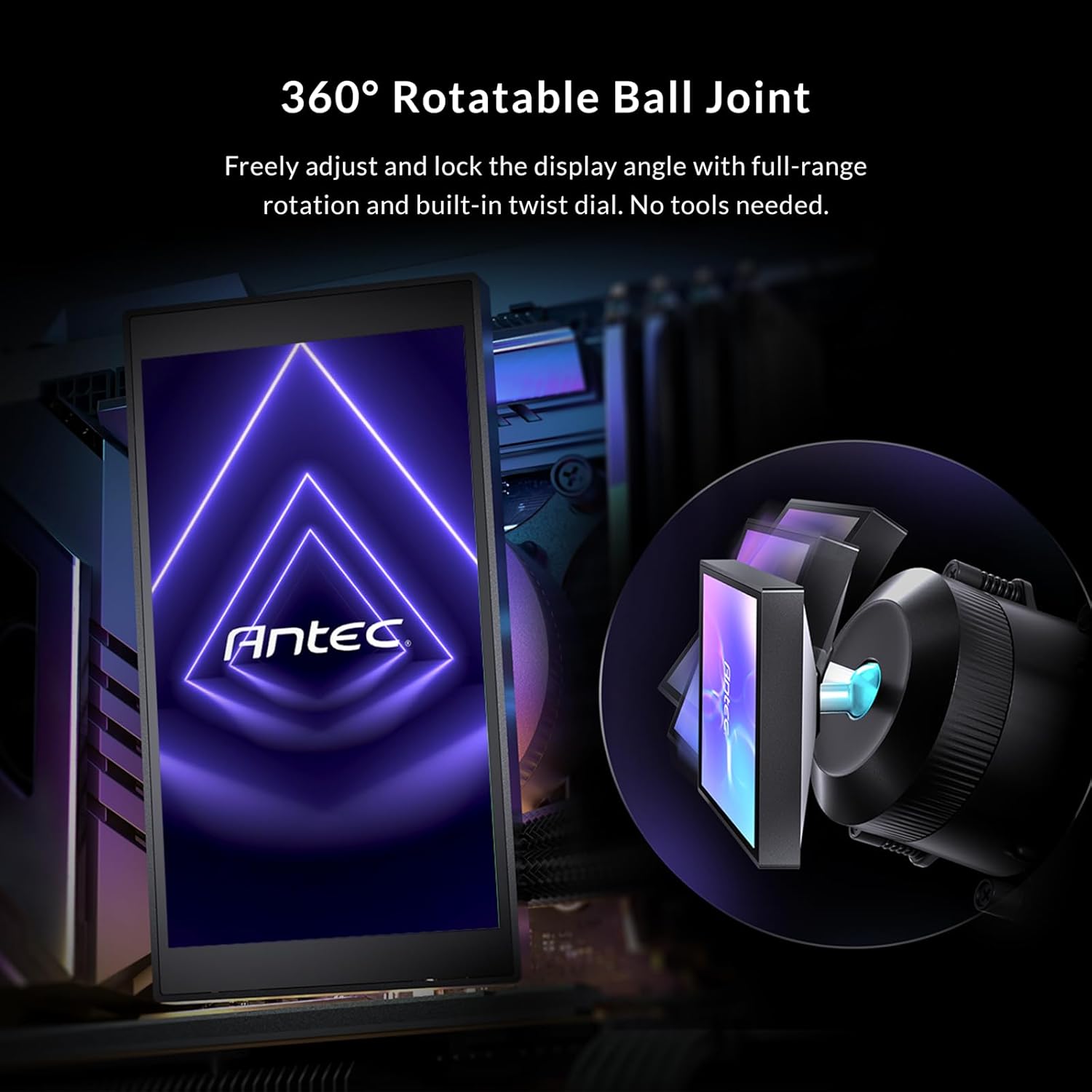
This image illustrates the 360° rotatable ball joint on the pump block, allowing users to freely adjust and lock the display angle for optimal viewing without tools.
4. 케이블 연결하기
- Connect the fan PWM cables to the CPU_FAN or AIO_PUMP headers on your motherboard, or to a fan hub if applicable.
- Connect the pump power cable to the dedicated AIO_PUMP header or a suitable fan header on your motherboard.
- Connect the USB cable from the pump to the provided USB 3.0 Hub with Passthrough. Then, connect the USB hub to an available USB 2.0 or 3.0 header on your motherboard. This allows the pump to communicate with the Antec iUnity software while keeping front-panel USB ports accessible.
- Connect the RGB cables from the fans and pump to your motherboard's ARGB header or a compatible RGB controller.

This diagram explains the USB 3.0 Hub with Passthrough feature, allowing the pump to connect to the motherboard while maintaining accessibility for front-panel USB ports.
작동 지침
IPS Display Customization
The Antec Vortex View 360 features a vivid 5-inch IPS 디스플레이 with 1280x720 resolution and 300 nits brightness. This display is fully customizable via the Antec iUnity software to show real-time CPU/GPU temperatures, system statistics, animated GIFs, or personalized images.
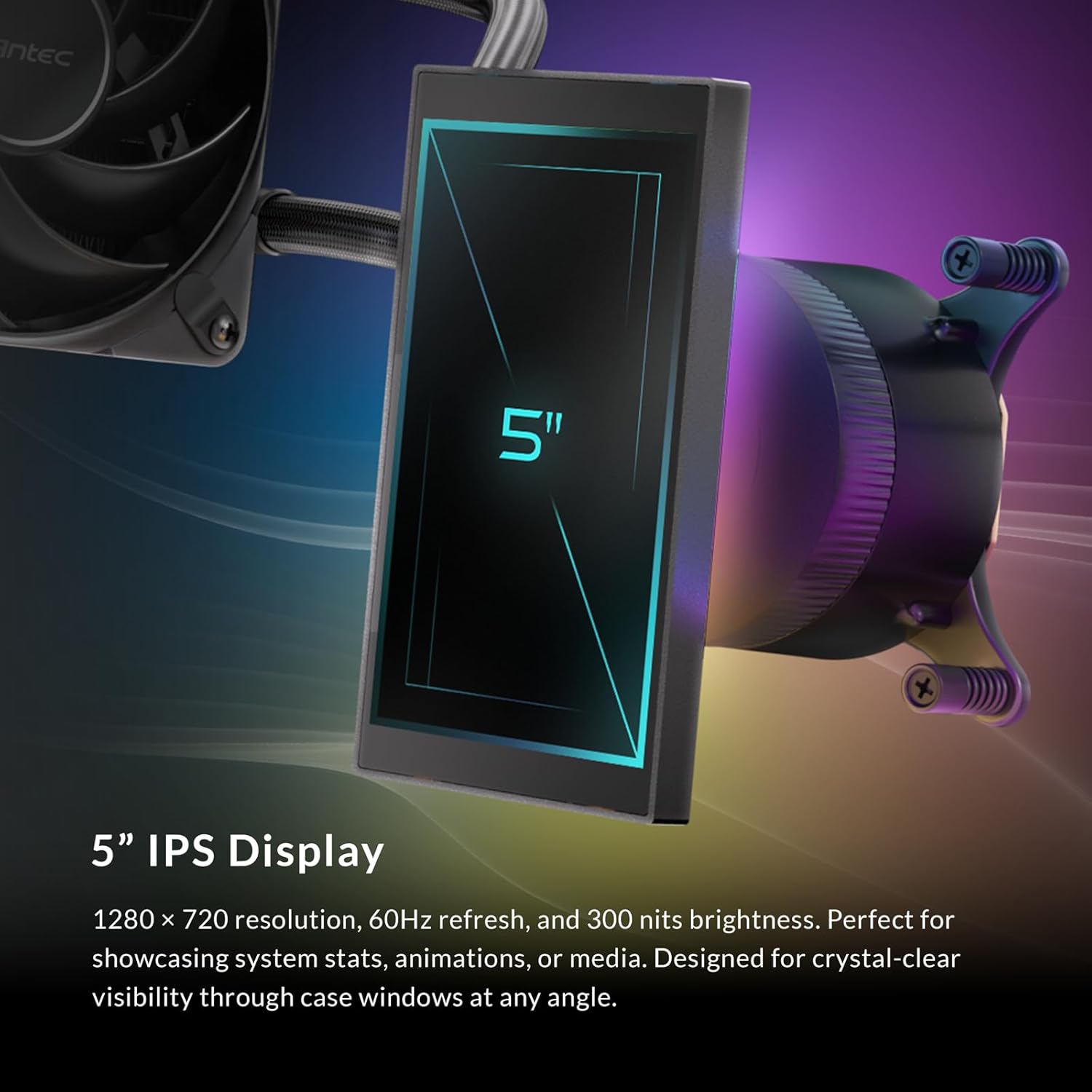
자세한 view of the 5-inch IPS display, highlighting its 1280x720 resolution, 60Hz refresh rate, and 300 nits brightness, designed for clear visibility of system stats, animations, or custom media.
Antec iUnity 2.0 Software
Download and install the Antec iUnity 2.0 software from the official Antec website. This software provides comprehensive control over your cooling system:
- Fan and Pump Curves: Adjust fan speeds and pump performance based on temperature thresholds.
- RGB 조명: Customize the addressable RGB backglow system with various effects and colors.
- Display Personalization: Upload custom images, GIFs, or select from pre-set monitoring displays for the IPS screen.

A screenshot of the iUnity 2.0 software dashboard, demonstrating its capabilities for adjusting fan and pump curves, customizing per-zone RGB lighting on the Vortex View, and personalizing the display content.
RGB Backglow System
The pump block features an addressable RGB panel behind the display, delivering customizable ambient lighting. This system can be synchronized with other RGB components in your PC via the Antec iUnity software, allowing you to set custom lighting zones and effects.

This image demonstrates the addressable RGB panel located behind the display, providing customizable ambient lighting across the pump block and adjacent components, controllable via Antec iUnity software.
유지
Regular maintenance helps ensure the longevity and optimal performance of your AIO cooler:
- 먼지 청소: 라디에이터 핀과 팬 블레이드는 주기적으로 압축 공기를 사용하여 청소하여 먼지 축적을 방지하십시오. 먼지는 공기 흐름과 냉각 성능을 저해할 수 있습니다.
- 케이블 관리 : 모든 케이블이 단단히 연결되어 있고 공기 흐름을 방해하지 않는지 확인하십시오.
- 소프트웨어 업데이트: Keep the Antec iUnity software updated to the latest version for new features and performance improvements.
- 누출 검사: While rare, periodically check for any signs of liquid leakage around the pump block and tubing. If a leak is detected, immediately power off your system and contact Antec support.

내부 view of the Vortex View pump, illustrating its engineering for low-resonance operation and sub-14 dBA acoustics at 2800 RPM, ensuring quiet performance.
문제 해결
문제가 발생하면 다음의 일반적인 문제 해결 단계를 참조하세요.
- 전원이 들어오지 않거나 팬이 회전하지 않음:
- 펌프와 팬의 전원 연결 상태를 모두 확인하십시오.
- Ensure the pump is connected to the correct motherboard header (AIO_PUMP or CPU_FAN).
- Verify fan cables are properly connected to the motherboard or fan hub.
- 높은 CPU 온도:
- Confirm the pump block is securely mounted to the CPU and making good contact.
- Check if thermal paste is properly applied.
- 최적의 공기 흐름을 위해 팬이 올바르게 회전하고 방향이 제대로 맞춰져 있는지 확인하십시오.
- 라디에이터 핀에 쌓인 먼지를 깨끗이 닦아내십시오.
- Verify pump and fan speeds in Antec iUnity software.
- Display Not Working/Showing Incorrect Info:
- Ensure the USB cable from the pump to the USB hub, and from the hub to the motherboard, is securely connected.
- Restart the Antec iUnity software.
- Check for software updates for Antec iUnity.
- RGB Not Functioning:
- Verify all RGB cables are correctly connected to the motherboard's ARGB header or controller.
- Check RGB settings in Antec iUnity software or your motherboard's RGB software.
명세서
| 특징 | 세부 사항 |
|---|---|
| 제품 치수 | 15.51인치 길이 x 4.72인치 너비 x 1.06인치 높이 |
| 상표 | 안텍 |
| 전원 커넥터 유형 | 4핀 |
| 권tage | 12 볼트 |
| 왓tage | 400와트(TDP 지원) |
| 냉각 방식 | 물 |
| 호환 장치 | 데스크탑 |
| 소음 수준 | 28.6 Decibels (Fans), Sub-14 dBA (Pump at 2800 RPM) |
| 최대 회전 속도 | 2000 RPM (팬) |
| 기류 용량 | 분당 59.23입방 피트 |
| 품목 무게 | 4 파운드 |
| 모델 | 와동 View 360 |
| CPU 소켓 호환성 | Intel LGA 115X/1200/1700/1851 & AMD AM4/AM5 |
| IPS 화면 | 5" IPS, 1280x720 resolution, 300 nits brightness |
보증
The Antec Vortex View 360 AIO Liquid CPU Cooler comes with a 6년 보증 from the date of purchase. This warranty covers defects in materials and workmanship under normal use. Please retain your proof of purchase for warranty claims. For detailed warranty terms and conditions, please refer to the official Antec web대지.
지원하다
For technical assistance, troubleshooting beyond this manual, or warranty inquiries, please visit the official Antec support website or contact their customer service. You can typically find contact information on the Antec web사이트 또는 제품 포장에 표시되어 있습니다.
안텍 공식 Web대지: www.antec.com
Ask a question about this manual
Ask about setup, troubleshooting, compatibility, parts, safety, or missing instructions. Manuals+ will review the question and use this page’s manual context to help answer it.