
1. 소개 및 이상view
This manual provides essential instructions for the setup, operation, and maintenance of your Prechen HD-173 16.2-inch 2K Touchscreen Portable Monitor. Please read this manual thoroughly before using the device to ensure proper functionality and longevity.
주요 특징:
- 16.2" 2K QHD IPS Panel: Features an 800 nits brightness, 178° viewing angle, and 1000:1 contrast ratio for vivid colors and sharp details.
- 10포인트 멀티터치: Responsive touch functionality, optimized for interactive monitoring with Aida64 on Windows. (Note: iOS devices support single touch only).
- Dedicated Aida64 Monitoring: Designed as a secondary display for real-time CPU/GPU usage, temperatures, fan speeds, and custom sensor panels.
- 이중 연결: Equipped with HDMI and USB-C ports for easy connection to laptops, PCs, and gaming consoles.
- 프리미엄 금속 구조: Durable full-metal casing suitable for PC case integration, portability, or DIY projects.
Important Note on Power and Touchscreen Configuration:
Due to its higher power consumption, always connect the monitor to a power source before plugging in the HDMI or USB-C signal cable. This ensures full touchscreen functionality and stable operation, especially with high brightness settings.

Image 1.1: The Prechen HD-173 16.2-inch 2K Touchscreen Portable Monitor, showcasin세련된 디자인과 생생한 디스플레이가 특징입니다.

Image 1.2: Multiple Prechen monitors arranged to display vibrant graphics, highlighting the visual quality.
2. 설정
Follow these steps to connect your Prechen HD-173 monitor to your device.
2.1 포트 오버view
Familiarize yourself with the available ports on your monitor:
- 오디오 잭 : 외부 헤드폰이나 스피커를 연결하는 데 사용합니다.
- 타입 C(모든 기능을 갖춘 USB-C): Supports power, video, and touch signal transmission.
- HDMI : 영상 신호 입력용입니다.
- DC 전원 : 외부 전원 공급용.
- USB 2.0: For connecting peripherals or additional power.
- Luminance + / Volume - / Menu / ON / OFF buttons: For monitor control.

이미지 2.1: 상세 view 모니터의 포트와 제어 버튼에 대한 정보입니다.
2.2가지 연결 방법
Always connect the power adapter to the monitor first to ensure stable power before connecting any signal cables.
Method 1: Full-featured USB-C Connection (USB-C 3.1 or higher)
This method requires a single USB-C to USB-C cable and a power adapter (required).
- Connect the power adapter to the monitor's DC Power or Type-C port.
- Connect one end of the USB-C to USB-C cable to the monitor's Type-C port.
- Connect the other end of the USB-C to USB-C cable to your device's full-featured USB-C port.
This connection provides video, touch, and power (if your device supports power delivery through USB-C).
Method 2: HDMI and USB Connection
This method requires an HDMI cable, a USB-A to USB-C cable (for touch functionality), and a power adapter (required).
- Connect the power adapter to the monitor's DC Power or Type-C port.
- HDMI 케이블의 한쪽 끝을 모니터의 HDMI 포트에 연결하세요.
- HDMI 케이블의 다른 쪽 끝을 기기의 HDMI 포트에 연결하세요.
- Connect one end of the USB-A to USB-C cable to the monitor's Type-C port.
- Connect the USB-A end of the cable to your device's USB-A port for touch signal.
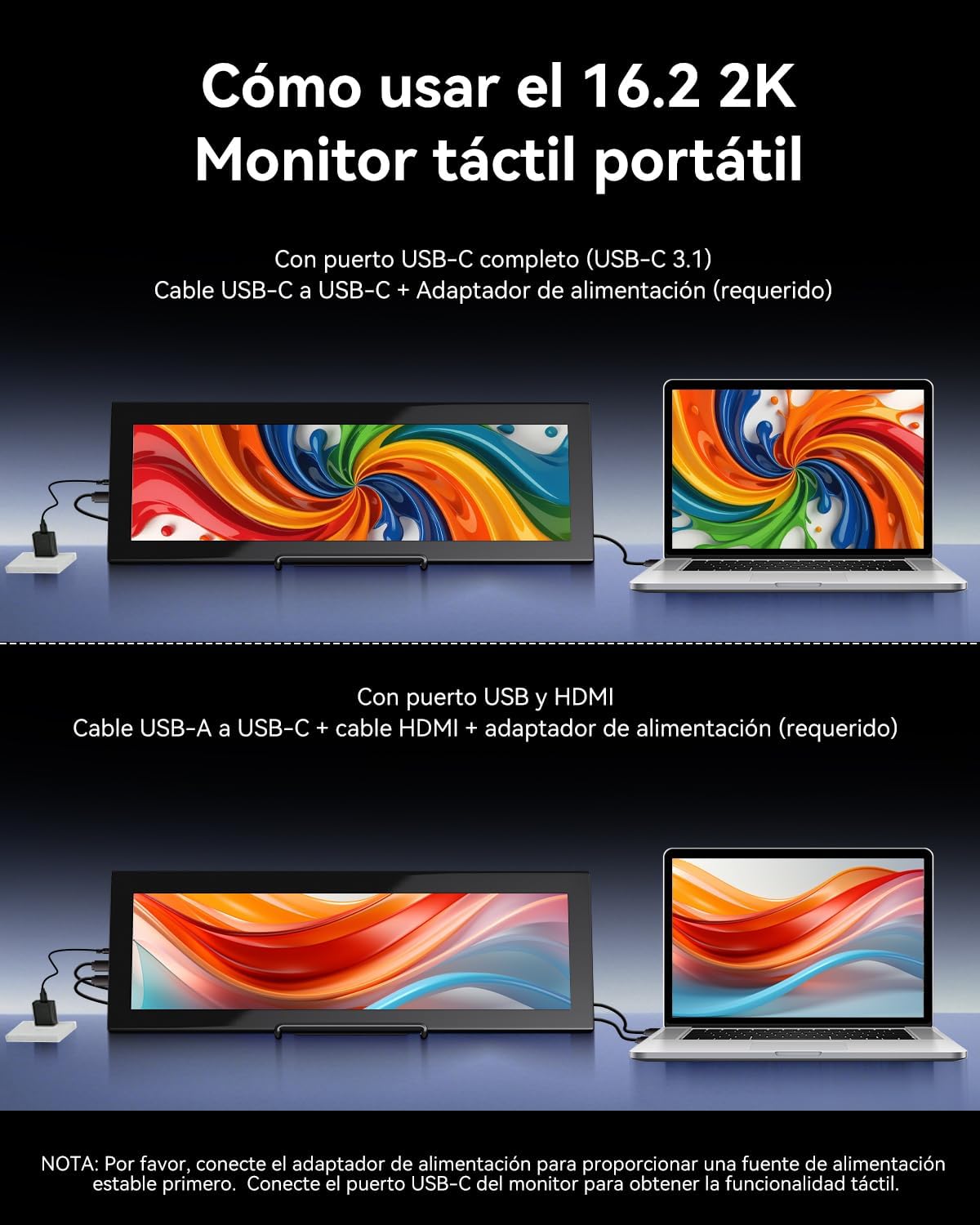
Image 2.2: Visual guide for connecting the monitor using either a single USB-C cable or HDMI with a USB-A cable for touch.

Image 2.3: Illustration of the monitor's broad compatibility with devices like cameras, PCs, Xbox, PS4/5 via HDMI, and Switch, MacBooks, phones, tablets via USB-C.
3. 사용 설명서
3.1 전원 켜기/끄기 및 기본 제어
Use the buttons on the side of the monitor to control its functions:
- 켜기/끄기: Press and hold to power the monitor on or off.
- 메뉴: 화면 메뉴(OSD)에 접근하려면 누르십시오.
- Luminance +: Increases brightness. Also used for navigation in the OSD menu.
- 볼륨 -: Decreases volume. Also used for navigation in the OSD menu.
3.2 터치스크린 기능
The monitor supports 10-point multi-touch for interactive use.
- Windows 장치: Fully plug-and-play; no drivers required for touch functionality.
- Apple Devices (iOS/macOS): Only supports single-touch input. Multi-touch gestures are not supported.
- Linux Devices: Not compatible with touch functionality.

Image 3.1: Illustration of various 10-point multi-touch gestures supported by the monitor.

Image 3.2: A compatibility chart indicating which devices support multi-touch, single-touch, or no touch functionality.
3.3 Aida64 Monitoring
This monitor is specifically designed as a secondary display for Aida64 on Windows. It allows you to view real-time hardware statistics without cluttering your primary screen.
- Connect the monitor to your Windows PC as described in the Setup section.
- Install and configure Aida64 software on your PC.
- Utilize Aida64's sensor panel feature to display CPU/GPU usage, temperatures, fan speeds, and other custom data on the Prechen monitor.

Image 3.3: The monitor displaying Aida64 hardware monitoring data, showing CPU and GPU statistics.

Image 3.4: The monitor seamlessly integrated into a PC case, demonstrating its use for Aida64 hardware monitoring.
4. 유지관리
적절한 관리와 유지보수는 모니터의 수명을 연장시켜 줍니다.
4.1 화면 청소
- 청소하기 전에는 항상 모니터의 전원을 끄고 플러그를 뽑으세요.
- 부드럽고 보풀이 없는 천(극세사 천을 권장합니다)을 사용하세요.
- 완고한 자국의 경우 가볍게 damp천에 물이나 화면에 안전한 세척액을 묻혀 닦으세요. 화면에 직접 액체를 뿌리지 마세요.
- Avoid using harsh chemicals, alcohol, or abrasive cleaners, as these can damage the screen coating.
4.2 일반 관리
- 모니터를 직사광선, 과도한 열, 습기로부터 멀리 두십시오.
- 모니터 위에 무거운 물건을 올려놓지 마세요.
- 환기구를 막지 마십시오.
- If transporting the monitor, use appropriate protective packaging.
5. 문제 해결
모니터에 문제가 발생하면 다음의 일반적인 문제와 해결 방법을 참조하세요.
| 문제 | 가능한 원인 | 해결책 |
|---|---|---|
| 화면 깜빡임 또는 불안정한 표시 | 전력 공급이 부족합니다. | Ensure the monitor is connected to a dedicated power adapter (PD20W or higher recommended). Always connect power before signal cables. Use a high-quality Type-C to Type-C cable if using USB-C for power. |
| 터치스크린이 응답하지 않음 | Incorrect connection order or insufficient power. Incompatible device. | 1. Ensure the power adapter is connected to the monitor first, then the signal cable (HDMI or USB-C). 2. Verify your device's USB-C port supports video and touch (full-featured USB 3.1). 3. If using HDMI, ensure the USB-A to USB-C cable is connected for touch. 4. Note: iOS devices only support single touch. Linux devices are not supported for touch. |
| 감지된 신호 없음 | Incorrect cable connection or input source. | 1. Check all cable connections (HDMI, USB-C) are secure. 2. Ensure the correct input source is selected on the monitor (if applicable via OSD menu). 3. Test with another device or cable if possible. |
| 모니터 전원이 켜지지 않습니다 | No power or faulty power adapter. | 1. Ensure the power adapter is securely connected to a working power outlet and the monitor. 2. Try a different power adapter if available. |
| Apple device touch is single-point only | This is a known compatibility limitation. | Apple devices (iOS/macOS) are designed to support only single-touch input with this monitor. Multi-touch gestures are not available. |
| No support for Linux devices | Operating system incompatibility. | This monitor is not compatible with Linux-based devices or consoles. |
6. 사양
Detailed technical specifications for the Prechen HD-173 monitor:
| 특징 | 사양 |
|---|---|
| 상표 | 프레첸 |
| 모델 번호 | HD-173 |
| 화면 크기 | 16.2 인치 |
| 최대 해상도 | 2608x720 Pixels (2K QHD) |
| 패널 유형 | IPS |
| 디스플레이 기술 | 주도의 |
| 새로 고침 빈도 | 60Hz |
| 응답 시간 | 3밀리초 |
| 대비율 | 1000시 1분 |
| 화면 표면 설명 | 광택있는 |
| 연결 기술 | USB Type-C, HDMI, USB |
| 하드웨어 인터페이스 | HDMI |
| 색상 | 검은색 |
| 품목 치수(D x W x H) | 3 x 15 x 44.3cm |
| 품목 무게 | 2.3kg |
| 제조업체 | Shenzhen Kenowa Electronics Co., LTD |
| 원산지 | 중국 |
| 한국어: | 753018887476 |

Image 6.1: Visual comparison highlighting the superior detail of 2K (2608x720) resolution compared to 1080P.

Image 6.2: The monitor showcasing its 800 nits brightness for clear and brilliant images.
7. 보증 및 지원
7.1 제품 보증
This product comes with a 1-year limited warranty from the date of purchase. Please retain your proof of purchase for warranty claims. The warranty covers manufacturing defects but does not cover damage caused by misuse, accidents, unauthorized modifications, or normal wear and tear.
7.2 고객 지원
For technical assistance, warranty claims, or any questions regarding your Prechen HD-173 monitor, please contact the seller or manufacturer through the platform where you purchased the product. Provide your model number (HD-173) and a detailed description of the issue for faster service.