
소개
Welcome to your new Ducky OK-M 65% Wireless Mechanical Gaming Keyboard. This manual provides detailed instructions for setup, operation, maintenance, and troubleshooting to ensure optimal performance and a satisfying typing experience. Please read this manual thoroughly before using your keyboard.
제품 끝view
The Ducky OK-M series offers a premium mechanical typing experience with versatile connectivity and customizable features. This 65% layout keyboard is designed for efficiency and comfort.
비디오 설명: 공식적인view 비디오 쇼asing the Ducky OK-M Mechanical Keyboards, highlighting features such as the gasket-mount design, hot-swappable switches, multi-mode connectivity, and RGB lighting. The video demonstrates the keyboard's various layouts and customization options.
패키지 내용
패키지에 모든 품목이 들어 있는지 확인하세요.
- Ducky OK-M 65% Wireless Mechanical Gaming Keyboard
- USB-C 케이블
- 키캡 풀러
- Ducky Ducko Brush
- 사용 설명서 (본 문서)
설정
초기 연결
The Ducky OK-M keyboard offers multiple connection methods:
1. 유선 연결(USB-C)
- 제공된 USB-C 케이블을 키보드의 USB-C 포트에 연결합니다.
- USB-C 케이블의 다른 쪽 끝을 컴퓨터의 사용 가능한 USB 포트에 연결합니다.
- 키보드가 자동으로 감지되어 바로 사용할 수 있습니다.
2. 무선 연결(2.4GHz)
- 2.4GHz 무선 동글을 찾으세요.
- 2.4GHz 동글을 컴퓨터의 사용 가능한 USB 포트에 꽂으세요.
- On the keyboard, locate the connectivity mode switch (often on the back or side) and set it to the 2.4G 위치.
- 키보드가 자동으로 동글에 연결됩니다.
3. 블루투스 연결
- On the keyboard, locate the connectivity mode switch and set it to the BT (Bluetooth) position.
- 사용하시는 기기(컴퓨터, 노트북, 태블릿 또는 스마트폰)에서 블루투스 설정으로 이동하세요.
- 검색 available devices and select "Ducky OK-M" to pair.
- 화면의 지시에 따라 페어링 과정을 완료하세요.

이미지 설명: 자세한 view of the side of the Ducky OK-M keyboard, showing the physical switches for selecting between Windows/iOS compatibility, 2.4GHz wireless, and Bluetooth modes, alongside the USB-C port for wired connection and charging.
작동 지침
Key Customization (VIA Software)
The Ducky OK-M keyboard supports VIA software, allowing for comprehensive customization of key assignments, macro programming, and multi-layer configurations. VIA is a web-based application, providing a user-friendly interface for advanced settings.
- To access VIA, visit the official VIA web대지: https://www.caniusevia.com/
- Ensure your keyboard is connected (preferably wired for initial setup) and follow the instructions on the VIA website to detect and configure your keyboard.

이미지 설명: 클로즈업 view of the Ducky OK-M keyboard's rotary volume knob, emphasizing its integration with VIA software for customizable functions beyond just volume control.
RGB 조명
The keyboard features subtle side RGB lighting that enhances its aesthetic. Lighting modes and effects can be configured and adjusted through the VIA software. Refer to the VIA documentation for detailed instructions on customizing RGB settings.
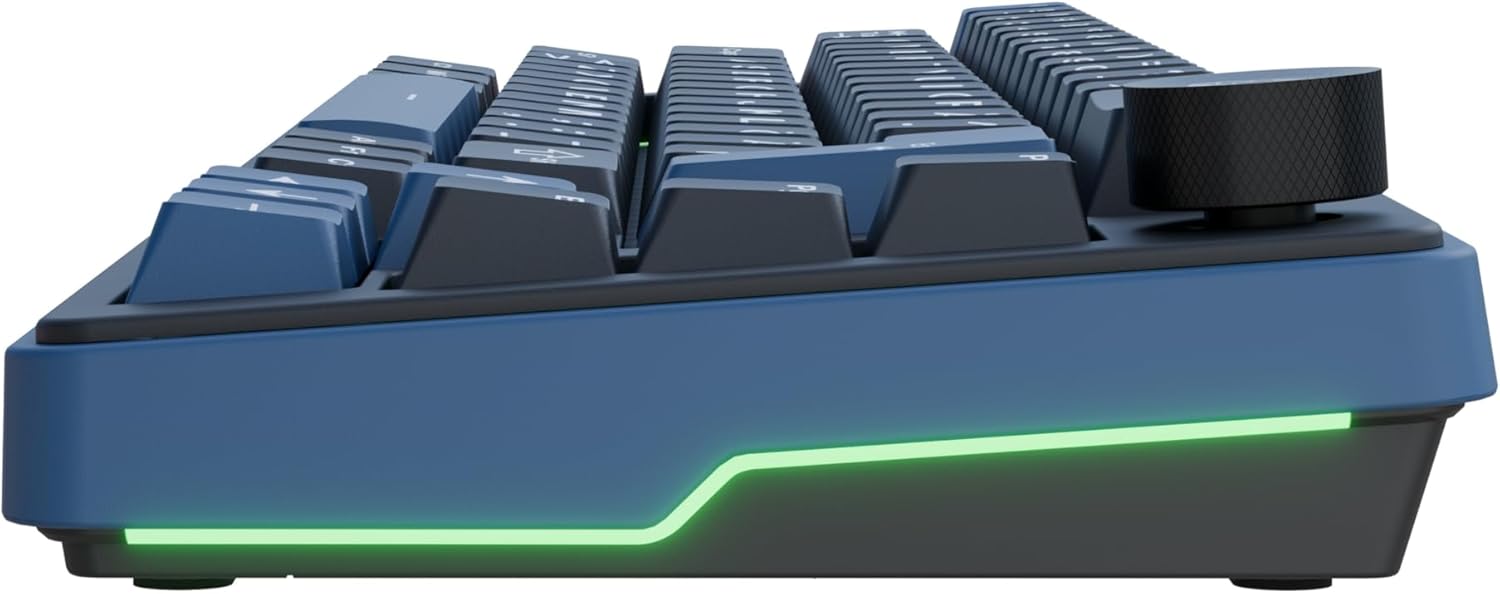
이미지 설명: 사이드 프로file of the Ducky OK-M keyboard, highlighting the vibrant green RGB lighting strip that runs along the lower edge of the keyboard chassis.
볼륨 롤러
The integrated volume roller provides convenient control over your audio output. Rotate the roller to adjust volume up or down. Pressing the roller typically mutes or unmutes the audio.
유지
청소
- Use the provided Ducky Ducko Brush to regularly remove dust and debris from the keycaps and between the keys.
- For deeper cleaning, use the included keycap puller to carefully remove keycaps. Clean the switches and plate with a soft, dry cloth or compressed air.
- Avoid using liquid cleaners directly on the keyboard. If necessary, dampen a cloth slightly with water or a mild cleaning solution and wipe gently.
핫스왑 가능 스위치
The Ducky OK-M features hot-swappable switch sockets, allowing you to change mechanical switches without soldering. This provides flexibility to customize your typing feel.
- To remove a switch, use a switch puller (not included) to gently grip the top and bottom clips of the switch and pull upwards.
- To install a new switch, align the pins of the switch with the holes on the PCB and press down firmly until it clicks into place. Ensure the pins are not bent.

이미지 설명: A close-up comparison of two different types of hot-swappable mechanical keyboard switches: KTT Linear switches, which are pink, and Tactile switches, which are light blue, illustrating the ease of switch replacement.
문제 해결
키보드가 응답하지 않음
- 유선 연결: USB-C 케이블이 키보드와 컴퓨터에 단단히 연결되어 있는지 확인하세요. 다른 USB 포트나 케이블을 사용해 보세요.
- 2.4GHz 무선: Verify the 2.4GHz dongle is properly plugged into a USB port. Ensure the keyboard's mode switch is set to 2.4G. Check the keyboard's battery level.
- 블루투스 연결 : Confirm the keyboard's mode switch is set to BT. Ensure Bluetooth is enabled on your device and the keyboard is paired. If previously paired, try unpairing and re-pairing the device. Check the keyboard's battery level.
RGB 조명이 작동하지 않음
- Check the lighting settings within the VIA software.
- Ensure the keyboard is not in a low-power mode that might disable or dim the lighting.
특정 키가 등록되지 않음
- 키캡 풀러를 사용하여 키캡을 조심스럽게 제거하세요.
- Gently remove the switch using a switch puller.
- Inspect the switch pins for any bends or damage. Straighten bent pins if possible, or replace the switch if damaged.
- Reinsert the switch and keycap, ensuring they are seated correctly.
명세서
| 상표 | 예보 |
| 모델 | OK-M-65 |
| 연결 기술 | 블루투스, RF(2.4GHz), USB-C |
| 키보드 설명 | 기계적 |
| 추천 용도 | 일상 사용 |
| 특별 기능 | Backlit, Hot-Swappable, Portable, Volume Roller |
| 키보드 백라이팅 | RGB |
| 스위치 | KTT Wine Red Switch |
| 품목 무게 | 2.22파운드 |
| 패키지 크기 | 13.9 x 6.34 x 1.85 인치 |
| 배터리 | 1 비표준 배터리(포함) |
보증 및 지원
For detailed warranty information, technical assistance, or to register your product, please visit the official Ducky web해당 웹사이트를 방문하시거나 공인 판매점에 문의하십시오. 보증 청구를 위해서는 구매 영수증을 증빙 자료로 보관해 주시기 바랍니다.
덕키 오피셜 Web대지: https://www.duckychannel.com.tw/