
폴로노 D810
POLONO D810 Portable Thermal Printer Instruction Manual
모델 : D810
1. 서론
This manual provides detailed instructions for the setup, operation, and maintenance of your POLONO D810 Portable Thermal Printer. Please read this manual thoroughly before using the printer to ensure proper function and longevity of the device.
The POLONO D810 is a compact, inkless thermal printer designed for portability and convenience, supporting both US Letter and A4 thermal paper sizes. It connects wirelessly via Bluetooth to iOS and Android devices, and via USB to Windows and Mac computers.
2. 패키지 내용
패키지에 모든 품목이 들어 있는지 확인하세요.
- POLONO D810 Inkless Printer
- 20 sheets of US Letter thermal paper
- 사용 설명서 (본 문서)
- 안내 카드
- USB Drive (containing drivers for PC)
- Type-C 케이블 (충전 어댑터는 포함되지 않음)
3. 프린터 오버view
Familiarize yourself with the main components of your D810 printer:
- 전원 버튼: Used to turn the printer on/off.
- USB Interface / Power Interface: For connecting to a computer or charging the device.
- 서류 입력: The slot where thermal paper is inserted for printing.
- Paper Size Switch: Adjusts the printer for different paper widths (216mm for US Letter, 210mm for A4).
- Open Key for Lower Cover: Releases the lower cover for maintenance or paper loading.

Image: POLONO D810 printer connected to a laptop and a smartphone, illustrating its universal compatibility.
4. 설정 및 첫 사용
4.1. 프린터 충전하기
Before initial use, fully charge the printer using the provided Type-C cable. Connect the cable to the USB/Power Interface on the printer and to a suitable USB power adapter (not included). The indicator light will show charging status.
4.2. 감열지 넣기
- 전원 버튼을 눌러 프린터를 켭니다.
- Ensure the paper size switch is set correctly for your paper (216 for US Letter, 210 for A4).
- Gently insert the thermal paper into the Paper Entry slot. The side of the paper with black markings (if present) should face downwards.
- Align the two ends of the paper to ensure they are on the same straight line to prevent printing offset. The printer will automatically feed the paper into position.

Image: Visual guide for loading thermal paper into the printer, emphasizing correct alignment and orientation.
중요한: This printer uses thermal paper only. Do not use regular copy paper. Always match the paper size setting on your phone/PC to the paper used.
4.3. 소프트웨어 설치
4.3.1. For Mobile Devices (iOS/Android)
- Download the "Labelnize" app from the Google Play Store (for Android) or the Apple App Store (for iOS 13 or above).
- 모바일 장치에서 Bluetooth가 활성화되어 있는지 확인하십시오.
- Open the Labelnize app and follow the on-screen prompts to connect to your D810 printer via Bluetooth.

Image: Step-by-step guide for Bluetooth connection via the Labelnize app.
4.3.2. For Computers (Windows/Mac)
For PC users, drivers must be installed. The D810 printer does not support Bluetooth connection with computers; a USB connection is required.
- Connect the D810 printer to your laptop or desktop computer using the provided USB cable.
- Install the necessary drivers from the included USB drive or download them from the official POLONO web대지: 폴로노닷컴.
- Once drivers are installed, you can select the D810 printer from your computer's print options.

Image: Guide for USB connection and driver installation for computer printing.
5. 사용 설명서
5.1. Printing from Mobile App (Labelnize)
- Ensure your D810 printer is powered on and connected via Bluetooth to the Labelnize app.
- In the app, select the appropriate paper size (e.g., US Letter Fold, Letter, Tattoo Paper) from the "Select Paper" option.
- 선택하세요 file you wish to print (e.g., documents, images, PDFs). The app supports various file types including Word, PPT, PDF, and TXT.
- Adjust print settings such as density and number of copies as needed.
- Tap "Print" to initiate printing.

Image: The Labelnize app interface demonstrating support for multiple document types.
Video: Official guide on how to use the D810 Portable Printer with a phone, demonstrating app connection and printing process.
5.2. 컴퓨터에서 인쇄하기
- Connect the D810 printer to your computer via USB.
- 컴퓨터에서 인쇄할 문서나 이미지를 엽니다.
- Go to the print menu (usually File > 인쇄).
- 프린터로 "POLONO D810"을 선택하세요.
- Adjust print settings as required (e.g., paper size, orientation). Ensure the paper size setting matches the physical paper loaded in the printer.
- "인쇄"를 클릭하세요.
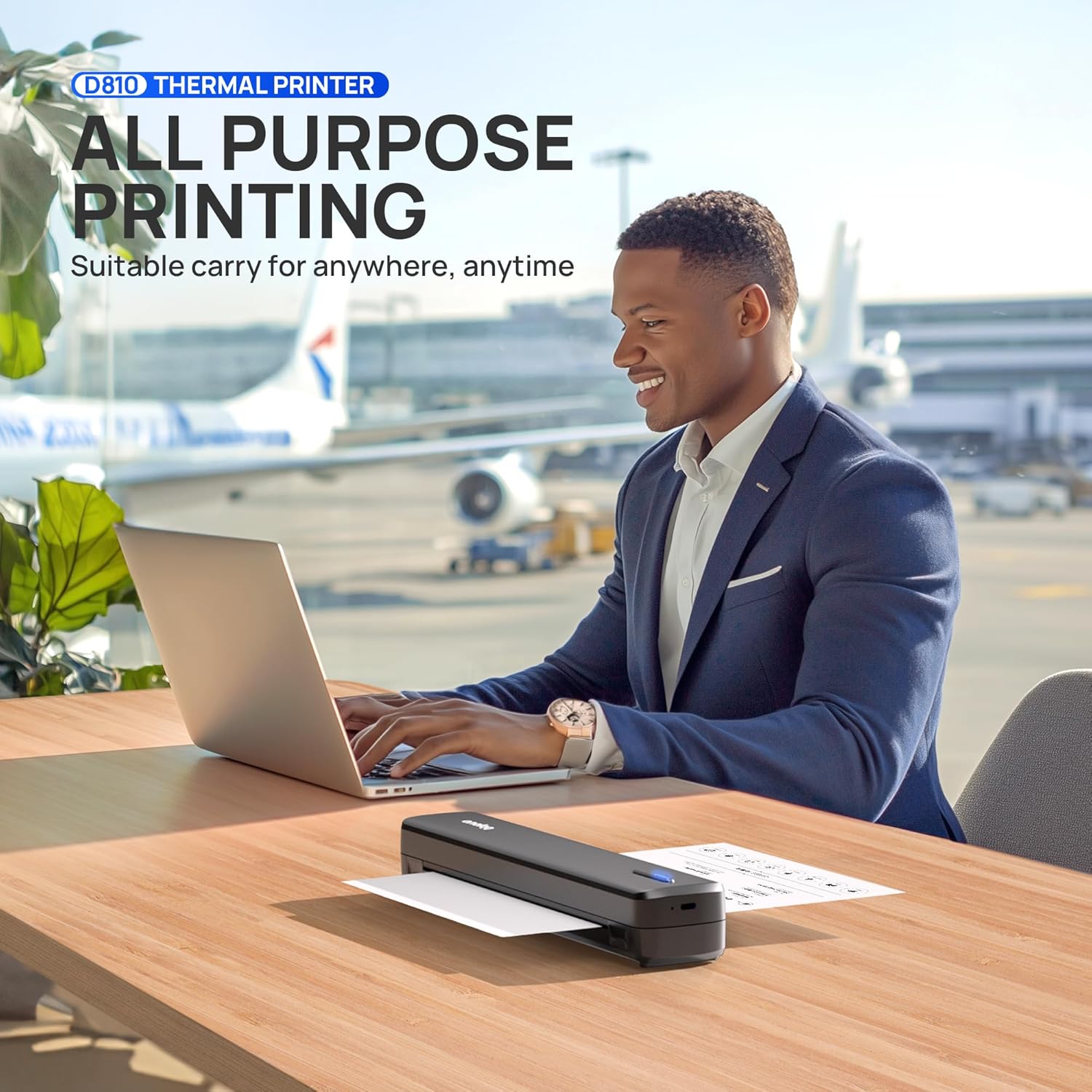
Image: The POLONO D810 printer in use with a laptop, suitable for various printing needs.
The D810 printer delivers crisp, high-resolution black and white prints. It is suitable for office documents, inventory lists, business checks, and more.
6. 유지관리
Proper maintenance ensures optimal performance and extends the life of your printer.
- 청소: Regularly wipe the exterior of the printer with a soft, dry cloth. For the thermal print head, use a specialized thermal printer cleaning pen or isopropyl alcohol on a cotton swab. Ensure the printer is off and cooled down before cleaning the print head.
- 저장: 프린터를 직사광선과 극한 온도 변화를 피해 서늘하고 건조한 곳에 보관하십시오.
- 배터리 관리 : To maintain battery health, avoid fully discharging the printer frequently. If storing for an extended period, charge the battery to about 50% every few months.
- 종이: 프린트 헤드 손상을 방지하고 선명한 인쇄를 위해 항상 고품질 감열지를 사용하십시오.
7. 문제 해결
If you encounter issues with your POLONO D810 printer, refer to the following common solutions:
| 문제 | 가능한 원인 | 해결책 |
|---|---|---|
| 프린터가 켜지지 않습니다. | 배터리가 부족하거나 전원 문제가 있습니다. | Charge the printer using the Type-C cable. Ensure the power adapter is working. |
| Bluetooth를 통해 연결할 수 없습니다. | Bluetooth is off, app issue, or printer not discoverable. | Ensure Bluetooth is enabled on your device. Restart the Labelnize app and the printer. Check if the printer is in pairing mode. |
| Poor print quality or blank pages. | Incorrect paper loading, low print density, or non-thermal paper used. | Verify thermal paper is loaded correctly (black markings facing down). Adjust print density in the app/driver. Ensure you are using thermal paper. Clean the print head if necessary. |
| 종이 걸림. | 용지 적재 불량 또는 이물질. | Turn off the printer. Open the lower cover using the open key. Carefully remove any jammed paper. Ensure paper is loaded straight. |
| Computer cannot detect printer via USB. | Drivers not installed or USB cable issue. | Install drivers from the provided USB drive or polono.com. Try a different USB port or cable. Restart both printer and computer. |
8. 사양
| 특징 | 세부 사항 |
|---|---|
| 상표 | 폴로노 |
| 모델명 | 디810 |
| 인쇄 기술 | 열의 |
| 연결 기술 | 블루투스, USB |
| 프린터 출력 | 흑백 (모노크롬) |
| 최대 인쇄 속도(흑백) | 초당 4페이지 |
| 최대 복사 해상도(흑백) | 300dpi |
| 지원되는 미디어 크기 | 미국 레터 사이즈(8.5"x11"), A4 |
| 최대 입력 시트 용량 | 20장 |
| 품목 무게 | 1.85파운드 |
| 제품 치수 | 12.99 x 3.22 x 3.64 인치 |
| 특징 | 휴대 가능, 잉크 불필요 |
9. 보증 및 지원
For warranty information, technical support, or further assistance, please visit the official POLONO web사이트를 방문하거나 고객 서비스에 문의하세요.
- 공식적인 Web대지: 폴로노닷컴
- Refer to the included Guide Card for quick support contacts.
관련 문서 - 디810
 |
Polono P10 열전사 라벨 프린터 사용 설명서 및 가이드 Polono P10 감열식 라벨 프린터의 종합적인 사용 설명서 및 가이드입니다. 설치, 사양, 문제 해결 및 보증 정보가 포함되어 있습니다. 잉크리스 블루투스 라벨 프린터의 연결 및 사용 방법을 알아보세요. |
 |
Polono D810 휴대용 열전사 프린터 사용 설명서: 설치, 작동 및 문제 해결 폴로노 D810 휴대용 열전사 프린터에 대한 종합 가이드입니다. 안전, 사양, 설정, Windows 및 Mac용 드라이버 설치, 일반적인 문제 해결, 유지 관리, 보증 및 규정 준수에 대한 내용을 다룹니다. |
 |
Polono PL50E User Manual User manual for the Polono PL50E, providing setup, operation, and troubleshooting information. |
 |
Polono PL60 사용자 설명서: 설치, 사용 및 드라이버 가이드 Polono PL60 열전사 라벨 프린터에 대한 종합 사용자 설명서입니다. Windows, macOS 및 Linux 운영 체제에서의 설정, 작동, 유지 관리 및 드라이버 설치 지침이 포함되어 있습니다. |
 |
폴로노 PL60 빠른 시작 가이드 및 사용자 설명서 이 문서는 Polono PL60 장치의 빠른 시작 가이드 및 포괄적인 사용자 설명서를 제공하며, 설정, 작동 및 문제 해결에 대한 내용을 다룹니다. |
 |
폴로노 P10 열전사 라벨 프린터: 사용 설명서, 설치 및 문제 해결 POLONO P10 열전사 라벨 프린터 사용을 시작해 보세요. 이 종합 가이드에서는 설치, 사양, 연결, 일반적인 문제 해결 및 보증 정보를 다룹니다. |
Ask a question about this manual
Ask about setup, troubleshooting, compatibility, parts, safety, or missing instructions. Manuals+ will review the question and use this page’s manual context to help answer it.