
1. 설정
This section guides you through the initial setup of your CHUWI CoreBook X laptop.
1.1 언박싱 및 초기 전원 켜기
- 노트북과 모든 액세서리를 포장에서 조심스럽게 꺼내세요.
- Connect the provided USB-C power adapter to the laptop's USB-C port (PD Charging/USB 2.0) and then to a power outlet.
- Open the laptop lid. The laptop may power on automatically or you may need to press the power button located on the keyboard.
- 화면의 지시에 따라 언어 선택, 네트워크 연결, 사용자 계정 생성을 포함한 Windows 11 Pro 초기 설정을 완료합니다.
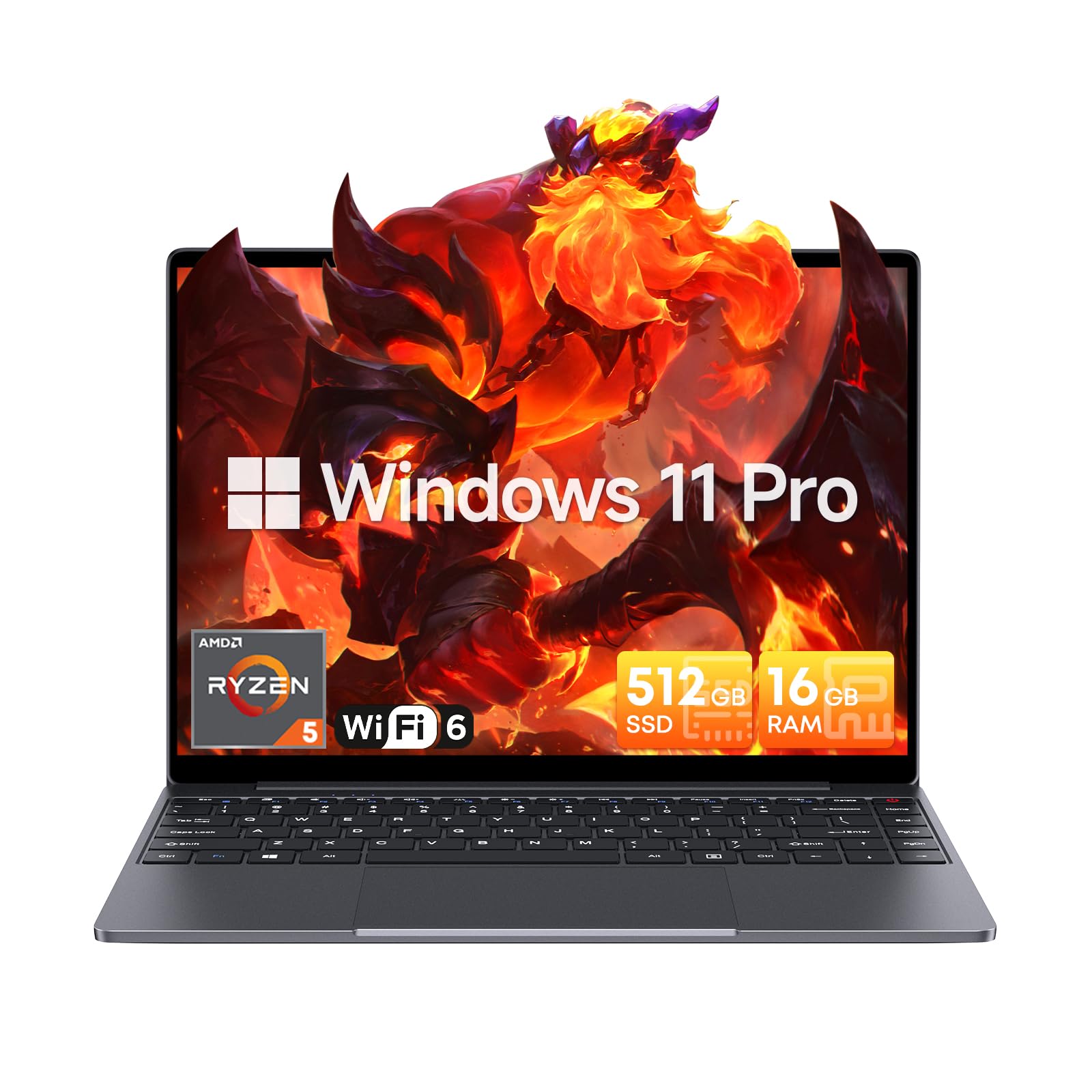
Image: The CHUWI CoreBook X laptop open on a desk, ready for use.
1.2 주변기기 연결하기
- USB 장치: Connect USB mice, keyboards, or external storage devices to the available USB 3.0 ports.
- 외부 디스플레이: Use the HDMI 1.4 port or the full-featured USB Type-C port to connect an external monitor.
- 오디오 장치: 헤드폰이나 외부 스피커를 3.5mm 오디오 잭에 연결합니다.
- TF 카드: Insert a TF card into the TF card slot for additional storage.

이미지: 상세 view of the laptop's ports, including TF Card Slot, 3.5mm Headphone Jack, USB 3.0 Port, Lock Slot, USB Type-C (PD Charging/USB 2.0), HDMI 1.4, and Full-featured USB Type-C Port.
1.3 Network and Bluetooth Connection
- 와이파이 6: 무선 네트워크에 연결하려면 작업 표시줄에서 Wi-Fi 아이콘을 클릭하고 네트워크를 선택한 다음 비밀번호를 입력하세요.
- 블루투스 5.2 : To pair Bluetooth devices, go to Windows Settings > Bluetooth & devices, turn on Bluetooth, and select your device to pair.
2. 운영
This section covers the basic operation of your CHUWI CoreBook X laptop.
2.1 전원 관리
- 전원 켜기: 전원 버튼을 누르세요.
- 수면 모드 : 뚜껑을 닫거나 시작 메뉴에서 "절전"을 선택하세요.
- 종료: Select "Shut down" from the Start menu.
- 다시 시작: Select "Restart" from the Start menu.
2.2 키보드 및 터치패드
- The laptop features a full-sized backlit keyboard with white illumination. Use the function keys (Fn) in combination with other keys for shortcuts like adjusting brightness, volume, or toggling the backlight.
- The large touchpad supports multi-touch gestures for navigation. Refer to Windows settings for customizing touchpad gestures.

이미지: 클로즈업 view of the laptop's backlit keyboard and large touchpad, highlighting its navigation features.
2.3 디스플레이 및 오디오
- The 14-inch IPS display offers a 2160*1440 resolution. Adjust display settings (brightness, resolution, scaling) through Windows Display Settings.
- The laptop is equipped with stereo speakers. Volume can be controlled via the keyboard function keys or the Windows sound settings.
- An HD webcam is integrated for video conferencing.

Image: The laptop's 14-inch 2K IPS display showcasing vibrant colors and a comparison of 3:2 and 16:9 aspect ratios.
2.4 비디오 오버view
Video: An official product video demonstrating various features and usage scenarios of the CHUWI CoreBook X laptop, including its performance, display, and connectivity options.
3. 유지관리
적절한 유지관리는 노트북의 수명과 최적의 성능을 보장합니다.
3.1 청소
- Use a soft, lint-free cloth to clean the screen. For stubborn marks, damp물이나 화면 보호용 세척제를 살짝 묻힌 천으로 닦아주세요.
- Wipe the chassis and keyboard with a soft, dry cloth. Avoid using harsh chemicals or abrasive materials.
- Periodically use compressed air to clear dust from the vents to maintain efficient cooling.
3.2 배터리 관리
- Avoid fully discharging the battery frequently. Charge the laptop when the battery level is low.
- 장시간 사용하지 않을 경우 노트북을 시원하고 건조한 곳에 보관하고, 배터리는 50~70% 정도 충전해 두세요.
- Use only the original or certified compatible USB-C PD charger.
3.3 저장 장치 및 메모리 업그레이드
The laptop supports RAM and SSD upgrades.
- The 16GB DDR4 RAM can be expanded up to 64GB via 2 SODIMM slots.
- The 512GB PCIe SSD can be expanded up to 2TB using the M.2 2280 PCIe slot.
- A convenient detachable bottom cover allows for easier access to upgrade components without removing the entire back panel.

Image: The underside of the laptop with the detachable cover removed, revealing the dual-channel SO-DIMM slot for RAM upgrades.
4. 문제 해결
이 섹션에서는 일반적으로 발생할 수 있는 문제에 대한 해결책을 제공합니다.
4.1 일반적인 문제 및 해결 방법
- 노트북 전원이 켜지지 않습니다:
- 전원 어댑터가 노트북과 작동하는 전원 콘센트에 모두 단단히 연결되어 있는지 확인하세요.
- 전원 콘센트가 작동하는지 확인하세요.
- 전원 버튼을 10~15초간 눌러 하드 리셋을 실행해 보세요.
- 디스플레이 문제(이미지 없음, 깜박임):
- 기능 키를 사용하여 화면 밝기를 조절하세요.
- 외부 모니터가 연결되어 있다면 연결을 해제해 보세요.
- 노트북을 다시 시작합니다.
- Wi-Fi 또는 Bluetooth 연결 문제:
- 윈도우 설정에서 Wi-Fi/블루투스가 활성화되어 있는지 확인하십시오.
- Wi-Fi 문제가 있는 경우 라우터/모뎀을 다시 시작하세요.
- Remove and re-pair Bluetooth devices.
- Update network and Bluetooth drivers through Device Manager.
- 느린 성능:
- 백그라운드에서 실행 중인 불필요한 애플리케이션을 닫으세요.
- Windows 업데이트 및 드라이버 업데이트를 확인하세요.
- SSD에 충분한 여유 공간을 확보하세요.
- 악성코드 검사를 실행하세요.
If you encounter issues not covered here or require further assistance, please refer to the Support section.
5. 사양
Detailed technical specifications for the CHUWI CoreBook X laptop.

Image: An illustration of the AMD Ryzen 5 processor, highlighting its core count, threads, and clock speed.
| 특징 | 사양 |
|---|---|
| 모델명 | Corebook X |
| 프로세서 | AMD Ryzen 5 (6 Cores, 12 Threads, up to 4.3 GHz) |
| 제도법 | AMD Radeon Graphics (1800MHz, Max 2GB Memory) |
| 숫양 | 16GB DDR4 (Expandable up to 64GB via 2 SODIMM slots) |
| 저장 | 512GB PCIe SSD (Expandable up to 2TB via M.2 2280 PCIe slot) |
| 표시하다 | 14-inch IPS, 2160*1440 Resolution, 100% sRGB Color Gamut |
| 운영 체제 | 윈도우 11 프로 |
| 연결성 | Wi-Fi 6(802.11ax), 블루투스 5.2 |
| 포트 | USB Type-C (PD Charging/USB 2.0), USB 3.0, HDMI 1.4, Full-featured USB Type-C, 3.5mm Audio Jack, TF Card Slot, Lock Slot |
| 배터리 | 46.2Wh Lithium-Ion Battery, 65W USB-C PD Fast Charging |
| 건반 | Full-sized Backlit Keyboard with White Illumination |
| 터치패드 | Large Touchpad, Multi-touch |
| Web캠 | HD Web캠 |
| 치수 | 12.2"L x 9"W x 0.67"Th (17mm thin) |
| 무게 | 2.2파운드(1.4kg) |
6. 보증
The CHUWI CoreBook X laptop comes with a 1년 제조사 보증.
This warranty covers defects in materials and workmanship under normal use. It does not cover damage caused by accidents, misuse, unauthorized repairs, or modifications. Please retain your proof of purchase for warranty claims.
7. 지원
For technical assistance, warranty claims, or further inquiries, please contact CHUWI customer support.
- 제조업체 지원: Visit the official CHUWI web지원 리소스, FAQ 및 연락처 정보를 제공하는 사이트입니다.
- 판매자 지원: If purchased through a retailer, you may also contact the seller for assistance.