
1. 서론
This manual provides essential information for setting up, operating, maintaining, and troubleshooting your HP 14-em 14-inch HD Laptop. Please read this guide thoroughly to ensure optimal performance and longevity of your device.
The HP 14-em laptop features an AMD Athlon Silver 7120U processor, 4GB RAM, 512GB eMMC storage, and runs on Windows 11 Pro. It is designed for everyday tasks, offering a balance of performance and portability.
2. 설정
2.1 포장 풀기 및 초기 검사
노트북과 모든 액세서리를 포장에서 조심스럽게 꺼내세요. 모든 구성품이 있는지 확인하세요.
- HP 14-inch Laptop
- 전원 어댑터
- Mytrix 2.4GHz Wireless Gaming Headset
- 선적 서류 비치
노트북에 물리적 손상이 있는지 확인하십시오. 손상이 발견되면 즉시 판매점에 문의하십시오.
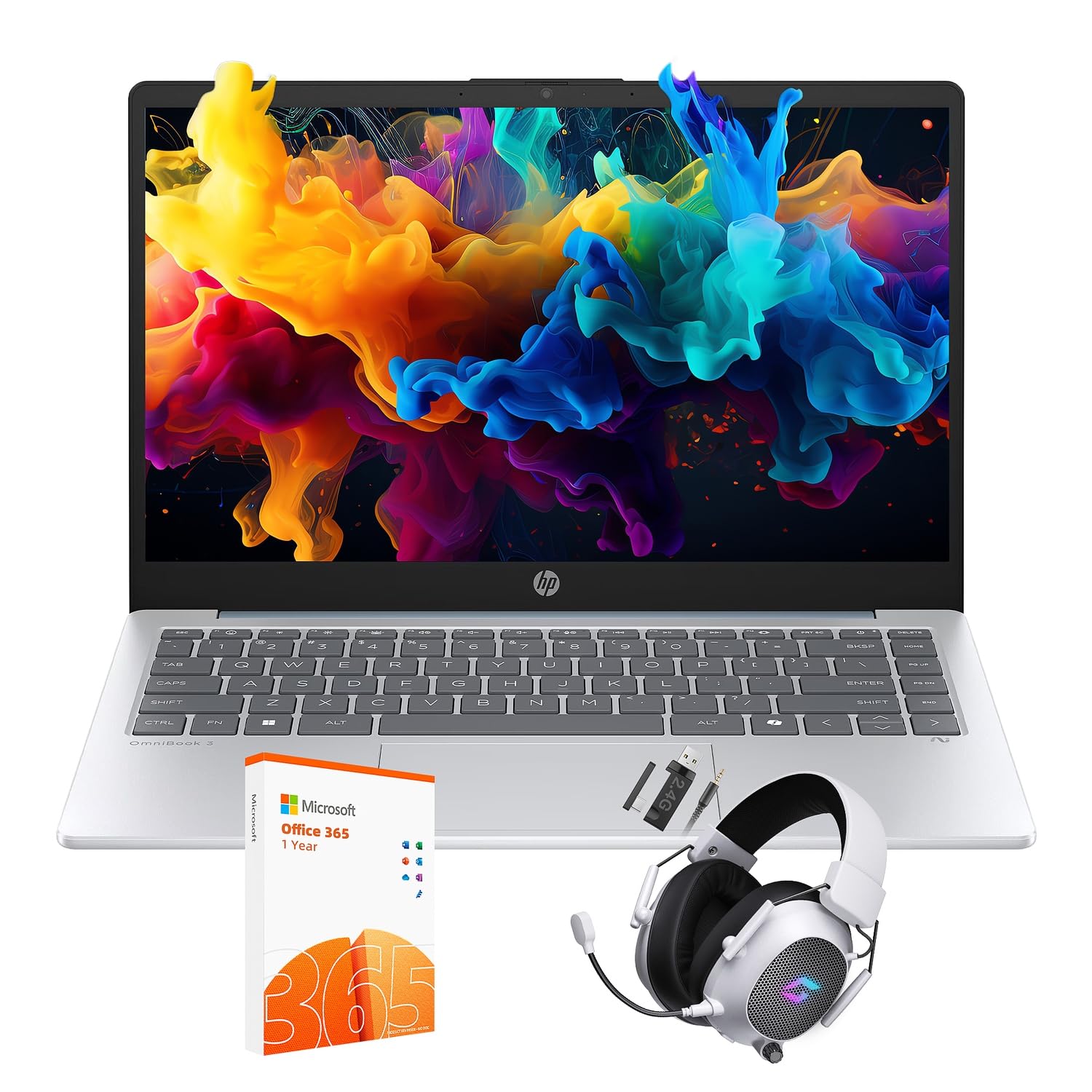
Figure 2.1: The HP 14-inch HD Laptop in Moonlight Blue, showcasin세련된 디자인이에요.
2.2 전원 어댑터 연결
전원 어댑터를 노트북의 전원 포트에 연결한 다음 벽면 콘센트에 꽂으세요. 처음 사용하기 전에 배터리를 완전히 충전하는 것이 좋습니다.
2.3 Initial Power On and Windows 11 Pro Setup
Press the power button located on the keyboard deck. The laptop will boot up and guide you through the Windows 11 Pro setup process. Follow the on-screen instructions to:
- 지역과 언어를 선택하세요.
- Wi-Fi 네트워크에 연결합니다.
- 라이선스 약관에 동의하세요.
- 사용자 계정을 만들거나 Microsoft 계정으로 로그인하세요.
- 개인 정보 설정을 구성하세요.
2.4 Setting up the Mytrix Wireless Gaming Headset
Refer to the separate instructions provided with the Mytrix 2.4GHz Wireless Gaming Headset for detailed setup. Generally, this involves:
- 헤드셋을 충전합니다.
- Connecting the wireless dongle to an available USB port on the laptop.
- Powering on the headset and ensuring it pairs with the dongle.
- Configuring audio input/output settings in Windows 11 Pro.
3. 노트북 작동
3.1 전원 관리
- 전원 켜기: 전원 버튼을 누르세요.
- 수면 모드 : 뚜껑을 닫거나 시작 메뉴에서 "절전"을 선택하세요.
- 종료: 시작 메뉴에서 "종료"를 선택하세요.
- 다시 시작: 시작 메뉴에서 "다시 시작"을 선택하세요.
3.2 터치패드 사용
터치패드는 탐색을 위한 멀티터치 제스처를 지원합니다. 일반적인 제스처는 다음과 같습니다.
- 수도꼭지: 손가락 하나로 탭하여 왼쪽 클릭하세요.
- 두 손가락으로 탭하기: 마우스 오른쪽 버튼으로 클릭.
- 두 손가락 스크롤: 위 또는 아래로 스크롤합니다.
- 핀치 투 줌: 확대하거나 축소합니다.
3.3 Connecting to Networks (Wi-Fi 6 and Bluetooth 5.4)
Wi-Fi 네트워크에 연결하려면:
- 작업 표시줄에서 Wi-Fi 아이콘을 클릭합니다.
- 목록에서 원하는 네트워크를 선택하세요.
- 메시지가 표시되면 네트워크 암호를 입력합니다.
블루투스 장치를 연결하려면:
- 이동하다 설정 > Bluetooth 및 기기.
- 블루투스가 켜져 있는지 확인합니다.
- Select "Add device" and follow the pairing instructions for your device.
3.4 External Port Usage
노트북에는 외부 장치를 연결하기 위한 다양한 포트가 장착되어 있습니다.

Figure 3.1: Available ports on the HP 14-inch HD Laptop.
- USB 유형 A: For connecting standard USB devices like mice, keyboards, and external storage.
- USB 타입-C: 데이터 전송용.
- HDMI : 외부 디스플레이나 프로젝터에 연결합니다.
- 헤드폰/마이크 콤보: 헤드셋이나 외부 스피커/마이크를 연결하는 데 사용합니다.
3.5 윈도우 11 프로 기능
Windows 11 Pro offers advanced security, management tools, and productivity features. Explore the Start Menu, Taskbar, and Settings app to customize your experience. The laptop also supports a 180-degree hinge for flexible view각도를 나타냅니다.
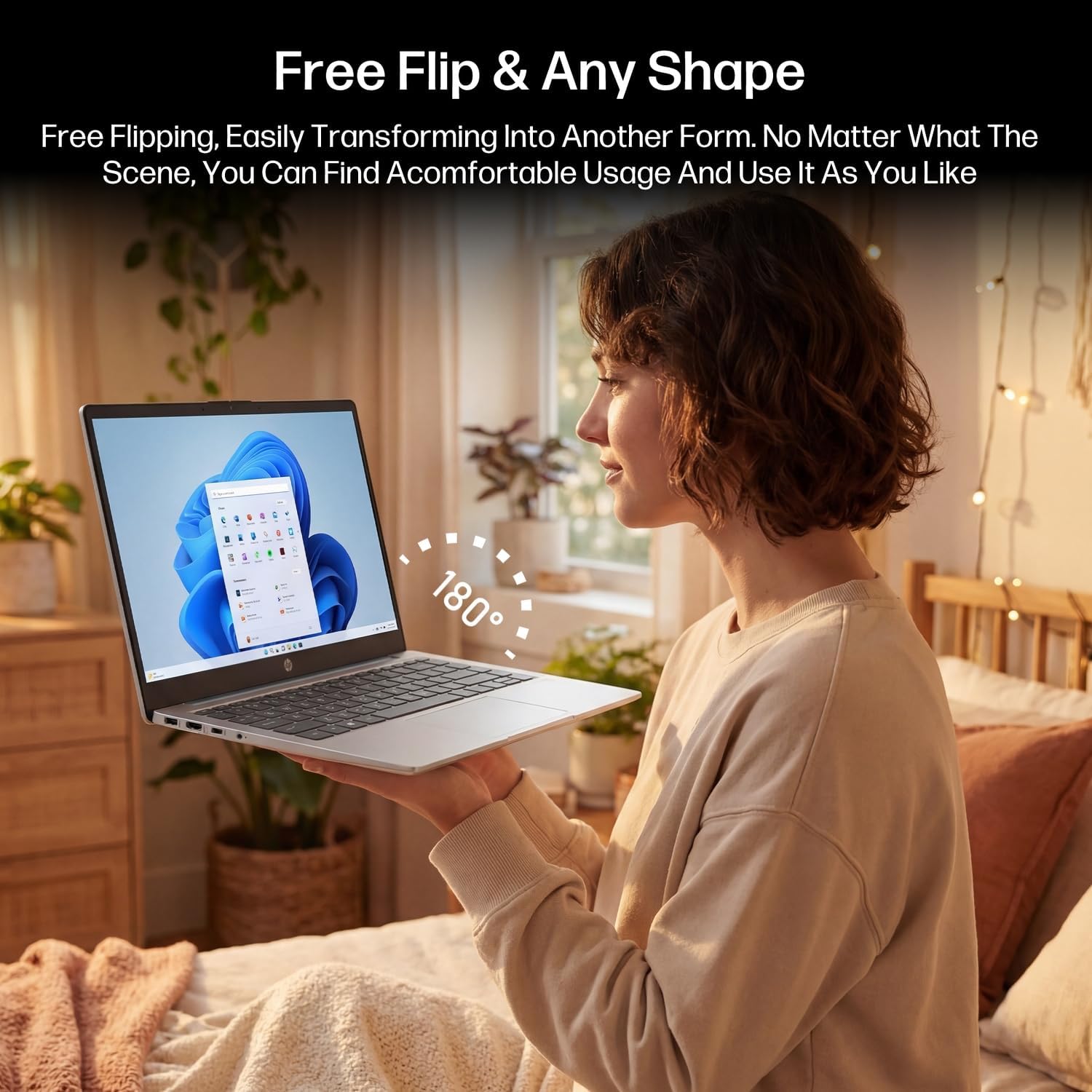
Figure 3.2: The laptop's 180-degree hinge for versatile use.

Figure 3.3: The HP laptop efficiently handles daily tasks.
4. 유지관리
4.1 노트북 청소
- 화면: 부드럽고 보풀이 없는 천을 살짝 사용하십시오. damp물이나 화면 세척제로 세척하세요. 세척제를 화면에 직접 뿌리지 마세요.
- 섀시 및 키보드: 부드럽고 마른 천을 사용하세요. 잘 지워지지 않는 오염의 경우, 약간amp 천을 사용할 수 있습니다. 과도한 습기는 피하십시오.
- 포트: 압축 공기를 사용하여 포트에 쌓인 먼지를 조심스럽게 제거합니다.
4.2 배터리 관리
배터리 수명을 최대화하려면:
- 극한의 온도를 피하세요.
- 배터리가 자주 완전히 방전되지 않도록 하세요.
- Utilize HP Fast Charge technology for quick recharging when needed.
4.3 소프트웨어 업데이트
시스템에 최신 보안 패치와 성능 향상 기능이 적용되어 있는지 확인하려면 Windows 업데이트를 정기적으로 확인하고 설치하세요. 설정 > Windows 업데이트.
4.4 스토리지 관리
The 512GB eMMC storage provides fast boot-ups and file access. To maintain performance, periodically:
- 불필요한 삭제 files.
- 사용하지 않는 애플리케이션을 제거합니다.
- 윈도우에 내장된 디스크 정리 도구를 사용하세요.
5. 문제 해결
이 섹션에서는 발생할 수 있는 일반적인 문제에 대해 설명합니다. 보다 복잡한 문제의 경우 HP의 공식 지원 자료를 참조하십시오.
5.1 노트북 전원이 켜지지 않습니다
- 전원 어댑터가 노트북과 작동하는 전원 콘센트에 모두 단단히 연결되어 있는지 확인하세요.
- 다른 장치를 연결하여 전원 콘센트가 작동하는지 확인하세요.
- 배터리가 완전히 방전된 경우, 다시 전원을 켜기 전에 최소 30분 동안 충전하십시오.
5.2 Wi-Fi 연결 문제
- Windows 설정에서 Wi-Fi가 활성화되어 있는지 확인하세요.
- 라우터와 모뎀을 다시 시작하세요.
- 네트워크를 삭제하고 다시 연결한 후 비밀번호를 다시 입력하세요.
- 노트북이 Wi-Fi 신호 범위 내에 있는지 확인하세요.
5.3 External Display Not Detected
- Ensure the HDMI cable is securely connected to both the laptop and the external display.
- Check the input source on your external display (e.g., HDMI 1, HDMI 2).
- 누르다 윈도우 키 + P and select a display option (Duplicate, Extend, Second screen only).
5.4 오디오 문제
- Check volume levels in Windows and on any connected external audio devices.
- Ensure the correct audio output device is selected in Windows sound settings.
- If using the Mytrix headset, ensure it is powered on and properly paired.
6. 사양
Detailed technical specifications for your HP 14-em 14-inch HD Laptop:
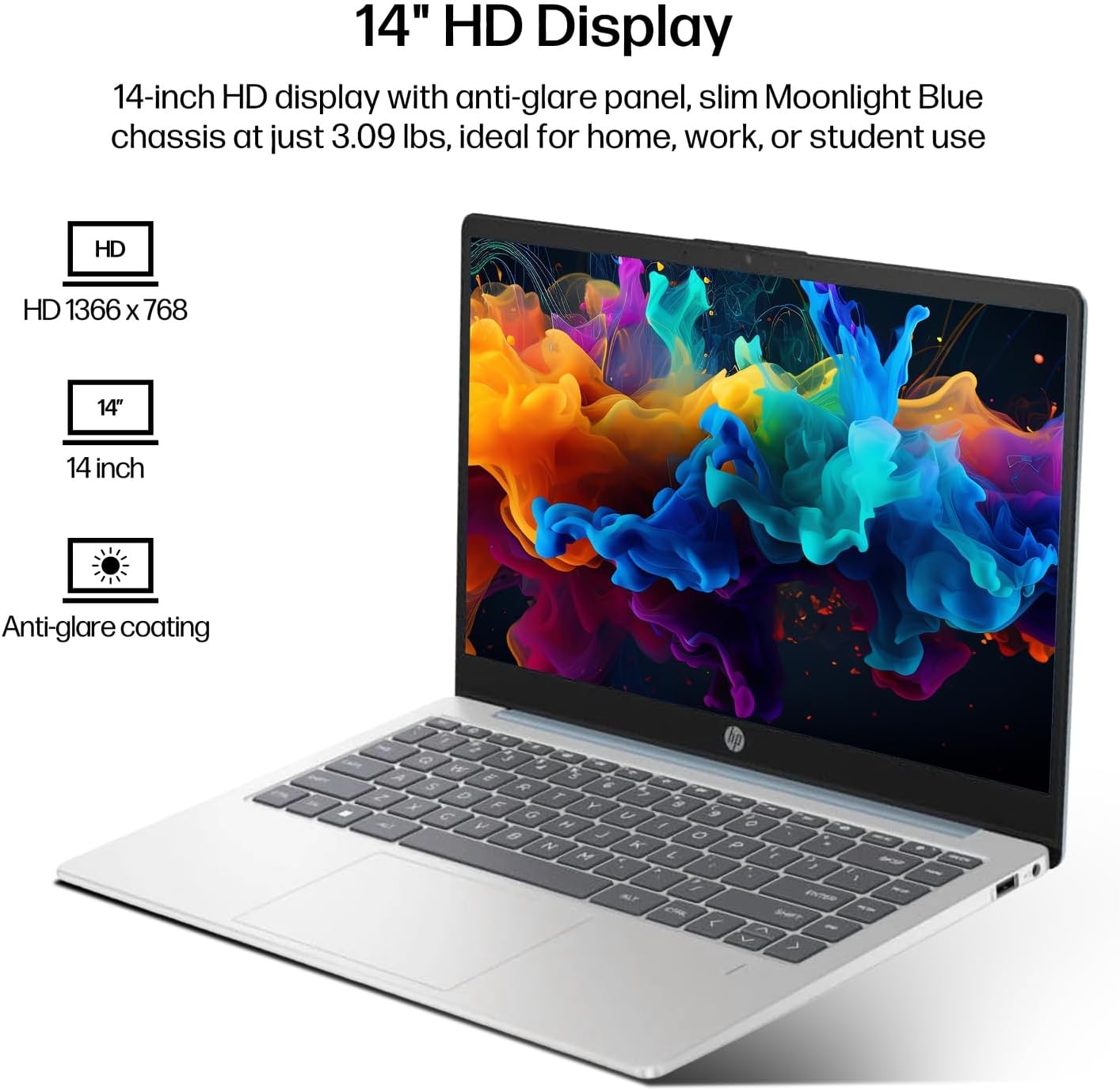
Figure 6.1: The 14-inch HD display features a resolution of 1366 x 768 pixels and an anti-glare coating.

Figure 6.2: The laptop is powered by an AMD Athlon Silver 7120U Processor with integrated AMD Radeon Graphics.
| 특징 | 사양 |
|---|---|
| 상표 | HP |
| 모델명 | 14-em |
| 프로세서 | AMD Athlon Silver 7120U (2 Cores, 2 Threads, up to 3.5 GHz Boost Clock) |
| 제도법 | AMD Radeon 그래픽(통합) |
| 숫양 | 4GB DDR4 SODIMM |
| 저장 | 512 GB eMMC (Solid State) |
| 표시하다 | 14-inch HD (1366 x 768) LED, Anti-Glare |
| 운영 체제 | 윈도우 11 프로 |
| 무선 연결 | Wi-Fi 6(802.11ax), 블루투스 5.4 |
| 포트 | 2x USB Type-A, 1x USB Type-C (Data Transfer), 1x HDMI, 1x Headphone/Microphone Combo |
| 카메라 | 전면 직면 |
| 오디오 | HD 오디오 |
| 치수(길이 x 너비 x 높이) | 12.74인치 x 8.46인치 x 0.7인치 |
| 무게 | 약 3.09파운드 |
| 포함된 액세서리 | Mytrix 2.4GHz Wireless Gaming Headset |

Figure 6.3: Physical dimensions of the HP 14-inch HD Laptop.
7. 보증 및 지원
7.1 제품 보증
Your HP 14-em laptop comes with a 12-month manufacturer's warranty. This warranty covers defects in materials and workmanship under normal use. For specific terms and conditions, please refer to the warranty documentation included with your product or visit the official HP support web대지.
7.2 기술 지원
For technical assistance, troubleshooting beyond this manual, or warranty claims, please contact HP Customer Support. You can find contact information on the official HP web웹사이트 또는 노트북에 사전 설치된 지원 애플리케이션을 통해 문의하실 수 있습니다.
Additional protection plans are available for purchase, including 2-Year and 4-Year Protection Plans, and a monthly Complete Protect plan. Details can be found where you purchased the product.