
소개
Thank you for choosing the MEETION C9990 Wireless Bluetooth Keyboard and Mouse combo. This product offers versatile connectivity options (2.4GHz USB and dual Bluetooth channels), an ergonomic design for comfort, and rechargeable batteries for extended use. This manual will guide you through the setup, operation, and maintenance of your new device.
패키지 내용
- MEETION C9990 Wireless Keyboard
- 미팅 무선 마우스
- USB 수신기 (마우스 배터리 칸에 보관됨)
- USB-C 충전 케이블
- 사용자 설명서
제품 끝view
키보드 기능
- 전체 크기 레이아웃: Includes a numeric pad for comprehensive data entry.
- Low-Noise Scissor-Switch Keys: 조용하고 편안한 타이핑 환경을 제공합니다.
- 멀티미디어 키: 미디어 제어 및 시스템 기능에 빠르게 접근할 수 있는 전용 기능 키.
- Fixed Anti-Slip Stand: Ensures stability and an ergonomic typing angle.
- 초슬림 디자인: 미학적으로asing and space-efficient.

Image: Close-up of the keyboard keys, illustrating the low-noise scissor-switch design for quiet and comfortable typing.

Image: The keyboard features a fixed-angle anti-slip stand for enhanced stability and typing comfort.
마우스 기능
- Ergonomic Sculpted Design: Contoured shape supports natural wrist and hand posture.
- 조정 가능한 DPI: Four DPI settings (800-2400) for precise cursor control.
- Tilt-Scroll Wheel: Allows for horizontal and vertical scrolling.
- 모드 스위치: Easily switch between 2.4GHz and Bluetooth modes.

Image: The mouse features an ergonomic sculpted design to provide comfort during extended use.

Image: Detailed diagram of the mouse highlighting its various components and functions, including buttons, scroll wheel, and switches.
설치 지침
1. 장치 충전
Both the keyboard and mouse are equipped with built-in rechargeable batteries. Before first use, or when the battery indicator shows low power, charge both devices using the provided USB-C cable.
- 충전 케이블의 USB-C 단자를 키보드와 마우스의 충전 포트에 연결하세요.
- 충전 케이블의 USB-A 끝을 USB 전원(예: 컴퓨터 USB 포트, USB 벽면 어댑터)에 연결합니다.
- 충전 중에는 충전 표시등이 켜지고, 완전히 충전되면 꺼집니다.
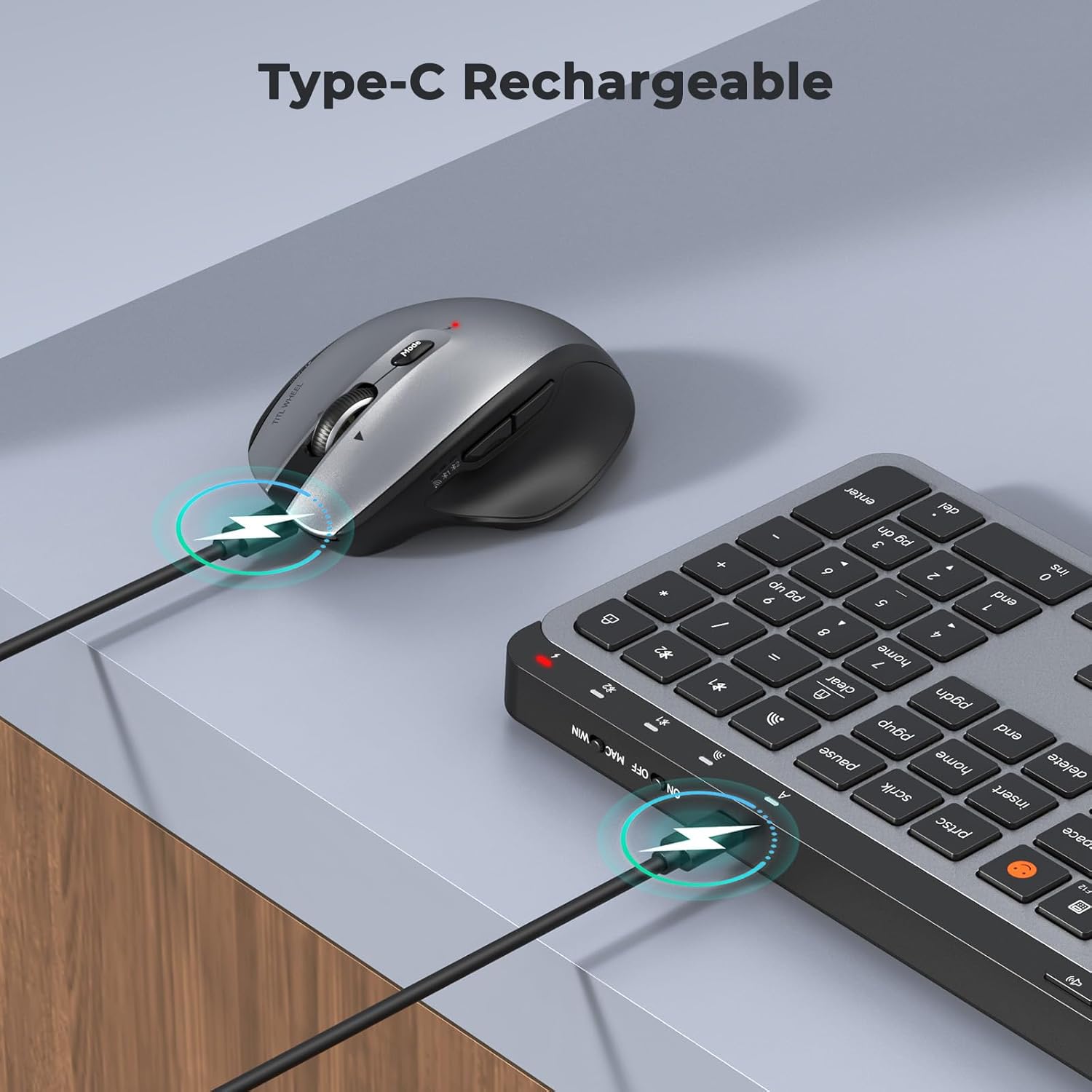
Image: Both the keyboard and mouse are rechargeable via USB-C, ensuring convenience and eliminating the need for disposable batteries.
2. 장치에 연결
The C9990 combo supports three connection modes: 2.4GHz wireless (via USB receiver) and two Bluetooth channels (BT1, BT2).
2.1. 2.4GHz 무선 연결
- 일반적으로 마우스 배터리 칸에 보관되어 있는 USB 수신기를 찾으십시오.
- USB 수신기를 컴퓨터의 사용 가능한 USB 포트에 연결합니다.
- 각각의 전원 스위치를 사용하여 키보드와 마우스를 켭니다.
- 키보드의 경우 다음을 누르세요. 2.4G button (usually indicated by a USB icon) to switch to 2.4GHz mode.
- For the mouse, switch the mode selector to the 2.4G 위치.
- The devices should connect automatically.
2.2. 블루투스 연결(BT1 / BT2)
- 키보드와 마우스를 켭니다.
- 키보드의 경우: 를 누르고 계세요 BT1 or BT2 button for 3-5 seconds until the indicator light flashes rapidly, indicating pairing mode.
- 마우스의 경우: Switch the mode selector to the BT1 or BT2 position, then press and hold the Bluetooth pairing button (often located on the underside) until the indicator light flashes.
- 기기(노트북, 태블릿, 스마트폰)에서 Bluetooth 설정으로 이동하여 새 기기를 검색하세요.
- Select "MEETION Keyboard" and "MEETION Mouse" from the list to pair.
- 다른 기기에 연결하는 경우 두 번째 블루투스 채널(BT2)에 대해서도 동일한 과정을 반복하십시오.
3. 장치 간 전환
The C9990 allows seamless switching between up to three connected devices (one 2.4GHz and two Bluetooth).
- 키보드의 경우: 전용 버튼을 누르세요 2.4G, BT1, 또는 BT2 button to switch to the desired connected device.
- 마우스의 경우: Use the mode switch on the underside of the mouse to select 2.4G, BT1, 또는 BT2.

Image: The keyboard and mouse can switch between three devices (PC, tablet, phone) with a single click, indicated by the Bluetooth and 2.4G icons.
작동 지침
키보드 기능
- Multimedia Keys (F1-F12): These keys provide quick access to functions like brightness control, display window, home, dictation, sleep, app switcher, screen mirroring, screen capture, music player, email, and calculator. Functions may vary slightly depending on the operating system.
- 이모지 키: The dedicated emoji key supports Windows, macOS, iPad (iPadOS), and Android Samsung devices. It does not support iPhone (iOS).

Image: The keyboard features a row of multimedia keys (F1-F12) for quick access to various system functions.
마우스 기능
- DPI 조정: Press the DPI switch button (usually located near the scroll wheel) to cycle through the available DPI settings (800, 1200, 1600, 2400). Adjust to your preference for cursor speed and precision.
- Tilt-Scroll Wheel: In addition to vertical scrolling, tilt the scroll wheel left or right for horizontal scrolling in applications that support it (e.g., spreadsheets).
- 앞으로/뒤로 버튼: 측면 버튼을 사용하여 빠르게 탐색하세요. web 브라우저 및 file 탐험가.
유지
- 청소: 부드럽고 마른 천으로 키보드와 마우스 표면을 닦으세요. 잘 지워지지 않는 얼룩은 약간 건조한 천으로 닦아내세요.amp천에 물이나 순한 세척액을 묻혀 닦아주세요. 강한 화학 물질이나 연마재는 사용하지 마세요.
- 배터리 관리 : To prolong battery life, avoid fully discharging the devices frequently. Charge them when the low battery indicator appears. If storing for an extended period, charge them to about 50% and recharge every few months.
- 저장: 기기를 직사광선과 극한의 온도를 피해 서늘하고 건조한 곳에 보관하세요.
문제 해결
연결 문제
- 장치가 연결되지 않음: Ensure both the keyboard and mouse are powered on and fully charged. Check that the correct connection mode (2.4G, BT1, or BT2) is selected on both devices. For Bluetooth, ensure your host device's Bluetooth is enabled and the devices are in pairing mode.
- 간헐적 연결: Move the devices closer to your computer. Avoid using them near strong electromagnetic interference sources (e.g., Wi-Fi routers, other wireless devices).
- 2.4GHz receiver not recognized: Try plugging the USB receiver into a different USB port. Ensure the receiver is fully inserted.
기능 문제
- Keys or mouse unresponsive: Recharge the devices. Restart your computer or device. Re-pair the devices if using Bluetooth or re-insert the USB receiver for 2.4GHz.
- 마우스 커서가 불규칙합니다. Clean the mouse sensor. Ensure you are using the mouse on a suitable surface (not highly reflective or transparent). Adjust DPI settings.
명세서
| 모델 번호 | C9990 |
| 연결 기술 | Bluetooth, USB (2.4GHz Wireless) |
| 키보드 레이아웃 | QWERTY, Full Size |
| 마우스 움직임 감지 | 광학 |
| 마우스 DPI 설정 | 800, 1200, 1600, 2400 |
| 전원 | 배터리 구동(USB-C를 통해 충전 가능) |
| 호환되는 운영 체제 | 윈도우, macOS, 리눅스, 크롬 OS, 안드로이드 |
| 품목 무게 | 1.16 Kilograms (combined) |
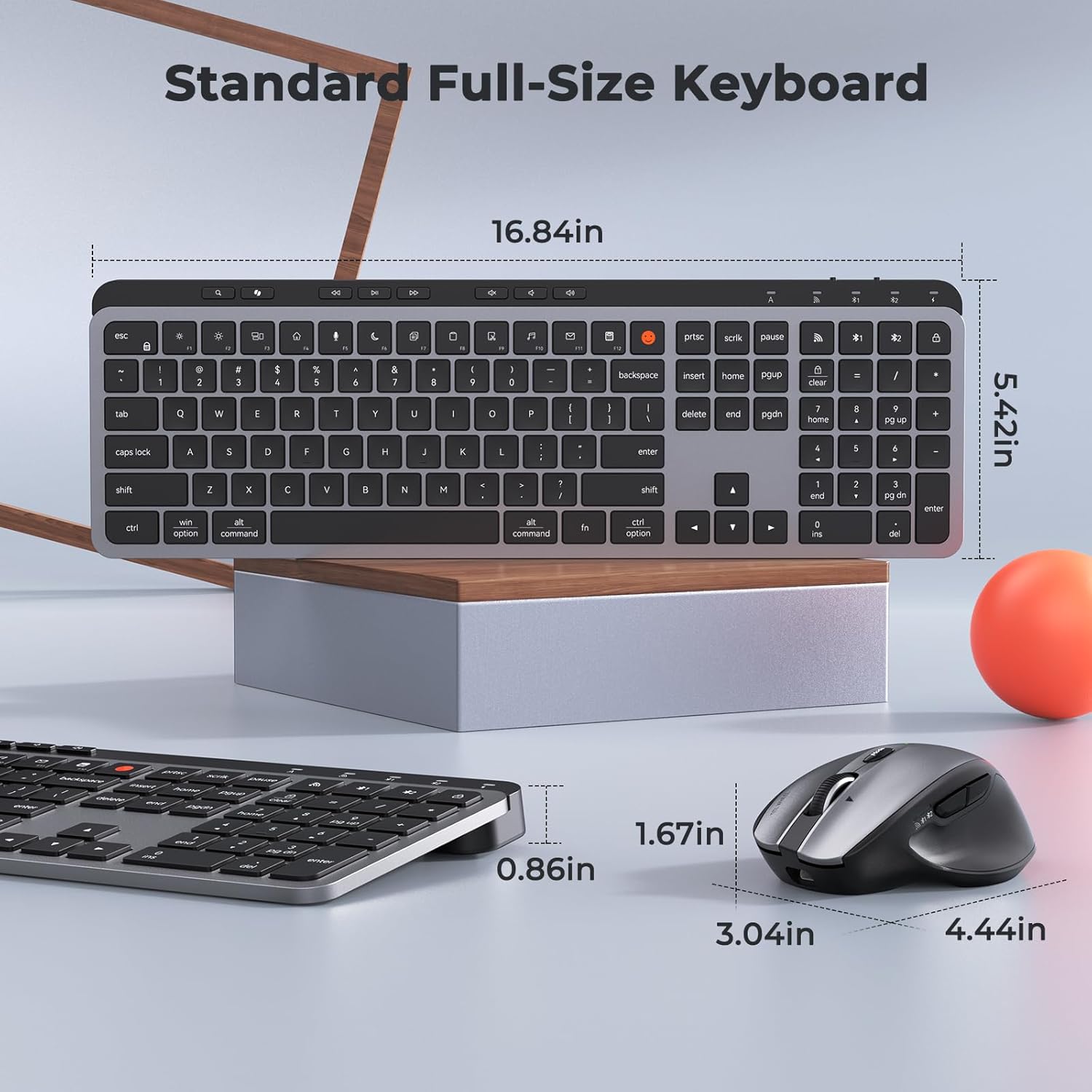
Image: Dimensions of the MEETION C9990 keyboard and mouse for reference.
보증 및 지원
The MEETION C9990 Wireless Bluetooth Keyboard and Mouse comes with a 1년 보증 구매일로부터. 본 보증은 정상적인 사용 중 발생한 제조상의 결함에 적용됩니다.
For technical support, troubleshooting assistance, or warranty claims, please contact MEETION customer service through the retailer where you purchased the product or visit the official MEETION web연락처 정보 사이트.
안전 정보
- 기기를 물, 습기 또는 극한 온도에 노출시키지 마십시오.
- 기기를 떨어뜨리거나 강한 충격을 주지 마십시오.
- Do not attempt to disassemble or repair the devices yourself. Refer to qualified service personnel.
- 어린이의 손이 닿지 않는 곳에 보관하세요.
- 배터리와 전자 부품은 현지 규정에 따라 책임감 있게 폐기하세요.