
1. 제품 오버view
The MEETION K2000 is a wired ergonomic keyboard designed for comfort and enhanced typing experience. It features a translucent shell, split and curved key layout, integrated wrist rest, and customizable RGB backlighting. It offers broad compatibility with various operating systems via USB-A or USB-C connection.

이미지 1.1: The MEETION K2000 Ergonomic Wired RGB Keyboard, showcasin분할형 디자인과 일체형 손목 받침대가 특징입니다.
동영상 1.1 : 오버view of the MEETION K2000 Ergonomic Wired RGB Keyboard, highlighting its features and design.
2. 설정
2.1 패키지 내용
- MEETION K2000 Ergonomic Wired RGB Keyboard
- USB-A to USB-C 어댑터
- 사용자 설명서
2.2 키보드 연결
- Locate an available USB port on your computer (PC, Laptop, Mac).
- Connect the keyboard's USB-A cable directly to a USB-A port on your computer.
- If your computer only has USB-C ports, attach the provided USB-A to USB-C adapter to the keyboard's USB-A cable, then plug the adapter into a USB-C port on your computer.
- The keyboard is plug-and-play; no additional drivers are required for most operating systems.

이미지 2.1: The keyboard's USB-A cable and the included USB-A to USB-C adapter for versatile connectivity.
2.3 키보드 각도 조정
The keyboard features adjustable flip-out feet at the bottom to customize your typing angle for optimal comfort. You can choose between 2°, 4.07°, or 4.3° incline settings.

이미지 2.2: The adjustable feet on the underside of the keyboard allow for different typing angles.
3. 사용 설명서
3.1 Ergonomic Design and Wrist Rest
The keyboard's split, curved layout and integrated padded wrist rest are designed to promote a natural hand and wrist posture, reducing strain during extended use. The scissor-switch key design offers a quiet and comfortable typing experience.
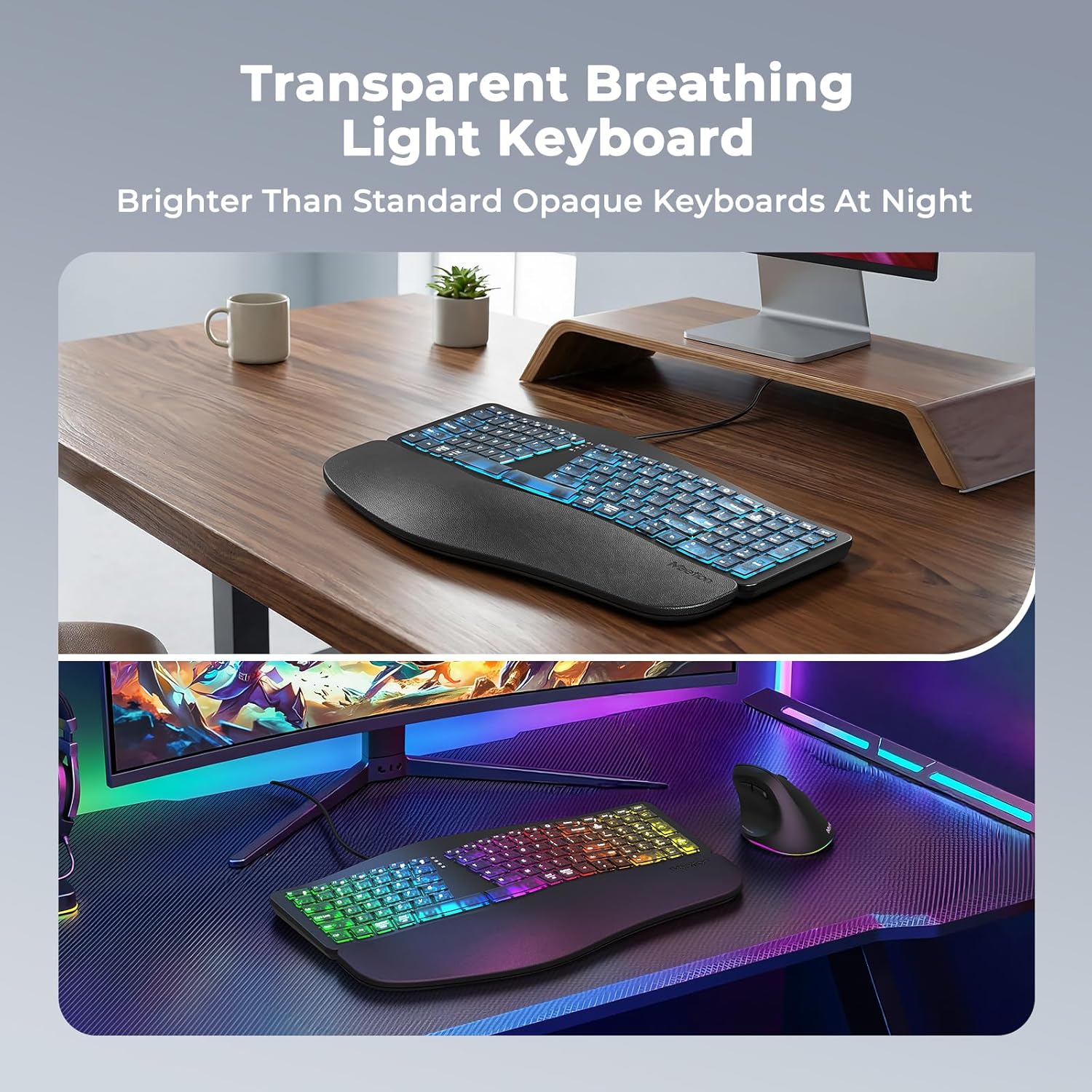
이미지 3.1: The split ergonomic design of the keyboard helps maintain a comfortable typing posture.
3.2 백라이트 제어
The translucent keycaps allow for vibrant backlighting. You can customize the lighting effects and brightness levels:
- 밝기 조정: 누르다 Fn + 오른쪽 시프트 repeatedly to cycle through 25%, 50%, 75%, 100% brightness, or turn the backlight off.
- 백라이트 모드/색상 변경: 누르다 Fn + Right Enter repeatedly to switch between different modes:
- RGB Breathing (dynamic color cycling)
- 7 Static Colors: Red, Green, Blue, White, Purple, Cyan, Yellow
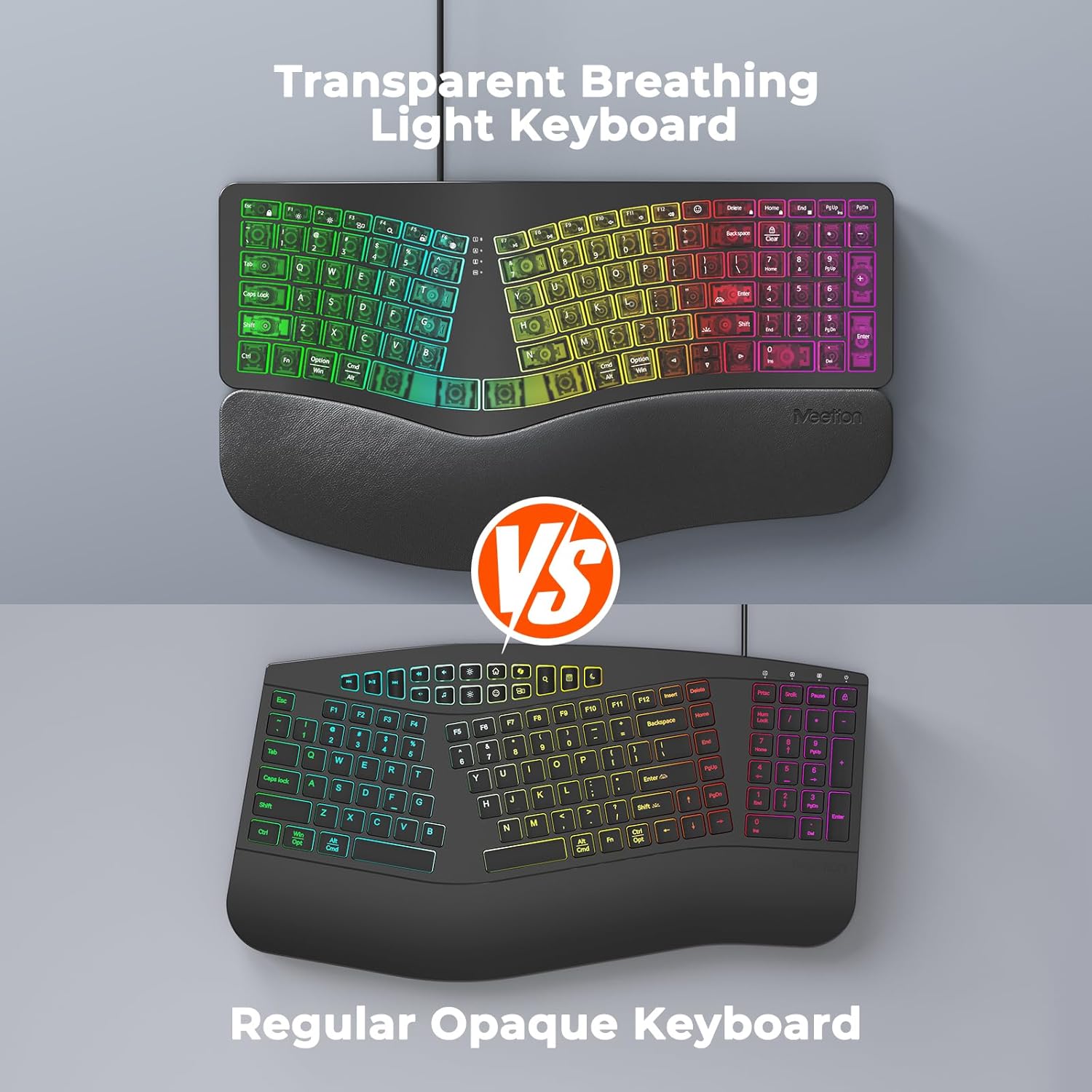
이미지 3.2: Instructions for adjusting backlight brightness and cycling through various color modes.
동영상 3.1 : Demonstration of the K2000 keyboard's backlit features and color options.
3.3 System Layout Switching
The keyboard supports both Windows and Mac layouts. To switch between systems:
- 을 위한 윈도우 systems: Press Fn + Q
- 을 위한 스코틀랜드 사람 systems: Press Fn + W

이미지 3.3: The keyboard supports both Windows and Mac operating systems, with dedicated function keys for switching layouts.
3.4 Emoji Shortcuts
Access emoji shortcuts by pressing the dedicated Emoji key. This feature is compatible with Windows, MacOS, iPad (iPadOS), and Android Samsung devices. Please note that it does not support iPhone (iOS).

이미지 3.4: The dedicated emoji shortcut key for quick access to emojis on compatible devices.
4. 유지관리
4.1 청소
- 키보드를 청소하려면 부드럽고 마른 천이나 약간 젖은 천으로 표면을 살살 닦아주세요.amp 옷감.
- Avoid using harsh chemicals, abrasive cleaners, or solvents, as these may damage the keyboard's finish or keycaps.
- 키 사이를 청소할 때는 압축 공기를 사용하여 먼지와 이물질을 제거하십시오.
4.2 키캡 관리
- Ensure keycaps are firmly seated. If a keycap feels loose, gently press it down until it clicks into place.
- Avoid excessive force when pressing keys to prevent damage.
5. 문제 해결
5.1 키보드가 응답하지 않음
- USB 케이블이 컴퓨터의 USB 포트에 제대로 꽂혀 있는지 확인하십시오.
- 키보드를 컴퓨터의 다른 USB 포트에 연결해보세요.
- If using the USB-C adapter, ensure it is firmly connected to both the keyboard cable and the computer's USB-C port.
- Test the keyboard on another computer to determine if the issue is with the keyboard or your computer's port/drivers.
5.2 백라이트 문제
- If the backlight is off, press Fn + 오른쪽 시프트 밝기를 높이려면.
- If the color is not desired, press Fn + Right Enter to cycle through different color modes.
- Ensure the keyboard is properly connected, as power issues can affect backlighting.
5.3 키가 등록되지 않음
- Gently press down on the affected keycap to ensure it is properly seated.
- Clean any debris or dust from under the keycap using compressed air.
- If the issue persists, try the troubleshooting steps for "Keyboard Not Responding".
6. 사양
| 상표 | 회의 |
| 모델 번호 | 케이2000 |
| 연결 기술 | USB-A, USB-C |
| 키보드 설명 | Multimedia, Ergonomic, Backlit |
| 특별 기능 | Backlit, Ergonomic, Wired, Wrist Rest |
| 색상 | 검은색 |
| 키보드 백라이트 색상 지원 | RGB (7 static colors + breathing mode) |
| 재료 | Acrylonitrile Butadiene Styrene, Thermoplastic Polyurethane (TPU) |
| 키보드 레이아웃 | 쿼티 |
| 호환 장치 | 노트북, PC (윈도우, 맥) |
7. 보증 및 지원
7.1 제조업체 보증
The MEETION K2000 Ergonomic Wired RGB Keyboard comes with a 1년 제조사 보증. 본 보증은 정상적인 사용 중에 발생하는 재료 및 제조상의 결함을 보장합니다.
7.2 기술 지원
For technical assistance, troubleshooting, or warranty claims, please contact MEETION customer support. Refer to the product packaging or the official MEETION web최신 연락처 정보는 사이트에서 확인하세요.