
소개
This manual provides essential information for setting up, operating, maintaining, and troubleshooting your HP OMEN Transcend 14 AI Gaming Laptop. Please read this guide thoroughly to ensure optimal performance and longevity of your device.
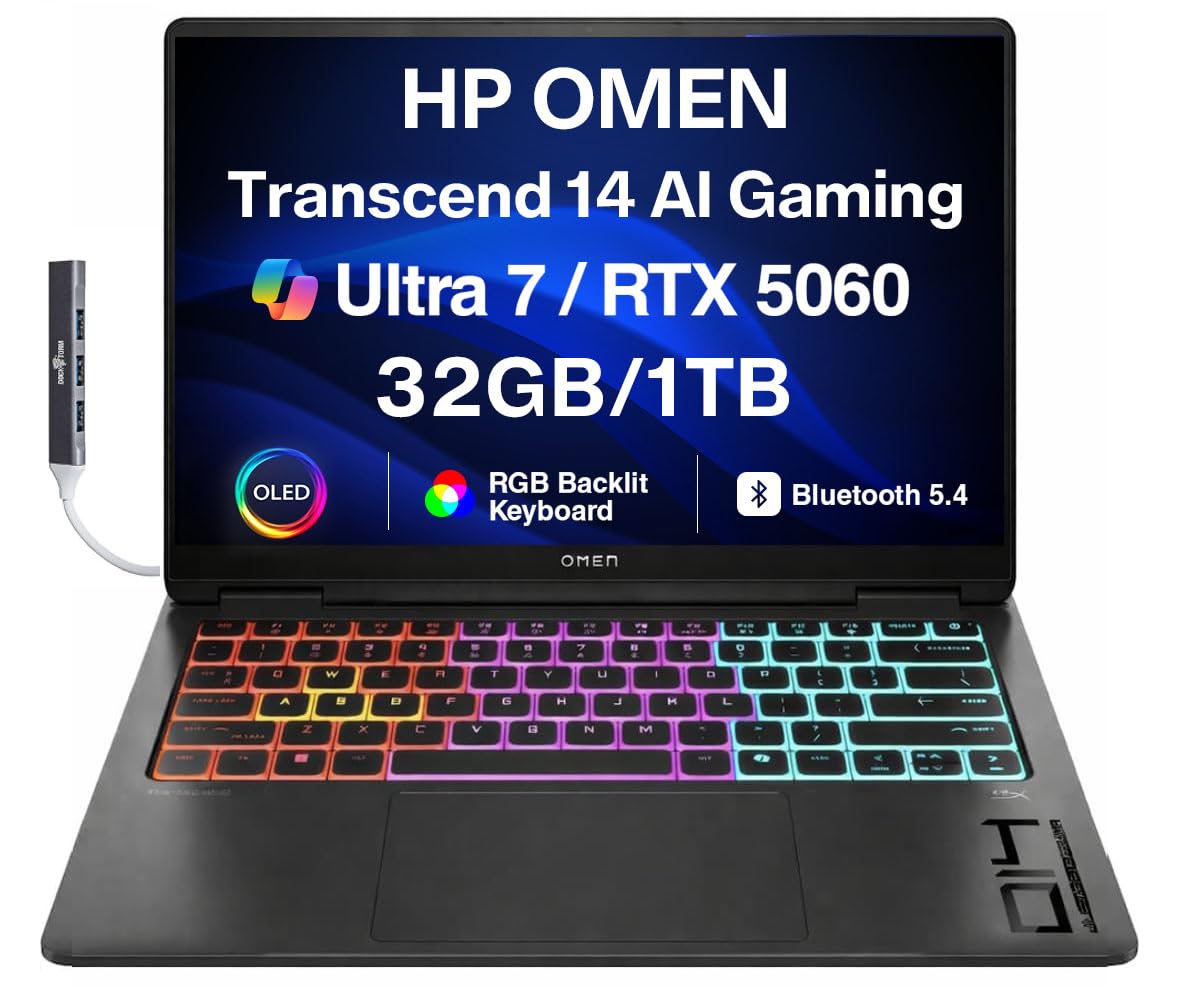
Figure 1: HP OMEN Transcend 14 AI Gaming Laptop.
상자 안에 무엇이 들어있나요?
모든 품목이 포장에 들어 있는지 확인하세요.
- HP OMEN Transcend 14 AI Gaming Laptop
- 전원 어댑터 및 케이블
- Dockztorm 휴대용 USB 허브
- 문서(빠른 시작 가이드, 보증 정보)

Figure 2: Included Dockztorm Portable USB Hub.
제품 끝view
포트 및 커넥터
Familiarize yourself with the various ports on your laptop for connecting peripherals and power.

그림 3: 이상view 노트북 포트.
- HDMI 2.1 : 외부 디스플레이에 연결합니다.
- USB Type-C(10Gbps 신호 전송 속도): Supports USB Power Delivery and DisplayPort 1.4a.
- USB Type-A(10Gbps 신호 전송 속도): 표준 USB 장치용.
- 헤드폰/마이크 콤보 잭: 오디오 입력 및 출력용.
- 썬더볼트 4(USB Type-C, 40Gbps 신호 전송 속도): Supports USB Power Delivery, DisplayPort 2.1, HP Sleep and Charge.
표시하다
The laptop features a 14.0-inch 3K (2880x1800) 120Hz OLED display with 500 nits brightness, offering vibrant visuals and quick response times for an immersive experience.

Figure 4: The OLED display in action.
설정
- 노트북 풀기: 노트북과 모든 액세서리를 포장에서 조심스럽게 꺼내세요.
- 전원 연결: Plug the power adapter into the laptop's power port (USB Type-C) and then into a wall outlet. Ensure the battery is sufficiently charged before first use.
- 초기 부팅: Open the laptop lid and press the power button. The laptop will guide you through the initial Windows 11 Pro setup process. Follow the on-screen instructions to configure your operating system, network, and user account.
- 주변기기 연결: 마우스, 키보드 또는 외부 모니터와 같은 외부 장치를 해당 포트에 연결하십시오.
- 업데이트 설치: After initial setup, connect to the internet and check for Windows updates and HP driver updates to ensure your system is running the latest software.
작동 지침
전원 켜기/끄기
- 전원 켜기: 키보드 데크에 있는 전원 버튼을 누르세요.
- 종료: 시작 버튼을 클릭한 다음 전원 > 시스템 종료를 클릭합니다.
- 다시 시작: 시작 버튼을 클릭한 다음 전원 > 다시 시작을 클릭합니다.
- 잠: 뚜껑을 닫거나 시작 버튼을 클릭한 다음 전원 > 절전을 클릭합니다.
키보드 및 터치패드
The laptop features an RGB backlit keyboard and a precision touchpad. Customize keyboard lighting and touchpad settings through Windows settings or the OMEN Gaming Hub software.

Figure 5: RGB Backlit Keyboard.
OMEN 게임 허브
The OMEN Gaming Hub software provides centralized control for system performance, lighting, network booster, and other gaming-specific features. It allows you to monitor system vitals, adjust performance modes, and customize RGB lighting effects.

Figure 6: OMEN Gaming Hub interface.
유지
- 청소: 부드럽고 보풀이 없는 천을 사용하여 화면과 케이스를 닦으세요. 잘 지워지지 않는 얼룩은 damp천에 물이나 화면에 안전한 세척제를 살짝 묻혀 닦아주세요. 강한 화학 물질은 피하세요.
- 소프트웨어 업데이트: Regularly check for and install operating system updates (Windows Update) and driver updates (HP Support Assistant or OMEN Gaming Hub) to ensure system stability and security.
- 배터리 관리 : 배터리 수명을 연장하려면 극한 온도 변화를 피하고 가능하면 배터리 충전량을 20%에서 80% 사이로 유지하십시오.
- 통풍: Ensure the laptop's vents are clear of obstructions to prevent overheating. Use the laptop on a hard, flat surface.
문제 해결
일반적인 문제 및 솔루션
- 노트북 전원이 켜지지 않습니다:
- 전원 어댑터가 노트북과 작동하는 전원 콘센트에 모두 단단히 연결되어 있는지 확인하세요.
- 다른 전원 콘센트를 사용해 보세요.
- 전원 버튼을 15초간 눌러서 하드 리셋을 실행하세요.
- 화면이 비어 있거나 검은색입니다.
- Connect an external monitor to check if the display output is working.
- 기능 키를 사용하여 화면 밝기를 조절하세요.
- 노트북을 다시 시작합니다.
- Wi-Fi 연결 문제:
- Windows 설정에서 Wi-Fi가 활성화되어 있는지 확인하세요.
- 라우터와 모뎀을 다시 시작하세요.
- Wi-Fi 드라이버를 업데이트하세요.
- 과열:
- Ensure vents are clear and the laptop is on a hard, flat surface.
- 압축 공기를 사용하여 통풍구의 먼지를 청소합니다.
- Adjust performance settings in OMEN Gaming Hub to a cooler mode.
명세서
| 상표 | HP |
| 모델명 | OMEN Transcend 14 |
| 운영 체제 | 윈도우 11 프로 |
| CPU 모델 | Intel Ultra 7-255H (15th Gen) |
| CPU 속도 | 2.00GHz (최대 5.1GHz) |
| 그래픽 코프로세서 | GeForce RTX 5060 8GB GDDR7 |
| 화면 크기 | 14 인치 |
| 디스플레이 유형 | OLED 3K (2880x1800) 120Hz |
| 설치된 RAM 메모리 크기 | 32GB LPDDR5X |
| 저장 | 1TB PCIe NVMe SSD |
| 연결성 | 802.11ax Wi-Fi, Bluetooth 5.4, Thunderbolt 4, USB 3.2 Type-C, USB 3.2 Type-A, HDMI 2.1 |
| 배터리 | 6셀 71WHr |
| 품목 치수(LxWxH) | 12.4 x 9.25 x 0.9 인치 |
보증 및 지원
보증 정보
Your HP OMEN Transcend 14 AI Gaming Laptop comes with a 1년 제조사 보증 from GreatPriceTech. Please refer to the warranty documentation included in your product packaging for full terms and conditions.
고객 지원
기술 지원, 드라이버 다운로드 또는 추가 지원이 필요한 경우 공식 HP 지원을 방문하세요. website or contact HP customer service. Keep your product's serial number handy when contacting support.
- HP 지원 Web대지: 지원.hp.com
- OMEN 게이밍 허브: Utilize the built-in OMEN Gaming Hub for system diagnostics and updates.