1. 제품 오버view
The KCEVE Triple Monitor KVM Switch (Model KC-203CDHX) allows you to control two computers (one laptop and one desktop) using a single set of keyboard, mouse, and three monitors. This device is ideal for optimizing your workspace by reducing cable clutter and enabling seamless switching between systems. It supports high-resolution video output, fast data transfer, and power delivery for compatible laptops.
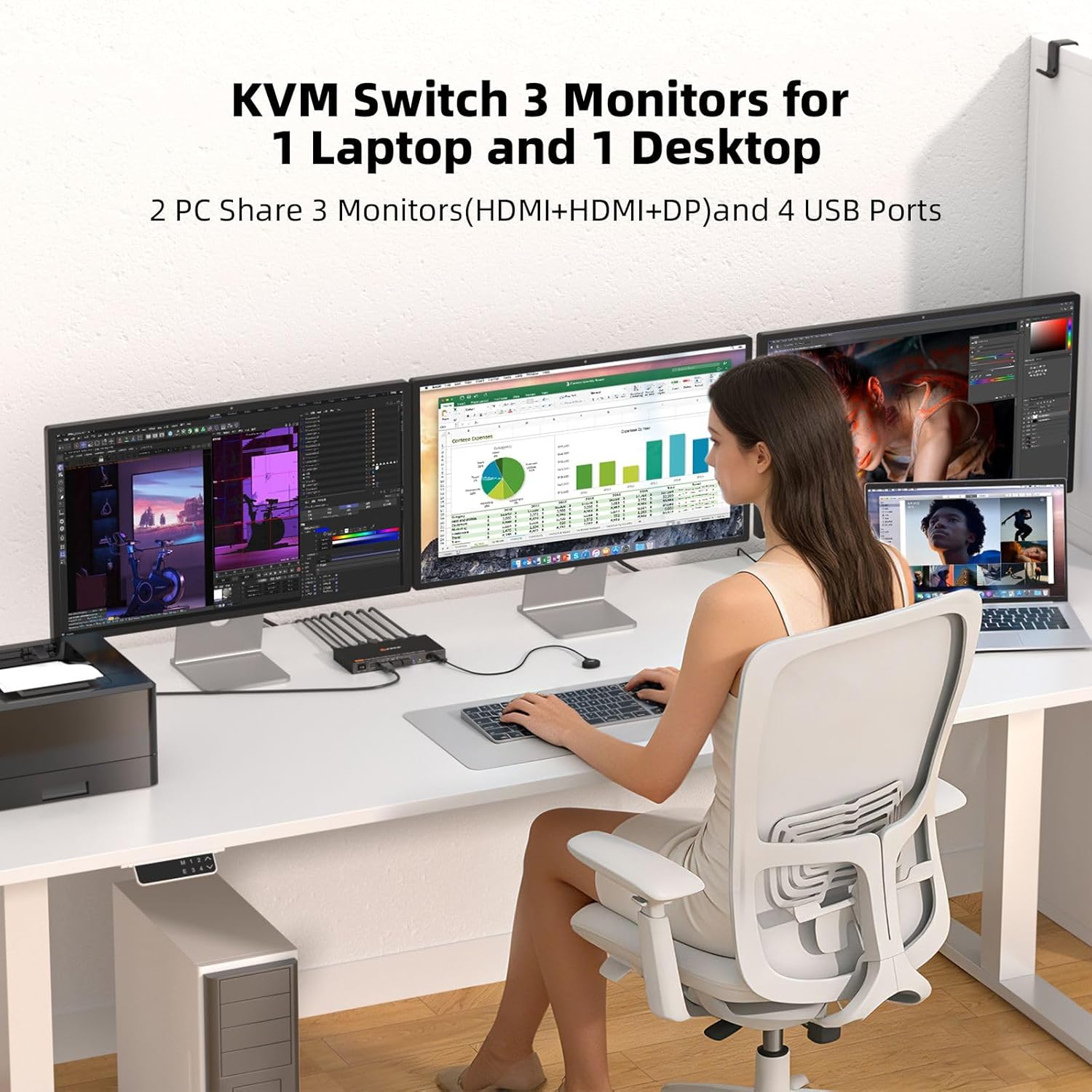
The KCEVE KVM Switch enables a single user to operate two computers (laptop and desktop) across three shared monitors, keyboard, and mouse.
2. 패키지 내용
패키지에 모든 품목이 들어 있는지 확인하세요.
- 1 x KCEVE Triple Monitor KVM Switch (Model KC-203CDHX)
- 1 x USB-C to USB-C 케이블
- 1 x USB-A to USB-B Cable
- 1 x DC 12V 전원 어댑터
- 1 x Wired Remote Control (1.5m)
- 1 x 사용자 설명서

Contents included in the KVM Switch package.
3. 제품 다이어그램
Familiarize yourself with the ports and indicators on the KVM switch:

Front and rear panel layout of the KVM Switch with port labels.
전면 패널:
- 온 / 오프 스위치: Power toggle for the KVM switch.
- USB 3.1 포트(4개): Connect USB peripherals such as keyboard, mouse, USB drives, and printers. Supports up to 10Gbps data transfer.
- Laptop/Desktop Indicators: LEDs to show which computer is currently selected.
- 선택 버튼: 연결된 컴퓨터 간에 수동으로 전환합니다.
- Wired Remote Port: Connect the included wired remote control.
후면 패널 :
- Monitor Outputs (3x): Connect to your three monitors (1x DisplayPort, 2x HDMI).
- PC 2 Input (Desktop): Connect to your desktop PC (1x DisplayPort, 1x USB-B 3.1).
- PC 1 Input (Laptop): Connect to your laptop (1x USB-C 3.1 with PD, 1x USB-C for video/data).
- DC 12V 전원 입력: 제공된 12V 전원 어댑터를 연결하세요.
4. 설정 지침
KVM 스위치를 연결하려면 다음 단계를 따르십시오.
- 전원 연결: Connect the DC 12V power adapter to the KVM switch's DC 12V input port and plug it into a power outlet.
- 모니터 연결: Connect your three monitors to the KVM switch's Monitor Output ports (1x DisplayPort, 2x HDMI). Ensure your monitors are powered on.
- Desktop PC Connection (PC 2):
- Connect a DisplayPort cable from your desktop PC's graphics card to the KVM switch's PC 2 DisplayPort input.
- Connect the USB-A to USB-B cable from your desktop PC's USB-A port to the KVM switch's PC 2 USB-B input.
- Laptop Connection (PC 1):
- Connect a USB-C cable from your laptop's USB-C port (which supports video output and Power Delivery) to the KVM switch's PC 1 USB-C input. This single cable handles video, data, and power delivery to your laptop.
- 메모: Ensure your laptop's USB-C port supports DisplayPort Alternate Mode (DP Alt Mode) and Power Delivery for full functionality.
- 주변기기 연결: Connect your keyboard, mouse, and any other USB peripherals (e.g., USB drive, printer) to the USB 3.1 ports on the front panel of the KVM switch.
- 유선 리모컨(선택 사항): Connect the wired remote control to its dedicated port on the front panel for convenient switching.
- 전원 켜기: Turn on the KVM switch using the ON/OFF switch. Power on both your desktop PC and laptop.
The KVM switch is plug-and-play and typically does not require driver installation for Windows, macOS, Chrome OS, Linux, Unix, and Ubuntu systems.
5. 사용 설명서
컴퓨터 간 전환:
You can switch between your connected laptop and desktop using two methods:
- 물리적 버튼 : Press the 'SELECT' button on the front panel of the KVM switch. The LED indicators will show which computer is active.
- 유선 원격 제어: Press the button on the wired remote control. This allows for convenient switching if the KVM unit is out of reach.

Two methods for switching between connected computers.
Display Modes (Extended & Mirror):
The KVM switch supports both extended and mirror display modes for your monitors. You can switch between these modes using your operating system's display settings.
- 확장 모드: Each monitor displays independent content, expanding your desktop workspace.
- 미러 모드: All monitors display the same content, duplicating your desktop.
For Windows users, press 윈도우 + P to quickly access display mode options.

Visual representation of Extended Mode and Mirror Mode for triple monitor setups.
Multi-Stream Transport (MST) Functionality:
This KVM switch supports MST, which simplifies connecting multiple displays. For laptops, a single USB-C port can drive all three displays. For desktops, a single DisplayPort connection can manage all three displays.
- 윈도우: Windows computers can output three different screens (extended mode) with MST.
- 맥 OS : macOS computers typically output three identical screens (mirror mode) as macOS does not natively support Multi-Stream Transport (MST) for extended displays across multiple external monitors from a single port.

MST functionality for Windows and macOS systems.
Power Delivery (PD) for Laptops:
The KVM switch's USB-C input for PC 1 (Laptop) supports 100W Power Delivery, allowing it to charge your compatible laptop while connected. This eliminates the need for a separate laptop charger.
Laptop charging via the KVM switch's 100W Power Delivery port.
6. 유지관리
KVM 스위치의 최적 성능과 수명 연장을 위해서는 다음 사항을 준수하십시오.
- 청소: 부드럽고 마른 천을 사용하여 기기 외부를 닦으세요. 액체 세척제나 연마재는 사용하지 마세요.
- 통풍: 과열을 방지하기 위해 KVM 스위치를 환기가 잘 되는 곳에 설치하십시오. 환기구를 막지 마십시오.
- 케이블 관리 : 손상을 방지하려면 케이블을 정리하고 꼬임이나 과도한 굽힘이 없도록 하세요.
- 전원 끄기 : If the device will not be used for an extended period, it is recommended to power it off and disconnect the power adapter.
7. 문제 해결
If you encounter issues, refer to the following troubleshooting tips:
- 모니터에 아무것도 표시되지 않음:
- Ensure all video cables (HDMI, DisplayPort, USB-C) are securely connected to both the KVM switch and your computers/monitors.
- Verify that the KVM switch is powered on and the correct computer is selected (check LED indicators).
- Check your computer's display settings to ensure the monitors are detected and configured correctly (e.g., extended or duplicate mode).
- Confirm that your laptop's USB-C port supports DisplayPort Alternate Mode.
- If connecting to a desktop, ensure your graphics card supports the required resolution and refresh rate for three monitors.
- 메모: For triple 4K@60Hz output from a desktop, your computer needs to support 8K signal output. Otherwise, the resolution may decrease.
- 키보드/마우스가 응답하지 않음:
- Ensure your keyboard and mouse are connected to the USB 3.1 ports on the KVM switch's front panel.
- Verify the USB cables connecting your computers to the KVM switch are securely plugged in.
- Try connecting the peripherals directly to your computer to confirm they are functional.
- KVM 스위치와 컴퓨터를 다시 시작합니다.
- 노트북이 충전되지 않음:
- 노트북의 USB-C 포트가 PD(Power Delivery)를 지원하는지 확인하십시오.
- Verify the USB-C cable used is rated for 100W PD.
- Confirm the KVM switch's DC 12V power adapter is connected and receiving power.
- Intermittent Connection/Unstable Operation:
- Ensure the DC 12V power adapter is connected and providing stable power to the KVM switch.
- 모든 케이블 연결 부위를 점검하여 느슨함이나 손상이 없는지 확인하세요.
- Reduce the number of high-bandwidth USB devices connected if experiencing issues.
8. 사양
Detailed technical specifications for the KCEVE Triple Monitor KVM Switch:
| 특징 | 사양 |
|---|---|
| 모델 번호 | KC-203CDHX |
| Input Ports (PC 1 Laptop) | 1x USB-C (Video, Data, 100W PD) |
| Input Ports (PC 2 Desktop) | 1x DisplayPort, 1x USB-B 3.1 |
| Output Ports (Monitors) | 1x 디스플레이포트, 2x HDMI |
| USB 주변 장치 포트 | USB 3.1 (10Gbps) 포트 4개 |
| Video Resolution (Desktop) | Triple 4K@60Hz (requires 8K signal output from PC) |
| Video Resolution (Laptop) | 2x 4K@60Hz + 1x 1080P@60Hz |
| USB 데이터 전송 속도 | 최대 10Gbps(USB 3.1) |
| 전력 공급 | 100W (for laptop charging via USB-C) |
| 전환 방법 | Physical Button, Wired Remote Control |
| 운영 체제 호환성 | Windows 7/8/10/11/XP/Vista, Mac OS, Chrome OS, Linux, Unix, Ubuntu |
| 치수(길이 x 너비 x 높이) | 6.3 x 3.2 x 0.8인치(160 x 81.2 x 19.2mm) |
| 품목 무게 | 10.9 온스 |
| 재료 | 금속 |
| 운영 볼륨tage | 12 볼트 |
| 현재 평가 | 1 Amps |

The KVM switch supports 4K@60Hz resolution for an enhanced visual experience.

USB 3.1 ports provide ultra-fast 10Gbps data transfer speeds.
9. 보증 및 지원
The KCEVE Triple Monitor KVM Switch comes with a 12-month after-sale support period. If you encounter any problems or have questions regarding the product, please contact KCEVE customer support for assistance. Our team is dedicated to resolving any issues you may experience.
For technical support or warranty claims, please refer to the contact information provided on the KCEVE official web사이트 또는 구매 문서.