
1. 서론
Thank you for choosing the Gawfolk 32-inch 4K 144Hz Gaming Monitor. This monitor is designed to provide an immersive visual experience with its 4K UHD resolution, high refresh rate, and adaptive synchronization technology. This manual provides essential information for setting up, operating, maintaining, and troubleshooting your monitor to ensure optimal performance and longevity.
2. 안전 정보
- 모니터를 사용하기 전에 모든 지침을 주의 깊게 읽으십시오.
- 모니터를 물, 습기, 극한 온도로부터 멀리하세요.
- 환기구를 막지 마십시오.
- 모니터와 함께 제공된 전원 어댑터만 사용하십시오.
- 전원 코드 위에 무거운 물건을 올려 놓지 마세요.
- 장시간 모니터를 사용하지 않을 경우에는 콘센트에서 전원 플러그를 뽑아 두세요.
- 모든 서비스는 자격을 갖춘 서비스 담당자에게 의뢰하세요.
3. 설정
3.1 언박싱 및 패키지 구성품
모든 구성품을 포장에서 조심스럽게 꺼내세요. 아래 나열된 모든 품목이 있는지 확인하세요.
- Gawfolk 32-inch 4K 144Hz Monitor
- 모니터 스탠드(베이스 및 넥)
- 전원 어댑터
- HDMI 케이블
- DisplayPort 케이블
- 사용자 설명서
3.2 스탠드 조립
- 긁힘을 방지하려면 모니터를 부드럽고 깨끗한 표면에 뒤집어서 놓으세요.
- Attach the stand neck to the back of the monitor using the provided screws. Ensure it is securely fastened.
- Attach the stand base to the stand neck, tightening the screw at the bottom of the base.
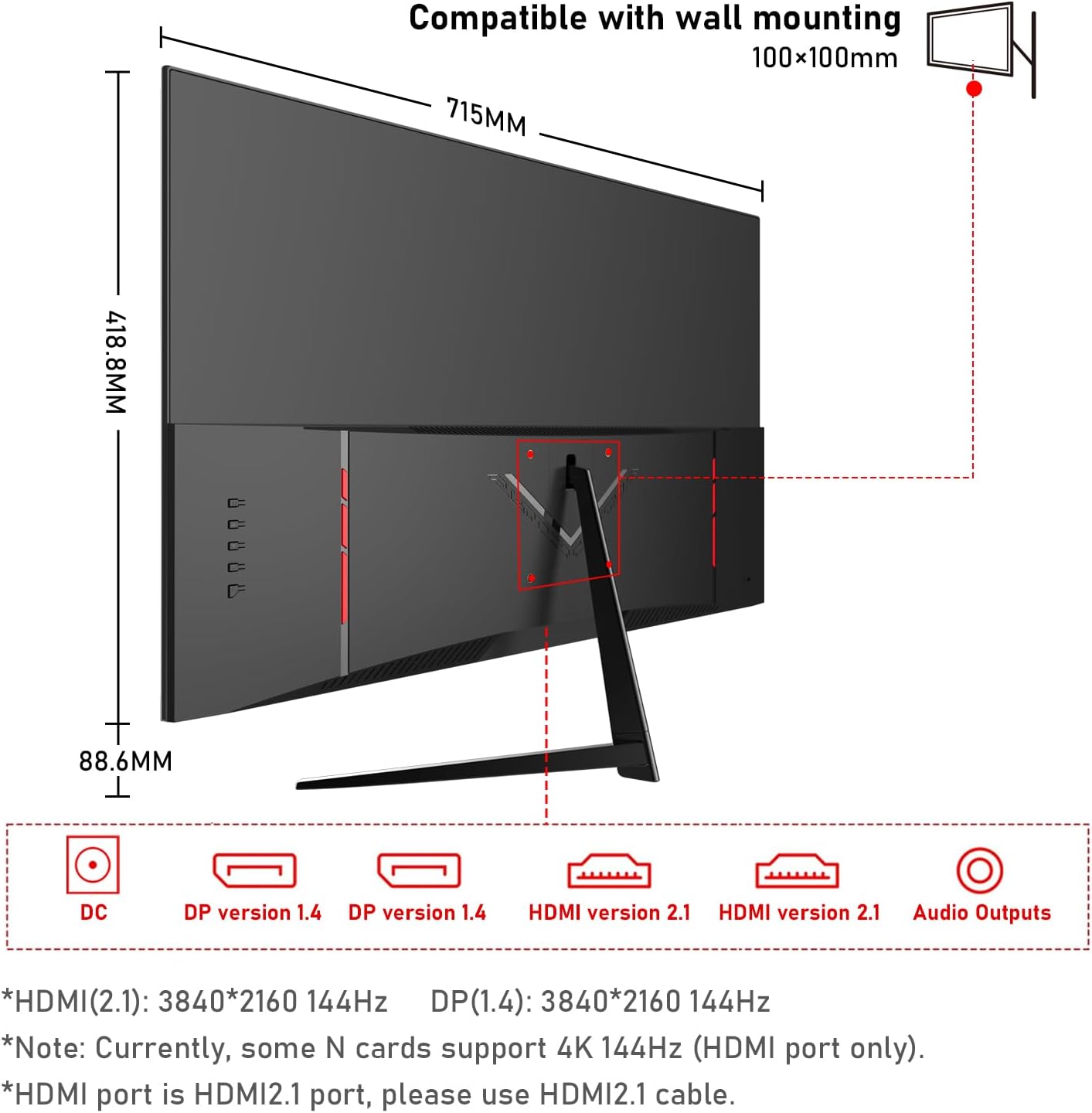
3.3 모니터 연결
적절한 케이블을 사용하여 모니터를 컴퓨터나 다른 장치에 연결합니다.
- 전원 연결: Connect the power adapter to the monitor's DC input port, then plug the adapter into a power outlet.
- 비디오 연결:
- For 4K@144Hz, use an HDMI 2.1 cable (if your graphics card supports it) or a DisplayPort 1.4 cable.
- Connect one end of the HDMI or DisplayPort cable to the corresponding port on your monitor and the other end to your computer's graphics card.
- 오디오 연결: If you wish to use external speakers or headphones, connect them to the 3.5mm audio output port on the monitor.
3.4 초기 전원 켜기
Press the power button on the monitor. The monitor should display the Gawfolk logo and then your computer's desktop. If no image appears, ensure all cables are securely connected and the correct input source is selected in the monitor's On-Screen Display (OSD) menu.
4. 모니터 작동하기
4.1 온스크린 디스플레이(OSD) 메뉴
The OSD menu allows you to adjust various monitor settings. Typically, buttons are located on the back or bottom edge of the monitor. Use these buttons to navigate the menu and select options.
4.2 디스플레이 설정
- 해결: The monitor supports 4K UHD (3840 x 2160) resolution. Ensure your computer's display settings are configured to this resolution for the sharpest image.
- 새로 고침 빈도: For smooth visuals, especially in gaming, set the refresh rate to 144Hz in your computer's display settings.
- 색상 설정: This monitor offers 100% sRGB coverage and 16.7 million colors for vibrant and accurate color reproduction. Adjust brightness, contrast, and color temperature via the OSD menu to suit your preference.

4.3 게임 기능
- 1ms 응답 시간: The monitor features a 1ms response time (GTG), minimizing motion blur and ghosting for a more responsive gaming experience.
- 어댑티브 싱크(FreeSync): This technology synchronizes the monitor's refresh rate with your GPU's frame rate, eliminating screen tearing and stuttering. Enable FreeSync in your graphics card settings and the monitor's OSD menu.

4.4 안과 진료 기술
The monitor incorporates low blue light and flicker-free technology to reduce eye strain during prolonged use. These features are designed to enhance view편안함을.
4.5 Built-in Dual Speakers
The monitor includes built-in dual speakers, providing convenient audio without the need for external speakers. You can adjust the volume through your computer's audio settings or the monitor's OSD menu.

5. 유지관리
- 화면 청소: 부드럽고 털이 없는 천을 살짝 사용하세요.amp물이나 전용 화면 세척제로 닦으십시오. 세척제를 화면에 직접 분사하지 마십시오.
- C 청소asing: 부드럽고 마른 천을 사용하여 모니터를 닦으세요.asing. 연마성 세척제나 용제 사용을 피하세요.
- 통풍: Ensure the ventilation openings on the monitor are clear and not obstructed to prevent overheating.
6. 문제 해결
- 전원 없음: 전원 케이블이 모니터와 전원 콘센트에 제대로 연결되어 있는지 확인하십시오. 전원 어댑터가 정상적으로 작동하는지 확인하십시오.
- 이미지 없음: 비디오 케이블(HDMI/DisplayPort)이 모니터와 컴퓨터에 올바르게 연결되어 있는지 확인하십시오. OSD 메뉴에서 올바른 입력 소스가 선택되어 있는지 확인하십시오.
- 화면 깜빡임: Check the video cable connection. Ensure the refresh rate is set correctly in your computer's display settings. Enable Adaptive Sync if supported by your graphics card.
- 이미지 품질이 좋지 않음: Adjust resolution, brightness, contrast, and color settings via the OSD menu. Ensure the video cable is not damaged.
- 소리 없음: Check the audio cable connection (if using external speakers/headphones). Adjust volume settings on both the monitor and your computer. Ensure the correct audio output device is selected on your computer.
7. 사양
| 특징 | 사양 |
|---|---|
| 상표 | 가우포크 |
| 모델 번호 | GF320L |
| 화면 크기 | 32 인치 |
| 해결 | 4K UHD 2160p (3840 x 2160 픽셀) |
| 새로 고침 빈도 | 144Hz |
| 응답 시간 | 1밀리초(GTG) |
| 종횡비 | 16시 9분 |
| 디스플레이 유형 | LED (VA Technology) |
| 화면 표면 설명 | 광택있는 |
| 특징 | 구부러진 |
| View잉 각도 | 178도 |
| 명도 | 320칸델라/제곱미터 |
| 색상 범위 값 | 120% sRGB |
| 이미지 품질 향상 | Eye-Care + Adaptive Sync |
| 하드웨어 연결 | 2x HDMI, 2x DisplayPort, 3.5mm Audio |
| Adaptive Synchronization | 프리싱크 |
| 색상 | 검은색 |
| 품목 무게 | 6.34 킬로그램 |
| 품목 치수(D x W x H) | 50.7 x 71.5 x 19 센티미터 |
8. 보증 및 지원
Gawfolk provides a 12-month after-sales service for this monitor. If you encounter any issues during use, please do not hesitate to contact our customer support for assistance. Our team is dedicated to ensuring your satisfaction.