
1. 서론
This manual provides essential information for setting up, operating, maintaining, and troubleshooting your CHUWI Hi10 X2 2-in-1 Laptop Tablet. Please read it thoroughly before using your device.
상자 안에 무엇이 들어있나요?
- Hi10 X2 태블릿
- 자석 키보드
- 스탠드 포함 케이스
- 충전기 세트
- 사용 설명서 (본 문서)

Image 1.1: CHUWI Hi10 X2 Tablet with Magnetic Keyboard and Case.
2. 설정
2.1 초기 충전
Before first use, fully charge your CHUWI Hi10 X2 tablet using the provided charger set. Connect the charger to the Type-C port on the tablet and plug it into a power outlet. The charging indicator light will illuminate.
2.2 Attaching the Magnetic Keyboard and Case
Align the tablet with the magnetic connectors on the keyboard. The magnets will secure the tablet in place. The case with stand can be adjusted to your preferred view잉 각도.
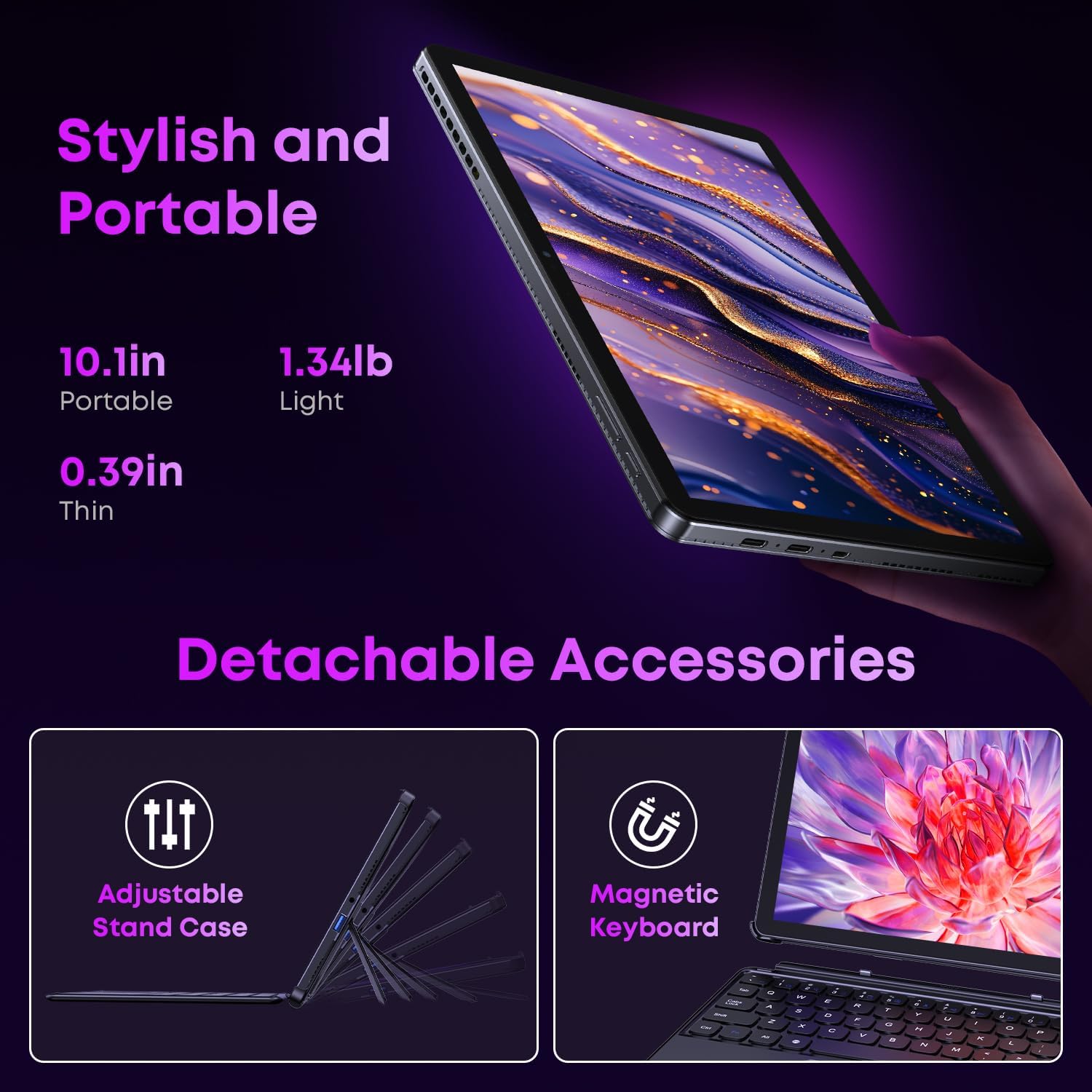
Image 2.1: Detachable accessories including the magnetic keyboard and adjustable stand case.
2.3 First Boot-Up and Windows Activation
Press and hold the power button until the screen turns on. Follow the on-screen instructions to complete the initial Windows 11 setup. If your Windows system arrives unactivated, please send the serial number (located on the back of the device) to CHUWI support via Amazon for your activation key.
2.4 Wi-Fi에 연결하기
During setup, you will be prompted to connect to a Wi-Fi network. Select your network and enter the password. The device supports Wi-Fi 6 for fast and stable connections.
3. 사용 설명서
3.1 전원 켜기/끄기 및 절전 모드
- 전원 켜기: 화면이 켜질 때까지 전원 버튼을 길게 누르세요.
- 전원 끄기 : From the Windows Start menu, select Power > Shut down.
- 수면 모드 : Briefly press the power button to enter or exit sleep mode.
3.2 터치스크린 사용
The 10.1-inch HD touchscreen supports 10-point multi-touch gestures. Use taps, swipes, and pinches for navigation and interaction with applications.

Image 3.1: The 10.1-inch HD touchscreen display.
3.3 Laptop and Tablet Modes
The magnetic keyboard allows for seamless switching between laptop and tablet modes. Attach the keyboard for typing and productivity, or detach it for a pure tablet experience.
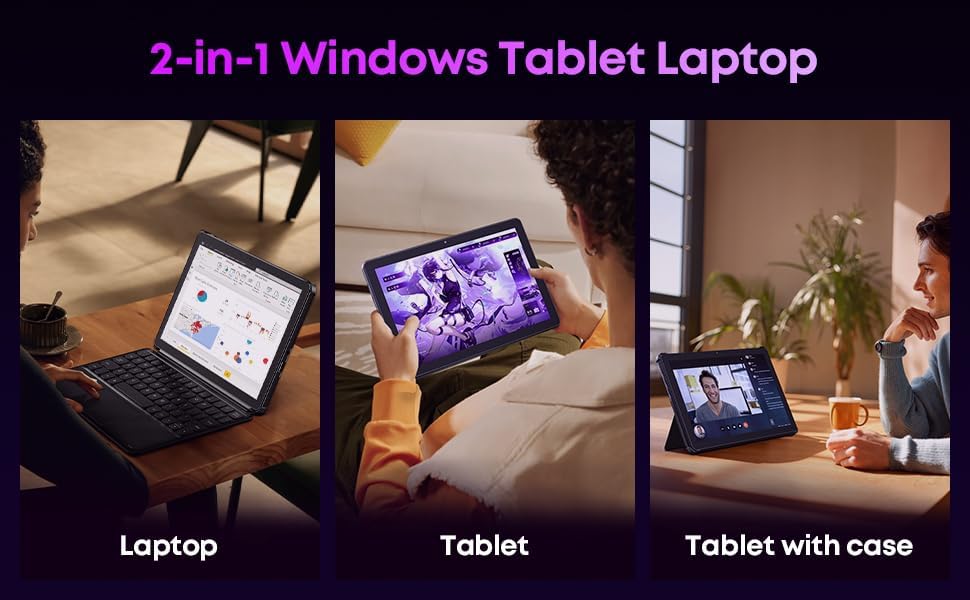
Image 3.2: Usage scenarios demonstrating laptop, tablet, and tablet with case modes.
3.4 연결성
- USB 포트: The tablet features a full-featured Type-C port and a USB 3.2 Gen1 port for data transfer and connecting peripherals.
- 마이크로 HDMI: Connect to external monitors or TVs using the Micro HDMI port for extended display options, supporting up to 4K video output.
- 블루투스 5.3 : Pair with wireless headphones, mice, and other Bluetooth accessories.
- 와이파이 6: Enjoy high-speed internet connectivity for streaming and browsing.
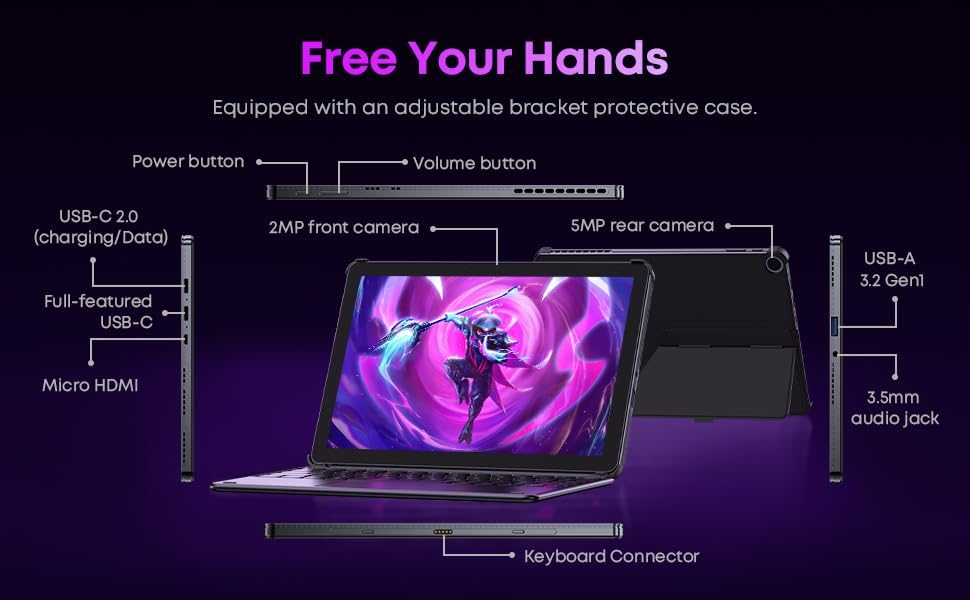
이미지 3.3: 상세 view of the tablet's ports and connectors.
3.5 카메라 사용
The tablet is equipped with a 5MP autofocus rear camera for capturing photos and videos, and a 2MP front camera for video calls and selfies.

Image 3.4: Camera and wireless connectivity features.
3.6 Processor and Storage
Powered by a 10th Gen Intel Core i3 processor (up to 3.9GHz) and 8GB RAM, the tablet handles multitasking efficiently. The 256GB SSD provides ample storage and fast access to your files.

Image 3.5: Intel 10th Gen Core i3 Processor details.
3.7개 제품 이상view 동영상
비디오 3.6: 오버view of the CHUWI Hi10 X2 2-in-1 Laptop Tablet, highlighting its features and functionality.
4. 유지관리
4.1 장치 청소
부드럽고 보풀이 없는 천을 사용하여 태블릿 화면과 본체를 닦으세요. 잘 지워지지 않는 얼룩은 가볍게 닦아주세요.amp천에 물이나 화면 세척액을 묻혀 닦아주세요. 강한 화학 물질이나 연마재는 사용하지 마세요.
4.2 배터리 관리
To prolong battery life, avoid exposing the tablet to extreme temperatures. It is recommended to keep the battery charge between 20% and 80% for optimal longevity. Avoid fully discharging the battery frequently.
4.3 소프트웨어 업데이트
시스템에 최신 보안 패치와 성능 향상이 적용되도록 정기적으로 Windows 업데이트를 확인하고 설치하세요. 설정 > Windows 업데이트로 이동하세요.
4.4 스토리지 관리
주기적으로 다시view 그리고 불필요한 것을 삭제하세요 files and applications to free up storage space on the 256GB SSD. This helps maintain optimal device performance.
5. 문제 해결
5.1 장치 전원이 켜지지 않음
- Ensure the device is fully charged. Connect the charger and wait a few minutes before attempting to power on.
- 전원 버튼을 10~15초간 길게 눌러 하드 리셋을 실행하세요.
5.2 Wi-Fi 연결 문제
- Wi-Fi 라우터와 태블릿을 다시 시작하세요.
- 다른 기기가 동일한 Wi-Fi 네트워크에 연결할 수 있는지 확인하세요.
- Forget the network in Windows settings and reconnect.
5.3 화면이 터치에 반응하지 않음
- 태블릿을 다시 시작하십시오.
- 화면이 깨끗하고 이물질이 없는지 확인하세요.
5.4 Keyboard Not Working
- Ensure the tablet is correctly aligned and securely connected to the magnetic keyboard.
- 태블릿을 다시 시작하십시오.
추가 지원이 필요하면 지원 섹션을 참조하세요.
6. 사양
| 특징 | 사양 |
|---|---|
| 상표 | 추위 |
| 모델명 | 하이10 X2 |
| 프로세서 | Intel Core i3 (10th Gen, up to 3.9 GHz) |
| 운영 체제 | 윈도우 11 홈 |
| 숫양 | 8GB (XNUMX기가바이트) |
| 저장 | 256GB SSD |
| 화면 크기 | 10.1 인치 |
| 디스플레이 해상도 | 1280x800 픽셀 |
| 연결성 | 와이파이 6, 블루투스 5.3 |
| 포트 | Full-featured Type-C, USB 3.2 Gen 1, Micro HDMI, 3.5mm Audio Jack |
| 카메라 | 5MP Autofocus Rear, 2MP Front |
| 무게 | 1.3파운드(약 0.59kg) |
| 치수(길이 x 너비 x 두께) | 9.6인치 x 6.49인치 x 0.39인치 |
| 배터리 용량 | 3400mAh |
7. 보증 정보
The CHUWI Hi10 X2 2-in-1 Laptop Tablet comes with a 1년 한정 보증본 보증은 제조상의 결함 및 정상적인 사용 조건에서의 오작동에 적용됩니다. 보증 청구를 위해 구매 증빙 자료를 보관해 주십시오.
For detailed warranty terms and conditions, please refer to the official CHUWI web사이트를 방문하거나 고객 지원팀에 문의하세요.
8. 지원
If you encounter any issues not covered in the Troubleshooting section, or require assistance with Windows activation, please contact CHUWI customer support. You can typically find support contact information on the official CHUWI website or through your purchase platform (e.g., Amazon seller messaging).
When contacting support, please have your device's serial number and proof of purchase readily available.