
1. 서론
Thank you for choosing the Picun G2 Wireless Gaming Headset. This manual provides detailed instructions for setting up, operating, and maintaining your headset to ensure optimal performance and an immersive gaming experience. Please read this manual thoroughly before use.
상자 안에 무엇이 들어있나요?
- 1 x Picun G2 Wireless Gaming Headset
- 1 x USB-A & Type-C 2-in-1 Wireless Dongle
- 1 x USB-C 충전 케이블
- 1 x 3.5mm 오디오 케이블
- 1 x 사용자 설명서
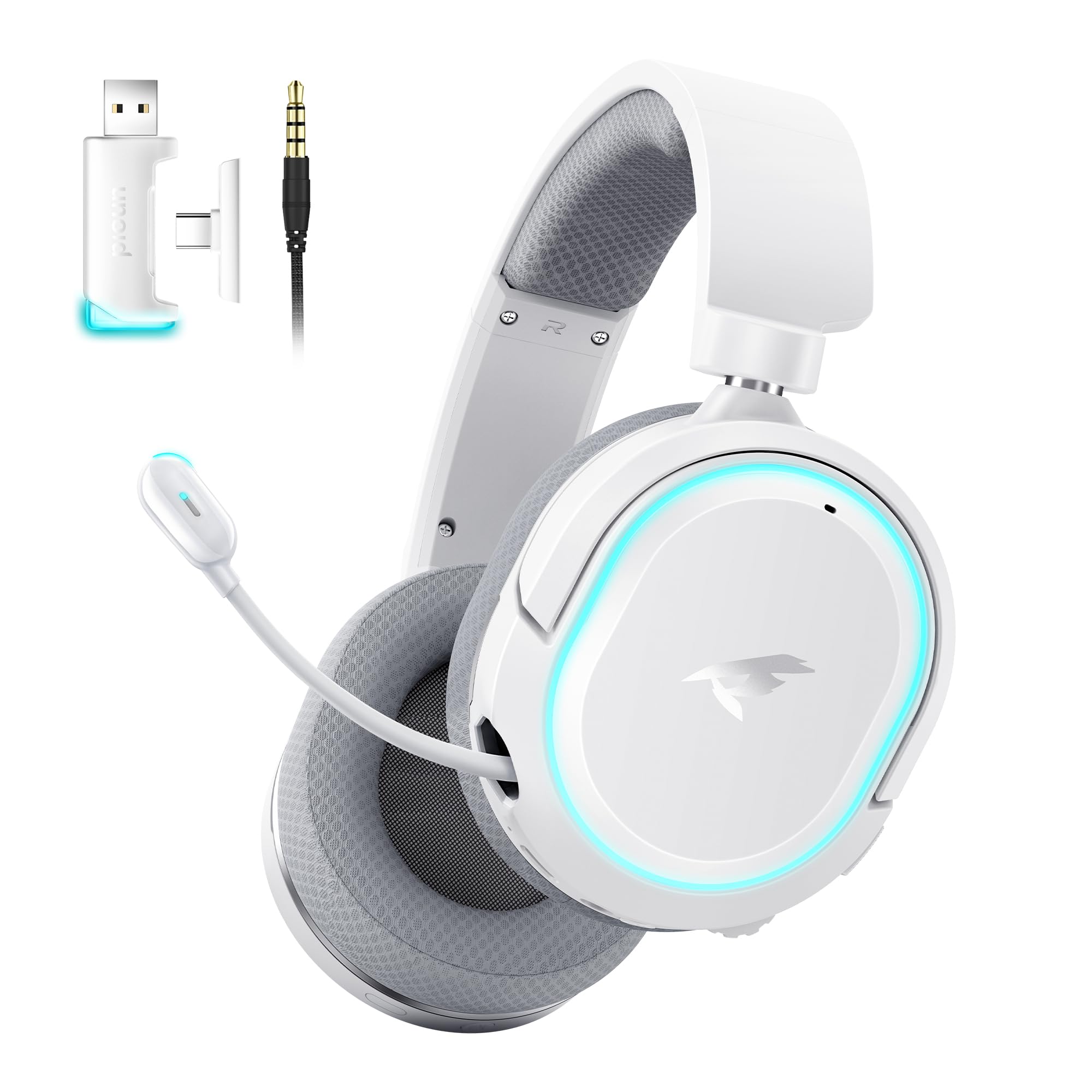
Image: Picun G2 Wireless Gaming Headset (Grey)
2. 제품 오버view
Familiarize yourself with the various components and controls of your Picun G2 headset.

Image: Headset Controls Diagram
- 7.1 Mode Light Control: Button to activate/deactivate 7.1 virtual surround sound and control RGB lighting.
- 충전 포트: 헤드셋 충전용 USB-C 포트.
- 3.5mm 오디오 포트: 동봉된 3.5mm 오디오 케이블을 사용하여 유선으로 연결할 수 있습니다.
- 전원 버튼: Press and hold to power on/off. Short press for play/pause in Bluetooth mode.
- 볼륨 휠: Scroll up or down to adjust the volume.
- 마이크 음소거: Slide switch to mute or unmute the microphone.
3. 설정 및 연결
3.1 헤드셋 충전
Before first use, fully charge the headset using the provided USB-C charging cable. Connect the USB-C end to the headset's charging port and the USB-A end to a power source (e.g., computer USB port, USB wall adapter).
3.2 Connecting via 2.4GHz Wireless (Dongle)
For ultra-low latency gaming on PC, PS5, PS4, or Nintendo Switch (docked mode):
- Insert the 2.4GHz USB-A/Type-C dongle into an available USB port on your device.
- 헤드셋의 전원을 켜세요. 동글에 자동으로 연결됩니다.
- 기기의 소리 설정에서 헤드셋이 오디오 출력 및 입력 장치로 선택되어 있는지 확인하십시오.
3.3 Bluetooth 5.4를 통한 연결
For wireless connection to smartphones, tablets, and other Bluetooth-enabled devices:
- With the headset powered off, press and hold the Power Button until the LED indicator flashes blue and red, indicating pairing mode.
- On your device, enable Bluetooth and search for "Picun G2".
- Select "Picun G2" to pair. The LED will turn solid blue once connected.
3.4 Connecting via 3.5mm Wired
For universal compatibility with devices featuring a 3.5mm audio jack:
- Connect one end of the 3.5mm audio cable to the headset's 3.5mm audio port.
- 케이블의 다른 한쪽 끝을 기기의 3.5mm 오디오 잭에 연결하세요.
- Note: Microphone functionality may vary or be unavailable in wired mode depending on the device.

Image: Multiple Connection Options
4. 사용 설명서
4.1 전원 켜기/끄기
- 전원 켜기: 3 초 동안 전원 버튼을 길게 누릅니다.
- 전원 끄기 : 3 초 동안 전원 버튼을 길게 누릅니다.
4.2 볼륨 조절
- 회전하다 볼륨 휠 upwards to increase volume.
- 회전하다 볼륨 휠 downwards to decrease volume.
4.3 Microphone Usage (Retractable ENC Noise-Canceling Mic)
- Extend/Retract Mic: Gently pull out or push in the microphone from the left earcup.
- 음소거/음소거 해제: 사용하세요 마이크 음소거 slide switch located on the earcup.

Image: Retractable ENC Noise-Canceling Microphone
4.4 7.1 Virtual Surround Sound Activation
- 를 누르세요 7.1 모드 조명 제어 button to toggle 7.1 virtual surround sound on or off.
- The RGB lighting will indicate the status of the 7.1 mode.

Image: 7.1 Surround Sound Activation
5. 배터리 정보
The Picun G2 headset offers extended battery life for prolonged usage.
- Up to 100 hours playtime in Bluetooth mode (RGB off).
- Approximately 42-45 hours playtime via 2.4GHz wireless (RGB on).
- Full charge typically takes 2-3 hours.
- The headset supports charging while in use.

이미지: 배터리 수명 및 충전
6. 편안함과 디자인
The Picun G2 is designed for comfort during extended gaming sessions.
- 조정 가능한 머리띠: 다양한 머리 크기에 맞게 사이즈를 조절할 수 있습니다.
- 회전식 이어컵: Allows for flexible positioning and storage.
- Soft Memory Sponge Cushions: Breathable fabric earcups and headband provide comfort and reduce pressure.

Image: Comfort Features
7. 문제 해결
If you encounter any issues with your Picun G2 headset, please refer to the following common solutions:
| 문제 | 해결책 |
|---|---|
| 헤드셋에서 소리가 나지 않습니다 |
|
| 마이크가 작동하지 않습니다 |
|
| 2.4GHz 무선으로 연결할 수 없습니다. |
|
| 블루투스로 연결할 수 없습니다 |
|
| 배터리 수명이 짧음 |
|
8. 사양
| 특징 | 세부 사항 |
|---|---|
| 상표 | 피쿤 |
| 모델명 | Picun-G2 |
| 연결 기술 | 2.4GHz 무선, 블루투스 5.4, 3.5mm 유선 |
| 귀 위치 | 귀 위 |
| 오디오 드라이버 유형 | 다이내믹 드라이버(40mm) |
| 임피던스 | 32옴 |
| 주파수 범위 | 20Hz - 20,000Hz |
| 오디오 지연 | 5밀리초(2.4GHz) |
| 블루투스 버전 | 5.4 |
| 블루투스 범위 | 10 미터 |
| 배터리 수명 | Up to 100 Hours (Bluetooth, RGB off) / 42-45 Hours (2.4GHz, RGB on) |
| 충전 시간 | 2-3시간 |
| 마이크로폰 | Retractable ENC Noise-Canceling Omnidirectional Mic |
| 호환 장치 | PC, Mac, Laptop, Desktop, Phone, Pad, Tablet, PlayStation 4/5/pro/Slim, Gaming Consoles, Switch, Nintendo Switch (microphone invalid on Switch via 3.5mm) |
| 재료 | ABS, Breathable Fabric, PC, Soft Memory Sponge Cushions |
| 추가 기능 | 7.1 Virtual Surround Sound, RGB Lighting, Adjustable Headband, Rotatable Earcups |
9. 보증 및 지원
9.1 보증 정보
The Picun G2 Wireless Gaming Headset comes with a 1년 보증 구매일로부터 유효합니다. 본 보증은 제조상의 결함을 보증하며, 정상적인 사용 조건에서 제품의 재료 및 제조상의 결함이 없음을 보장합니다. 보증 청구를 위해 구매 증빙 자료를 보관해 주십시오.
보증은 다음 사항을 포함하지 않습니다:
- Damage caused by misuse, abuse, accident, or negligence.
- 무단 수리 또는 개조.
- 정상적인 마모 및 파손.
9.2 고객 지원
For technical assistance, warranty claims, or any questions regarding your Picun G2 Wireless Gaming Headset, please contact Picun customer support through the following channels:
- 이메일: support@picun.com (전amp(실제 이메일은 제공되지 않음)
- Web대지: Visit the official Picun webFAQ 및 지원 리소스를 위한 사이트입니다.
Please have your model number (Picun-G2) and proof of purchase ready when contacting support.


