
소개
The ATTACK SHARK X8 Ultimate is a high-performance wireless gaming mouse designed for precision and responsiveness. It features a lightweight design, tri-mode connectivity, an advanced PixArt PAW3950MAX sensor, and an 8K polling rate for an optimal gaming experience.

이미지: 이상view of the ATTACK SHARK X8 Ultimate Wireless Gaming Mouse highlighting its key features.
주요 특징:
- 초경량 디자인: Weighing only 55g, with a Nano-ice coating for comfortable grip during extended use.
- 8K 폴링 속도: Supports up to 8KHz polling rate in both wireless and wired modes for low latency and fast response.
- 3중 모드 연결: Seamlessly switch between Bluetooth, 2.4GHz wireless, and wired USB connections.
- PixArt PAW3950MAX Sensor: Advanced gaming sensor with up to 42,000 DPI sensitivity, 700 IPS accuracy, and 60G acceleration.
- Durable Switches & Long Battery Life: Equipped with Omron micro switches rated for over 100 million clicks and an 800mAh battery providing up to 800 hours of intermittent use at 1000Hz polling rate.
- 클라우드 드라이버: 혁신적 web-based driver for DPI adjustment, polling rate settings, competitive mode, customized buttons, macro recording, and personalized key mapping.
패키지 내용
다음 품목이 패키지에 포함되어 있는지 확인하세요.
- ATTACK SHARK X8 Ultimate Wireless Gaming Mouse
- USB 수신기(2.4GHz)
- USB-C 충전/데이터 케이블
- 사용 설명서 (본 문서)
설치 가이드
1. 마우스 충전
처음 사용하기 전에 마우스를 완전히 충전하는 것이 좋습니다. 제공된 USB-C 케이블을 마우스의 충전 포트에 연결하고 다른 한쪽 끝을 USB 전원(예: 컴퓨터 USB 포트, USB 벽면 어댑터)에 연결하십시오.

Image: The ATTACK SHARK X8 Ultimate mouse connected via its USB-C charging cable, illustrating the 800mAh battery capacity.
The LED indicator on the mouse will show charging status. A full charge provides up to 800 hours of intermittent use at a 1000Hz polling rate.
2. Connecting the Mouse (Tri-mode Connectivity)
The X8 Ultimate mouse offers three connection modes: 2.4GHz Wireless, Bluetooth, and Wired USB.

Image: The ATTACK SHARK X8 Ultimate mouse illustrating its three connection modes: Type-C wired, 2.4GHz wireless, and Bluetooth wireless.
2.1. 2.4GHz 무선 연결
- 패키지에 포함된 USB 수신기(동글)를 찾으세요.
- USB 수신기를 컴퓨터의 사용 가능한 USB 포트에 연결합니다.
- Turn on the mouse using the power switch located on the bottom. Ensure it is set to 2.4GHz mode (usually indicated by a specific switch position or LED color).
- 마우스가 자동으로 컴퓨터에 연결됩니다.
2.2. 블루투스 연결
- Turn on the mouse and set it to Bluetooth mode (usually indicated by a specific switch position or LED color).
- 컴퓨터 또는 기기에서 블루투스 설정으로 이동하여 블루투스를 활성화하세요.
- 검색 new devices. The mouse should appear as "ATTACK SHARK X8 Ultimate" or similar.
- 페어링할 마우스를 선택하세요.
2.3. 유선 USB 연결
- 제공된 USB-C 케이블을 마우스 전면 포트에 연결하십시오.
- USB-C 케이블의 다른 쪽 끝을 컴퓨터의 사용 가능한 USB 포트에 연결합니다.
- 마우스가 자동으로 유선 모드로 전환되고 충전이 시작됩니다.
작동 지침
1. 기본 마우스 기능
- 좌 클릭: 1차 작업.
- 마우스 오른쪽 버튼으로 클릭: 2차 작업/컨텍스트 메뉴.
- 스크롤 휠: 위/아래로 스크롤하고 가운데 버튼을 클릭하세요.
- 측면 버튼: 일반적으로 앞뒤 탐색에 사용됩니다. web 브라우저. 이러한 브라우저는 사용자 정의할 수 있습니다.
2. DPI 조정
The X8 Ultimate features an adjustable DPI range from 50 to 42,000. DPI settings can be changed using the dedicated DPI button (if present) or through the Cloud Driver software. Refer to the Cloud Driver section for detailed customization.

Image: The ATTACK SHARK X8 Ultimate mouse highlighting the PixArt PAW3950MAX sensor and its capabilities (750 IPS, 60G, 8000Hz wireless polling rate, 50-42000 DPI).
3. Polling Rate Settings
The mouse supports an 8KHz polling rate for both wireless (2.4GHz) and wired modes, reducing operation latency to 0.163ms. The polling rate can be configured via the Cloud Driver software.
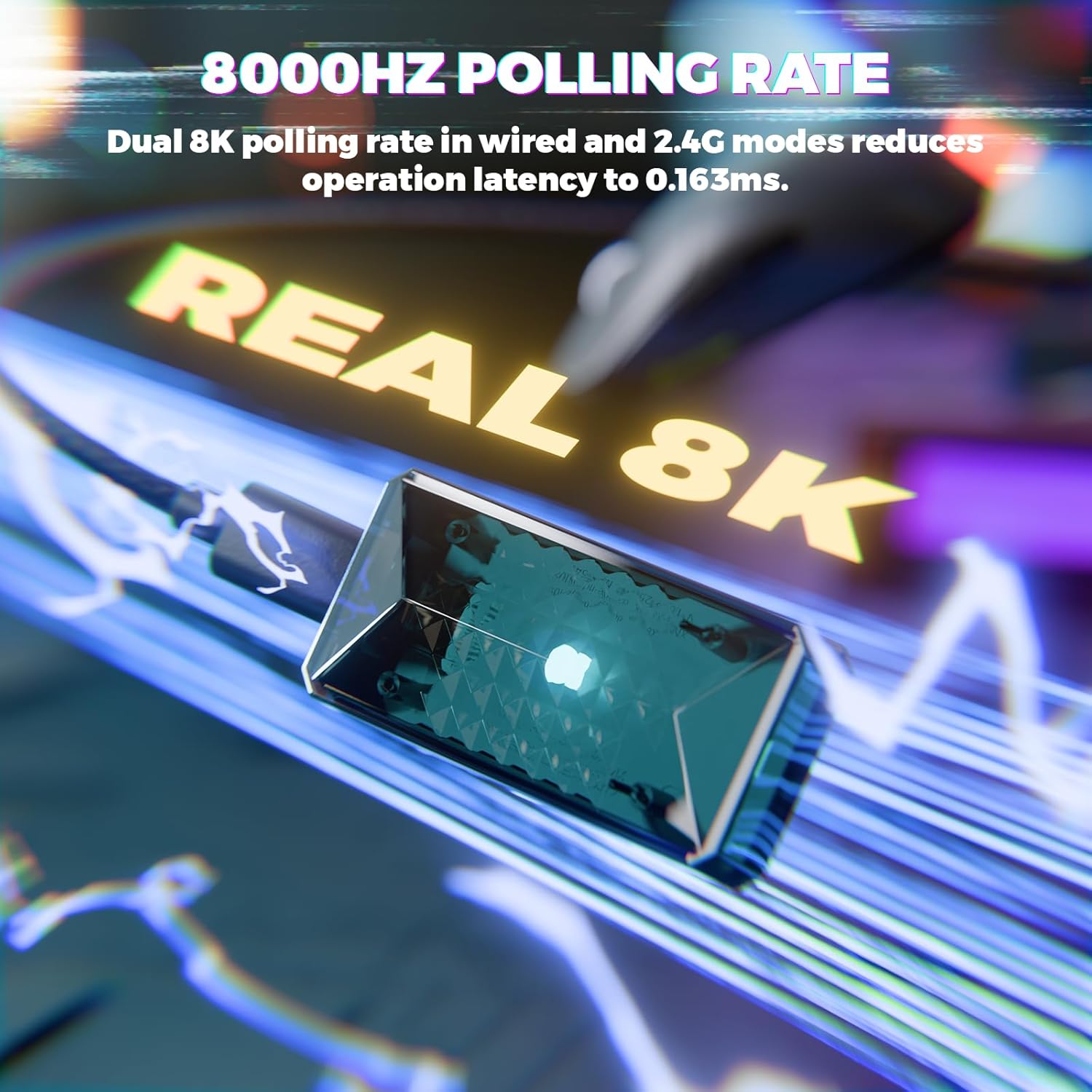
Image: Visual representation of the 8000Hz polling rate feature of the ATTACK SHARK X8 Ultimate mouse.
4. Cloud Driver Software
The X8 Ultimate utilizes an innovative cloud-driven webpage for customization. This eliminates the need for traditional software installation.
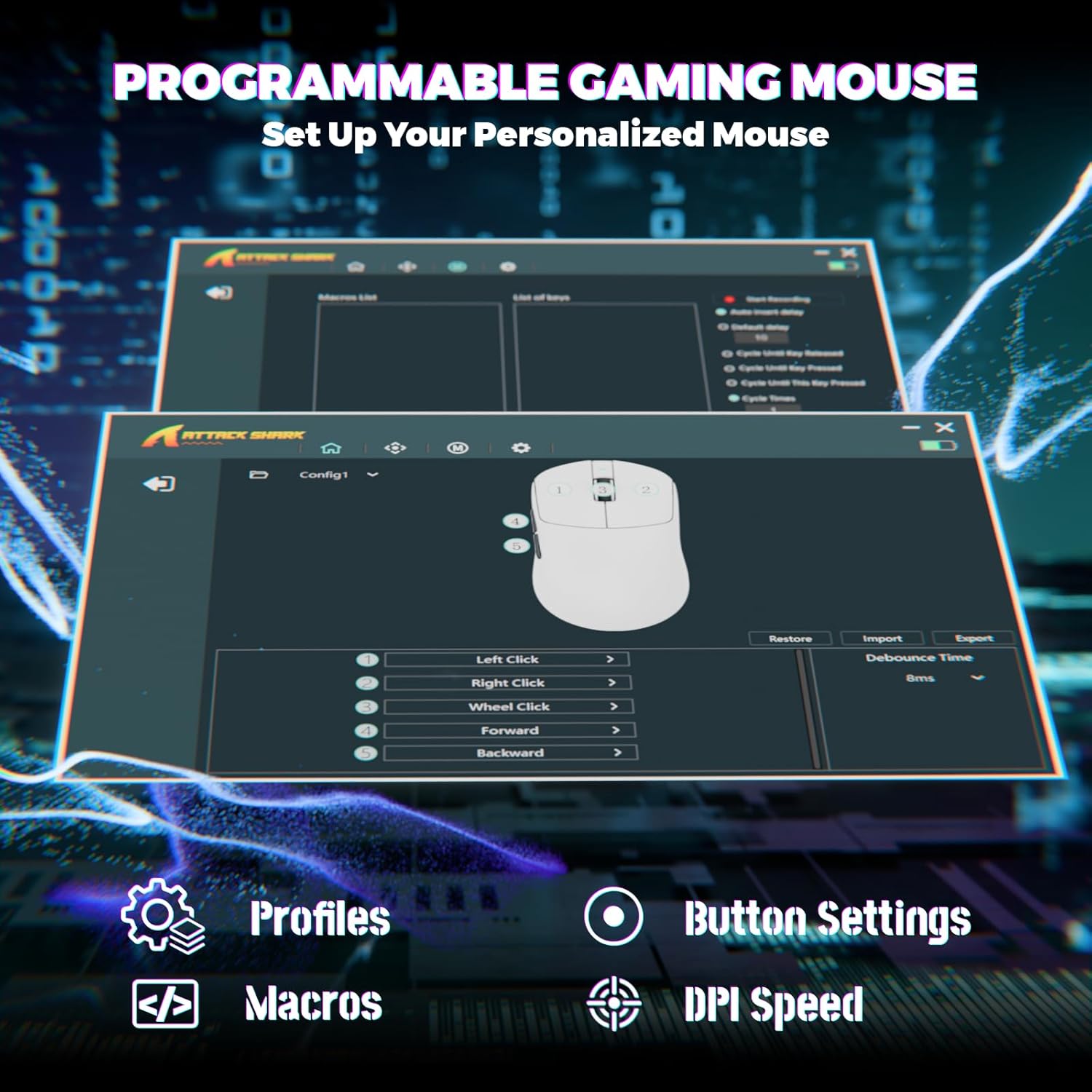
Image: Screenshot of the Cloud Driver interface for the ATTACK SHARK X8 Ultimate mouse, showing options for profiles, button settings, macros, and DPI speed.
To access the Cloud Driver:
- Ensure your mouse is connected to your computer.
- 열기 web browser and navigate to the official ATTACK SHARK support page or the specific Cloud Driver URL (refer to packaging or official website for the exact link).
- The open-source driver will automatically identify your computer system.
- From the Cloud Driver interface, you can:
- Adjust DPI sensitivity.
- Set polling rate.
- Configure competitive modes.
- 버튼 할당을 사용자 지정하세요.
- Record and assign macros.
- Personalize key mapping and other advanced functions.
유지
1. 청소
최적의 성능과 외관을 유지하려면 마우스를 정기적으로 청소하세요.
- 부드럽고 털이 없는 천을 살짝 사용하세요.amp물 또는 순한 세척액으로 세척하십시오.
- Avoid harsh chemicals, solvents, or abrasive materials.
- Clean the optical sensor on the bottom of the mouse gently with a cotton swab to ensure accurate tracking.
2. 배터리 관리
배터리 수명을 연장하려면:
- 쥐를 극심한 온도 변화(덥거나 추운 온도)에 노출시키지 마십시오.
- Do not fully discharge the battery frequently. Charge it when the battery indicator is low.
- 장기간 마우스를 보관할 경우, 보관하기 전에 약 50% 정도 충전하세요.
문제 해결
If you encounter issues with your ATTACK SHARK X8 Ultimate mouse, try the following solutions:
- 마우스가 응답하지 않습니다.
- 마우스의 전원이 켜져 있는지 확인하세요.
- 배터리 수준을 확인하고 필요한 경우 충전하세요.
- Verify the connection mode (2.4GHz, Bluetooth, or Wired) is correctly selected and established.
- 2.4GHz의 경우, USB 수신기가 제대로 연결되어 있는지 확인하세요.
- Bluetooth의 경우, 장치에서 Bluetooth가 활성화되어 있고 마우스가 페어링되어 있는지 확인하세요.
- Try connecting the mouse via the wired USB cable.
- 간헐적인 연결 또는 지연:
- Ensure the USB receiver is not obstructed and is close to the mouse.
- Avoid using the mouse near other wireless devices that may cause interference.
- 컴퓨터의 USB 또는 블루투스 드라이버를 업데이트하세요.
- DPI or button settings not working:
- Access the Cloud Driver software to verify and reconfigure your settings.
- Ensure the mouse firmware is up to date (check via Cloud Driver).
- 마우스 트래킹 문제:
- 마우스 바닥의 광학 센서를 청소하세요.
- 깨끗하고 균일한 표면이나 고품질 마우스 패드 위에서 마우스를 사용하세요.
명세서
| 특징 | 설명 |
|---|---|
| 상표 | 공격상어 |
| 모델 | X8 Ultimate |
| 연결 기술 | 2.4Ghz Wireless, Bluetooth, USB (Tri-mode) |
| 움직임 감지 기술 | Optical (PixArt PAW3950MAX Sensor) |
| DPI 감도 | 50 - 42,000 DPI(조정 가능) |
| 폴링 속도 | 최대 8000Hz (무선/유선) |
| 가속 | 60G |
| 추적율 | 700 IPS |
| 무게 | 55g (초경량) |
| 배터리 용량 | 800mAh |
| 스위치 유형 | Omron Micro Switches (100 Million Clicks lifespan) |
| 버튼 수량 | 5 (프로그래밍 가능) |
| 손의 방향 | 양손잡이 |
| 호환 장치 | Gaming Console, Personal Computer, Tablet |
| 하드웨어 플랫폼 | PC |
| 한국어: | 752010401109 |

Image: The ATTACK SHARK X8 Ultimate mouse emphasizing its 59g ultra-light design and smooth-gliding double-layer feet.

이미지: 상세 view of the optical micro switches inside the ATTACK SHARK X8 Ultimate mouse, highlighting their instant click and zero rebound lag features, and 100 million click lifespan.
보증 및 지원
The ATTACK SHARK X8 Ultimate Wireless Gaming Mouse comes with a 1년 보증 구매일로부터.
For technical support, warranty claims, or further assistance, please contact ATTACK SHARK customer service through their official website or the retailer where the product was purchased. Please have your proof of purchase and product model information ready.
ATTACK SHARK 공식 스토어: ATTACK SHARK 스토어 (아마존)


