
1. 중요한 안전 정보
Please read all instructions carefully before using this monitor. Keep this manual for future reference.
- 모니터를 비, 습기 또는 극한의 온도에 노출시키지 마세요.
- 과열을 방지하려면 모니터 주위에 적절한 환기가 이루어지도록 하십시오.
- 모니터와 함께 제공된 전원 어댑터만 사용하십시오.
- 전원 코드나 모니터 위에 무거운 물건을 올려놓지 마세요.
- 장시간 모니터를 사용하지 않을 경우에는 콘센트에서 전원 플러그를 뽑아 두세요.
- 모니터를 직접 수리하려고 하지 마십시오. 모든 수리는 자격을 갖춘 기술자에게 맡기십시오.
2. 패키지 내용
패키지에 모든 품목이 들어 있는지 확인하세요.
- 27-inch QHD 210Hz Monitor (1 unit)
- 모니터 스탠드 (1개)
- 빠른 시작 가이드(QSG) (1부)
- DP 케이블 (1개)
- Power Adaptor (1 unit)
- 전원 코드 (1개)
- Shielding Hood (2 units)

Video: KTC 27M1 27 Inch 210Hz Gaming Monitor. This video provides a visual overview of the monitor and its features.
3. 설정 지침
3.1 모니터 스탠드 조립
- 모니터와 스탠드 구성품을 포장에서 조심스럽게 꺼내세요.
- Attach the stand base to the stand arm using the provided screw.
- Align the stand arm with the mounting slot on the back of the monitor and push until it clicks into place.
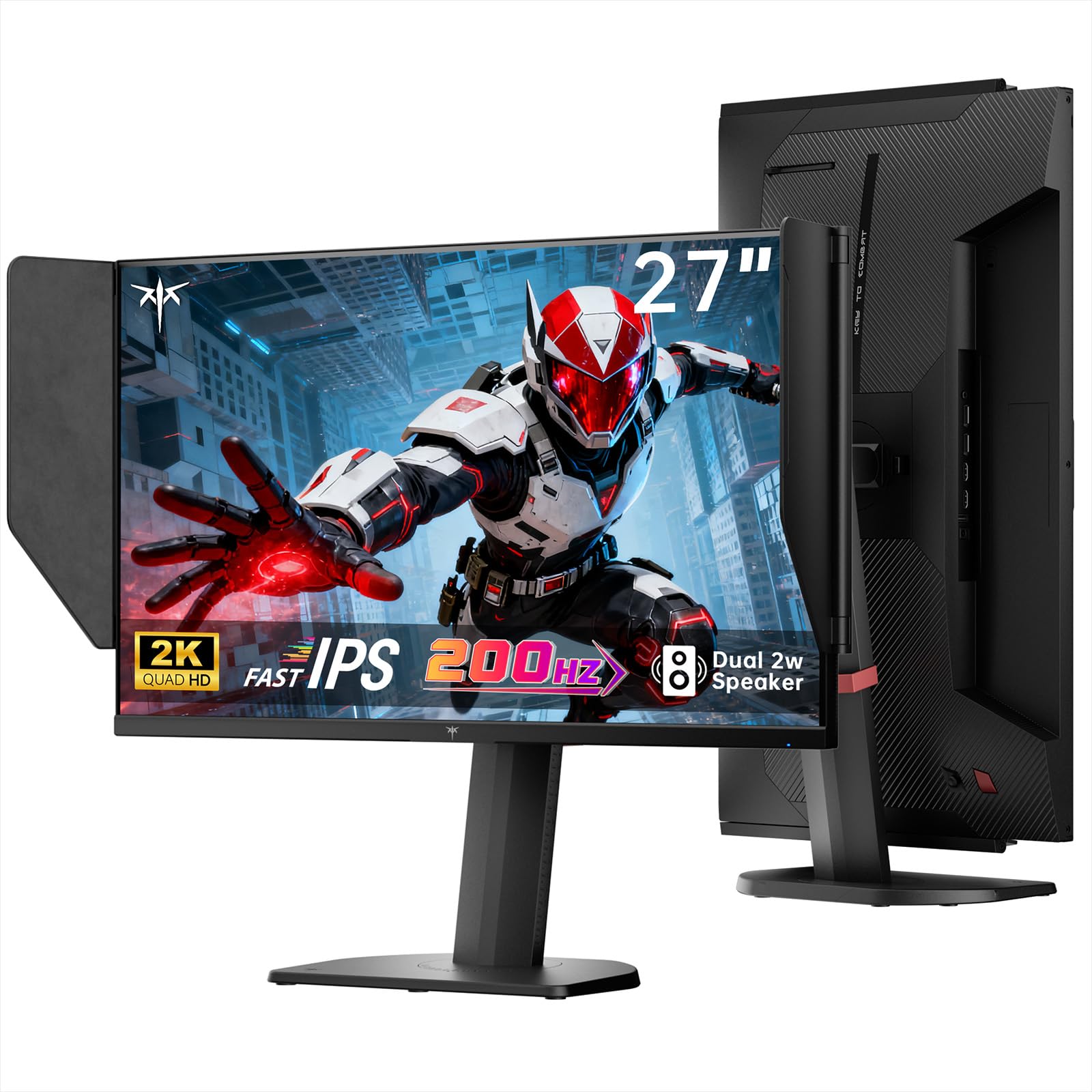
Image: The KTC 27M1 monitor with its stand fully assembled, ready for use.
3.2 Attaching the Shielding Hood
The shielding hood helps reduce glare and reflections for an optimal view경험.
- Locate the two shielding hood pieces.
- Align each piece with the designated slots on the sides of the monitor and gently slide them into place until secure.

Image: The KTC 27M1 monitor shown with the shielding hood attached, designed to block reflected light.
3.3 연결 케이블
적절한 케이블을 사용하여 모니터를 컴퓨터나 다른 장치에 연결합니다.
- 디스플레이포트(DP): For 200Hz (overclockable to 210Hz) refresh rates, connect the DP cable from your graphics card to the monitor's DP 1.4 port.
- HDMI : For 144Hz refresh rates, connect an HDMI 2.0 cable from your device to one of the monitor's HDMI ports.
- 힘: Connect the power adapter to the DC input on the monitor, then plug the power cord into a wall outlet.
- 오디오: Connect headphones or external speakers to the 3.5mm earphone jack if desired.

이미지: 클로즈업 view of the KTC 27M1 monitor's rear ports, including HDMI, DisplayPort, USB, and earphone jack.
4. 사용 설명서
4.1 전원 켜기/끄기
Press the 5-way navigation joystick located on the back of the monitor to power it on or off.
4.2 OSD 메뉴 탐색
The 5-way navigation joystick is used to access and navigate the On-Screen Display (OSD) menu:
- 조이스틱을 눌러 OSD 메뉴를 엽니다.
- Move the joystick Up/Down/Left/Right to navigate through menu options.
- 조이스틱을 다시 눌러 옵션을 선택하거나 설정을 확인하세요.
- Move the joystick Left to go back to the previous menu or exit the OSD.
4.3 디스플레이 설정 조정
OSD 메뉴에서 다양한 디스플레이 설정을 조정할 수 있습니다.
- 밝기/대비: 전반적인 밝기와 대비 수준을 조정합니다.
- 색상 설정: Modify color temperature (Warm, Cool, User), gamma, hue, and saturation. The monitor offers 130% sRGB color gamut and ΔE<2 for accurate color reproduction.
- 게임 설정: Enable/disable Adaptive Sync (FreeSync/G-Sync Compatible), adjust Overdrive (Ultra Fast recommended for gaming), and activate Game Assist features.
- 고급 설정: Toggle HDR (Auto/Off) and OverClock (to achieve 210Hz refresh rate).
- 입력: Manually select the input source (DP, HDMI1, HDMI2).
- 시스템 설정: Change OSD language, LED indicator, audio volume, and other system preferences.
4.4 인체공학적 조정
The monitor stand supports multiple ergonomic adjustments for comfortable viewing:
- 높이 조정: Adjust the monitor height by 150±5mm.
- 경사: Tilt the screen from -5° to 35°.
- 받침: Swivel the monitor ±60°.
- 피벗: Pivot the screen from -5° to 90° for vertical orientation.

Image: Visual representation of the KTC 27M1 monitor's tilt, swivel, elevate, and pivot adjustments.
5. 특징
- 표시하다: 27-inch QHD (2560x1440) Fast IPS panel.
- 새로 고침 빈도: 200Hz, overclockable to 210Hz.
- 응답 시간: 1ms (MPRT) for sharp visuals.
- 색상 정확도: 130% sRGB color gamut, 99% DCI-P3 coverage, ΔE<2, 450 cd/m² brightness, 1.07 Billion Colors, 1000:1 Contrast Ratio.
- 적응 동기화: FreeSync and G-Sync Compatible to eliminate screen tearing.
- 눈 관리: Flicker-free and low blue light modes for extended comfortable view주고받음.
- 오디오: 2W 출력의 듀얼 스피커가 내장되어 있습니다.
- 연결성: 2x HDMI 2.0 ports, 1x DisplayPort 1.4 port, 1x USB 2.0 port, 1x Earphone jack.
- 설치: 100x100mm VESA mount compatible.
- 설계: Includes a detachable shielding hood to block reflected light.

Image: The KTC 27M1 monitor displaying vibrant colors, highlighting its color accuracy and brightness features.
6. 사양
| 특징 | 사양 |
|---|---|
| 상표 | KTC |
| 모델 번호 | H27T8 (Marketed as 27M1) |
| 화면 크기 | 27 인치 |
| 네이티브 해상도 | 2560x1440(QHD) |
| 디스플레이 기술 | 빠른 IPS |
| 새로 고침 빈도 | 200 Hz (Overclockable to 210 Hz) |
| 응답 시간 | 1밀리초(MPRT) |
| 명도 | 450 칸델라(cd/m²) |
| 대비율 | 1000시 1분 |
| 색상 영역 | 130% sRGB, 99% DCI-P3 |
| View잉 각도 | 178도 |
| HDR 지원 | 예 |
| 적응형 동기화 | FreeSync, G-Sync Compatible |
| 내장 스피커 | 2x 2W Speakers |
| 연결성 | 2x HDMI 2.0, 1x DisplayPort 1.4, 1x USB 2.0, 1x Earphone |
| VESA 마운트 | 100x100mm |
| 인간 공학 | 높이, 기울기, 회전, 피벗 조절 |
| 전력 소비 | 48 와트 |
7. 유지관리 및 관리
- 화면 청소: 부드럽고 보풀이 없는 천으로 화면을 부드럽게 닦으세요. 잘 지워지지 않는 얼룩의 경우,ampen the cloth with a mild, non-abrasive screen cleaner.
- C 청소asing: 부드럽고 마른 천을 사용하여 모니터를 청소하십시오.asing. 강한 세제나 연마성 세척제 사용을 피하십시오.
- 통풍: Ensure the ventilation openings on the monitor are clear and unobstructed to prevent overheating.
- 저장: 장기간 모니터를 보관할 경우 전원을 분리하고 서늘하고 건조한 곳에 보관하세요.
8. 문제 해결
8.1 전원 없음
- 전원 코드가 모니터와 전원 콘센트에 안전하게 연결되어 있는지 확인하세요.
- 다른 기기를 콘센트에 꽂아 전원 콘센트가 제대로 작동하는지 확인하십시오.
- 전원 어댑터가 제대로 연결되어 있는지 확인하세요.
8.2 No Signal/Blank Screen
- 비디오 케이블(DP 또는 HDMI)이 모니터와 컴퓨터/기기에 제대로 연결되어 있는지 확인하십시오.
- Press the OSD joystick to open the menu and manually select the correct input source.
- 컴퓨터/장치의 전원이 켜져 있고 절전 모드가 아닌지 확인하세요.
- Try using a different video cable or port to rule out cable/port issues.
8.3 Flickering/Distorted Image
- 비디오 케이블에 손상이 있거나 연결이 느슨하지 않은지 확인하십시오.
- Adjust the refresh rate in your computer's display settings to match the monitor's native refresh rate (200Hz or 210Hz if overclocked).
- Enable Adaptive Sync (FreeSync/G-Sync Compatible) in the monitor's OSD menu and your graphics card settings.
- 그래픽 카드 드라이버가 최신인지 확인하세요.
8.4 No Sound from Built-in Speakers/Earphone Jack
- 모니터의 OSD 메뉴와 컴퓨터 운영 체제의 볼륨 설정을 확인하십시오.
- 컴퓨터의 소리 설정에서 올바른 오디오 출력 장치가 선택되어 있는지 확인하십시오.
- Verify that the audio cable (if using external speakers) or headphones are properly connected.
9. 보증 및 지원
KTC is committed to providing quality service and support for your monitor.
- 보증: This product comes with a 3-year quality guarantee.
- 기술 지원: Lifetime technical support is available for all KTC products.
- 문의하기: If you have any questions or encounter issues, please contact KTC customer support. Solutions will be provided within 24 hours.