
소개
Welcome to the Thunderobot Zero 16 Pro user manual. This document provides essential information for setting up, operating, maintaining, and troubleshooting your new gaming laptop. The Thunderobot Zero 16 Pro is engineered for high-performance gaming and demanding applications, featuring an Intel Core Ultra 9 275HX processor, NVIDIA GeForce RTX 5080 graphics, a 16-inch QHD+ 360Hz display, 32GB DDR5 RAM, and a 1TB PCIe M.2 SSD.
최적의 성능과 제품 수명 연장을 위해, 사용 전에 본 설명서를 꼼꼼히 읽어 주십시오.
패키지 내용
패키지에 모든 품목이 들어 있는지 확인하세요.
- Thunderobot Zero 16 Pro 게이밍 노트북
- 전원 어댑터 및 케이블
- 사용 설명서 (본 문서)
- 보증 카드
설정
1. 초기 전원 켜기
- 전원 연결: 전원 어댑터를 노트북의 전원 포트에 꽂은 다음 벽면 콘센트에 꽂습니다.
- 노트북 열기: 노트북 덮개를 조심스럽게 엽니다.
- 전원 켜기: 일반적으로 키보드 위나 측면에 있는 전원 버튼을 누르세요.
- 초기 설정 : 화면의 지침에 따라 언어, 지역, 네트워크 연결, 사용자 계정 생성 등 Windows 11 Home 설정을 완료하세요.
2. 주변기기 연결하기
The Thunderobot Zero 16 Pro offers various ports for connecting external devices:
- USB-A 포트: Connect mice, keyboards, external hard drives, and other USB accessories.
- USB-C Port (Thunderbolt 5): 고속 데이터 전송, 외부 디스플레이 및 전력 공급을 위해.
- HDMI 2.1 포트: 외부 모니터나 TV에 연결하여 화면을 확장할 수 있습니다.
- RJ-45 이더넷 포트: 안정적인 유선 네트워크 연결을 위해.
- 3.5mm 오디오 잭: 헤드폰 또는 외부 스피커를 연결합니다.
이미지: 측면 view of the Thunderobot Zero 16 Pro, highlighting the RJ-45, USB3.2 Gen2 Type-A, HDMI 2.1, Thunderbolt 5 Type-C, Power, USB3.2 Gen1 Type-A, and 3.5mm audio jack ports.

Image: Detailed diagram illustrating the location and type of ports available on the Thunderobot Zero 16 Pro, including USB, HDMI, Ethernet, and audio connections.
작동 지침
1. Keyboard and Lighting
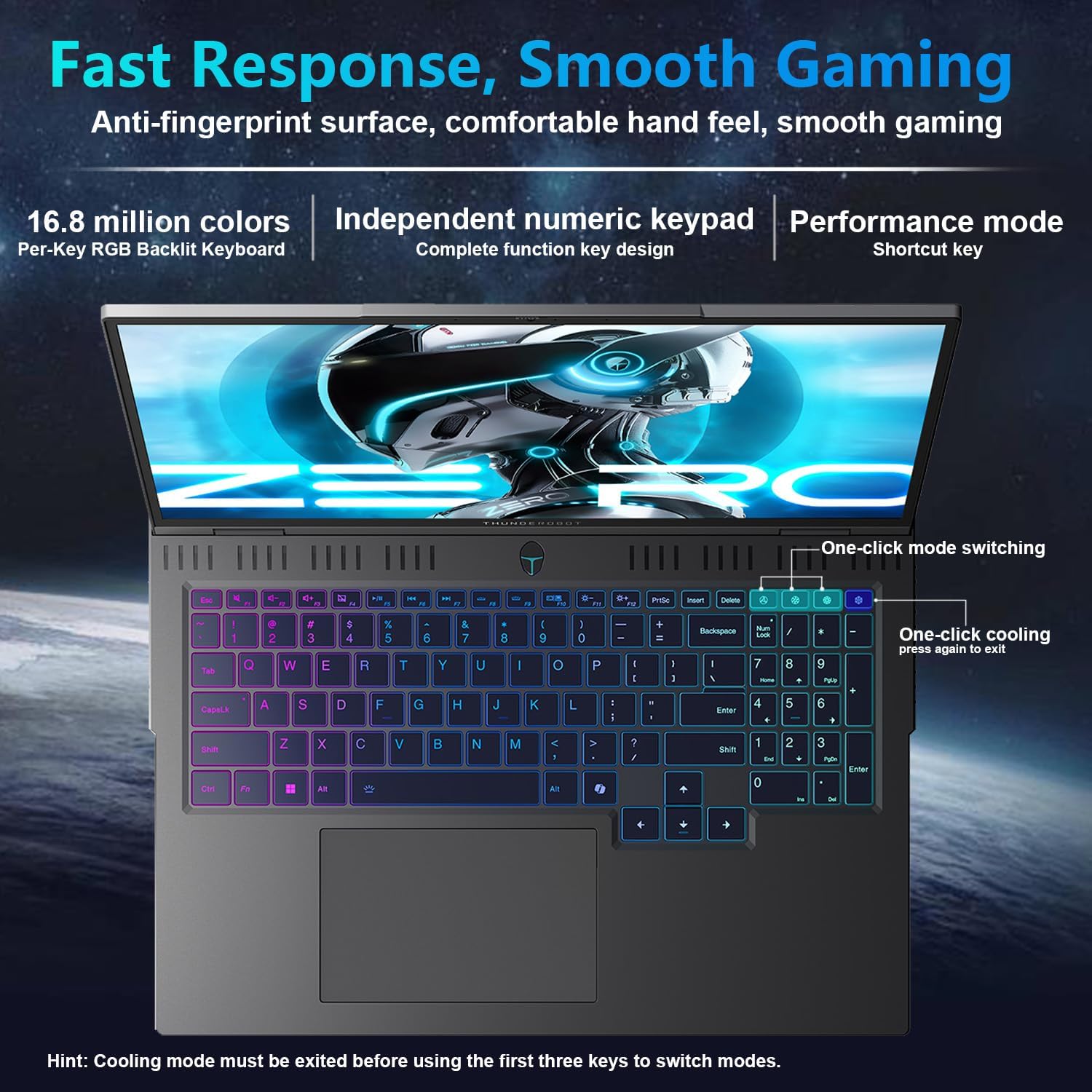
The laptop features a full-size, per-key RGB backlit keyboard with a numeric keypad. You can customize the RGB lighting effects through the Thunderobot Control Center software.
- Performance Mode Switching: Use dedicated shortcut keys to switch between performance profiles (e.g., Quiet, Balance, Turbo).
- One-Click Cooling: A dedicated key allows for instant activation of maximum cooling.
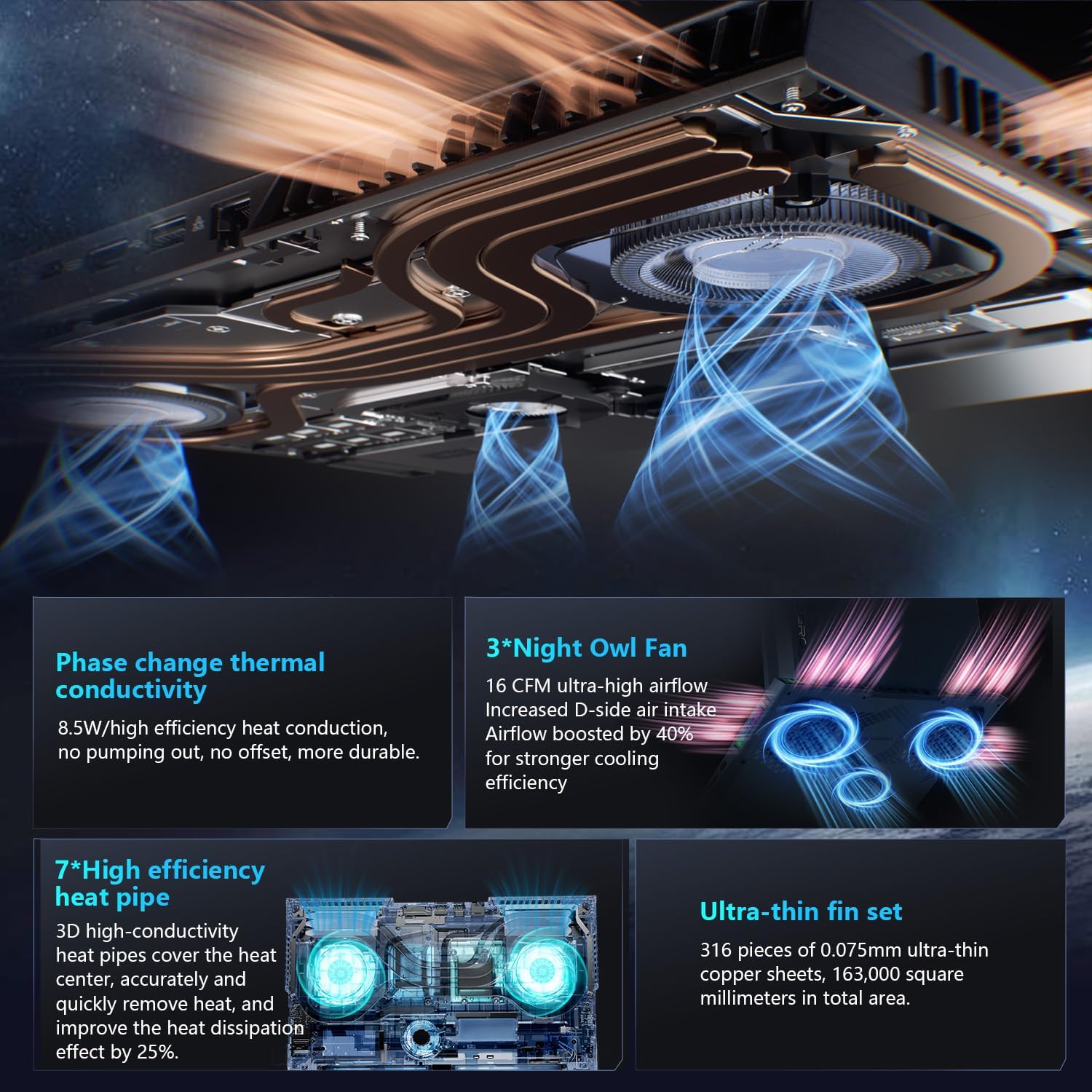
Image: The RGB backlit keyboard of the Thunderobot Zero 16 Pro, showing the full layout and numeric keypad.

Image: Visual guide to the keyboard's one-click mode switching and cooling activation keys.
Video: This video demonstrates the RGB lighting system and keyboard features of the Thunderobot Zero 16 Pro, including performance mode switching and one-click cooling.
2. 디스플레이 기능
The 16-inch QHD+ (2560x1600) display offers a 360Hz refresh rate and eye-care technology. To utilize the highest refresh rate, ensure the dedicated graphics direct connection mode is enabled in the Control Center.
- Anti-Glare & Anti-Reflection: Reduces distractions from ambient light.
- 블루라이트 차단: Helps reduce eye strain during prolonged use.
- DC 디밍: Provides flicker-free eye protection.
- 전문적인 색상 보정: 정확한 색상 재현을 보장합니다.

Image: The 16-inch QHD+ display of the Thunderobot Zero 16 Pro, showcasing its high refresh rate and eye-care features.

Image: Infographic detailing the display's features such as 2.5K resolution, 360Hz refresh rate, 500 nits brightness, and various eye protection technologies.
3. Thunderobot Control Center
The AI Intelligent Control Center software allows for comprehensive management of your laptop's performance, lighting, and system settings. It is recommended to connect the device to a power source for full functionality of system mode switching.
- Performance Tuning: Adjust CPU and GPU settings for optimal performance or power saving.
- Intelligent Light Adjustment: Customize keyboard, strip, and logo RGB lighting.
- Comprehensive Adjustment: Monitor system status, fan speeds, and manage other personalized settings.
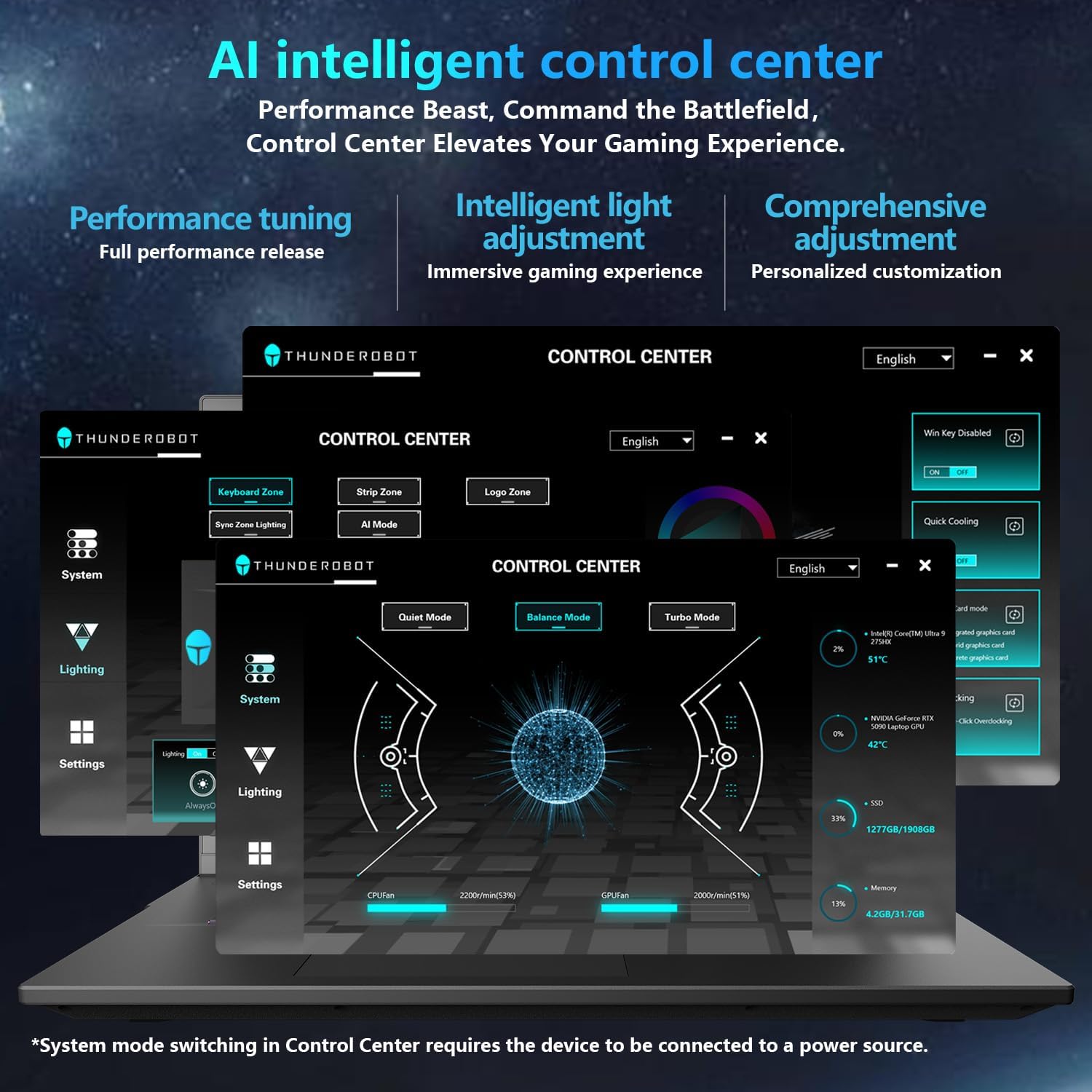
Image: A visual representation of the Thunderobot Control Center interface, showing options for system monitoring, lighting control, and performance settings.
Image: Infographic explaining the capabilities of the AI Intelligent Control Center, including performance tuning, intelligent light adjustment, and comprehensive system management.
4. 오디오 시스템
The laptop is equipped with a Soundstage Full audio system, featuring 4 speakers and Nahimic high-quality sound effects for an immersive audio experience.

Image: A graphic illustrating the Soundstage Full audio system with sound waves, emphasizing the immersive experience.
Video: This video showcases the display quality and overall design of the Thunderobot Zero series, including the Zero 16 Pro.
유지
1. 냉각 시스템
The Thunderobot Zero 16 Pro features a robust cooling system designed to maintain performance under heavy loads. This includes dual Night Owl fans, 7 enlarged heat pipes, and 316 ultra-thin copper fins.
- 통풍구를 깨끗하게 유지하세요: Ensure that the air intake and exhaust vents are not obstructed to allow for proper airflow.
- 정기 청소: 주기적으로 압축 공기를 사용하여 환풍구의 먼지를 청소하십시오.

이미지: 폭발된 view of the laptop's internal cooling components, showing the dual fans, heat pipes, and fin set.

Image: Infographic explaining the Night Hawk fans, high-efficiency heat pipes, phase-change thermal conduction, and ultra-thin fin array.
2. 일반 관리
- 청소: 부드럽고 보풀 없는 천으로 화면과 본체를 닦으십시오. 강한 화학 약품 사용은 피하십시오.
- 환경 조건: Operate the laptop within recommended temperature ranges (-20°C to 60°C) and humidity (up to 90%).
- 배터리 수명: To prolong battery life, avoid frequently discharging the battery completely and store the laptop with a partial charge if not used for extended periods.
Video: This video highlights the robust build quality and testing of Thunderobot gaming products, demonstrating their durability.
문제 해결
일반적인 문제 및 솔루션
| 문제 | 가능한 원인 | 해결책 |
|---|---|---|
| Display not reaching 360Hz refresh rate. | Dedicated graphics direct connection mode is not enabled. | Enable the dedicated graphics direct connection mode in the Thunderobot Control Center. |
| Laptop performance is lower than expected. | Laptop is not connected to power, or is in a power-saving mode. | Connect the laptop to its power adapter. Adjust performance settings to "Turbo Mode" or "Performance Mode" in the Thunderobot Control Center. Ensure cooling vents are clear. |
| Keyboard RGB lighting is not working or customizable. | Lighting settings are disabled or not configured in the Control Center. | Open the Thunderobot Control Center and navigate to the "Lighting" section to enable and customize RGB effects. |
| 스피커나 헤드폰에서 소리가 나지 않습니다. | Audio drivers are outdated, volume is muted, or incorrect output device selected. | Check volume levels and audio output settings in Windows. Update audio drivers if necessary. Ensure headphones are fully plugged into the 3.5mm jack. |
명세서
| 특징 | 세부 사항 |
|---|---|
| 상표 | 썬더로봇 |
| 모델명 | 제로 16 프로 |
| 화면 크기 | 16 인치 |
| 해결 | 2560x1600 pixels (QHD+) |
| 새로 고침 빈도 | 360Hz |
| CPU 모델 | Intel Core Ultra 9 275HX (24 Cores, up to 5.4 GHz) |
| 그래픽 코프로세서 | NVIDIA GeForce RTX 5080 (12GB GDDR7) |
| 설치된 RAM 메모리 크기 | 32GB DDR5(4800MHz) |
| 하드 디스크 크기 | 1TB SSD (PCIe x4) |
| 운영 체제 | 윈도우 11 홈 |
| 연결 기술 | Wi-Fi 6E, Bluetooth, USB-A, USB-C (Thunderbolt 5), HDMI, Ethernet, Audio Jack |
| 총 USB 포트 | 4 |
| HDMI 포트 | 1 |
| 건반 | Backlit, Full-size with Numeric Keypad |
| Web캠 기능 | 예 |
| 품목 치수(길이 x 너비 x 두께) | 14.09인치 길이 x 10.52인치 너비 x 1.03인치 두께 |
| 제품의 특정 용도 | 노름 |
보증 및 지원
보증 정보
모든 Thunderobot 노트북에는 다음이 포함됩니다. 12개월 보증수리가 필요한 경우 전문가 지원, 철저한 진단 및 정품 부품을 제공합니다. 또한, 90일 보증 모든 보증 교체 부품에는 보증이 제공되어 번거로움 없는 수리를 보장합니다. 고객 만족을 최우선으로 생각합니다.
고객 지원
For technical assistance, warranty claims, or product inquiries, please visit the official Thunderobot website or contact their customer support. Refer to the warranty card included in your package for specific contact details and terms.
또한 방문할 수 있습니다 Amazon의 Thunderobot 스토어 추가 제품 정보 및 지원 리소스를 확인하세요.