
중요한 안전 정보
Please read all instructions carefully before using this monitor. Keep this manual for future reference.
- Do not place the monitor near water or in humid environments.
- 과열을 방지하려면 모니터 주위에 적절한 환기가 이루어지도록 하십시오.
- 모니터와 함께 제공된 전원 어댑터만 사용하십시오.
- 모니터를 직사광선이나 극한 온도에 노출시키지 마십시오.
- 모니터를 직접 수리하려고 하지 마십시오. 모든 서비스는 자격을 갖춘 전문가에게 맡기십시오.
- 부드럽고 보풀이 없는 천으로 화면을 닦으세요. 독한 화학 물질은 사용하지 마세요.
패키지 내용
다음 품목이 모두 패키지에 포함되어 있는지 확인하세요.
- 31.5-inch 2K 120Hz Monitor (x1)
- 모니터 스탠드 (1개)
- 빠른 시작 가이드(QSG) (1부)
- HDMI 케이블(x1)
- 전원 어댑터(x1)
- 전원 코드(x1)

An image showing the monitor's dimensions and a list of included accessories: monitor, QSG, HDMI cable, adapter, power cord, and monitor stand.
설정
모니터 조립
다음 단계를 따라 모니터 스탠드를 조립하고 디스플레이 패널에 부착하십시오.
- 모니터와 스탠드 구성품을 포장에서 조심스럽게 꺼내세요.
- Attach the base to the stand column, securing it with the provided screw.
- 조립된 스탠드를 모니터 패널 뒷면의 장착 지점에 맞춰 정렬합니다.
- 받침대가 딸깍 소리가 나면서 제자리에 단단히 고정될 때까지 살살 밀어 넣으세요.
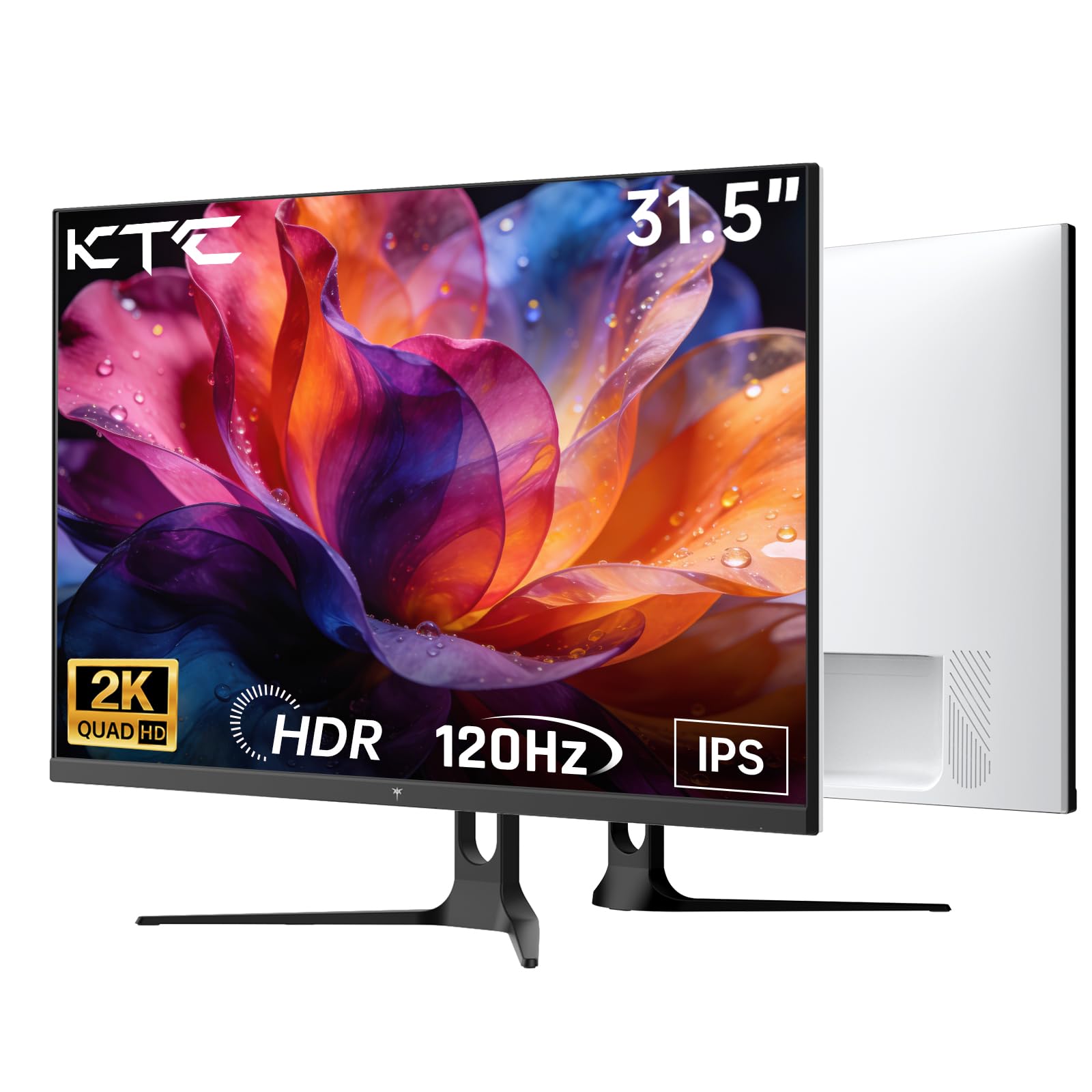
앞쪽 view of the KTC H32D6 31.5-inch monitor on its stand.
연결성
Connect your monitor to a power source and your computer using the appropriate cables:
- Connect the power adapter to the monitor's DC input port, then plug the power cord into an electrical outlet.
- For video input, connect one end of the HDMI or DisplayPort cable to your computer's graphics card and the other end to the corresponding port on the monitor.
- 원하는 경우 헤드폰이나 외부 스피커를 이어폰 잭에 연결하세요.

Close-up of the monitor's rear panel, highlighting the HDMI 2.0 ports (x2), DisplayPort 1.4 (x1), and earphone jack.
이 비디오는 이상을 제공합니다view of the KTC 32 Inch 2K 120Hz Computer Monitor, showcasing its features and benefits in a dynamic presentation.
작동 지침
전원 켜기/끄기
Press the power button (usually located on the back or bottom right of the monitor) to turn the monitor on or off. The power indicator light will illuminate when the monitor is on.
OSD(온스크린 디스플레이) 메뉴 탐색
The monitor features an intuitive OSD menu for adjusting various settings. Use the joystick or buttons (depending on your model) on the back of the monitor to navigate the menu:
- 조이스틱/버튼을 눌러 OSD 메뉴를 여세요.
- Move the joystick up/down or left/right to select menu options.
- 조이스틱/버튼을 다시 눌러 선택을 확정하거나 하위 메뉴로 들어가세요.
- To exit the OSD menu, navigate to the 'Exit' option or hold the joystick/button for a few seconds.
디스플레이 설정 조정
OSD 메뉴에서는 다음과 같은 설정을 조정할 수 있습니다.
- 해결: Set to QHD (2560x1440) for optimal clarity.
- 새로 고침 빈도: Adjust to 120Hz for ultra-smooth visuals.
- 밝기 및 대비: Fine-tune for your preferred view경험.
- 색상 설정: Adjust color temperature, gamma, and other color parameters.

An image demonstrating the superior clarity of QHD (2560x1440) resolution compared to FHD (1920x1080) on the monitor screen.

A visual representation of smooth motion on the monitor, illustrating the benefit of a 120Hz refresh rate for seamless visuals.
적응형 동기화
This monitor supports Adaptive Sync technology (FreeSync, G-Sync Compatible) to eliminate screen tearing and stuttering during gaming or fast-paced video. Ensure Adaptive Sync is enabled in both your monitor's OSD settings and your graphics card control panel for optimal performance.

A side-by-side comparison showing the visual difference with Adaptive Sync ON (smooth image) and OFF (screen tearing) during fast-paced action.
HDR10 지원
The monitor supports HDR10, providing a wider range of colors and contrast for a more immersive viewing experience. To utilize HDR10, ensure your content and graphics card support HDR, and enable it in your operating system display settings.

An image highlighting the enhanced color and contrast provided by HDR10 technology.
눈 관리 기능
The KTC H32D6 monitor includes Low Blue Light and Flicker-Free technologies to reduce eye fatigue during prolonged use. These features are designed to provide a more comfortable view경험.

An image illustrating the eye care features, including low blue light and flicker-free technology, designed to reduce eye strain.
기울기 조정
The monitor stand allows for tilt adjustment from -5° to 20°. Gently adjust the monitor panel to your desired view인체공학적 편안함을 위한 각도.

An image demonstrating the wide 178-degree viewing angle provided by the IPS panel, ensuring consistent image quality from various positions.
유지
적절한 유지관리는 모니터의 수명과 최적의 성능을 보장합니다.
- 화면 청소: 부드럽고 마른 보풀 없는 천으로 화면을 부드럽게 닦으세요. 잘 지워지지 않는 얼룩의 경우,ampen the cloth with water or a screen-cleaning solution specifically designed for monitors. Never spray liquid directly onto the screen.
- C 청소asing: 부드럽고 마른 천을 사용하여 모니터의 c를 청소하십시오.asing. 연마성 세척제나 용제 사용을 피하세요.
- 사용하지 않을 때 전원 끄기: Turn off the monitor when not in use to save energy and extend its lifespan.
- 장애물을 피하십시오: Ensure that the ventilation openings on the monitor are not blocked to prevent overheating.
문제 해결
모니터에 문제가 발생하면 다음의 일반적인 문제와 해결 방법을 참조하세요.
| 문제 | 가능한 해결책 |
|---|---|
| 화면에 이미지가 없습니다. | Ensure the power cable is securely connected and the monitor is turned on. Check that the video cable (HDMI/DP) is firmly connected to both the monitor and your computer. Select the correct input source via the OSD menu. |
| 이미지가 깜빡이거나 불안정합니다. | Check the video cable connection. Ensure your graphics card drivers are up to date. Verify that the refresh rate is set correctly in your computer's display settings. Enable Adaptive Sync if supported by your graphics card. |
| 색상이 잘못 표시됩니다 | Adjust color settings (brightness, contrast, color temperature) in the OSD menu. Ensure HDR is correctly configured in your operating system if you are using HDR content. |
| 컴퓨터에서 모니터를 인식하지 못합니다. | Restart your computer. Try a different video port or cable. Update your graphics card drivers. |
명세서
Key technical specifications for the KTC H32D6 monitor:
| 특징 | 사양 |
|---|---|
| 상표 | KTC |
| 모델 번호 | H32D6 |
| 화면 크기 | 31.5 인치 |
| 해결 | QHD 와이드 1440p (2560 x 1440 픽셀) |
| 새로 고침 빈도 | 100 Hz (up to 120Hz overclocked) |
| 디스플레이 유형 | IPS |
| 응답 시간 | 7밀리초 |
| 종횡비 | 16시 9분 |
| 명도 | 350 칸델라(cd/m²) |
| 대비율 | 1000시 1분 |
| View잉 각도 | 178도 |
| 색상 영역 | 109% sRGB |
| Picture Quality Enhancement | HDR10 |
| 연결성 | 2 x HDMI 2.0, 1 x DisplayPort 1.4, Earphone Jack |
| 적응형 동기화 | FreeSync, G-Sync Compatible |
| 추가 기능 | Eye Care, Flicker-Free, Tilt Adjustment, VESA 100x100mm Compatible |
| 전력 소비 | 48 와트 |
| 품목 치수(D x W x H) | 7.09인치 깊이 x 28.23인치 너비 x 20.08인치 높이 |
보증 및 지원
보증 정보
This KTC H32D6 monitor comes with a 3년 제조업체 보증. 본 보증은 정상적인 사용 환경에서 발생하는 재료 및 제조상의 결함에 적용됩니다. 보증 청구를 위해 구매 증빙 서류를 보관해 주십시오.
보증은 오용, 사고, 무단 개조 또는 전력 서지 등의 외부 요인으로 인한 손상에는 적용되지 않습니다.
고객 지원
For technical assistance, warranty claims, or any other inquiries, please contact KTC customer support through the official website or the contact information provided with your purchase. You may also refer to the Quick Start Guide for additional support resources.