
소개
Thank you for choosing the JOMAA Ergonomic Folding Bluetooth Keyboard. This manual provides detailed instructions for setting up, operating, and maintaining your keyboard to ensure optimal performance and longevity. Please read this manual thoroughly before use.
패키지 내용
- JOMAA Ergonomic Folding Bluetooth Keyboard (Model DF047)
- USB-C 충전 케이블
- 사용자 설명서
설정
1. 키보드 충전
Before first use, fully charge the keyboard. Connect the provided USB-C cable to the charging port on the keyboard and to a USB power source. The charging indicator light will illuminate during charging and turn off when fully charged.

Image: The keyboard connected to a USB-C charging cable, with LED indicators showing charging status.
2. 전원 켜기 / 끄기
Locate the power switch on the side of the keyboard. Slide the switch to the 'ON' position to power on the keyboard. Slide it to the 'OFF' position to power off.

Video: This video demonstrates the initial power-on sequence and connection methods for the keyboard.
3. 연결 모드
The keyboard supports both Bluetooth and Wired USB connections.
Bluetooth Pairing (BT1/BT2/BT3)
- 키보드의 전원이 켜져 있는지 확인하세요.
- 를 누르고 계세요 Fn 키와 Bluetooth 채널 키 중 하나(BT1, BT2, 또는 BT3) for 3-5 seconds until the corresponding Bluetooth indicator light flashes rapidly. This indicates pairing mode.
- On your device (PC, tablet, phone), enable Bluetooth and search for "Jomaa Keyboard" in the list of available devices.
- Select "Jomaa Keyboard" to connect. The indicator light will stop flashing and remain solid for a few seconds, then turn off, indicating a successful connection.
- 페어링된 기기 간 전환은 버튼을 누르기만 하면 됩니다. Fn + BT1/BT2/BT3.
유선 USB 모드
The keyboard can also be used in wired mode. Connect the USB-C cable to the keyboard and the other end to your computer's USB port. The keyboard will automatically switch to wired mode.
Video: This video illustrates the process of connecting the keyboard using a wired USB connection.
작동 지침
1. 인체공학적 설계 및 사용
The keyboard features a split, ergonomic design to promote a more natural hand and wrist posture, reducing strain during extended typing sessions. When unfolded, ensure the keyboard is placed on a flat, stable surface.
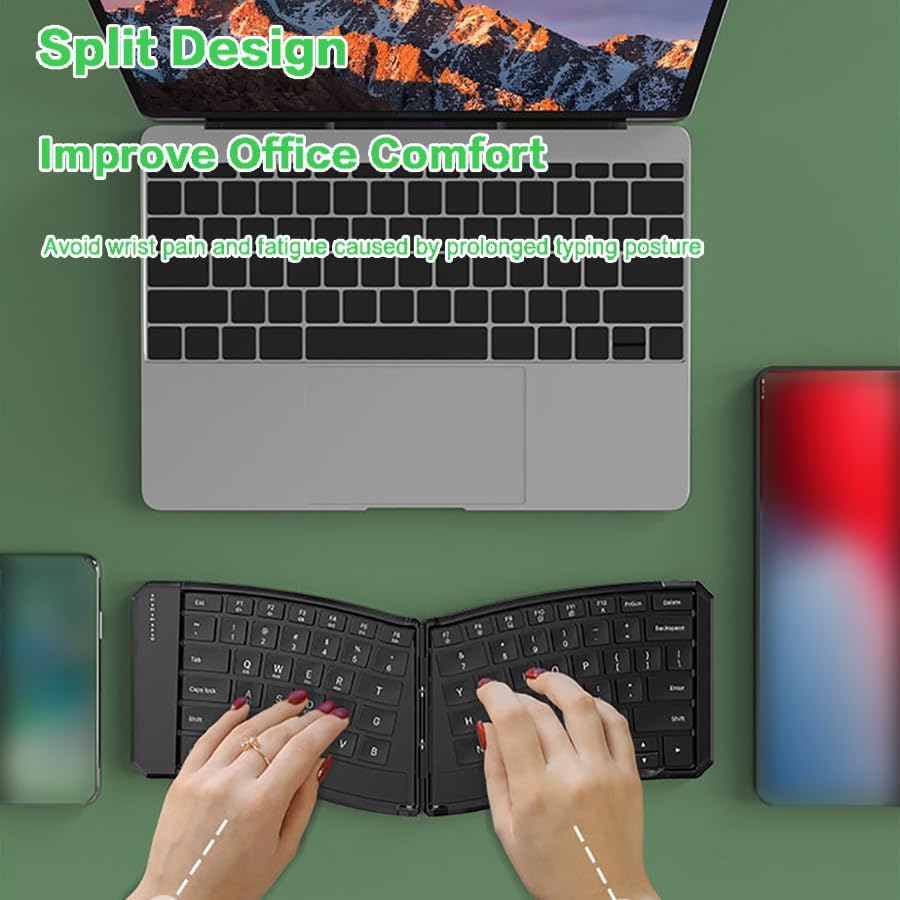
Image: A user typing on the split ergonomic keyboard, demonstrating comfortable hand placement.
2. 다중 장치 전환
The keyboard allows seamless switching between up to three paired Bluetooth devices. Simply press FN + BT1, FN + BT2, 또는 FN + BT3 to switch to the corresponding device.
Video: This video shows how to switch between multiple devices connected to the keyboard via Bluetooth.
3. 기능 키 및 단축키
The top row of keys (F1-F12) includes multimedia and system control functions. These functions are accessed by pressing the Fn key in combination with the desired F-key.
- Fn+F1-F12: Multimedia controls (e.g., volume, play/pause, brightness).
- Caps Lock 표시기: An LED indicator above the Caps Lock key illuminates when Caps Lock is active.
- 입력 방법 전환: 사용 Ctrl+스페이스바 or Alt+Shift for seamless input method switching on compatible operating systems.
4. 호환성
The JOMAA keyboard is compatible with a wide range of operating systems:
- 윈도우
- 아이폰 OS
- 기계적 인조 인간
- 스코틀랜드 사람
유지
1. 청소
키보드를 청소하려면 전원을 끄고 모든 케이블을 분리하세요. 부드럽고 보풀이 없는 천을 살짝 적셔 사용하세요.ampened with water or a mild cleaning solution. Avoid excessive moisture and abrasive cleaners. Do not spray cleaners directly onto the keyboard.
2. 보관 및 휴대성
The keyboard's folding design makes it highly portable. When not in use, fold the keyboard to protect the keys and reduce its footprint. The keyboard includes a locking mechanism to keep it flat when unfolded for stable use.

Image: The folded keyboard being stored in a backpack, highlighting its compact size for travel.
3. 배터리 관리
The keyboard features a built-in rechargeable battery and an auto-sleep mode (after 10 minutes of inactivity) to conserve power. For optimal battery life, avoid fully discharging the battery frequently and store the keyboard in a cool, dry place.
문제 해결
| 문제 | 해결책 |
|---|---|
| 키보드 전원이 켜지지 않습니다. | Ensure the power switch is in the 'ON' position. Charge the keyboard for at least 2 hours. |
| 블루투스를 통해 연결할 수 없습니다. | Ensure the keyboard is in pairing mode (flashing BT indicator). Check your device's Bluetooth settings. Forget and re-pair the keyboard if necessary. Ensure no other devices are actively connected to the selected BT channel. |
| 키가 응답하지 않습니다. | Check battery level. Reconnect the keyboard (Bluetooth or wired). Restart your device. |
| 키보드 연결이 자주 끊깁니다. | Ensure the keyboard is within range of your device. Check for interference from other wireless devices. Charge the keyboard. |
명세서
- 모델: DF047
- 연결성: Bluetooth (BT1, BT2, BT3), Wired USB
- 호환성: 윈도우, iOS, 안드로이드, 맥
- 배터리: 140mAh 충전식 배터리 (9V 배터리 1개 포함)
- 작동 전류: <3.5mA
- 자동 절전 모드: 10분간 활동이 없는 경우
- 제품 크기 (펼쳤을 때): 약 14.05 x 4.80 x 0.73cm(35.7 x 12.2 x 1.85인치)
- 품목 무게: 9.2 온스(256g)
- 재료: 플라스틱

Image: A diagram illustrating the physical dimensions of the keyboard when unfolded.
보증 및 지원
JOMAA products come with a standard manufacturer's warranty. For detailed warranty information, technical support, or service inquiries, please refer to the warranty card included with your product or visit the official JOMAA web사이트. 보증 청구를 위해 구매 증빙 자료를 보관하세요.
