
1. 서론
Thank you for choosing the Pisichen 27-inch 4K UHD Touchscreen Monitor with Webcam. This manual provides essential information for the safe and efficient operation of your new monitor. Please read it thoroughly before use and retain it for future reference.
2. 안전 정보
- 전원: 모니터와 함께 제공된 전원 어댑터만 사용하십시오. 전원 콘센트가 정격 용량을 충족하는지 확인하십시오.tag요구사항
- 통풍: 통풍구를 막지 마세요. 모니터 주변에 충분한 공간을 확보하여 공기가 원활하게 흐르도록 하세요.
- 액체 노출: 모니터를 액체로부터 멀리하세요. 비나 습기에 노출시키지 마세요.
- 청소: Disconnect the power cable before cleaning. Use a soft, dry cloth. Avoid abrasive cleaners.
- 놓기: 모니터가 떨어지지 않도록 안정적이고 평평한 표면에 놓으세요.
- 서비스: 모니터를 직접 수리하려고 하지 마십시오. 모든 수리는 자격을 갖춘 기술자에게 맡기십시오.
3. 패키지 내용
포장을 개봉하신 후 내용물을 확인해 주십시오. 누락된 품목이나 손상된 품목이 있을 경우 판매점에 문의해 주십시오.
- Pisichen 27-inch 4K UHD Touchscreen Monitor
- 모니터 스탠드 (받침대 및 암)
- 전원 어댑터
- HDMI 케이블
- USB-B to USB-A Cable (for Touch Function)
- 사용자 설명서
4. 제품 오버view
4.1 주요 특징
- Ultra HD 4K Touchscreen Display: 27-inch 4K Ultra HD screen with vibrant colors, sharp details, and wide viewing angles. Features a responsive 10-point touchscreen for intuitive control.
- Built-in High-Definition Web캠: 통합 webcam for video calls, online meetings, and streaming, reducing desk clutter.
- 다양한 연결성: Multiple ports including HDMI, DisplayPort, and USB-C for easy connections to various devices. Supports both touch and traditional input.
- Optimized for Productivity and Creativity: Large 4K touch display for precise control and streamlined workflows, ideal for graphic designers, content creators, and multitasking.
- Sleek and Functional Design: Modern design with an adjustable stand for optimal viewing angles and comfort during extended use.
4.2 모니터 포트
The monitor features various ports for connecting to your devices. Refer to the image below for port identification.
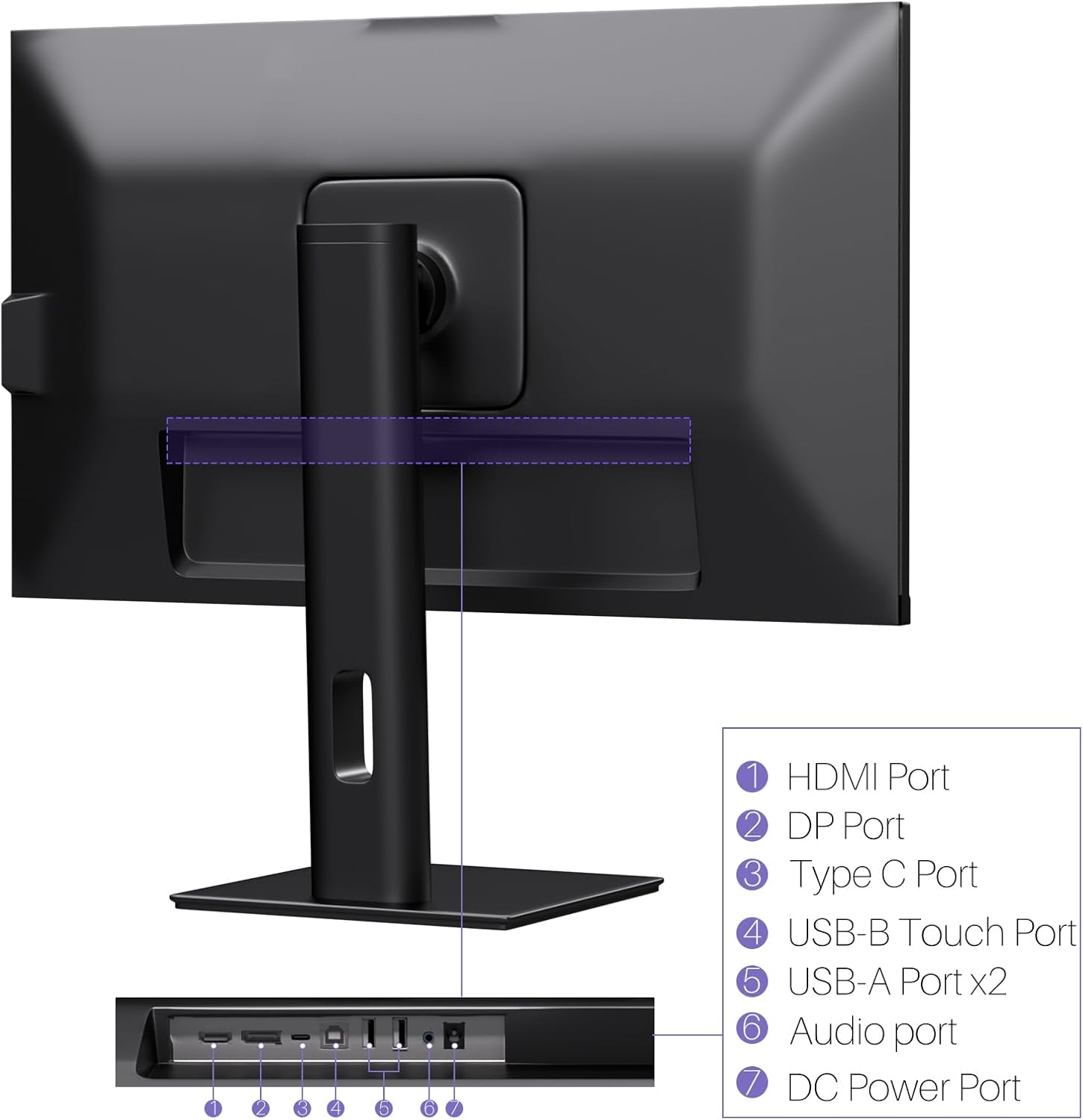
이미지: 후면 view of the monitor displaying the HDMI, DP, Type-C, USB-B Touch, USB-A, Audio, and DC Power ports.
- HDMI 포트 : Connects to devices via HDMI cable for video and audio input.
- DP 포트: Connects to devices via DisplayPort cable for video and audio input.
- C 형 포트 : Connects to devices via USB-C cable for video, audio, and power delivery. (Requires USB-C port on signal device to support DisplayPort Alternate Mode for touch functionality).
- USB-B Touch Port: Connects to your computer via USB-B to USB-A cable to enable touchscreen functionality.
- USB-A 포트(2개): USB 주변기기를 연결합니다.
- 오디오 포트 : 외부 오디오 장치를 연결합니다.
- DC 전원 포트: 전원 어댑터에 연결합니다.
5. 설정 지침
5.1 스탠드 조립
- 모니터와 스탠드 구성품을 포장에서 조심스럽게 꺼내세요.
- Attach the stand arm to the monitor's VESA mounting points.
- Secure the stand base to the arm using the provided screws.
- Ensure all connections are tight and the monitor is stable.
5.2 장치에 연결하기
The monitor supports various connection types. Choose the appropriate cable for your device.

Image: Connection diagrams illustrating how to connect the monitor as a secondary display (HDMI/DP + DC), a touchscreen monitor (HDMI/DP + USB-B + DC), or via USB-C (USB-C + DC).
- For Video and Audio (Non-Touch): 컴퓨터의 HDMI 또는 DisplayPort 케이블을 모니터의 해당 포트에 연결합니다.
- For Video, Audio, and Touch (Windows PC): Connect an HDMI or DisplayPort cable for video/audio. Additionally, connect the USB-B to USB-A cable from the monitor's USB-B Touch Port to a USB-A port on your computer.
- For Video, Audio, and Touch (USB-C Compatible Device): Connect a USB-C cable from your device to the monitor's Type-C port. Ensure your device's USB-C port supports DisplayPort Alternate Mode for touch functionality.
5.3 전원 연결
- Connect the power adapter to the monitor's DC Power Port.
- 전원 어댑터를 벽면 콘센트에 꽂으세요.
6. 사용 설명서
6.1 전원 켜기/끄기
모니터에 있는 전원 버튼을 눌러 모니터를 켜거나 끄세요.
6.2 온스크린 디스플레이(OSD) 메뉴
Use the control buttons (typically located on the back or bottom of the monitor) to navigate the OSD menu. This menu allows you to adjust settings such as brightness, contrast, color temperature, input source, and other display parameters.
6.3 터치스크린 기능
The monitor features a 10-point multi-touch screen. Ensure the USB-B to USB-A cable (or USB-C cable for compatible devices) is connected to enable touch functionality.

Image: A user's hand interacting with the monitor screen, highlighting the responsive 10-point touch experience.
- 베이직 터치: Tap to click, swipe to scroll.
- 멀티터치 제스처: Use two fingers to zoom in/out, rotate, or pan, depending on the application.
- Touch Calibration (Windows Only): If the cursor does not align with your touch, calibration may be required. Go to Control Panel > Hardware and Sound > Tablet PC Settings > Calibrate. Follow the on-screen prompts.
6.4 Using the Built-in Web캠
통합된 webcam is automatically detected by most operating systems and video conferencing applications. No additional drivers are typically required.

Image: The monitor displaying a video conference call, showcasing its integrated webcam for seamless communication.
- Open your preferred video conferencing software (e.g., Zoom, Microsoft Teams, Skype).
- Select the integrated webcam as your video input device in the application's settings.
6.5 Adjusting Display Resolution
To set the resolution of the monitor (Windows):
- 바탕 화면에서 마우스 오른쪽 버튼을 클릭하고 "디스플레이 설정"을 선택하세요.
- Find your monitor (if multiple displays are connected).
- Under "Display resolution," select the recommended resolution of 3840 x 2160.
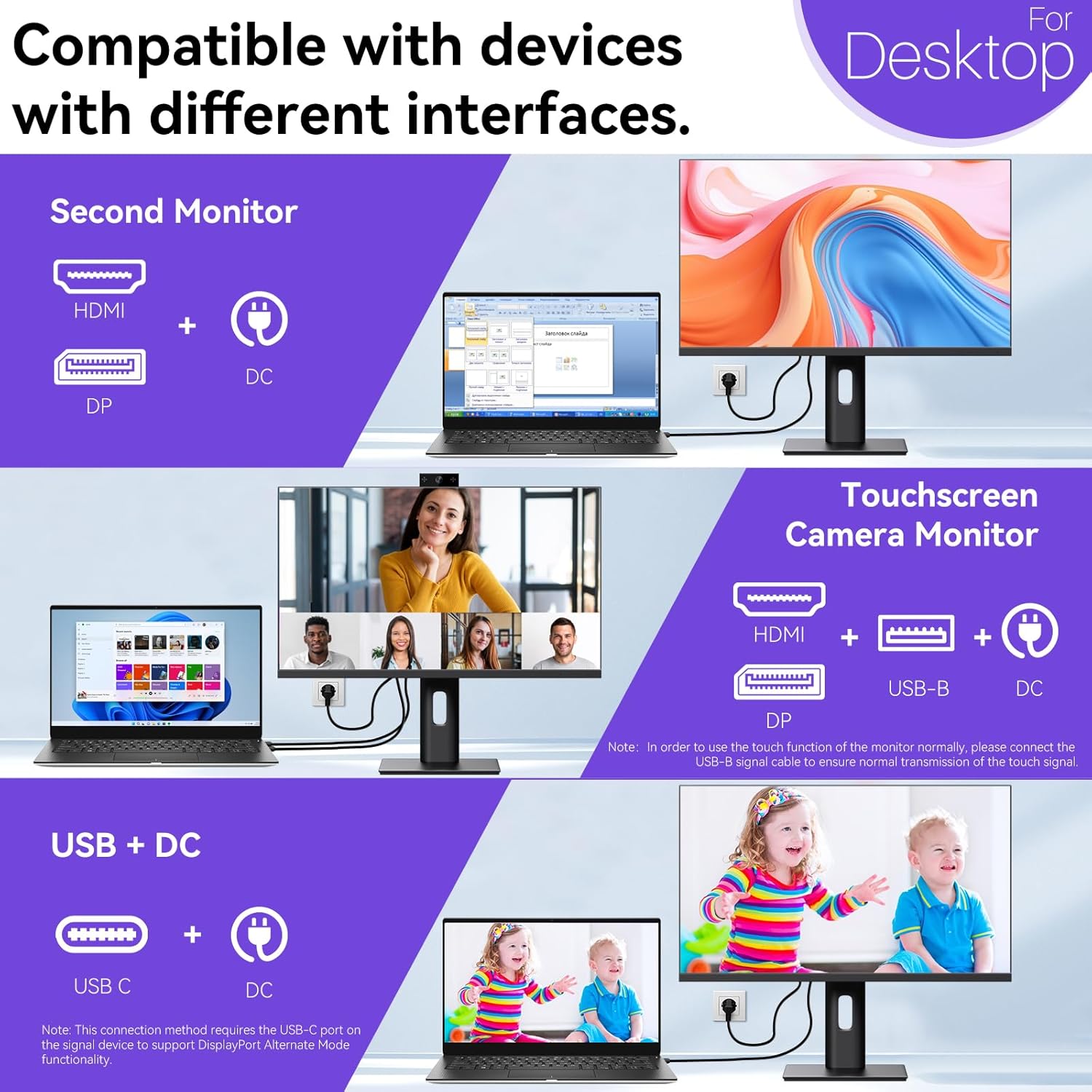
Image: A visual comparison demonstrating the superior clarity of 4K UHD (3840x2160) compared to FHD (1920x1080) and QHD (2560x1440) resolutions.
7. 유지관리
- 화면 청소: 부드럽고 보풀이 없는 천으로 화면을 부드럽게 닦으세요. 잘 지워지지 않는 얼룩은 가볍게 닦아주세요.amp천에 물이나 화면 전용 세척액을 묻혀 닦으세요. 화면에 직접 액체를 뿌리지 마세요.
- C 청소asing: 부드럽고 마른 천을 사용하여 모니터를 청소하십시오.asing.
- 저장: If storing the monitor for an extended period, disconnect it from power, pack it in its original packaging, and store it in a cool, dry place.
8. 문제 해결
If you encounter issues with your monitor, refer to the following troubleshooting guide. For problems not listed, please contact customer support.
| 문제 | 가능한 원인 | 해결책 |
|---|---|---|
| 화면에 이미지가 없습니다. | 전원 케이블이 분리되었습니다. 비디오 케이블이 분리되었습니다. 잘못된 입력 소스가 선택되었습니다. | Ensure power cable is securely connected. Check video cable (HDMI/DP/USB-C) connections. Select correct input source via OSD menu. |
| 터치스크린이 응답하지 않음 | USB-B cable not connected; USB-C port not supporting DisplayPort Alternate Mode; Device incompatibility (e.g., iPhone). | Ensure the USB-B to USB-A cable is connected from the monitor to your computer. If using USB-C, verify your device's USB-C port supports DisplayPort Alternate Mode. Note: Touch function is not supported when connected to an iPhone due to iOS system restrictions. |
| Cursor moves incorrectly (Windows) | Touchscreen calibration required. | Perform touchscreen calibration: Go to Control Panel > Hardware and Sound > Tablet PC Settings > Calibrate. |
| Web캠이 감지되지 않음 | USB connection issue; Software settings. | Ensure all necessary USB cables are connected. Check your application's settings to select the correct web캠. |
9. 사양
| 특징 | 세부 사항 |
|---|---|
| 상표 | 피시첸 |
| 모델 번호 | 27INTSCMR-4K |
| 화면 크기 | 27 인치 |
| 해결 | 3840 x 2160 픽셀 (4K UHD 2160p) |
| 종횡비 | 16시 9분 |
| 이미지 밝기 | 400 칸델라 |
| 화면 표면 설명 | 광택있는 |
| 제품 치수 | 14.37 x 24.21 x 16.54 인치 |
| 품목 무게 | 16.59파운드 |
| 제조업체 | Shenzhen Konowa Electronics Co., LTD |
| 연결성 | HDMI, DisplayPort, USB-C, USB-B (for touch), USB-A (x2), Audio Port |
10. 보증 및 지원
This product comes with a manufacturer's warranty. Please refer to the warranty card included in your package for specific terms and conditions. For technical support or inquiries, please contact Pisichen customer service at support_2308@163.com. When contacting support, please provide your model number and a detailed description of the issue, including any relevant pictures or videos.