
1. 서론
This manual provides detailed instructions for the installation, operation, and maintenance of your SENTKENG Y05009 Indoor Camera. Please read this manual thoroughly before using the product to ensure proper function and safety. The SENTKENG Y05009 is a 1080P WiFi camera designed for indoor monitoring, featuring pan/tilt capabilities, two-way audio, IR night vision, and motion detection.
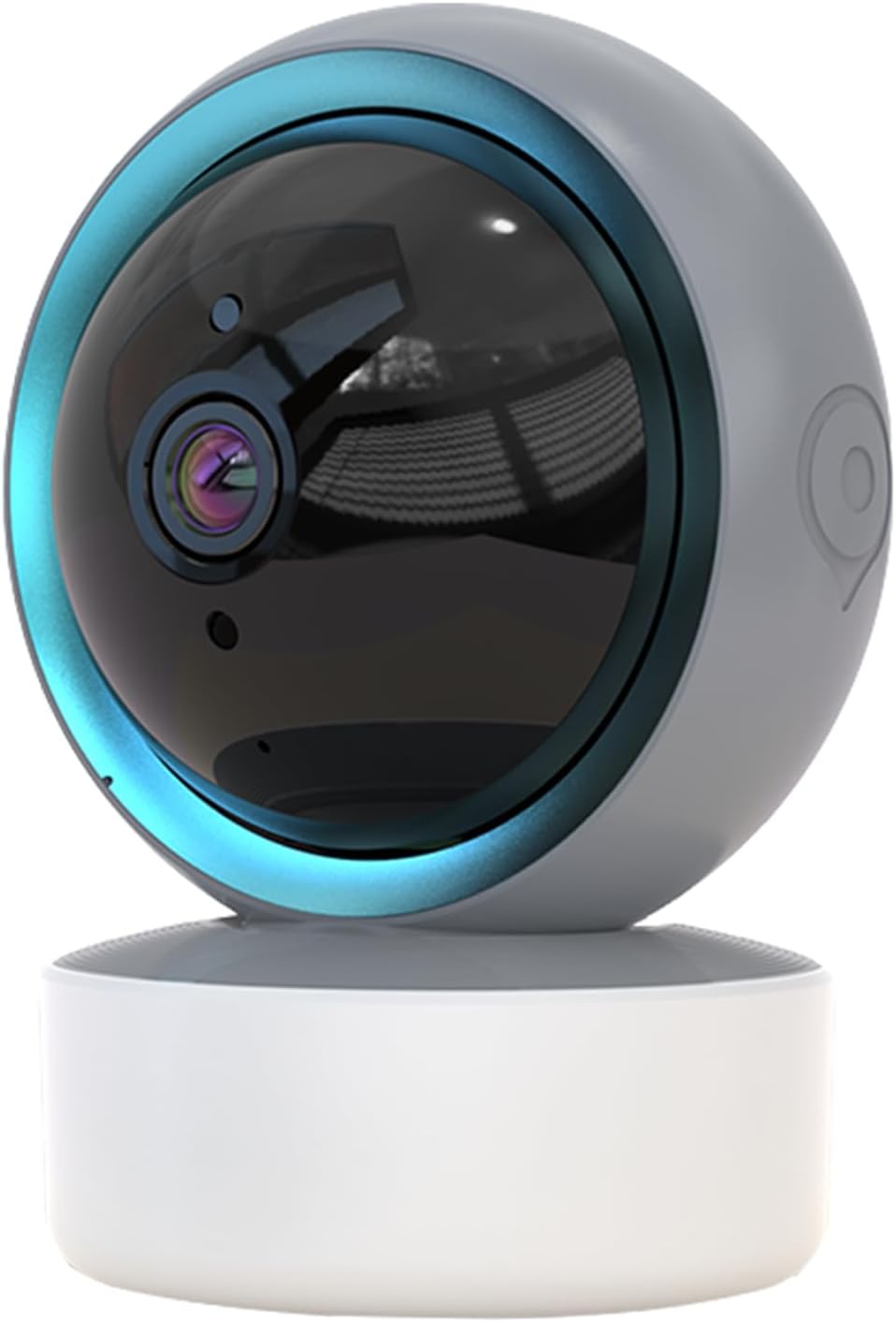
Image 1.1: SENTKENG Y05009 Indoor Camera. This image displays the compact, spherical design of the camera with its lens and base.
2. 패키지 내용
패키지에 모든 품목이 들어 있는지 확인하세요.
- SENTKENG Y05009 Indoor Camera
- USB 전원 케이블
- Power Adapter (not explicitly listed but implied for a plug-in device)
- 장착 브래킷 및 나사
- 사용 설명서

Image 2.1: Package Contents. This image shows the camera, USB cable, mounting accessories, and the user manual included in the box.
3. 제품 오버view
The SENTKENG Y05009 camera features a compact design with essential components for effective indoor monitoring.
3.1 카메라 구성 요소
- 렌즈: 1080p 비디오를 촬영합니다.
- 적외선 LED: 야간 투시 기능을 제공합니다.
- 마이크로폰: 음성 입력 및 양방향 통화용입니다.
- 스피커: 오디오 출력 및 양방향 통화용입니다.
- MicroSD 카드 슬롯: 최대 128GB의 로컬 저장소를 지원합니다(저장 카드는 포함되지 않음).
- 재설정 버튼: 공장 초기화 또는 페어링 모드에 사용됩니다.
- 전원 포트: USB port for connecting the power cable.
Image 3.1: Camera Component Details. This image highlights the speaker, microSD card slot, reset button, and power port on the camera.
4. 설정
Follow these steps to set up your SENTKENG Y05009 Indoor Camera.
4.1 전원 켜기
- USB 전원 케이블을 카메라의 전원 포트에 연결하세요.
- USB 케이블의 다른 쪽 끝을 제공된 전원 어댑터에 꽂으세요.
- 전원 어댑터를 일반 콘센트에 꽂으세요. 카메라 전원이 켜지고 시작 시퀀스가 시작됩니다.
4.2 앱 설치 및 계정 생성
- 다운로드 인스타비전 스마트폰 앱스토어(iOS 또는 Android)에서 앱을 다운로드하세요.
- Open the InstaVision app and create a new account or log in if you already have one.

Image 4.1: InstaVision App Interface. This image shows the 'Welcome to InstaVision' screen on a smartphone, illustrating the initial app setup.
4.3 Wi-Fi에 연결하기
The camera supports 2.4GHz Wi-Fi networks only.
- In the InstaVision app, tap 'Add Device' or the '+' icon.
- Select your camera model or 'Smart Camera'.
- Follow the on-screen instructions to connect the camera to your 2.4GHz Wi-Fi network. This typically involves scanning a QR code generated by the app with the camera's lens or listening for an audio prompt.
- 연결이 완료되면 카메라의 표시등이 바뀌고 앱에서 확인 메시지를 받게 됩니다.
4.4 배치 및 장착
The camera can be placed on a flat surface or mounted to a ceiling.
- 탁상용 마운트: Place the camera on a stable, flat surface such as a table or shelf.
- 천장 설치: Use the provided mounting bracket and screws to secure the camera to the ceiling. Ensure the camera is oriented correctly for optimal view주고받음.
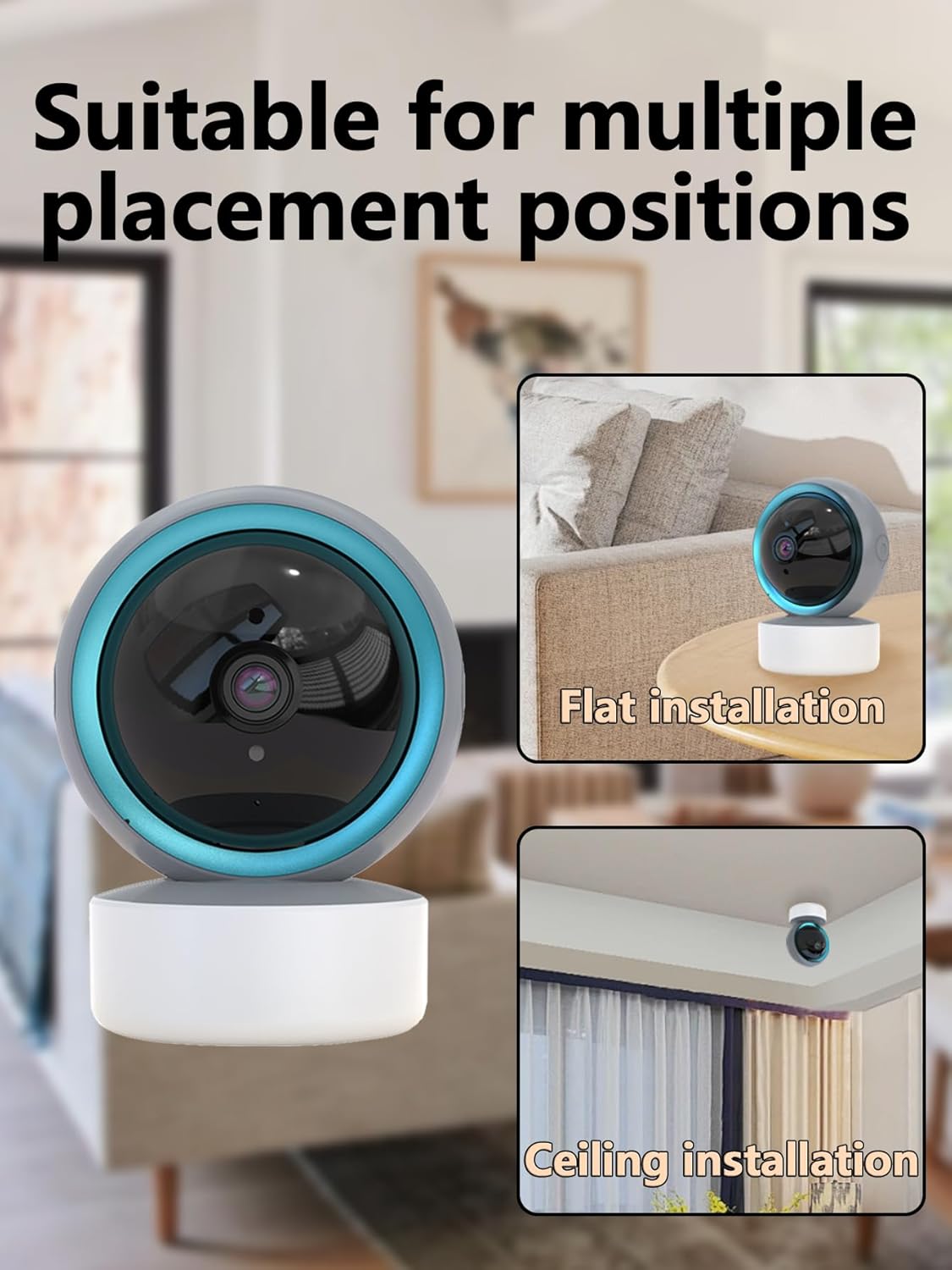
Image 4.2: Multiple Placement Positions. This image illustrates the camera placed on a flat surface and mounted on a ceiling.
5. 사용 설명서
Learn how to use the various features of your SENTKENG Y05009 camera.
5.1 라이브 View 및 팬/틸트 제어
- Open the InstaVision app and select your camera from the device list.
- You will see the live video feed.
- Use the directional controls within the app to remotely rotate the camera lens: 355° 수평 그리고 수직으로 90°.

Image 5.1: Multi-Angle Rotation. This image demonstrates the camera's ability to rotate 355 degrees horizontally and 90 degrees vertically.
5.2 양방향 오디오
The camera features a built-in microphone and speaker for real-time communication.
- 라이브 중 view앱에서 마이크 아이콘을 탭하세요.
- Speak into your phone to transmit audio through the camera's speaker.
- The camera's microphone will capture audio from its surroundings, which you can hear through your phone.
5.3 동작 감지 및 알림
The camera can detect motion and send instant notifications to your phone.
- Enable motion detection in the InstaVision app settings for your camera.
- 필요에 따라 감도 수준을 조정하세요.
- 움직임이 감지되면 스마트폰으로 푸시 알림을 받게 됩니다.
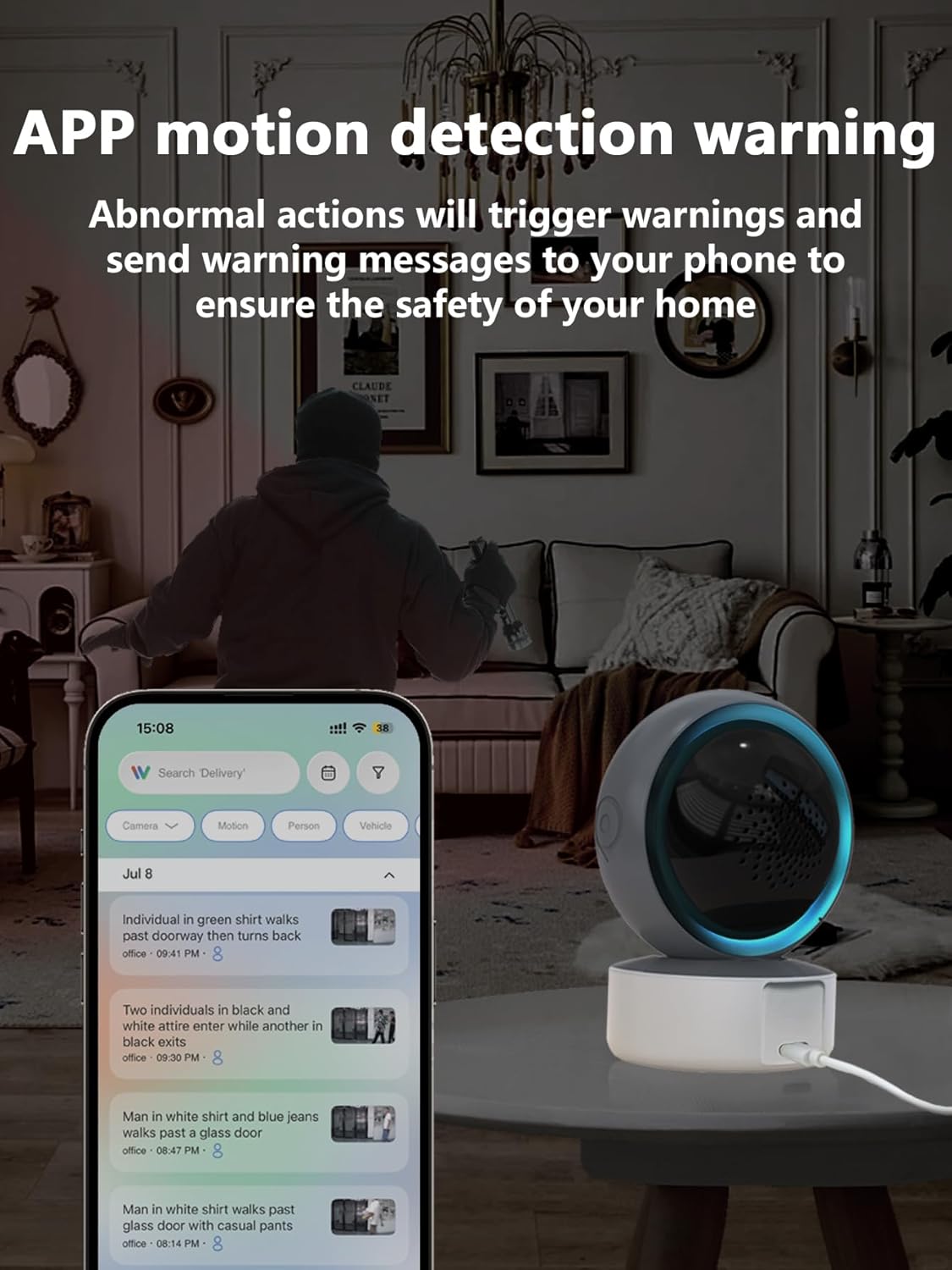
Image 5.2: APP Motion Detection Warning. This image shows a smartphone displaying motion detection alerts from the InstaVision app, with the camera monitoring a room.
5.4 IR 야간 투시경
카메라는 저조도 환경에서 자동으로 적외선 야간 투시 모드로 전환됩니다.
- Infrared LEDs provide clear black-and-white images up to 8 meters in complete darkness.
- No manual activation is required; the camera adjusts automatically.

Image 5.3: Clear IR Night Vision. This image depicts the camera providing a clear view in a dark room, with a smartphone displaying the night vision feed.
5.5 비디오 저장
The camera offers two storage options for recorded footage:
- MicroSD 카드: Insert a microSD card (up to 128GB, not included) into the camera's slot for local storage. Recordings will be saved directly to the card.
- 클라우드 서비스 : An optional cloud storage subscription is available through the InstaVision app for remote and secure storage of your video recordings.

Image 5.4: Video Playback & Storage Function. This image shows the camera, a microSD card, and a smartphone displaying cloud storage icons, illustrating the dual storage options.
5.6 AI Detection (Subscription)
Advanced AI-powered detection features are available with a paid InstaVision app subscription. These features may include:
- 사람 감지
- 애완동물 감지
- Specific human action recognition
5.7 다중 사용자 View잉
The InstaVision app allows multiple users to view 카메라 영상을 동시에 보여줍니다.
- In the app, navigate to the camera settings and find the 'Share Device' option.
- Invite other users by entering their InstaVision account details.
- Shared users will receive an invitation and can then access the camera feed.

Image 5.5: Simultaneous Online Viewing by Multiple Users. This image shows several individuals viewing the camera feed on their smartphones, indicating the family share function.
6. 유지관리
정기적인 유지 관리는 카메라의 수명과 최적의 성능을 보장하는 데 도움이 됩니다.
- 청소: 부드럽고 마른 천으로 카메라 렌즈와 본체를 부드럽게 닦으세요. 강한 화학 물질이나 연마재는 사용하지 마세요.
- 소프트웨어 업데이트: Periodically check the InstaVision app for firmware updates for your camera. Keeping the firmware updated ensures you have the latest features and security enhancements.
- 전원 주기: 카메라에 문제가 발생하면 10초 동안 전원 플러그를 뽑았다가 다시 꽂아보세요.
7. 문제 해결
If you encounter problems with your SENTKENG Y05009 camera, refer to the following common issues and solutions.
- 카메라가 오프라인 상태입니다.
- Ensure the camera is properly powered on and the power adapter is securely plugged in.
- Check your Wi-Fi network connection. Ensure the camera is within range of your 2.4GHz Wi-Fi router.
- 카메라의 플러그를 뽑았다가 다시 꽂아 다시 시작하세요.
- If the issue persists, try resetting the camera and re-pairing it with the app.
- Wi-Fi에 연결할 수 없습니다:
- Wi-Fi 네트워크가 2.4GHz 대역인지 확인하십시오. 카메라는 5GHz 네트워크를 지원하지 않습니다.
- 올바른 Wi-Fi 비밀번호를 입력했는지 확인하세요.
- 설정 과정 중에 카메라를 Wi-Fi 공유기 가까이로 이동하세요.
- Reset the camera and attempt the connection process again.
- Motion detection alerts are not received:
- Check the motion detection settings in the InstaVision app to ensure it is enabled and sensitivity is adjusted appropriately.
- Verify that your smartphone's notification settings allow alerts from the InstaVision app.
- Ensure the camera has a stable internet connection.
- 비디오 품질이 좋지 않음:
- 카메라 렌즈가 깨끗하고 먼지나 얼룩이 없는지 확인하세요.
- 와이파이 신호 강도를 확인하세요. 신호가 약하면 스트리밍 품질에 영향을 줄 수 있습니다.
- 최적의 주간 영상을 위해 적절한 조명을 확보하세요.
8. 사양
| 특징 | 사양 |
|---|---|
| 모델명 | Y05009 |
| 실내/실외 사용 | 실내 |
| 비디오 캡처 해상도 | 1080p |
| 연결 기술 | 무선(2.4GHz Wi-Fi) |
| 전원 | 코드식 전기 |
| 팬/틸트 범위 | 수평 355°, 수직 90° |
| 나이트 비전 범위 | 8 미터 |
| 저장 옵션 | MicroSD 카드(최대 128GB), 클라우드 저장소(구독형) |
| 양방향 오디오 | 예 |
| 동작 감지 | 예 |
| AI 기능 | Optional (subscription required) |
| 호환 장치 | 스마트폰 (iOS, 안드로이드) |
| 제품 치수 | 3.58 x 2.97 x 4.69 인치 |
| 품목 무게 | 9 온스 |
9. 지원 정보
For further assistance or technical support, please refer to the contact information provided with your product packaging or visit the official SENTKENG web대지.