
GeekShare G-NS-HS-TH-LXH-1
GeekShare Switch Pro Wireless Controller User Manual
Model: G-NS-HS-TH-LXH-1
소개
This manual provides detailed instructions for the GeekShare Switch Pro Wireless Controller. It covers setup, operation, maintenance, and troubleshooting to ensure optimal performance across compatible devices including Nintendo Switch (1/2/Lite/OLED), PC, Android, and iOS.
설정 및 연결
1. 닌텐도 스위치와의 초기 페어링
컨트롤러를 닌텐도 스위치 본체에 연결하려면 다음 단계를 따르세요.
- On your Switch, navigate to the HOME Menu.
- "컨트롤러"를 선택한 다음 "그립/순서 변경"을 선택하십시오.
- Hold down the Sync button on the top of the GeekShare controller until the player LEDs begin to flash.
- Once connected, the player LED(s) will remain lit.
Special Note for Switch Wake-up:
After the first successful connection, you can quickly wake up and reconnect the Switch by pressing the 집 button on the controller. For Switch 2, refer to the specific instructions in the included user manual for wake-up functionality.

Image: The controller's Home button, used for waking up the Nintendo Switch console.
Video: Demonstrates the one-touch wake-up feature of the GeekShare controller for the Nintendo Switch.
2. Connecting to PC, Android, and iOS Devices
The controller supports Bluetooth and 2.4G wireless connections for various platforms.
- PC 연결 : Connect via Bluetooth or use the included 2.4G USB receiver. For wired connection, use a USB-C cable.
- Android/iOS Connection: Connect via Bluetooth. Open the Keylinker APP (if applicable) and follow the on-screen instructions for pairing.
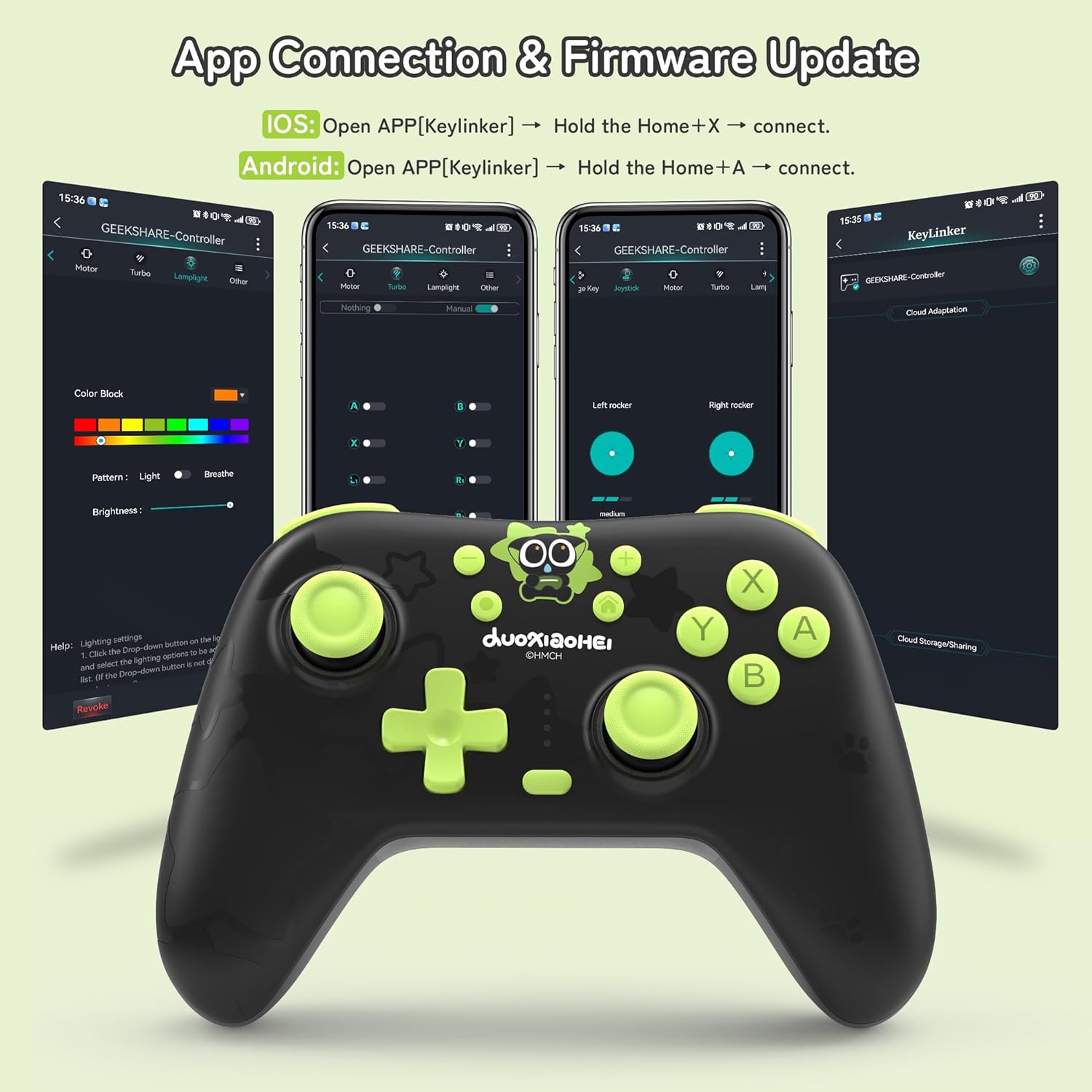
Image: The GeekShare controller package contents, including the controller, USB receiver, and user manual.

이미지: 이상view of the multi-platform compatibility and connection methods (Bluetooth, 2.4G, Wired).

Image: Visual representation of compatible devices including Switch, PC, iOS, and Android.
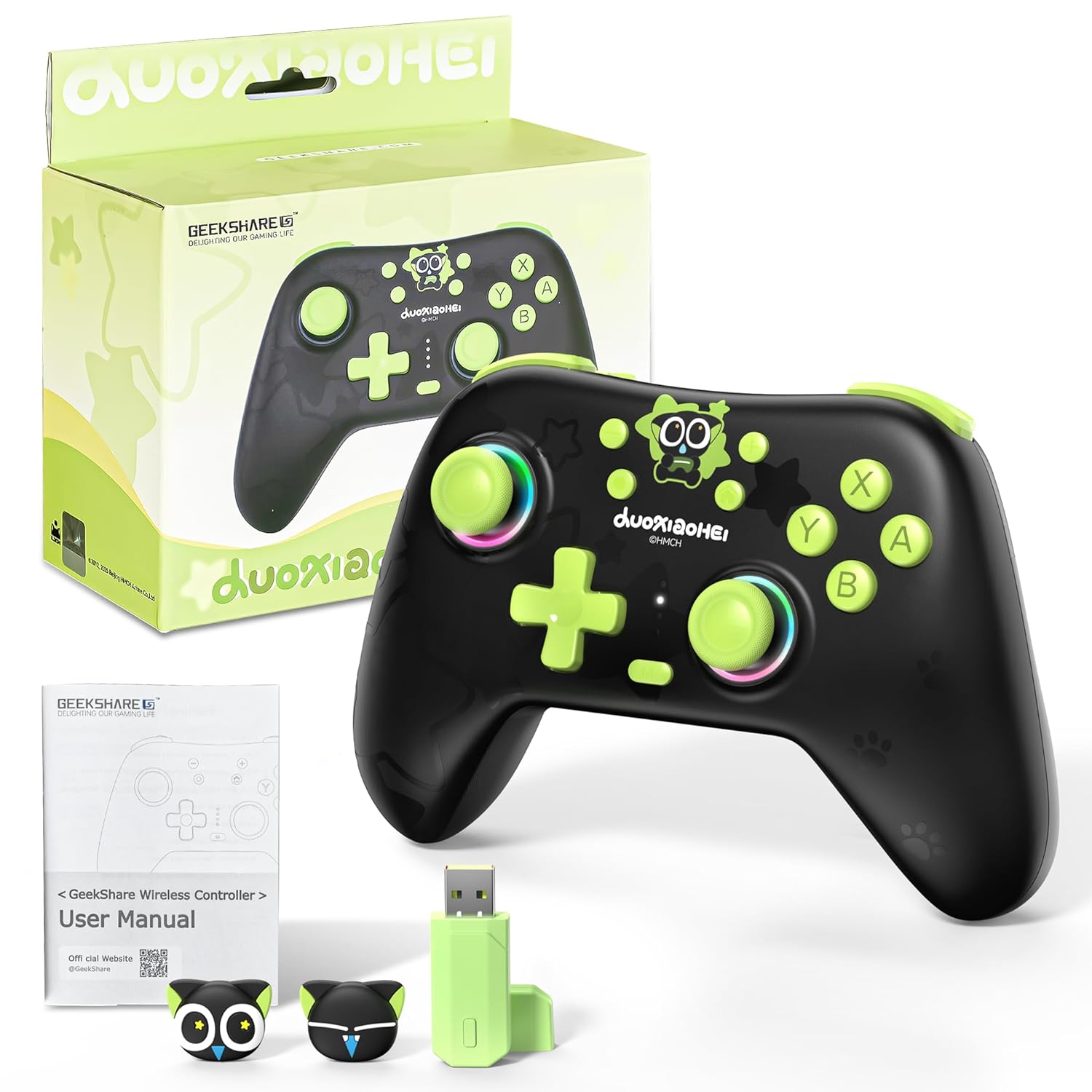
Image: The Keylinker app interface for connecting and updating firmware on iOS and Android devices.
작동 지침
1. 프로그래밍 가능한 뒤로 가기 키(M1/M2)
The M1 and M2 back buttons can be programmed to record up to 32 commands, allowing for complex actions with a single press. This feature helps reduce repetitive button presses and enhances gameplay.
- 환경: Hold M + M1/M2, then press the desired button sequence (e.g., A/B/X/Y). Release M1/M2 to save.
- 청산: Hold M + M1/M2, then press M1/M2 again.

Image: Instructions for programming and clearing the M1/M2 back buttons.

Image: Visual representation of the programmable function, highlighting the M1/M2 buttons.
2. 터보 모드
The controller supports both manual and automatic Turbo functions for rapid button presses.
- 수동 터보: Hold M + desired button (e.g., A/B/X/Y/R2/L3).
- 자동 터보: Hold M + desired button (e.g., A/B/X/Y/R2/L3) again.
- Clear Setting: Hold M + desired button (e.g., A/B/X/Y/R2/L3) a third time.

Image: Detailed instructions for activating and deactivating manual and automatic Turbo modes.
3. Hall Effect Joysticks and Dead Zone Adjustment
The controller features 360° Hall Effect Joysticks for precise control, minimizing dead zones and drift. You can also adjust the joystick dead zone.
- Enable No Dead Zone Mode: Press M + L3/R3 (press down left or right joystick for 3 seconds).
- Disable No Dead Zone Mode: Press M + L3/R3 (press down left or right joystick for 3 seconds) again.
- Note: Dead zone is enabled by default.

Image: Visual guide for enabling/disabling No Deadzone Mode and ABXY button swapping.

Image: Illustration of the 360° Hall Effect Joysticks, emphasizing precision and lack of drift.
Video: Demonstrates the Hall Effect joysticks and their precision in gameplay.
4. ABXY Button Swap
You can swap the functionality of the A/B and X/Y buttons to match different console layouts.
- 세트: Hold M + B or Hold + + - (in wired or 2.4G adapter connection state).
Image: Visual guide for enabling/disabling No Deadzone Mode and ABXY button swapping.
5. Adjustable Triggers (Long/Short Throw)
The controller features two-way Hall triggers with adjustable throw distance, allowing you to switch between long throw for smooth control (e.g., racing games) and short throw for rapid input (e.g., FPS games).

Image: Illustration of the adjustable trigger throw, demonstrating long throw for cars and short throw for FPS games.

Image: Visual comparison of long throw for precision control and short throw for rapid fire, with trigger lock mechanism.
6. RGB 조명 조정
Customize the RGB lighting around the joysticks to your preference.
- 색상 조정: Press M + Right Joystick.
- 조정 모드: Press M + Left Joystick.
- Options include monochrome, fantasy color, and gradient effects.

Image: Instructions for adjusting RGB lighting color and mode, displaying various lighting effects.

Image: The RGB dazzling rings feature, showing controls for light mode and brightness adjustment.
7. 6축 자이로스코프 모션 제어
The integrated 6-axis gyroscope provides precise motion control for compatible games, allowing for immersive and intuitive gameplay.

Image: Demonstration of the 6-axis gyroscope for precise direction and view control in games.
Video: Shows the controller in action, demonstrating various features including motion control and vibration feedback.
8. 배터리 및 충전
The controller is equipped with a 1000 mAh rechargeable battery, providing up to 20 hours of gameplay. A full recharge takes approximately 2.5 hours using the provided USB-C cable.
- Connect the USB-C cable to the controller and a power source (e.g., console, PC, USB wall adapter).
- The charging indicator will show charging status.
유지
- 부드럽고 마른 천으로 닦아 컨트롤러를 깨끗하게 유지하세요.
- 컨트롤러를 극한의 온도, 습도 또는 직사광선에 노출시키지 마세요.
- 컨트롤러를 분해하지 마십시오. 분해할 경우 보증이 무효화되고 제품이 손상될 수 있습니다.
- 컨트롤러를 사용하지 않을 때는 물리적 손상을 방지하기 위해 안전한 장소에 보관하십시오.
문제 해결
1. 컨트롤러가 연결/페어링되지 않음
- 컨트롤러가 완전히 충전되었는지 확인하세요.
- Verify that the console or device's Bluetooth is enabled.
- For Switch: Follow the "Change Grip/Order" steps precisely.
- For PC (2.4G): Ensure the USB receiver is securely plugged in and the controller is in 2.4G mode.
- 컨트롤러와 연결하려는 장치를 모두 다시 시작해 보세요.
- If issues persist, try resetting the controller (refer to the full user manual for specific reset instructions if available).
2. Input Lag or Glitches
- Ensure there are no obstructions between the controller and the receiver/device.
- 잠재적인 간섭을 줄이려면 장치에 더 가까이 다가가세요.
- If using the 2.4G USB receiver, try plugging it into a different USB port.
- Ensure no other wireless devices are causing interference in the vicinity.
- Update the controller's firmware using the Keylinker APP if an update is available.
3. 버튼 또는 조이스틱이 작동하지 않음
- 컨트롤러가 제대로 연결되어 있는지 확인하세요.
- 컨트롤러가 완전히 충전되었는지 확인하세요.
- 컨트롤러를 다른 게임이나 기기에서 테스트하여 문제의 원인을 파악해 보세요.
- If a specific button is unresponsive, ensure no debris is lodged around it.
명세서
| 상표 | 긱셰어 |
| 모델명 | GC1201A |
| 모델 번호 | G-NS-HS-TH-LXH-1 |
| 호환 장치 | Android, iOS, Mac, Switch Series (Switch 1/2/Lite/OLED), Windows |
| 컨트롤러 유형 | 게임패드 |
| 연결 기술 | 2.4G, Bluetooth, USB C |
| 추가 기능 | Ergonomic, Multiuse, Rumble, Wireless, Programmable Back Keys, Hall Effect Joysticks, Adjustable Triggers, RGB Lighting, 6-Axis Gyroscope |
| 배터리 용량 | 1000mAh |
| 배터리 수명 | 최대 20시간 |
| 충전 시간 | 약 2.5시간 |
| 품목 무게 | 223g |
| 색상 | 블랙 & 그린 |
보증 및 지원
For warranty information and technical support, please refer to the official GeekShare web사이트를 방문하거나 고객 서비스에 직접 문의하세요. 보증 청구를 위해 구매 영수증을 보관하세요.
공식적인 Web대지: GeekShare Store on Amazon
Ask a question about this manual
Ask about setup, troubleshooting, compatibility, parts, safety, or missing instructions. Manuals+ will review the question and use this page’s manual context to help answer it.