
1. 서론
The FeinTech AX341 HDMI 2.1 eARC Splitter Switch is designed to manage multiple HDMI sources and outputs in a home theater or gaming setup. This device allows you to connect up to four HDMI source devices (such as gaming consoles, Blu-ray players, streaming boxes, or PCs) to two display devices simultaneously. It also features an integrated audio extractor for eARC/ARC soundbars, optical TOSLINK, and 3.5mm analog audio outputs. The AX341 supports advanced HDMI 2.1 features, including 8K@60Hz and 4K@120Hz resolutions, HDR10+, Dolby Vision, VRR, ALLM, QMS, QFT, and SBTM.
2. 주요 특징
- 4 HDMI 2.1 Inputs & 2 HDMI Outputs: Connect up to four source devices to two displays concurrently, suitable for TV and video projector setups.
- eARC/ARC & Audio Extractor: Transmit audio to a soundbar via HDMI ARC/eARC, optical TOSLINK (stereo or Dolby Digital only), or 3.5mm analog jack (stereo only).
- Automatic Switching & CEC Functionality: Features automatic input selection, auto-power-on function, and control of source devices via TV remote or vice versa.
- 폭넓은 호환성:
- 오디오: Supports Dolby Atmos, DTS:X, TrueHD, Dolby Digital, PCM5.1, and more.
- 동영상: Supports 8K@60Hz, 4K@120Hz, Dolby Vision, HDR10+, and more.
- 노름: Supports VRR (Variable Refresh Rate), ALLM (Auto Low Latency Mode).
- 4K/60Hz + Downscaler: Enables simultaneous output to 4K and 1080p displays without resolution conflicts.
3. 패키지 내용
패키지에 모든 품목이 들어 있는지 확인하세요.
- FeinTech AX341 HDMI 2.1 eARC Splitter Switch Unit
- 전원 어댑터
- 리모컨 (CR2032 배터리 1개 포함)
- 사용 설명서 (본 문서)
4. 장치 레이아웃

이미지 1: 맨 위 view of the FeinTech AX341 unit. This image displays the front panel with power indicator, input indicators (IN 1-4), eARC audio indicators (TV1, TV2), and control buttons (SWITCH, AUTO, eARC). It also shows the EDID switch and SERVICE port.

이미지 2: 각진 view of the FeinTech AX341 unit. This perspective provides a clearer view of both the front panel controls and the rear panel connections, including HDMI inputs, HDMI outputs, and audio extraction ports.
전면 패널 컨트롤 및 표시기:
- 전원 버튼/표시기: 기기를 켜거나 끄고 전원 상태를 표시합니다.
- IN 1-4 Indicators: Light up to show which HDMI input is currently active.
- TV1/TV2 eARC Audio Indicators: Indicate which TV's eARC audio is being extracted.
- 스위치 버튼: HDMI 입력 소스를 수동으로 순환합니다.
- 자동 버튼: Activates/deactivates automatic input switching.
- eARC 버튼: Selects the eARC audio source (TV1 or TV2).
- EDID 스위치: For advanced display compatibility settings.
- 서비스 포트: For firmware updates or technical service.
후면 패널 포트:
- HDMI 입력 1-4: Connect your source devices (e.g., gaming console, Blu-ray player).
- HDMI OUT 1 (TV1 eARC) & HDMI OUT 2 (TV2): Connect to your display devices (TVs, projectors). HDMI OUT 1 supports eARC/ARC for audio return.
- AUDIO OUT (Optical TOSLINK): Connect to soundbars or AV receivers for optical audio.
- AUDIO OUT (3.5mm Jack): Connect to stereo systems or headphones for analog audio.
- DC 5V 전원 입력: 제공된 전원 어댑터를 연결하세요.
5. 설정 및 연결
Follow these steps to set up your FeinTech AX341 HDMI Splitter Switch:
- 전원 끄기 장치: Before making any connections, ensure all devices (source players, displays, sound systems) are powered off and unplugged.
- 소스 장치 연결: Connect your HDMI source devices (e.g., gaming console, streaming box, Blu-ray player, PC) to the HDMI 입력 1-4 ports on the AX341 using high-quality HDMI 2.1 cables.
- 디스플레이 연결:
- Connect your primary display (e.g., TV with eARC/ARC support) to the HDMI OUT 1 (TV1 eARC) 포트.
- Connect your secondary display (e.g., projector) to the HDMI OUT 2 (TV2) 포트.
- 오디오 시스템 연결(선택 사항):
- For eARC/ARC soundbars: Ensure your soundbar is connected to the HDMI ARC/eARC port of your TV (connected to HDMI OUT 1). The AX341 will extract audio from this connection.
- For optical audio: Connect your soundbar or AV receiver to the AUDIO OUT (Optical TOSLINK) 포트.
- For analog stereo audio: Connect your stereo system or headphones to the AUDIO OUT (3.5mm Jack) 포트.
- 전원 연결: 제공된 전원 어댑터를 연결하세요 DC 5V 전원 입력 on the AX341, then plug it into a power outlet.
- 전원 켜기 장치: Power on the AX341, then your displays, and finally your source devices.
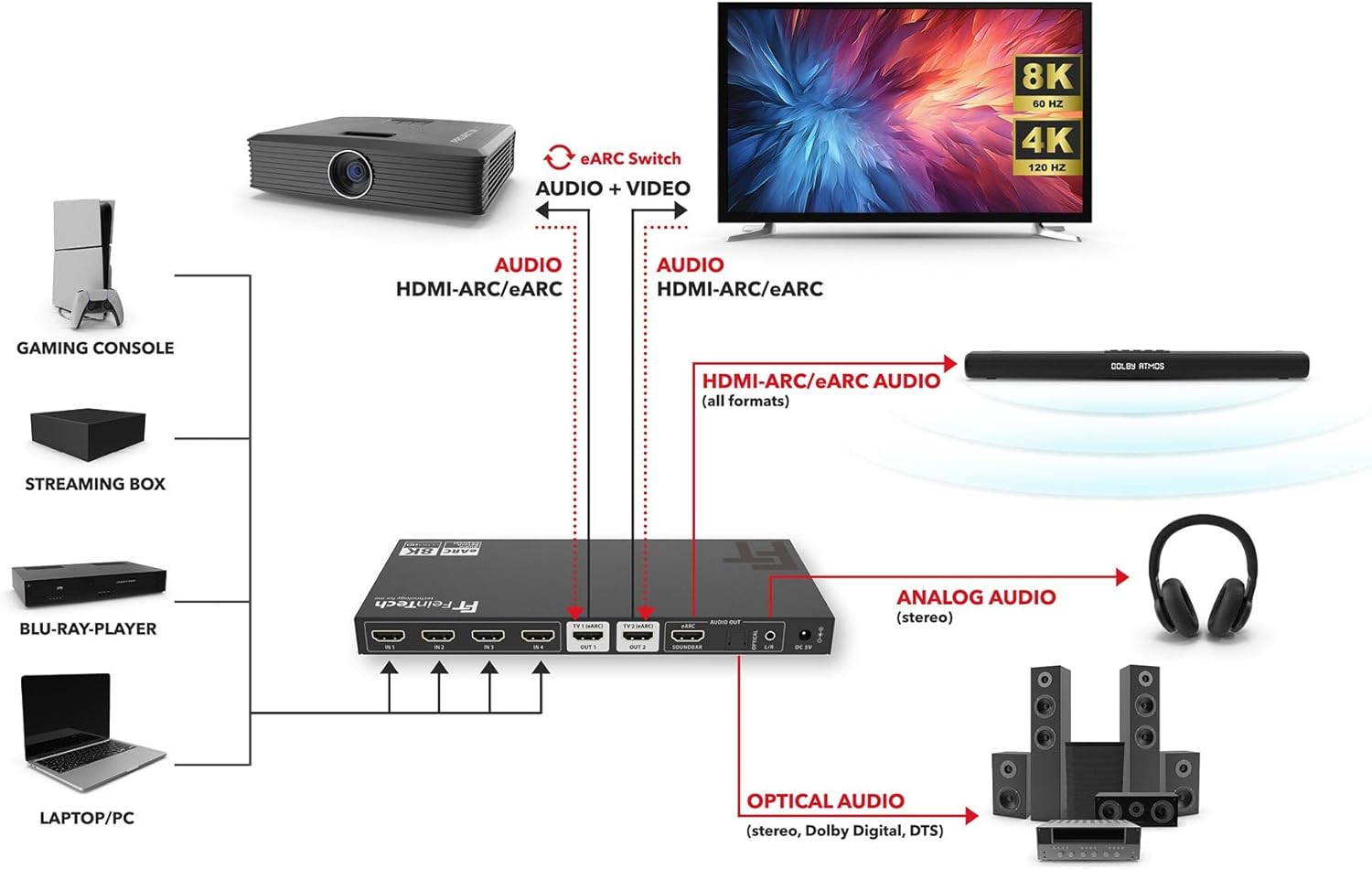
이미지 3: Detailed connection diagram illustrating how to connect gaming consoles, streaming boxes, Blu-ray players, and PCs to the AX341, and how to connect the AX341 to TVs, projectors, soundbars, and other audio systems.
6. 운영
6.1. 입력 전환
- 수동 전환: 를 누르세요 스위치 button on the front panel or the corresponding input button on the remote control to cycle through the HDMI inputs (IN 1-4). The active input indicator will light up.
- 자동 스위칭: 를 누르세요 자동차 button on the front panel or remote control to enable/disable automatic input switching. When enabled, the AX341 will automatically detect and switch to the most recently activated source device. Note: Automatic switching may not be fully compatible with all devices (e.g., Apple TV or Xbox).
6.2. eARC Audio Extraction
- The AX341 can extract eARC/ARC audio from either HDMI OUT 1 (TV1) or HDMI OUT 2 (TV2).
- 를 누르세요 eARC button on the front panel or remote control to select which TV's audio return channel should be used for extraction. The corresponding TV1 or TV2 eARC Audio indicator will light up. This is particularly useful when switching between a TV and a projector.
- The extracted audio will be available on the HDMI OUT 1 (eARC/ARC), Optical TOSLINK, and 3.5mm analog audio outputs.
6.3. CEC 제어
The AX341 supports CEC (Consumer Electronics Control), allowing for integrated control between compatible devices. This enables functions such as:
- Controlling the volume of your soundbar using your TV's remote control.
- Automatic power-on/off of connected devices (e.g., the AX341 powering on with your TV).
Ensure CEC is enabled on all connected devices (TV, soundbar, source players) for this functionality to work.
7. 사양
| 특징 | 세부 사항 |
|---|---|
| 모델 | AX341 |
| HDMI 버전 | HDMI 2.1 |
| HDMI 입력 | 4 |
| HDMI 출력 | 2 (1x eARC/ARC compatible) |
| 최대 해상도 | 8K@60Hz, 4K@120Hz |
| 대역폭 | 48Gbps |
| HDR 지원 | HDR10+, 돌비 비전 |
| 게임 기능 | VRR, ALLM, QMS, QFT, SBTM |
| 오디오 추출 | HDMI eARC/ARC, Optical TOSLINK, 3.5mm Analog Jack |
| Supported Audio Formats (HDMI eARC) | Dolby Atmos, Dolby TrueHD, DTS:X, Dolby MAT |
| Supported Audio Formats (HDMI ARC) | Dolby Digital, Dolby Digital Plus, DTS, PCM |
| Supported Audio Formats (TOSLINK) | DTS, Dolby Digital, PCM 2.0 |
| Supported Audio Formats (3.5mm Jack) | PCM 2.0 (Stereo) |
| 다운스케일러 | Yes (4K to 1080p) |
| CEC 지원 | 예 |
| 치수(길이 x 너비 x 높이) | 22 x 10 x 2cm |
| 무게 | 947g |
| 전원 공급 장치 | DC 5V (어댑터 포함) |
| 리모컨 배터리 | 1x CR2032(포함) |
8. 문제 해결
If you encounter issues with your FeinTech AX341, please refer to the following common troubleshooting steps:
- 비디오/오디오 출력 없음:
- Ensure all HDMI cables are securely connected to both the AX341 and your source/display devices.
- Verify that the correct input is selected on the AX341 (check input indicators).
- 디스플레이가 올바른 HDMI 입력으로 설정되어 있는지 확인하십시오.
- Try different HDMI cables, as faulty cables can cause signal issues.
- Bypass the AX341 by connecting a source directly to a display to isolate the problem.
- Restart all connected devices, including the AX341, by unplugging them from power for 30 seconds and then reconnecting.
- Audio Issues (No Sound, Distorted Audio):
- Check audio connections to your soundbar or AV receiver (HDMI eARC/ARC, Optical, 3.5mm Jack).
- Ensure the correct audio input is selected on your sound system.
- If using eARC, verify that eARC is enabled on your TV and the AX341 is set to the correct TV's eARC audio (TV1 or TV2).
- Confirm that the audio format from your source device is supported by your sound system and the AX341's audio extraction ports (e.g., TOSLINK only supports stereo or Dolby Digital).
- Adjust volume levels on all devices.
- 자동 전환 기능이 작동하지 않습니다.
- Ensure the AUTO function is enabled on the AX341.
- Note that some source devices (e.g., Apple TV, Xbox) may not fully support automatic switching.
- Try manually switching inputs if auto-switching is unreliable.
- CEC Control Problems:
- Verify that CEC (often called Anynet+, Bravia Sync, SimpLink, etc.) is enabled on your TV, soundbar, and source devices.
- CEC functionality can be inconsistent between different brands and models.
- Resolution/Picture Quality Issues:
- Ensure your HDMI cables are rated for HDMI 2.1 and support the desired resolution (e.g., 8K or 4K@120Hz).
- 소스 기기와 디스플레이의 해상도 설정을 확인하세요.
- If using the downscaler, ensure it is functioning as expected for 1080p displays.
9. 유지관리
To ensure the longevity and optimal performance of your FeinTech AX341, follow these maintenance guidelines:
- 청소: 부드럽고 마른 천을 사용하여 기기를 닦으세요. 액체 세척제나 에어로졸은 사용하지 마세요.
- 통풍: 과열을 방지하려면 기기를 환기가 잘 되는 곳에 두십시오. 환기구를 막지 마십시오.
- 손질: 기기를 조심스럽게 다루십시오. 떨어뜨리거나 강한 충격을 주지 마십시오.
- 환경: 기기를 습기, 극한 온도, 직사광선을 피해 보관하세요.
- 힘: Always use the provided power adapter. Disconnect power during lightning storms or when unused for long periods.
10. 보증 및 지원
FeinTech products are designed for reliability and performance. For warranty information, technical support, or service inquiries, please refer to the warranty card included with your product or visit the official FeinTech web대지.
When contacting support, please have your product model (AX341) and purchase information readily available.