
1. 서론
The ASUS ROG Harpe Mini Core is a lightweight (52g) wired gaming mouse designed for precision and comfort. It features a pro-approved shape, a high-performance 12,000 DPI optical sensor, and durable ROG Micro Switch II with push-fit sockets for customization. The mouse is equipped with a flexible ROG Paracord cable and 100% PTFE feet for smooth, unrestricted movement, catering to claw and fingertip grip styles.
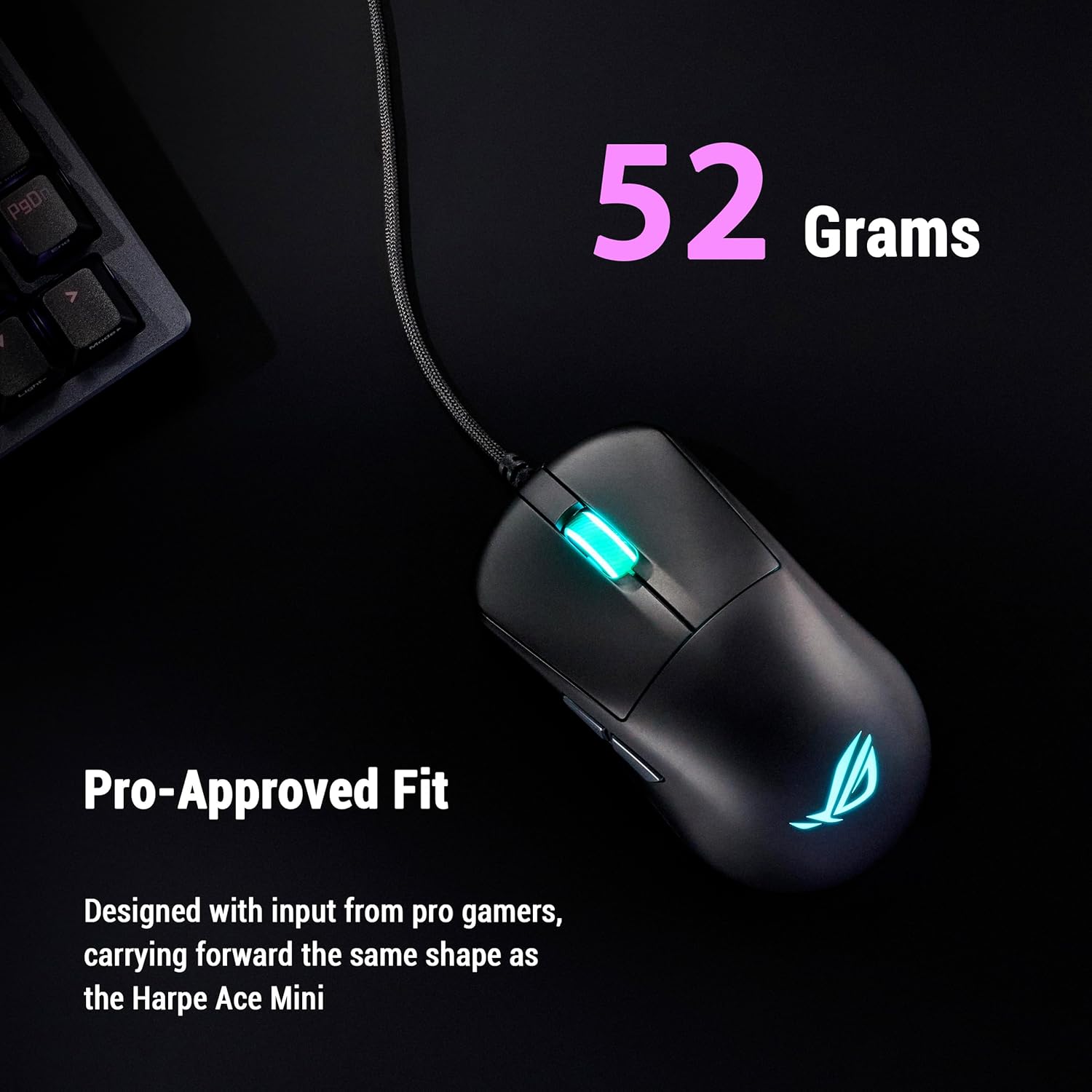
맨 위 view of the ROG Harpe Mini Core, emphasizing its 52-gram lightweight design.
2. 패키지 내용
패키지에 모든 품목이 들어 있는지 확인하세요.
- P524 ROG Harpe Mini Core Gaming Mouse
- 보증 카드
- 빠른 시작 가이드
3. 설정
3.1 마우스 연결
- Unpack the ROG Harpe Mini Core gaming mouse and its accessories.
- 마우스의 USB 케이블을 컴퓨터의 사용 가능한 USB 포트에 연결하십시오.
- Your operating system (Windows 10 or above, or Mac) should automatically detect and install the necessary drivers.
3.2 소프트웨어 설치(선택 사항)
For advanced customization and settings, it is recommended to use the ASUS Gear Link software. This web-based application allows you to configure your mouse without requiring a download.
- 열기 web browser and navigate to the ASUS Gear Link web대지.
- Follow the on-screen instructions to connect and customize your mouse settings.

Screenshot of the ASUS Gear Link software for mouse customization.
4. 마우스 작동
4.1 기본 기능
The ROG Harpe Mini Core features 6 programmable buttons:
- 왼쪽 클릭 버튼
- 오른쪽 클릭 버튼
- 스크롤 휠(클릭 가능)
- Two Side Buttons (typically Forward/Backward)
- DPI Cycle Button (usually located behind the scroll wheel)
4.2 DPI 조정
The mouse features a 12,000 DPI sensor with less than 3% deviation and a 1000Hz polling rate for precise tracking. You can cycle through preset DPI levels using the dedicated DPI button. For fine-tuning DPI settings and creating custom profiles, use the ASUS Gear Link software.
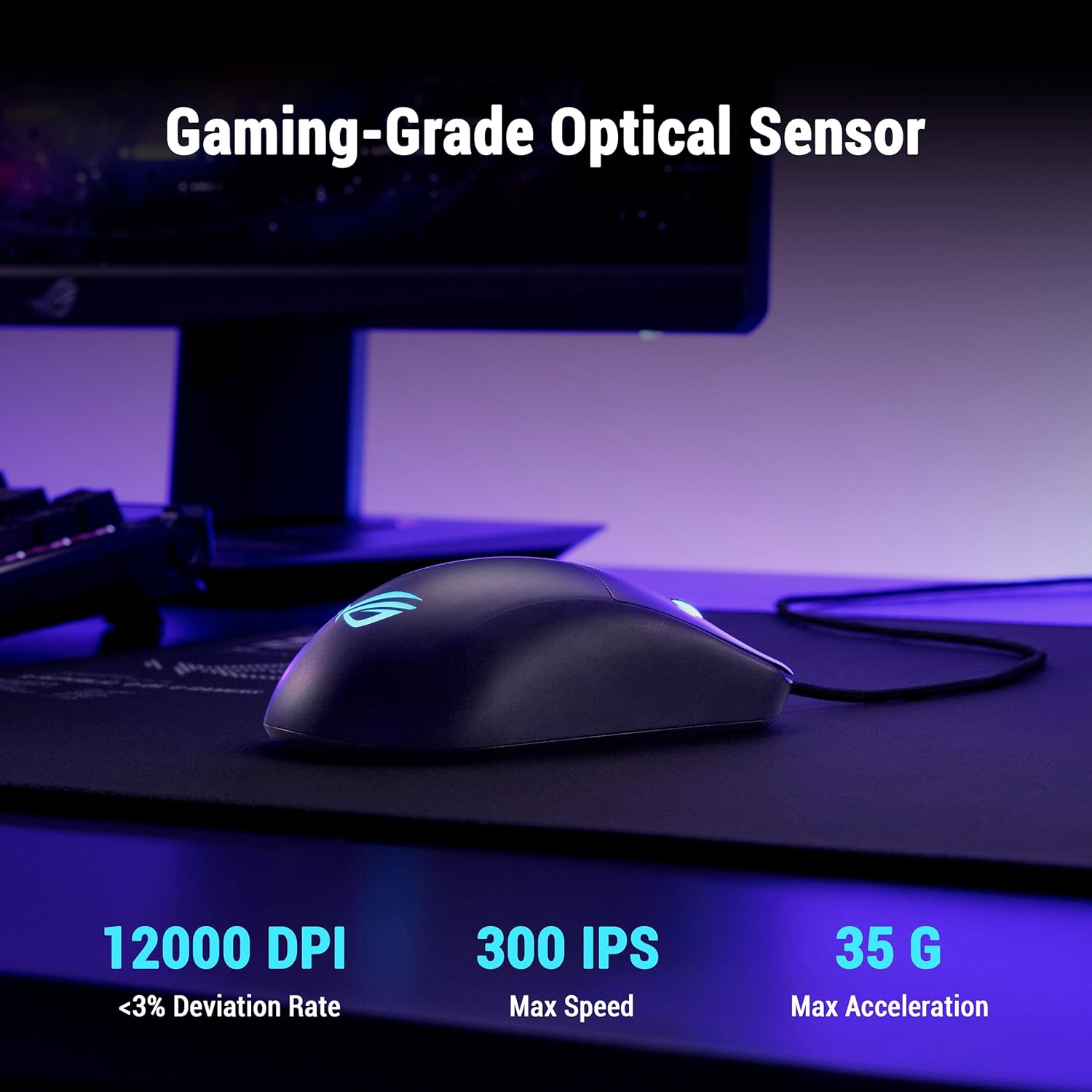
The ROG Harpe Mini Core on a mousepad, illustrating its gaming-grade optical sensor with 12000 DPI.
4.3 버튼 사용자 지정
Utilize the ASUS Gear Link software to remap buttons, assign macros, and configure other performance settings to suit your gaming style.
5. 유지관리
5.1 청소
마우스를 청소할 때는 부드럽고 마른 천을 사용하세요. 잘 지워지지 않는 얼룩은 약간 거친 천으로 닦아내세요.amp cloth can be used, ensuring no moisture enters the mouse's internal components. Avoid harsh chemicals or abrasive materials.
5.2 스위치 교체
The ROG Harpe Mini Core features Push-Fit Switch Sockets, allowing you to easily replace the ROG Micro Switch II. This extends the mouse's lifespan and allows for customization of click force.
- Carefully open the mouse casing according to the instructions provided in the detailed manual (if available) or by consulting ASUS support.
- Gently pull out the existing switch from its socket.
- Insert the new compatible mechanical switch into the socket, ensuring it is seated correctly.
- Close the mouse casing 안전하게.

Close-up of the ROG Harpe Mini Core's Push-Fit Switch Socket.
5.3 마우스 피트 교체
The mouse comes with 100% PTFE mouse feet for optimal glide. Over time, these may wear down. Replacement feet can be purchased separately. To replace them, carefully peel off the old feet and apply new ones, ensuring the surface is clean and dry.

맨 아래 view of the ROG Harpe Mini Core, showing the 100% PTFE mouse feet.
6. 문제 해결
6.1 마우스가 응답하지 않음
- USB 케이블이 마우스와 컴퓨터에 제대로 연결되어 있는지 확인하십시오.
- 마우스를 컴퓨터의 다른 USB 포트에 연결해 보세요.
- 다른 컴퓨터에서 마우스를 테스트하여 문제가 마우스에 있는지 컴퓨터에 있는지 확인하세요.
6.2 Slow or Erratic Tracking
- 부드럽고 마른 천으로 마우스 바닥의 광학 센서를 닦으세요.
- 마우스를 사용할 때는 적절한 표면, 가급적 마우스 패드 위에서 사용하십시오.
- Check DPI settings in the ASUS Gear Link software or by using the DPI cycle button on the mouse.
- Reinstall or update the mouse drivers.
6.3 Software Installation Issues
If you encounter problems installing or using ASUS Armoury Crate or Gear Link:
- 운영 체제가 최신 상태인지 확인하세요.
- Temporarily disable any antivirus or firewall software that might interfere with the installation.
- Download the latest software version directly from the official ASUS support web대지.
7. 사양
| 특징 | 세부 사항 |
|---|---|
| 상표 | 아수스 |
| 모델명 | P524 HARPE MINI CORE |
| 연결성 | 유선 USB |
| 무게 | 52g |
| 센서 유형 | 광학 |
| 최대 DPI | 12,000dot_per_inch |
| 폴링 속도 | 1000Hz |
| 스위치 | ROG Micro Switch II (100 million click lifespan) |
| Switch Sockets | Push-Fit Switch Sockets |
| 마우스 피트 | 100% PTFE |
| 케이블 | ROG 파라코드 |
| 버튼 | 6 |
| 손의 방향 | 오른쪽 |
| 호환 OS | Windows 10 or above, Mac |
| 치수(L x W) | 6.3인치 x 4.37인치 |
| 한국어: | 199291014046 |
8. 보증 및 지원
8.1 보증 정보
이 제품에는 다음이 포함되어 있습니다. 1년 한정 보증 구매일로부터 보증이 적용됩니다. 보증 청구를 위해 구매 증빙 자료를 보관해 주십시오. 보증은 제조상의 결함에 한해 적용되지만, 오용, 사고, 무단 개조 또는 정상적인 마모로 인한 손상은 보증 대상에서 제외됩니다.
8.2 기술 지원
For technical assistance, driver downloads, or further information, please visit the official ASUS support web대지:
You may also refer to the included Quick Start Guide for initial setup instructions or contact ASUS customer service in your region.