
소개
The ONIKUMA X22 Wired Gaming Headset is designed to provide an immersive audio experience for gamers. It features dynamic RGB lighting, a comfortable design, and a clear communication microphone. This manual provides essential information for the proper setup, operation, maintenance, and troubleshooting of your headset.
주요 특징:
- Stunning RGB lighting effects to enhance the gaming atmosphere.
- 50mm dynamic drivers deliver impressive stereo sound.
- Features a 360-degree omnidirectional microphone with active noise reduction for clear sound.
- Convenient inline controls for RGB lighting, microphone mute, and volume adjustment.
- Designed with an adjustable suspended headband and well-ventilated ear cups for comfortable wear.
설치 지침
Follow these steps to set up your ONIKUMA X22 Gaming Headset:
- 오디오 케이블을 연결합니다. Plug the 3.5mm audio jack of the headset into the corresponding audio port on your gaming device (PC, console controller, etc.). Ensure the connection is secure.
- Connect the USB Cable (for RGB Lighting): Plug the USB-A connector into an available USB port on your device. This connection powers the RGB lighting feature. The headset will function for audio and microphone without the USB connection, but RGB lighting requires it.
- 머리띠 조정: Place the headset on your head and adjust the suspended headband for a comfortable fit. The headband is designed to adapt to various head sizes.
- 위치 마이크: Adjust the flexible microphone boom to position the microphone near your mouth for optimal voice pickup. Ensure it is not obstructing your vision.
- 초기 사운드 점검: Play some audio or initiate a voice chat to confirm sound output and microphone input are working correctly. Adjust system volume settings as needed.
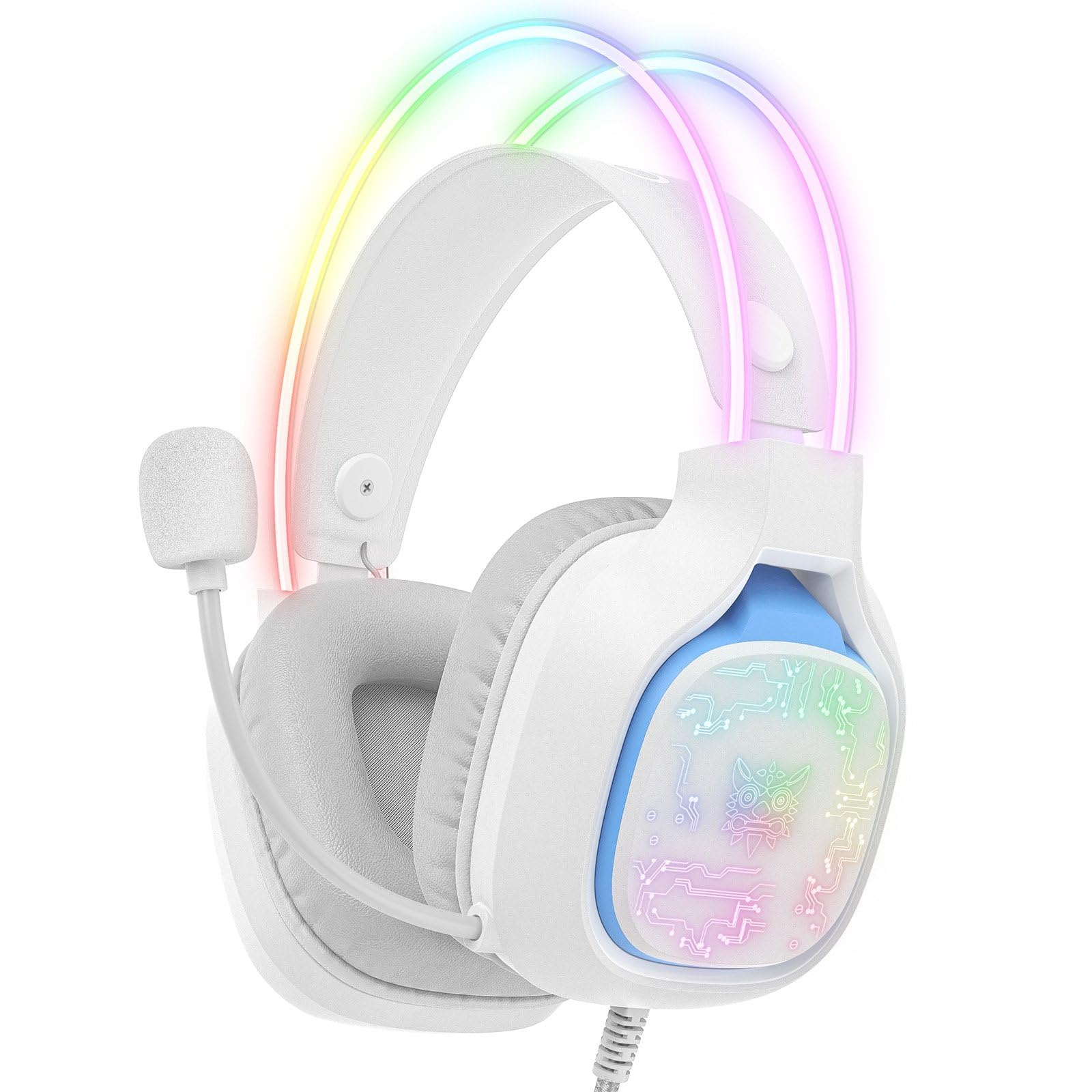
Image: The ONIKUMA X22 Gaming Headset with its 3.5mm audio jack and USB connector, ready for connection to a gaming device. The adjustable headband and microphone are visible.
작동 지침
The ONIKUMA X22 features convenient inline controls for easy management during use:
- 볼륨 조절: Locate the volume roller on the inline control unit. Roll it up to increase volume and down to decrease volume.
- 마이크 음소거: A switch on the inline control unit allows you to quickly mute or unmute the microphone. Slide the switch to the 'Mute' position to disable the microphone, and to the 'Unmute' position to enable it.
- RGB 조명 제어: If connected via USB, the RGB lighting will activate automatically. Some models may include a button on the inline control to cycle through lighting modes or turn the RGB off/on. Refer to the specific product packaging for detailed RGB control options if available.
For optimal performance, ensure your device's audio settings are configured to use the ONIKUMA X22 as the default playback and recording device.
유지
적절한 유지 관리는 헤드셋의 수명과 성능을 보장합니다.
- 청소: 부드럽고 마른 천을 사용하여 이어컵과 헤드밴드를 닦으세요. 잘 지워지지 않는 먼지는 가볍게 닦아주세요.amp 순한 비누를 묻힌 천으로 닦을 수 있지만, 스피커 그릴이나 마이크에 액체가 들어가지 않도록 주의하십시오. 독한 화학 약품이나 연마성 세척제는 사용하지 마십시오.
- 저장: 사용하지 않을 때는 헤드셋을 직사광선과 극한 온도 변화를 피해 깨끗하고 건조한 곳에 보관하십시오. 헤드셋 위에 무거운 물건을 올려놓지 마십시오.
- 케이블 관리: Avoid sharp bends or excessive pulling on the cables. Always grasp the plug, not the cable, when disconnecting.
- Ear Cup Replacement: If the ear cushions become worn, they may be replaceable. Check the manufacturer's web사이트 또는 고객 지원팀에 연락하여 교체 부품을 요청하십시오.
문제 해결
헤드셋 사용 중 문제가 발생하면 다음의 일반적인 해결 방법을 참조하십시오.
- 소리 없음:
- 3.5mm 오디오 잭이 장치의 오디오 포트에 완전히 삽입되었는지 확인하세요.
- Check the inline volume control and increase the volume.
- 기기의 시스템 볼륨이 음소거되어 있거나 너무 낮게 설정되어 있지 않은지 확인하세요.
- 운영 체제의 소리 설정에서 헤드셋이 기본 오디오 출력 장치로 선택되어 있는지 확인하십시오.
- 장치 특정 문제를 배제하기 위해 다른 장치에서 헤드셋을 테스트하세요.
- 마이크가 작동하지 않음:
- Ensure the microphone mute switch on the inline control is in the 'Unmute' position.
- 마이크가 입 가까이에 제대로 위치해 있는지 확인하십시오.
- Verify the headset microphone is selected as the default input device in your operating system's sound settings and communication applications.
- Adjust the microphone input level in your device's sound settings.
- Test the microphone on another device.
- RGB 조명이 작동하지 않음:
- USB-A 커넥터가 전원이 공급되는 USB 포트에 제대로 꽂혀 있는지 확인하십시오.
- 다른 USB 포트를 사용해보십시오.
- If there is an RGB control button on the inline unit, press it to cycle through modes or activate the lighting.
- 불편한 핏:
- Adjust the suspended headband to find the most comfortable position.
- Ensure the ear cups are fully covering your ears without excessive pressure.
명세서
| 특징 | 세부 사항 |
|---|---|
| 모델 번호 | X22 |
| 드라이버 직경 | 50mm |
| 주파수 범위 | 20Hz - 20kHz |
| 마이크 유형 | 360-degree Omnidirectional with Active Noise Reduction |
| 연결성 | 3.5mm Audio Jack + USB-A (for RGB) |
| 케이블 길이 | 1.8 미터 |
| 무게 | 364그램 |
| 배송 치수 | 23.5 x 19.4 x 11.4cm |
| 출시일 | 26년 2025월 XNUMX일 |
보증 정보
The ONIKUMA X22 Gaming Headset is covered by a standard manufacturer's warranty. The duration and terms of the warranty may vary by region and retailer. Please retain your proof of purchase for warranty claims. For specific details regarding your warranty coverage, refer to the documentation included with your product or visit the official ONIKUMA web대지.
고객 지원
For technical assistance, product inquiries, or customer service, please contact ONIKUMA customer support. You can typically find contact information, including email addresses, phone numbers, or support portals, on the official ONIKUMA website. Please have your product model (X22) and purchase details ready when contacting support.
공식적인 Web대지: www.onikuma.net (참고: 이것은 플레이스홀더입니다. URL. Refer to your product packaging for the correct official web대지.)