
1. 서론
This manual provides detailed instructions for the setup, operation, maintenance, and troubleshooting of your Gawfolk 24.5 Inch 300Hz Gaming Monitor, Model GF245C. This monitor features a 24.5-inch FHD 1080p VA panel, a 300Hz refresh rate, 1ms response time, Adaptive Sync technology, 98% sRGB color gamut, and low blue light/flicker-free technology for an enhanced view경험.
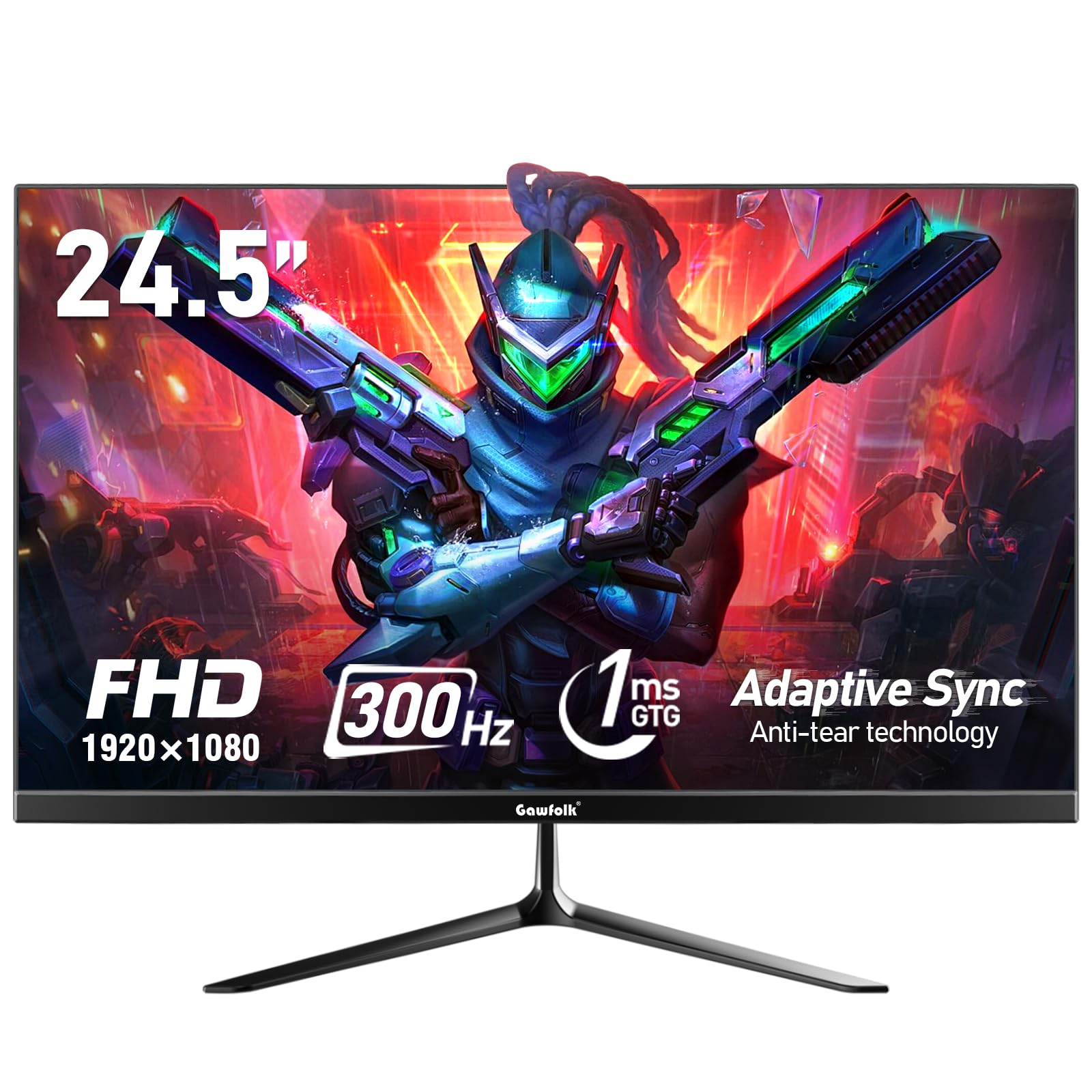
그림 1: 전면 view of the Gawfolk 24.5 Inch 300Hz Gaming Monitor.
2. 설정 지침
2.1 패키지 내용
- Gawfolk 24.5 Inch Gaming Monitor
- 모니터 스탠드(베이스 및 넥)
- 전원 어댑터
- DisplayPort(DP) 케이블
- 사용자 설명서
2.2 스탠드 조립
- 모니터와 스탠드 구성품을 포장에서 조심스럽게 꺼내세요.
- 제공된 나사를 사용하여 스탠드 목 부분을 모니터 패널에 부착하십시오.
- Attach the stand base to the stand neck, securing it with the designated screw.
- 조립된 모니터를 안정적이고 평평한 표면에 놓으세요.
2.3 연결 케이블
연결을 하기 전에 모니터와 컴퓨터의 전원이 꺼져 있는지 확인하세요.
- 전원 연결: Connect the power adapter to the monitor's DC input port, then plug the adapter into a power outlet.
- 비디오 연결: Connect one end of the provided DisplayPort (DP) cable to the DP port on your computer's graphics card and the other end to the DP input on the monitor. Alternatively, use an HDMI cable to connect to an HDMI port.
- 오디오 출력: If desired, connect external speakers or headphones to the 3.5mm audio output port on the monitor.
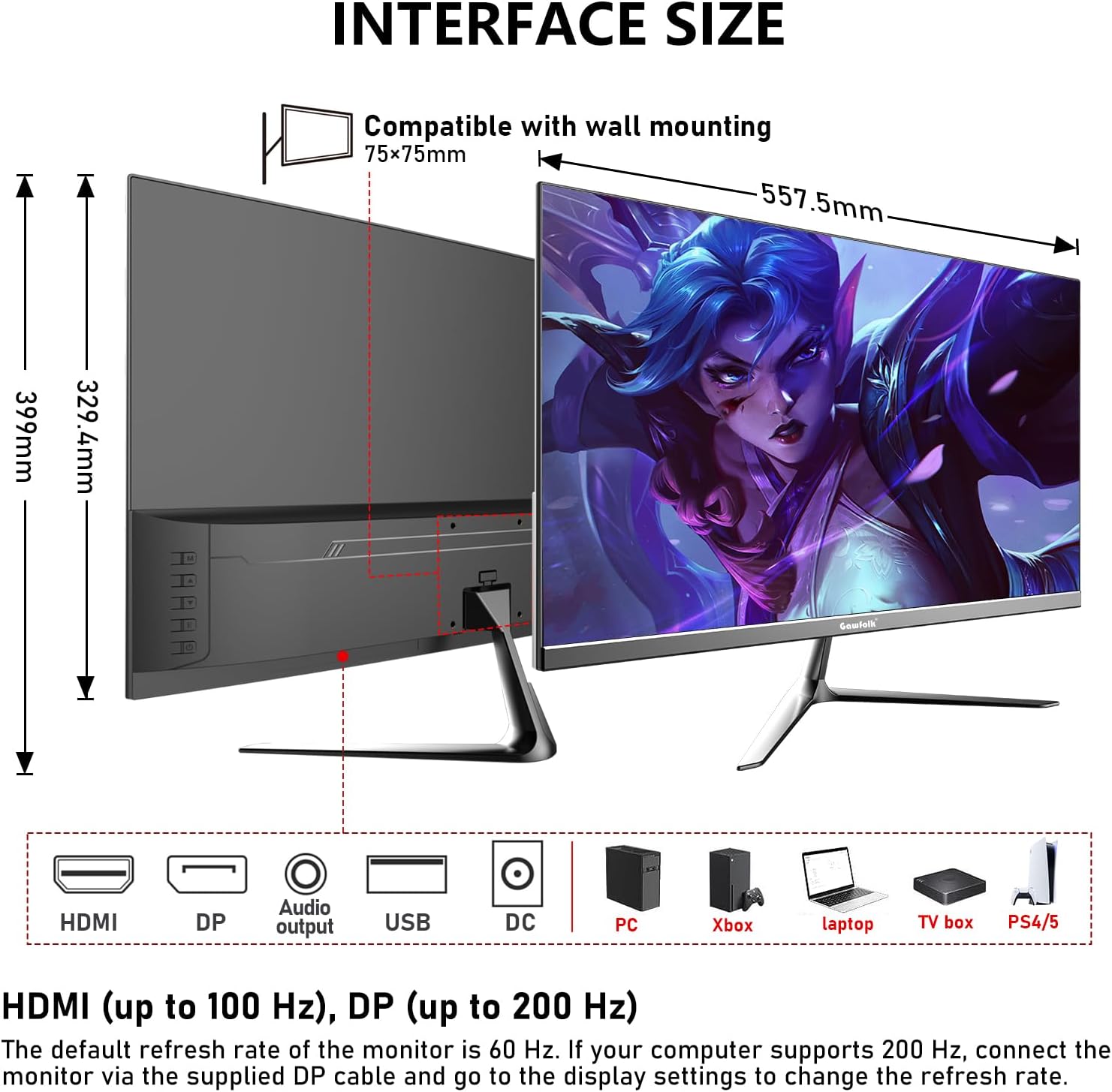
그림 2: 모니터 크기 및 포트 배치.
2.4 벽면 장착(선택 사항)
The monitor supports VESA wall mounting with a 75x75mm pattern. A wall mounting bracket is not included and must be purchased separately. Follow the instructions provided with your VESA mount for proper installation.

Figure 3: Monitor compatible with 75x75mm VESA wall mounting.
3. 사용 설명서
3.1 전원 켜기/끄기
- To power on the monitor, press the power button located on the back or bottom of the monitor.
- 전원을 끄려면 화면이 꺼질 때까지 전원 버튼을 길게 누르세요.
3.2 OSD 메뉴 탐색
The On-Screen Display (OSD) menu allows you to adjust various monitor settings. Use the joystick or buttons (location may vary slightly) on the back or bottom of the monitor to navigate the menu.
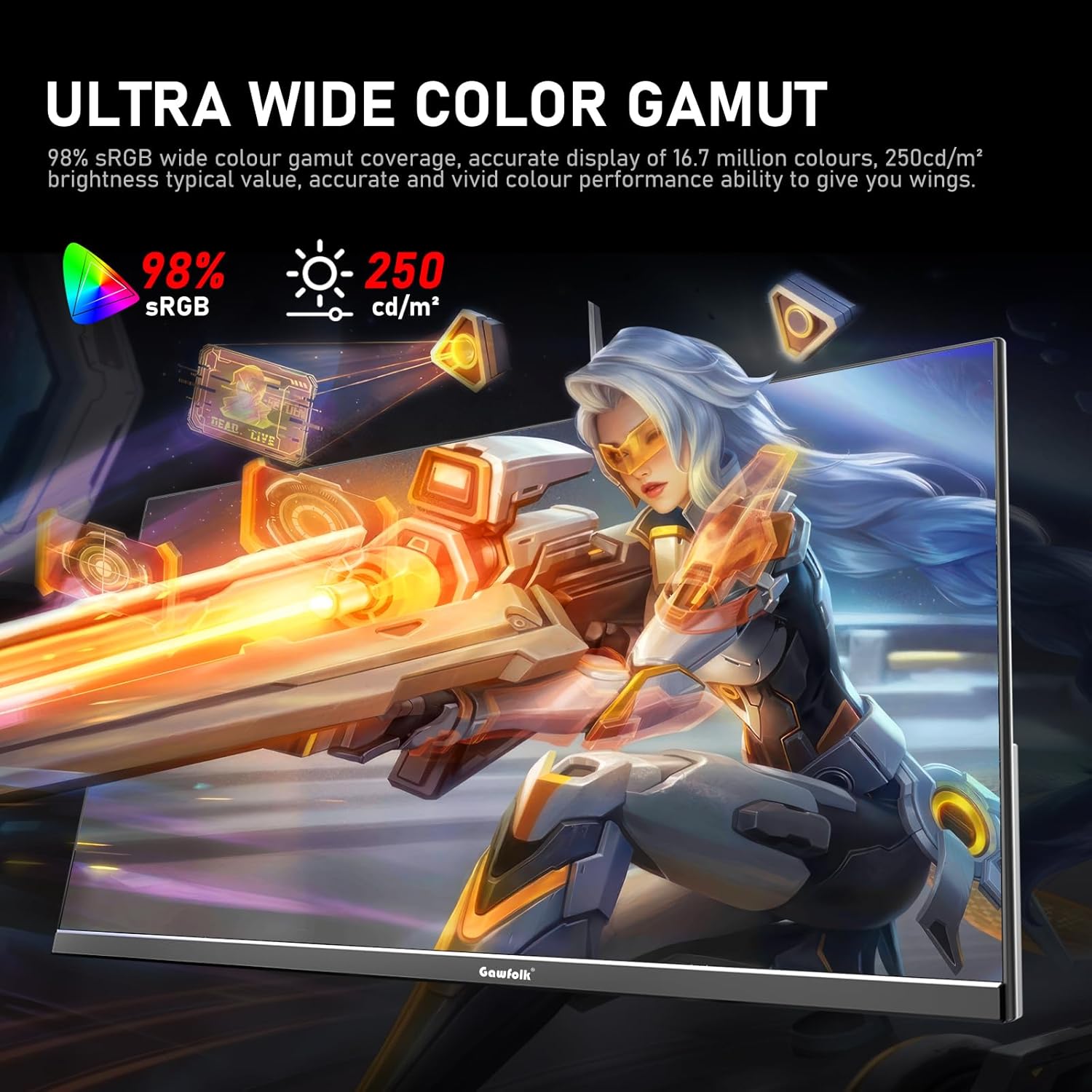
Figure 4: On-Screen Display (OSD) menu for monitor settings.
3.3 입력 선택
Access the OSD menu and navigate to the 'Input' or 'Source' section to select between HDMI and DisplayPort inputs.
3.4 디스플레이 설정 조정
- 밝기/대비: OSD 메뉴에서 이러한 설정을 사용자 환경에 맞게 조정하십시오. view환경을 보호합니다.
- 색상 설정: Fine-tune color temperature, gamma, and other color parameters for optimal visual quality. The monitor supports 98% sRGB for rich colors.
- 새로 고침 빈도: The monitor supports up to 300Hz via DisplayPort and up to 120Hz via HDMI. To change the refresh rate, connect the monitor via the appropriate cable and adjust the display settings within your computer's operating system.

Figure 5: Connectivity options and refresh rate capabilities.
3.5 어댑티브 싱크 기술
This monitor supports Adaptive Sync (FreeSync/G-Sync compatible) to minimize input latency and reduce screen tearing and stuttering during gaming and video playback. Ensure Adaptive Sync is enabled in both the monitor's OSD menu and your graphics card settings.

Figure 6: Visual demonstration of Adaptive Sync technology reducing screen tearing.
3.6 Low Blue Light and Flicker-Free
The monitor incorporates DC global dimming technology for a flicker-free display and a low blue light mode. Activate the low blue light mode in the OSD menu to reduce eye strain during prolonged use.

Figure 7: Illustration of Flicker-Free Technology for eye comfort.
4. 유지관리
4.1 모니터 청소
- 청소하기 전에는 항상 모니터의 전원을 끄고 플러그를 뽑으세요.
- 부드럽고 보풀이 없는 천을 살짝 사용하십시오. damp물이나 부드럽고 연마성이 없는 화면 세척제로 닦으세요.
- 세척제를 화면에 직접 뿌리지 마세요.
- 알코올, 암모니아 또는 연마성 세척제는 화면 표면을 손상시킬 수 있으므로 사용을 피하십시오.
4.2 일반 관리
- 모니터를 직사광선, 과도한 열, 습기로부터 멀리 두십시오.
- 과열을 방지하려면 모니터 주변에 적절한 환기가 이루어지도록 하세요.
- 모니터나 케이블 위에 무거운 물건을 올려놓지 마세요.
5. 문제 해결
모니터에 문제가 발생하면 다음의 일반적인 해결 방법을 참조하십시오.
5.1 디스플레이 없음 / 검은색 화면
- 전원 케이블이 모니터와 전원 콘센트에 단단히 연결되어 있는지 확인하세요.
- Verify that the video cable (DP or HDMI) is firmly connected to both the monitor and your computer.
- 모니터의 OSD 메뉴에서 올바른 입력 소스가 선택되었는지 확인하세요.
- 컴퓨터를 다시 시작하세요.
- Test the monitor with another device or cable if possible to isolate the issue.
5.2 화면 깜빡임
- Ensure the video cable is securely connected. A loose connection can cause flickering.
- 그래픽 카드 드라이버를 확인하고 필요한 경우 업데이트하세요.
- Disable Adaptive Sync in your graphics card settings and the monitor's OSD menu to see if the issue persists.
- Verify that the refresh rate is set correctly in your computer's display settings.
5.3 이미지 품질 문제 (흐릿함, 왜곡)
- 컴퓨터의 디스플레이 해상도가 모니터의 기본 해상도(1920x1080)로 설정되어 있는지 확인하세요.
- OSD 메뉴에서 밝기, 대비 및 색상 설정을 조정하십시오.
- If using an analog connection (not applicable for this monitor's inputs but general advice), ensure auto-adjustment is performed.
5.4 No Audio from Monitor Speakers/Audio Out
- Ensure the audio output is selected correctly in your computer's sound settings.
- Check the volume level on both the monitor (via OSD) and your computer.
- If using external speakers/headphones, ensure they are properly connected to the monitor's audio output.
6. 사양
| 특징 | 사양 |
|---|---|
| 상표 | 가우포크 |
| 모델 번호 | GF245C |
| 화면 크기 | 24.5 인치 |
| 해결 | FHD 1080p(1920 x 1080 픽셀) |
| 종횡비 | 16시 9분 |
| 새로 고침 빈도 | 300 Hz (DP), 120 Hz (HDMI) |
| 응답 시간 | 1밀리초(GTG) |
| 디스플레이 기술 | VA 패널 |
| View잉 각도 | 178도 |
| 명도 | 250 칸델라 |
| 색상 영역 | 98% sRGB |
| 대비율 | 3500시 1분 |
| 연결성 | DisplayPort, HDMI, 3.5mm Audio Out |
| 적응형 동기화 | FreeSync, G-Sync Compatible |
| 추가 기능 | Flicker-Free, Low Blue Light, Frameless Design |
| 장착 유형 | Desk Mount, VESA Wall Mount (75x75MM) |
| 품목 치수(D x W x H) | 6.42인치 깊이 x 21.93인치 너비 x 15.75인치 높이 |
| 품목 무게 | 3.48 킬로그램 |
7. 보증 및 지원
7.1 보증 정보
The Gawfolk 24.5 Inch 300Hz Gaming Monitor (Model GF245C) comes with a 1년 보증 covering quality problems from the date of purchase.
7.2 애프터 서비스
우리는 제공합니다 12개월 애프터 서비스. If you encounter any problems when using the monitor, please communicate with us in a timely manner for assistance. For support, please refer to the contact information provided with your purchase or visit the official Gawfolk web대지.