
소개
This manual provides detailed instructions for the installation, operation, and maintenance of your Gawfolk GF490D 49-inch Ultra-Wide Curved Gaming Monitor. Please read this manual thoroughly before using the product to ensure proper setup and optimal performance. Keep this manual for future reference.
안전 정보
모니터를 사용할 때는 항상 다음과 같은 기본적인 안전 수칙을 준수하십시오.
- 모니터를 불안정한 카트, 스탠드 또는 테이블 위에 올려놓지 마십시오.
- 환기구를 막지 마십시오.
- Do not use near water or sources of heat.
- 제조사에서 제공한 전원 코드와 어댑터만 사용하십시오.
- 모든 서비스는 자격을 갖춘 서비스 담당자에게 의뢰하세요.
- 번개가 칠 때나 장기간 사용하지 않을 때는 모니터의 플러그를 뽑아 두세요.
패키지 내용
패키지에 모든 구성 요소가 들어 있는지 확인하세요.
- Gawfolk GF490D Monitor
- Monitor Stand Components (Base, Neck)
- 전원 어댑터 및 케이블
- HDMI 케이블
- DisplayPort 케이블
- 사용자 설명서
설정
1. 스탠드 조립
- 모니터를 포장에서 조심스럽게 꺼내어 부드러운 표면에 놓고 보호하십시오.
- 스탠드 넥을 모니터 패널에 부착합니다.
- 제공된 나사를 사용하여 스탠드 받침대를 목 부분에 고정하십시오.

그림 1: Illustration of monitor ergonomic adjustments, including height adjustment (0-160mm), wall bracket compatibility (75x75mm), and tilt adjustment (-5° to 15°).
2. 장치에 연결
The monitor is equipped with multiple input ports for various devices:
- Power Connector (DC): Connect the power adapter to this port and then to a power outlet.
- HDMI 2.1 포트(2개): Connect to devices such as PCs, game consoles (PS5/Xbox Series X), or laptops using an HDMI cable.
- DisplayPort 1.4 포트(2개): Connect to PCs or other compatible devices using a DisplayPort cable for high-resolution and high-refresh-rate signals.
- 오디오 출력 인터페이스: 외부 스피커 또는 헤드폰을 연결하세요.

그림 2: 뒤쪽 view of the monitor showing the available input ports: DC power connector, two DisplayPort 1.4 interfaces, two HDMI 2.1 interfaces, and an audio output interface.
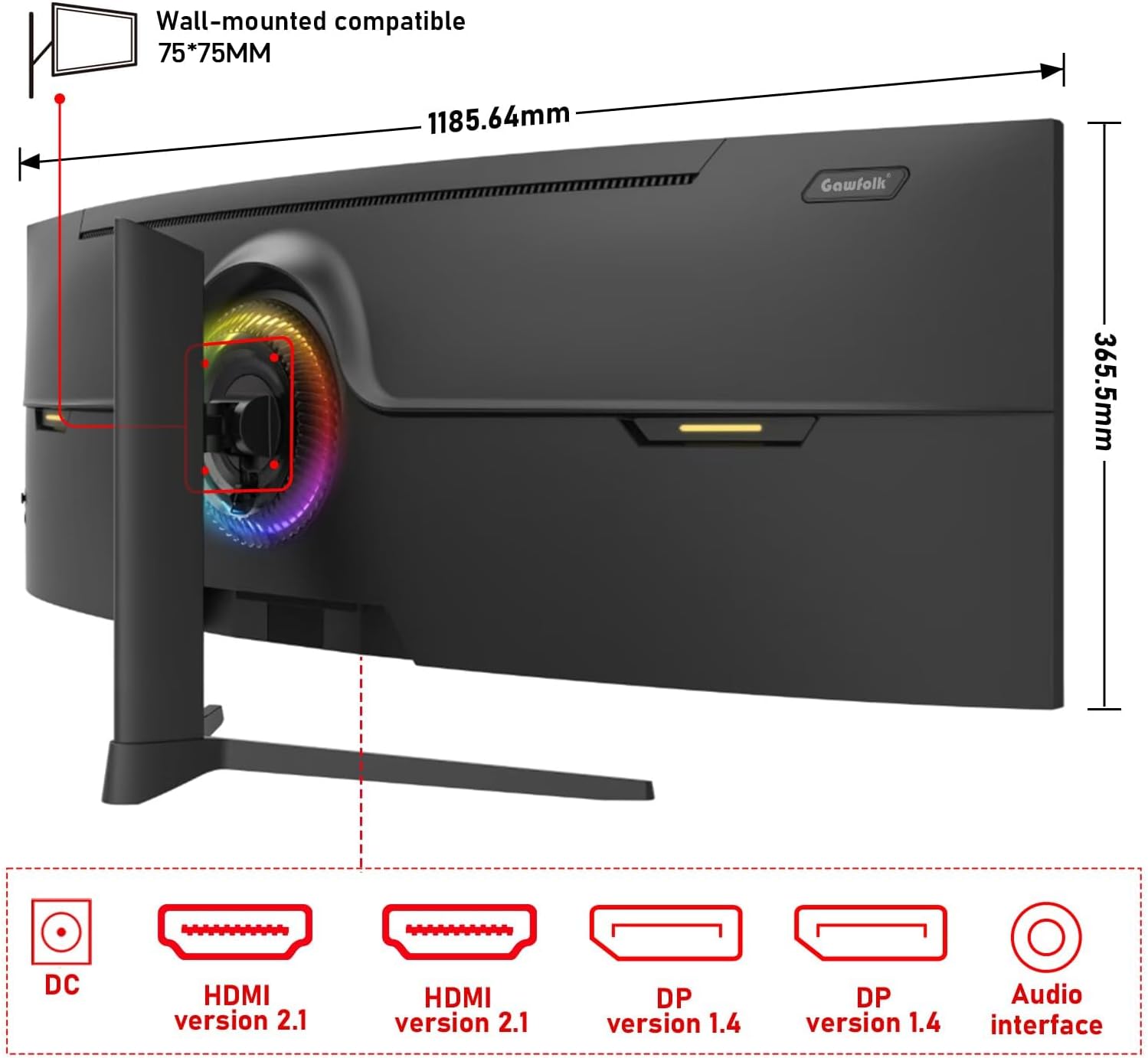
그림 3: 뒤쪽 view of the monitor illustrating its approximate dimensions (1185.64mm width, 365.5mm height without stand) and indicating 75x75mm VESA wall-mount compatibility.
3. 벽면 장착 (선택 사항)
The monitor supports a 75x75mm VESA wall mount. Ensure the wall mount can support the monitor's weight (7.9 kg) and follow the wall mount manufacturer's instructions for installation.
작동 지침
1. 전원 켜기 / 끄기
- 전원 어댑터를 모니터와 전원 콘센트에 연결하세요.
- Press the power button (location typically on the rear or bottom-right of the monitor) to turn the monitor on or off.
2. 디스플레이 설정 조정
The monitor features an On-Screen Display (OSD) menu for adjusting various settings. Use the joystick or buttons (refer to the physical monitor for exact controls) to navigate the OSD menu.
- 입력 소스: Select between HDMI 1, HDMI 2, DP 1, or DP 2.
- 밝기/대비: 이미지 밝기를 조정하세요.
- 색상 설정: Modify color temperature, gamma, and color gamut (120% sRGB).
- 새로 고침 빈도: 이 모니터는 최대 240Hz를 지원합니다. 최적의 성능을 위해 연결된 장치와 케이블이 해당 주사율을 지원하는지 확인하십시오.
- 어댑티브 싱크(FreeSync): OSD 메뉴와 그래픽 카드 설정에서 이 기능을 활성화하여 모니터의 새로 고침 빈도를 GPU의 프레임 속도와 동기화하면 화면 찢김 및 끊김 현상을 줄일 수 있습니다.
- 로우 블루 라이트 모드: Activate to reduce eye strain during prolonged use.

그림 4: The 49-inch 32:9 ultra-wide display with DQHD (5120x1440) resolution, offering an expansive field of view compared to traditional 16:9 QHD (2560x1440) monitors.

그림 5: Visual comparison demonstrating the smoothness of a 240Hz refresh rate versus lower refresh rates (100Hz and 60Hz), highlighting reduced motion blur and stuttering.

그림 6: Illustration of Adaptive Sync (FreeSync) technology, showing how it eliminates screen tearing and input lag for a smoother gaming experience compared to when it is disabled.

그림 7: The 1500R curvature of the screen, designed to provide an immersive viewing experience by conforming to the human eye's natural field of vision.

그림 8: Display characteristics including 120% sRGB color gamut, 8-bit color depth (16.7 million colors), 3000:1 contrast ratio, and 330 cd/m² brightness, ensuring rich and accurate color reproduction.

그림 9: A visual comparison demonstrating the difference between a 1000:1 contrast ratio and the monitor's 3000:1 contrast ratio, showing enhanced detail in dark and bright areas.
3. 신체적 조정
모니터 스탠드는 인체공학적 조정을 가능하게 합니다.
- 높이 조정: 화면 높이를 최대 160mm까지 조절할 수 있습니다.
- 받침: Rotate the monitor left or right by 15 degrees.
- 경사: Adjust the screen tilt from -5 degrees to 20 degrees.
4. RGB 주변 조명
The monitor features customizable RGB ambient lighting on its rear. This can be configured through the OSD menu to match your preferences or gaming setup.
유지
모니터 청소
- 청소하기 전에는 항상 모니터의 플러그를 뽑으세요.
- 부드럽고 보풀이 없는 천을 살짝 사용하십시오. damp물이나 부드럽고 연마성이 없는 화면 세척제로 닦으세요.
- 세척제를 화면에 직접 뿌리지 마세요.
- Avoid using benzene, thinner, or any volatile solvents, as they may damage the monitor's surface.
문제 해결
| 문제 | 가능한 원인 | 해결책 |
|---|---|---|
| 화면에 이미지가 없습니다. | 전원 케이블이 분리되었습니다. 비디오 케이블이 분리되었습니다. 잘못된 입력 소스가 선택되었습니다. | Check power and video cable connections. Select the correct input source via the OSD menu. Ensure the computer is powered on. |
| 이미지가 흐릿하거나 왜곡됩니다. | Incorrect resolution or refresh rate settings, faulty video cable. | Set the display resolution to 5120x1440 and refresh rate to 240Hz (or compatible with your GPU). Try a different video cable. |
| 화면 찢김 또는 끊김 | Adaptive Sync (FreeSync) is not enabled or not supported by GPU/game. | Enable FreeSync in the monitor's OSD menu and your graphics card control panel. Ensure your GPU supports FreeSync. |
| 불량 화소 | 제조상의 결함. | Refer to warranty policy. A small number of dead pixels may be considered within acceptable manufacturing tolerances. |
| 오디오 없음 | Audio cable disconnected, incorrect audio output selected on PC, monitor volume too low. | Check audio cable connection. Ensure the correct audio output device is selected in your computer's sound settings. Adjust monitor volume. |
명세서
| 특징 | 세부 사항 |
|---|---|
| 모델 번호 | GF490D |
| 화면 크기 | 49 인치 |
| 해결 | DQHD (5120x1440 Pixels) |
| 종횡비 | 32시 9분 |
| 곡률 | 1500R |
| 새로 고침 빈도 | 240Hz |
| 응답 시간 | 1밀리초 |
| 패널 유형 | VA (LCD Display Technology) |
| 명도 | 350 칸델라(cd/m²) |
| 대비율 | 3000시 1분 |
| 색상 영역 | 120% sRGB |
| View잉 각도 | 178도 |
| 적응형 동기화 | 프리싱크 |
| 비디오 입력 | HDMI 2.1 2개, DisplayPort 1.4 2개 |
| 오디오 출력 | 3.5mm 오디오 잭 |
| 장착 유형 | Wall Mount (75x75mm VESA compatible) |
| 제품 크기(D x W x H) | 5 x 118.5 x 43cm (스탠드 포함) |
| 품목 무게 | 7.9 킬로그램 |
| 추가 기능 | Blue Light Filter, Curved, Frameless, RGB Ambient Lighting |
보증 및 지원
The Gawfolk GF490D monitor comes with a 12개월 애프터 서비스 (1 year manufacturer warranty). If you encounter any issues or have questions regarding your monitor, please contact Gawfolk customer support for assistance.
Manufacturer: Shenzhen Qinghong Zhuoyue Technology Co., Ltd.


