
1. 서론
This manual provides detailed instructions for the installation, operation, maintenance, and troubleshooting of your JOMISE A80 Pro 4K+4K Dash Cam. Please read this manual thoroughly before use to ensure proper functionality and to maximize your device's performance.
The JOMISE A80 Pro is a high-performance dual dash camera system featuring dual 4K recording for both front and rear views, enhanced night vision with STARVIS 2 technology, Ethernet-driven rear camera processing, and lightning-fast WiFi 6 connectivity. It includes a responsive touchscreen, built-in GPS, G-Sensor for incident detection, and supports 24-hour parking mode with up to 1TB storage capacity.
2. 상자 안에 무엇이 들어있나요?
Carefully unpack your JOMISE A80 Pro Dash Cam and ensure all items listed below are present:
- 1 x JOMISE A80 Pro 4K Dash Cam (with 64GB Card)
- 차량용 충전기가있는 1 x 11.48ft 전원 공급 장치 케이블
- 1 x Bracket built-in GPS
- 1 x 4K In-car Rear Camera
- 1 x 18.04피트 후면 카메라 케이블
- 2 x 정전기 스티커
- 1 x Mount Tool
- 1 x 사용자 설명서

Figure 1: JOMISE A80 Pro Package Contents
3. 설정 및 설치
3.1. 설치 준비
- Clean the windshield area where the front dash cam will be mounted. Ensure it is free of dust and grease for optimal adhesive performance.
- Apply an electrostatic sticker to the windshield first, then attach the dash cam mount to the sticker. This allows for easier repositioning and removal without leaving residue.
- Insert the provided 64GB MicroSD card into the front dash cam.
3.2. 전방 블랙박스 설치
- Attach the GPS bracket to the main dash cam unit.
- Peel off the protective film from the adhesive on the GPS bracket.
- Mount the front dash cam to the cleaned area on your windshield, ideally behind the rearview 거울을 가리지 않도록 하세요 view렌즈가 깨끗한지 확인하십시오. view 앞으로의 길에 대하여.
- Connect the power supply cable to the front dash cam and route it along the windshield edge, down the A-pillar, and to your car's 12V power outlet. Use the provided mount tool to tuck the cable neatly under the trim.

Figure 2: Front Dash Cam Mounted on Windshield
3.3. 후방 카메라 설치
- Connect the rear camera cable to the rear camera unit.
- 후방 카메라를 후방 유리창에 장착하여 선명한 시야를 확보하세요. view of the road behind. The 360° adjustable rear module allows for flexible positioning.
- Route the rear camera cable along the headliner and side pillars to the front dash cam. Carefully tuck the cable under the vehicle's interior trim using the mount tool to keep it hidden and secure. Avoid routing cables over airbags.
- 후방 카메라 케이블을 전방 블랙박스의 지정된 포트에 연결하십시오.
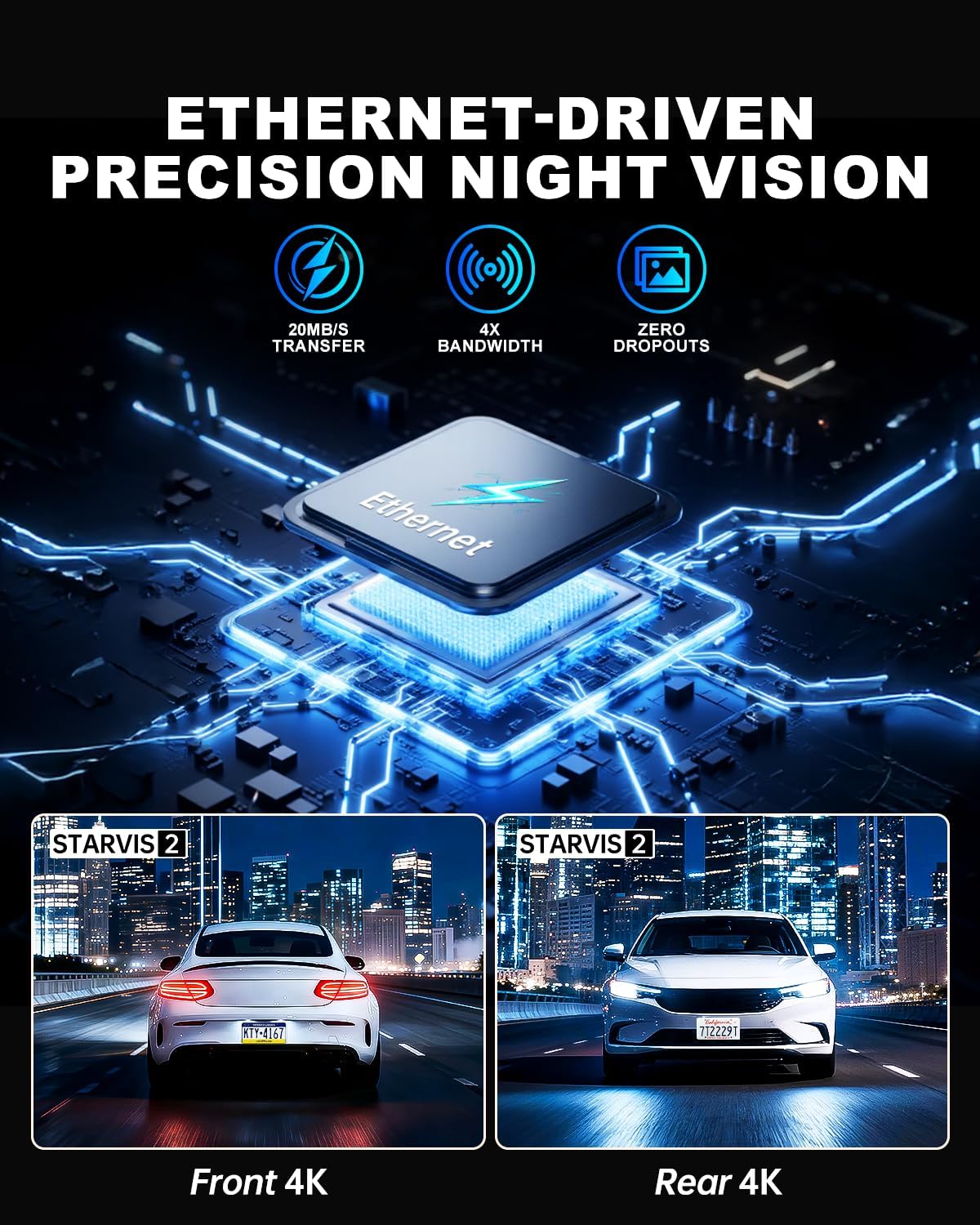
Figure 3: Rear Camera Mounted on Rear Windshield
4. 사용 설명서
4.1. 전원 켜기/끄기
차량용 블랙박스는 차량 시동을 켜면 자동으로 전원이 켜지고 녹화를 시작합니다. 시동을 끄면 자동으로 전원이 꺼집니다.
4.2. 터치스크린 조작
The JOMISE A80 Pro features a responsive touchscreen for intuitive control. Navigate through menus, adjust settings, and review 푸tage directly on the device with quick 0.2-second response times.

그림 4: 터치스크린 인터페이스
4.3. Mobile App & WiFi 6 Connectivity
Download the official JOMISE mobile app to connect to your dash cam via WiFi 6. This allows for instant live previews, quick downloading of 4K video files (up to 20MB/s), and easy sharing of footag스마트폰으로 전송하세요.
Video 1: A80 Pro WiFi Connection Guide (Official JOMISE-Direct)

Figure 5: Fast WiFi 6 File 옮기다
5. 주요 특징
5.1. Dual 4K Recording & STARVIS 2 Night Vision
The A80 Pro captures video in stunning 3840×2160P dual 4K resolution for both front and rear cameras. Equipped with STARVIS 2 low-light imaging, it delivers clear, vivid footage in challenging light conditions, including dark roads, rainy nights, and tunnels, ensuring critical details are captured.

Figure 6: Dual 4K and STARVIS 2 Night Vision
5.2. Ethernet Rear Camera Processing
Unlike traditional AHD systems, the A80 Pro utilizes an Ethernet-based system for its rear camera. A dedicated processor in the rear camera handles footage independently, allowing the main processor to focus on front camera imaging. This results in superior 4K image performance for both cameras and improved system responsiveness.

Figure 7: Ethernet Rear Camera Processing
5.3. 24-Hour Parking Mode & G-Sensor
With the optional hardwire kit (sold separately), the A80 Pro provides 24-hour parking monitoring. The built-in G-Sensor detects impacts instantly, automatically locking the video to protect evidence whether your vehicle is driving or parked. Time-lapse recording is also available to compress hours into minutes, saving storage space while maintaining continuous surveillance.
그림 8: 24시간 주차 감시 시스템
5.4. 내장 GPS
The integrated GPS module accurately tracks your vehicle's route and speed. This data is embedded in your video footage, providing crucial evidence for accident reconstruction or documenting your travels.

Figure 9: Accurate Route & Speed Tracking
5.5. Massive 1TB Storage Capacity
The JOMISE A80 Pro supports MicroSD cards up to 1TB, providing extensive storage for long drives and continuous recording without frequent overwriting. A 64GB card is included to get you started immediately.
Figure 10: 1TB Storage Capacity
6. 유지관리
6.1. 일반 관리
- Keep the dash cam lenses clean using a soft, lint-free cloth. Avoid abrasive materials that could scratch the lens.
- Ensure the dash cam is securely mounted to prevent vibrations or detachment during driving.
- 기기를 장시간 극한 온도에 노출시키지 마십시오.
6.2. 메모리 카드 관리
- Use a Class 10 or higher MicroSD card for smooth 4K recording.
- Regularly format the memory card (e.g., once a month) to prevent recording issues and ensure optimal performance. This can typically be done through the dash cam's settings menu.
7. 문제 해결
7.1. No Power Issues
If your A80 Pro Dash Cam is not powering on, check the following:
- 전원 케이블이 블랙박스와 차량의 12V 전원 소켓에 제대로 연결되어 있는지 확인하십시오.
- Verify that the vehicle's 12V power outlet is functioning correctly (e.g., by testing with another device).
- Check the fuse in your vehicle's fuse box if the 12V outlet is not receiving power.
Video 2: Troubleshooting A80 Pro Dash Cam No Power Issues (Official JOMISE-Direct)
7.2. 와이파이 연결 문제
If you experience difficulty connecting to the dash cam via WiFi:
- Ensure WiFi is enabled on your dash cam through the settings menu.
- Restart both your smartphone and the dash cam.
- Verify that you are connecting to the correct WiFi network broadcasted by the dash cam (SSID usually starts with