
소개
The ASUS RT-BE58 Go is a dual-band WiFi 7 portable travel router designed for versatile connectivity. It offers high-speed wireless performance, advanced security features, and multiple operating modes suitable for various environments, including travel, home, and office use. This manual provides instructions for setting up, operating, and maintaining your device.

Image: The ASUS RT-BE58 Go Portable Travel Router, a compact white device with foldable antennas, shown in a typical product view.
상자 안에 무엇이 들어있나요?
패키지에 모든 품목이 들어 있는지 확인하세요.
- RT-BE58 Go Travel router
- 1M RJ-45 Cable
- 전원 어댑터
- 빠른 시작 가이드
- 보증 카드
제품 특징
- Next-Gen WiFi 7 Speeds: Experience blazing-fast dual-band WiFi 7 speeds of up to 3600 Mbps with Multi-Link Operation (MLO) and 4K-QAM for low-latency connections.
- 강화된 보안: Protect sensitive data with comprehensive VPN features and commercial-grade security. Create a private hotspot over public WiFi (WISP mode) for privacy.
- 모바일 핫스팟 기능: Transform your smartphone or mobile dongle into a powerful, shareable network using 4G LTE and 5G mobile tethering.
- USB-C 전원 공급: Power the router anywhere with universal USB-C Power Delivery 18W, using common chargers.
- AiMesh Technology: Create a reliable and extendable AiMesh network for seamless, whole-home coverage with rich security and networking features.
- 간편한 관리: Set up the router in minutes with a simple 3-step process and manage it via the ASUS Router mobile app. Use Guest Network Pro for functional subnetworks or guest portals.
- 연결 포트: Includes 1x 1G LAN port, 1x 2.5G WAN port, and 1x USB 3.0 port.
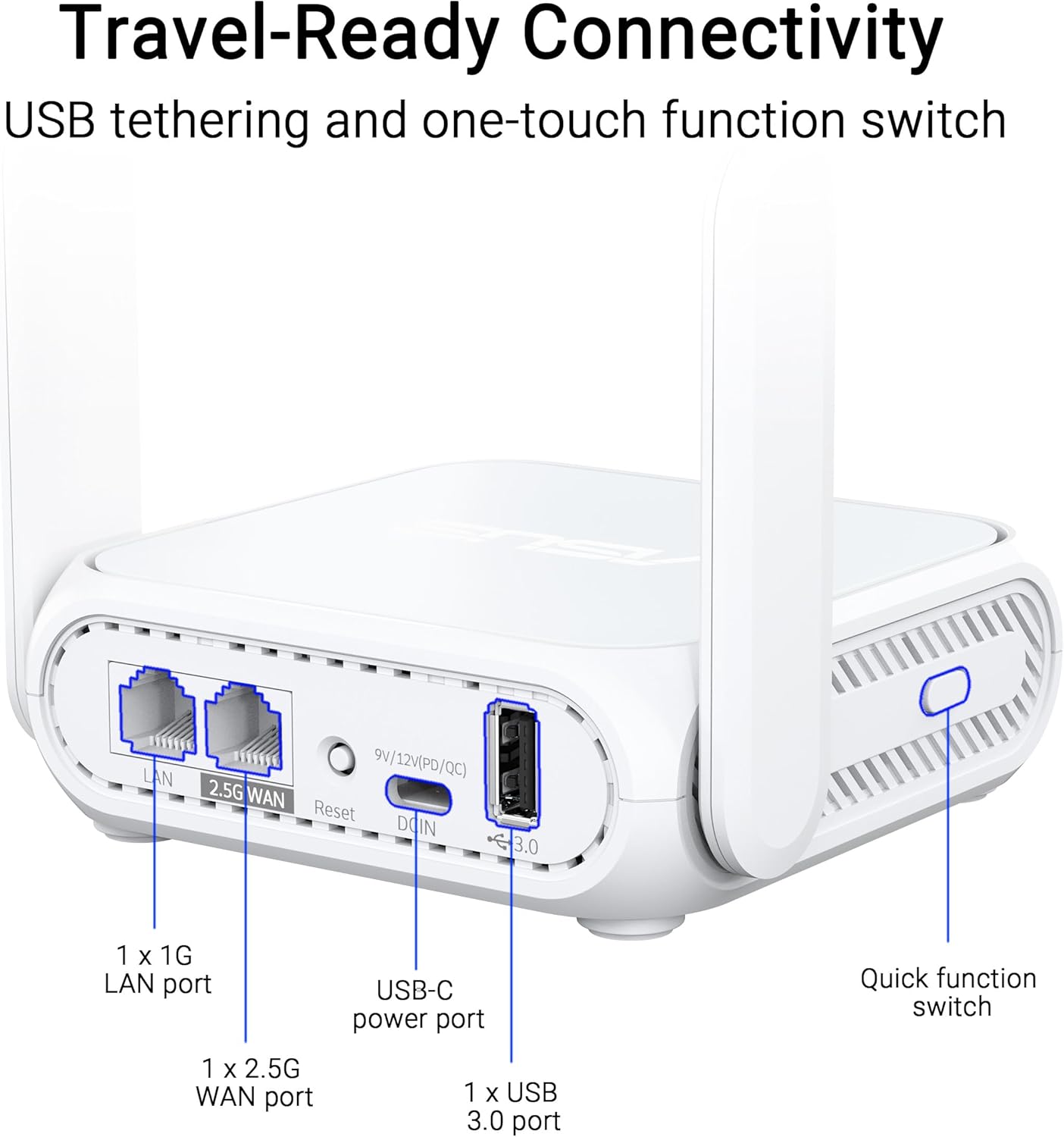
이미지: 클로즈업 view of the ASUS RT-BE58 Go router's rear panel, showing the 1G LAN port, 2.5G WAN port, USB-C power port, USB 3.0 port, and the quick function switch.
설정
초기 설정 단계:
- 전원 연결: Plug the provided power adapter into the USB-C power port on the router and then into a power outlet.
- 인터넷 소스에 연결:
- For wired internet: Connect an Ethernet cable from your modem or existing network to the 2.5G WAN port on the RT-BE58 Go.
- For public WiFi (WISP mode): Power on the router. You will configure WISP mode later via the app or web 인터페이스.
- For mobile tethering: Connect your smartphone or mobile dongle to the USB 3.0 port.
- 라우터에 연결:
- 무선 전화: 검색 the default Wi-Fi network name (SSID) printed on the bottom of the router and connect using the default password.
- 열광한: Connect a device (e.g., laptop) to the 1G LAN port using an Ethernet cable.
- 액세스 설정 인터페이스: 열기 web 브라우저로 이동하여 탐색하세요 http://router.asus.com or download the ASUS Router mobile app. Follow the on-screen instructions for initial configuration, including setting up your Wi-Fi name and password.
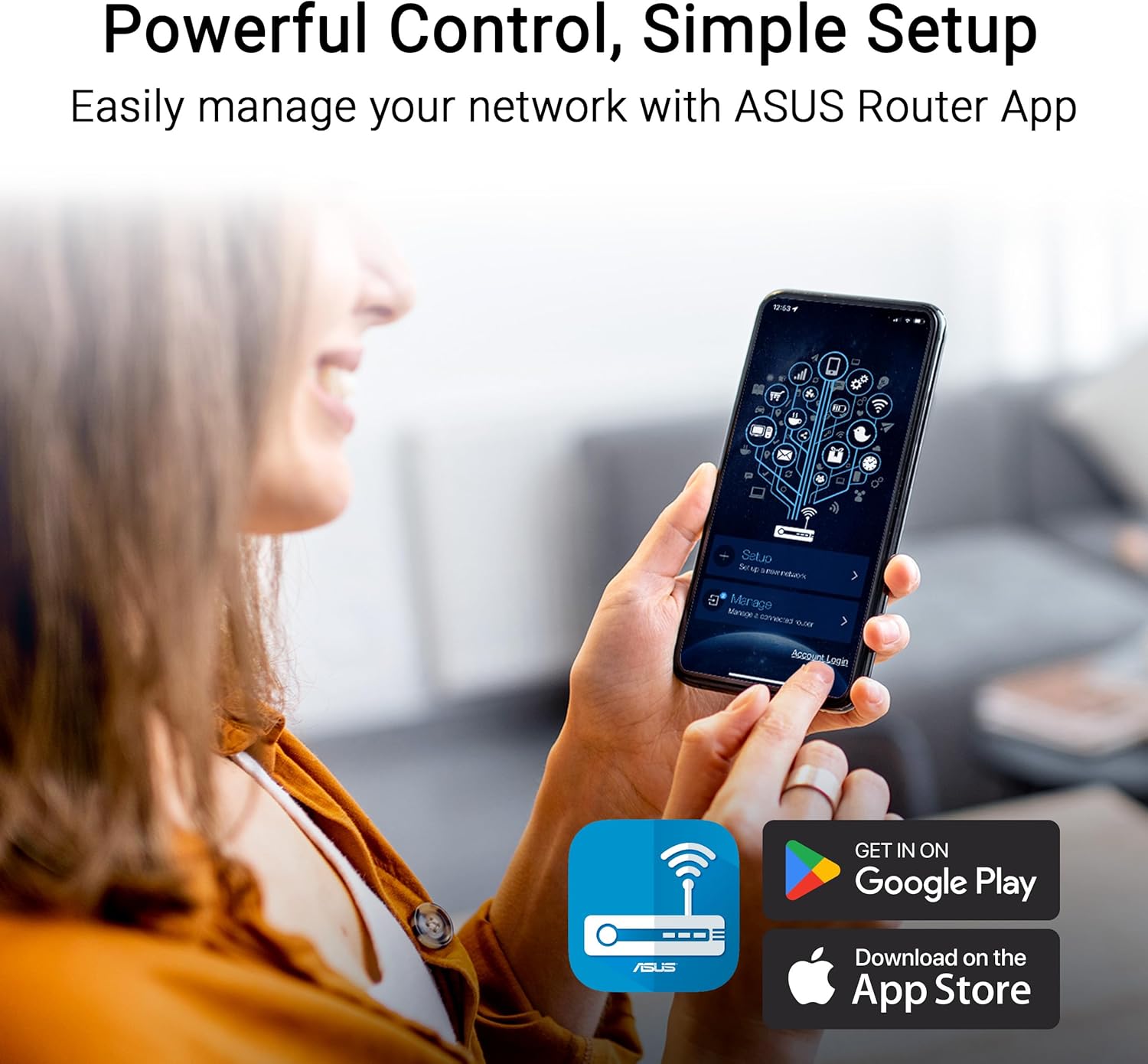
Image: A user interacting with the ASUS Router mobile app on a smartphone, demonstrating the ease of network management and setup.
작동 모드
The RT-BE58 Go supports multiple operating modes to suit different network requirements:
- 무선 라우터 모드: The standard mode where the device acts as your primary Wi-Fi router, connecting to an internet source (modem) and broadcasting a Wi-Fi network.
- AiMesh Node Mode: Integrates into an existing ASUS AiMesh system to extend Wi-Fi coverage.
- 범위 확장기 모드 : 기존 Wi-Fi 네트워크의 범위를 확장합니다.
- 액세스 포인트(AP) 모드: Connects to a wired network and broadcasts a Wi-Fi signal, converting a wired network into a wireless one.
- Media Bridge Mode: Allows wired devices to connect to a Wi-Fi network.
- 리피터 모드: Repeats an existing Wi-Fi signal to extend its range.
- Public WiFi (WISP) Mode: Connects to a public Wi-Fi network (e.g., hotel, cafe) and creates a private, secure Wi-Fi network for your devices. This mode is ideal for travel security.

Image: A woman serving coffee to a customer using a laptop, illustrating a scenario where Public WiFi (WISP) mode can be used for secure internet access in a public setting.
네트워크 관리 및 보안
The ASUS RT-BE58 Go provides robust tools for managing your network and ensuring security:
- ASUS 라우터 앱: Manage all router settings, monitor network traffic, and control connected devices from your smartphone.
- Guest Network Pro: Create separate subnetworks for guests or IoT devices. This isolates these devices from your main network for enhanced security and control.
- VPN 지원 : The router includes comprehensive VPN features, allowing you to establish secure connections. It supports various VPN protocols and can be configured as a VPN client or server.
- AI 보호: Commercial-grade network security features to protect against online threats.

Image: A screenshot of the ASUS Router app interface showing options for Guest Network Pro, VPN, and other security settings, with various VPN service logos (NordVPN, Surfshark, CyberGhost VPN) displayed.
AiMesh 설정
The RT-BE58 Go can be integrated into an ASUS AiMesh system to create a seamless whole-home Wi-Fi network. This allows you to extend your network coverage and eliminate Wi-Fi dead zones.
Steps to Add as an AiMesh Node:
- Ensure your existing ASUS router supports AiMesh and is running the latest firmware.
- Place the RT-BE58 Go within range of your AiMesh router.
- Power on the RT-BE58 Go.
- Access your main AiMesh router's web 인터페이스 또는 ASUS 라우터 앱.
- Navigate to the AiMesh section and select "Add AiMesh Node."
- The system will search for available AiMesh nodes. Select the RT-BE58 Go when it appears and follow the prompts to complete the setup.

Image: A diagram illustrating an ASUS AiMesh network, showing the RT-BE58 Go router extending Wi-Fi coverage from a main AiMesh router to cover a larger home area.
유지
정기적인 유지 관리는 라우터의 최적 성능과 수명 연장을 보장합니다.
- 펌웨어 업데이트: Regularly check for and install the latest firmware updates via the ASUS Router app or web 인터페이스. 펌웨어 업데이트에는 성능 향상, 보안 패치 및 새로운 기능이 포함되는 경우가 많습니다.
- 놓기: Position the router in an open area, away from obstructions and sources of interference (e.g., microwaves, cordless phones). For optimal signal, avoid placing it inside cabinets or near large metal objects.
- 청소: 라우터를 깨끗하게 유지하고 먼지가 쌓이지 않도록 하십시오. 부드럽고 마른 천으로 외부를 닦으십시오. 액체 세척제나 스프레이형 세척제는 사용하지 마십시오.
- 다시 시작: 주기적으로 라우터를 재시작하세요(전원 플러그를 10초간 뽑았다가 다시 꽂으세요). 그러면 연결이 새로 고쳐지고 일시적인 문제가 해결됩니다.
문제 해결
If you encounter issues with your RT-BE58 Go, try the following troubleshooting steps:
- 인터넷에 연결되지 않음:
- Check if your modem or internet source is working correctly.
- 모든 케이블이 단단히 연결되어 있는지 확인하십시오.
- Restart both your modem and the RT-BE58 Go router.
- Check the WAN connection status in the ASUS Router app or web 인터페이스.
- 느린 Wi-Fi 속도:
- 라우터가 간섭을 받지 않는 최적의 위치에 있는지 확인하십시오.
- 펌웨어 업데이트를 확인하십시오.
- 연결된 장치 수나 대역폭을 많이 사용하는 활동을 줄이세요.
- Try changing Wi-Fi channels in the router settings to avoid congestion.
- 라우터 설정에 접근할 수 없습니다:
- Ensure your device is connected to the router's Wi-Fi or LAN port.
- 올바른 IP 주소를 사용하고 있는지 확인하세요(http://router.asus.com) or the ASUS Router app.
- 브라우저의 캐시와 쿠키를 지우거나 다른 브라우저를 사용해 보세요.
- If you forgot your login credentials, you may need to perform a factory reset (refer to the Quick Start Guide for instructions).
- Wi-Fi 신호가 자주 끊어집니다.
- 안테나 위치를 조정하세요.
- 물리적 장애물이 있는지 확인하십시오.
- Consider adding an AiMesh node if coverage is insufficient.
명세서
| 특징 | 세부 사항 |
|---|---|
| 모델명 | RT-BE58 GO |
| 네트워크 표준 | IEEE 802.11a/b/g, WiFi 4 (802.11n), WiFi 5 (802.11ac), WiFi 6 (802.11ax), WiFi 6E (802.11ax), WiFi 7 (802.11be), IPv4, IPv6 |
| 데이터 속도 | WiFi 7 (2.4GHz): up to 688 Mbps; WiFi 7 (5GHz): up to 2882 Mbps (Total 3600 Mbps) |
| 안테나 | External foldable antennas |
| 메모리 | DDR4 RAM 1GB; Flash 256MB |
| 포트 | 1x 1G LAN, 1x 2.5G WAN, 1x USB 3.0, 1x USB-C Power Delivery |
| 작동 모드 | Wireless router, AiMesh Node, Range Extender, Access Point, Media Bridge, Repeater, Public Wifi Mode |
| 치수 | 4.4 x 3.9 x 1.4 인치 |
| 품목 무게 | 8 온스 |
| 전원 공급 장치 | USB-C 전원 공급 18W |
| 특별 기능 | Dual-band WiFi 7, AiMesh, Advanced VPN, Guest Network Pro |
보증 및 지원
보증: The ASUS RT-BE58 Go comes with a 3-year manufacturer warranty. Please retain your proof of purchase for warranty claims.
기술 지원: For further assistance, troubleshooting, or detailed product information, please visit the official ASUS support website. You can find drivers, manuals, FAQs, and contact information for technical support there.
온라인 리소스:
- ASUS 공식 Web대지: https://www.asus.com
- ASUS 지원: https://www.asus.com/support/