
1. 서론
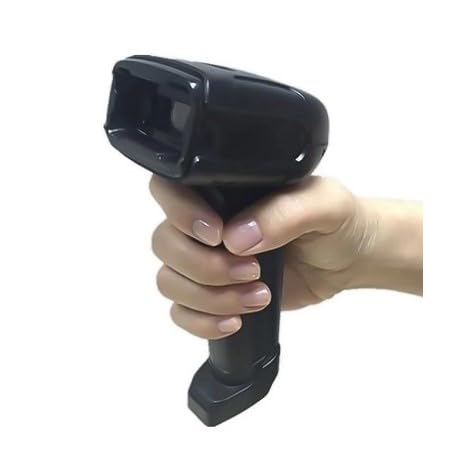
The ALFA-500 is an advanced professional 2D handheld barcode scanner designed for high performance and ease of use. This device is capable of reading both 2D codes and linear (1D) barcodes with high speed and accuracy. It is specifically engineered to meet the demands of commercial stores, offices, warehouses, and point-of-sale (POS) systems.
The scanner features a sleek, durable black design and includes a dedicated stand for convenient, continuous hands-free scanning. Its ergonomic grip ensures comfortable use during extended periods, minimizing user fatigue. The ALFA-500 provides a practical and efficient solution for daily barcode scanning requirements in professional work environments, supporting both manual and automatic scanning modes.
2. 제품 오버view
The ALFA-500 barcode scanner is a versatile tool equipped with features for efficient data capture.
- 2D Scanning Technology: Accurately reads all types of 1D and 2D barcodes.
- 인체공학적 디자인: Comfortable grip for prolonged use and a lightweight, portable design.
- Stable Desktop Stand: Included for hands-free operation, ideal for retail and office settings.
- 플러그 앤 플레이: Easy to use with no complex setup or additional software required.
- 다양한 응용 프로그램: Suitable for stores, warehouses, and offices, capable of reading barcodes from screens and various surfaces.
3. 설정
Follow these steps to set up your ALFA-500 barcode scanner:
- 스캐너 풀기: Carefully remove the scanner and its stand from the packaging.
- 스탠드를 조립하세요(선택 사항): If using the stand for hands-free operation, connect the scanner to the stand base. Ensure it is securely attached.
- 호스트 장치에 연결: Plug the USB cable from the scanner into an available USB port on your computer (laptop, desktop, or POS system).
- 드라이버 설치: The scanner is plug-and-play. Your operating system should automatically detect and install the necessary drivers. No additional software installation is typically required.
- 테스트 연결: Open a text editor (e.g., Notepad, Word) or a compatible application on your computer. Scan any barcode to verify that the data appears correctly in the application.

4. 사용 설명서
The ALFA-500 scanner supports both manual and automatic scanning modes.
4.1. 수동 스캐닝
- Hold the scanner in your hand, ensuring a comfortable grip.
- 스캔하려는 바코드에 스캐너 창을 대세요.
- 방아쇠 버튼을 길게 누르세요. 빨간색 조준선 또는 표시등이 나타납니다.
- Align the aiming line across the entire barcode.
- Once the barcode is successfully read, the scanner will emit a beep and the data will be transmitted to your connected device.
4.2. Automatic Scanning (Hands-Free)
- Place the scanner securely in its desktop stand.
- Ensure the scanner is configured for automatic mode (refer to the advanced configuration guide if needed, typically by scanning a specific setup barcode).
- Present the barcode in front of the scanner's window. The scanner will automatically detect and read the barcode without needing to press the trigger.
- A successful scan will be indicated by a beep, and the data will be sent to your device.
4.3. 지원되는 바코드 유형
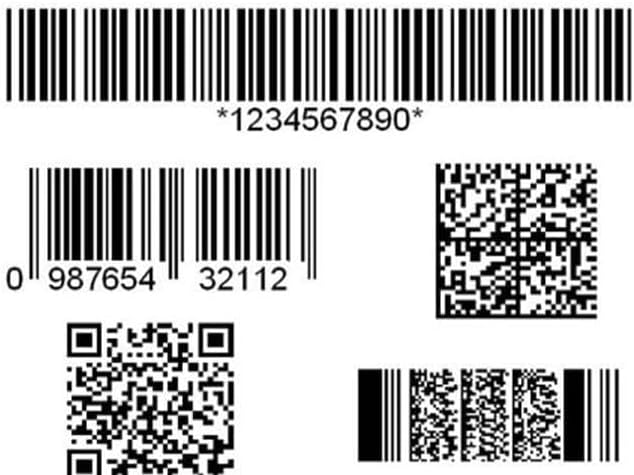
The ALFA-500 can read a wide range of 1D and 2D barcodes, including:
- 1D 바코드: UPC/EAN, Code 128, Code 39, Code 93, Interleaved 2 of 5, Industrial 2 of 5, Matrix 2 of 5, Codabar, MSI, etc.
- 2D 바코드: QR Code, Data Matrix, PDF417, Aztec Code, etc.
5. 유지관리
적절한 유지관리는 스캐너의 수명과 최적의 성능을 보장합니다.
- 청소: 부드럽고 털이 없는 천을 살짝 사용하세요.ampened with water or a mild cleaning solution to wipe the scanner's exterior. Do not use abrasive cleaners or solvents.
- 스캔 창 청소: Gently wipe the scan window with a clean, dry, soft cloth. Avoid scratching the surface.
- 저장: 스캐너는 직사광선과 극한의 온도를 피해 시원하고 건조한 곳에 보관하세요.
- 케이블 관리: 손상을 방지하려면 USB 케이블을 과도하게 구부리거나 비틀지 마세요.
6. 문제 해결
If you encounter issues with your ALFA-500 scanner, try the following solutions:
- 스캐너가 응답하지 않음:
- USB 케이블이 스캐너와 호스트 장치에 모두 단단히 연결되어 있는지 확인하세요.
- 스캐너를 다른 USB 포트에 연결해 보세요.
- 컴퓨터를 다시 시작하세요.
- 스캔 후 데이터 출력 없음:
- 사용 중인 애플리케이션(예: 텍스트 편집기, POS 소프트웨어)이 활성화되어 있고 입력을 받을 준비가 되었는지 확인하십시오.
- Check if the scanner emits a beep after a successful scan. If not, ensure proper aiming and lighting conditions.
- 바코드가 손상되지 않았거나 인쇄 상태가 좋지 않은지 확인하세요.
- 잘못된 데이터 출력:
- The scanner might be configured for a different keyboard layout. Refer to the advanced configuration guide for setting the correct keyboard language.
- Ensure the barcode symbology is enabled in the scanner's settings (if applicable).
- 스캐너가 계속 삐 소리를 냅니다:
- This may indicate a configuration error or a hardware issue. Disconnect and reconnect the scanner. If the issue persists, consult the advanced configuration guide or contact support.
7. 사양
| 특징 | 세부 사항 |
|---|---|
| 호환 장치 | Laptop, Desktop, Point of Sale (POS) |
| 전원 | USB |
| 상표 | 알파 |
| 연결 기술 | USB |
| 필요한 배터리 | Lithium Ion (internal, not user-replaceable) |
| 스캔 속도 | 100회 스캔/초 |
| 제품 크기(D x W x H) | 6.6cm x 9.5cm x 17cm |
| 최대 보관 온도 | 50°C(122°F) |
| 운영 볼륨tage | 5 볼트 |
| 지원되는 바코드 유형 | 2D Barcode (QR, Data Matrix, PDF417), Linear Barcode (1D) |
| Optical Scan Rate | 100회 스캔/초 |
| 진짜 View 각도 | 60도 |
| 제조업체 | 알파 |
| 원산지 | 중국 |
| 품목 무게 | 200그램 |
8. 보증 및 지원
The ALFA-500 barcode scanner comes with a 1년 보증 구매일로부터, 정상적인 사용 중 발생한 제조상의 결함에 한해 보증이 제공됩니다. 보증 청구를 위해 구매 증빙 서류를 보관해 주십시오.
For technical support, troubleshooting assistance, or warranty inquiries, please refer to the contact information provided by your retailer or the official ALFA support channels. Do not attempt to repair the device yourself, as this may void the warranty.