
소개
This manual provides detailed instructions for the installation, operation, and maintenance of your GIGABYTE X870E AORUS Master X3D ICE Motherboard. This high-performance ATX motherboard is designed to support AMD Ryzen 9000, 8000, and 7000 Series Processors on the AM5 LGA 1718 socket. It features an enhanced power solution with a Digital Twin 18+2+2 Power Phase, advanced thermal armor, DDR5 memory support, multiple PCIe 5.0 and M.2 slots, WIFI7, and 10GbE connectivity.
설정
마더보드와 구성 요소를 올바르게 설치하려면 다음 단계를 따르세요.
1. CPU 설치
Carefully open the CPU socket lever. Align the triangular mark on your AMD Ryzen processor with the corresponding mark on the LGA 1718 socket. Gently place the CPU into the socket without forcing it. Close the lever to secure the CPU.
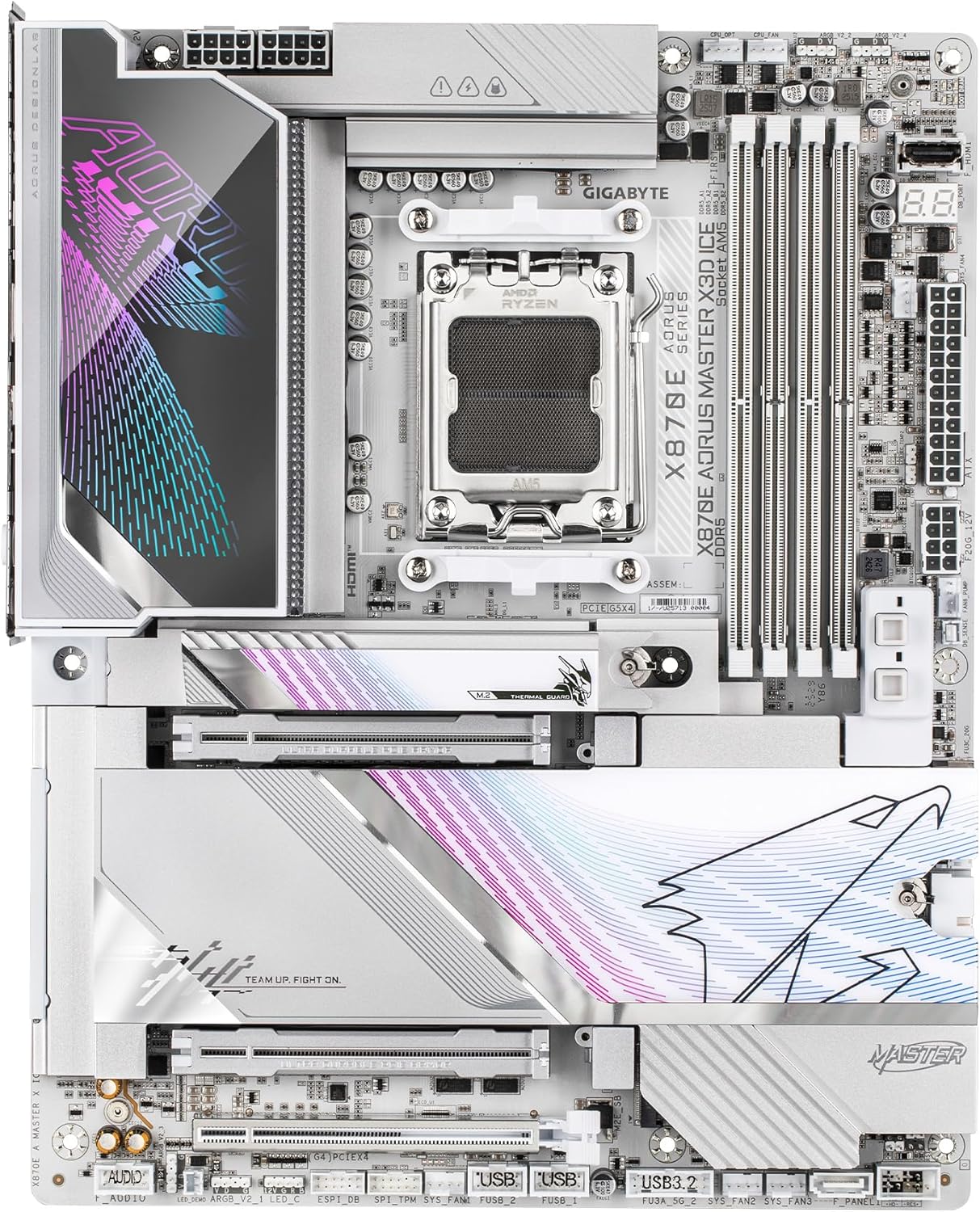
Image: AMD AM5 LGA 1718 CPU Socket
2. RAM (DDR5 Memory) Installation
Locate the four DDR5 DIMM slots. Open the clips on both ends of the memory slot. Align the notch on the DDR5 memory module with the key in the DIMM slot. Insert the memory module firmly until the clips snap into place. Ensure both clips are fully closed.

Image: DDR5 Memory Installation
3. M.2 SSD 설치
The motherboard features 2x PCIe 5.0 M.2 slots and 3x PCIe 4.0 M.2 slots. Remove the M.2 heatsink cover. Insert the M.2 SSD into the slot at an angle, then gently push it down and secure it with the M.2 EZ-Latch mechanism. Reattach the heatsink for optimal thermal performance.

Image: M.2 and PCIe Slots
4. PCIe 카드 설치
This motherboard includes 2x PCIe Gen 5 x16 slots with reinforced PCIe UD armor. Open the retention clip on the PCIe slot. Align your graphics card or expansion card with the slot and press firmly until it clicks into place. Ensure the card is fully seated and secure the retention clip.

Image: PCIe and M.2 Slot Layout
5. 전원 연결
Connect the 24-pin ATX main power connector and the 8-pin (or 8+4-pin) CPU power connectors from your power supply to the corresponding ports on the motherboard.
6. 전면 패널 및 I/O 연결
Connect your case's front panel headers (power button, reset button, USB ports, audio jacks) to the appropriate pins on the motherboard. The motherboard features an integrated I/O Shield for simplified installation of external devices.

Image: Rear I/O Panel
시각적으로 살펴보려면view of the motherboard's features and design, please refer to the official trailer below:
Video: GIGABYTE X870E X3D - Official Trailer. This video provides a general overview of the motherboard's design and key features.
운영
1. BIOS/UEFI 설정
Upon first boot, press the designated key (usually DEL or F2) to enter the BIOS/UEFI setup. Here you can configure boot order, system time, and advanced settings. Refer to the on-screen instructions within the BIOS for navigation and specific options.
2. 드라이버 설치
After installing your operating system, install the latest drivers for the chipset, graphics, audio, LAN, and WIFI7 from the GIGABYTE official web사이트. 이를 통해 최적의 성능과 안정성이 보장됩니다.
3. AI Overclocking (AORUS AI Snatch)
The motherboard supports AORUS AI Snatch for intelligent overclocking. Consult the GIGABYTE software utility manual for detailed instructions on how to utilize this feature to optimize your system's performance.
유지
1. BIOS 업데이트
기가바이트를 정기적으로 확인하세요 website for BIOS updates. BIOS updates can improve system stability, compatibility, and performance. Follow the instructions provided by GIGABYTE carefully when performing a BIOS update to avoid system damage.
2. 청소
컴퓨터 내부를 주기적으로 청소하여 먼지 축적을 방지하고 과열을 예방하세요. 압축 공기를 사용하여 방열판, 팬 및 기타 부품의 먼지를 제거하십시오. 청소하기 전에 시스템 전원을 끄고 전원 케이블을 뽑으십시오.
3. 구성 요소 검사
Occasionally inspect all cable connections (power, SATA, USB) to ensure they are secure. Verify that all expansion cards and memory modules are properly seated in their slots.
문제 해결
1. 전원 없음/부팅 안 됨
- Ensure all power cables (24-pin ATX, CPU power) are securely connected to the motherboard and power supply.
- 전원 공급 장치가 켜져 있고 올바르게 작동하는지 확인하세요.
- Check front panel connections for the power button.
2. 디스플레이 문제
- Confirm that your monitor is connected to the correct graphics output (either dedicated GPU or motherboard's integrated graphics if supported by CPU).
- 그래픽 카드를 PCIe 슬롯에 다시 장착하십시오.
- Check monitor cables for secure connections.
3. 구성 요소가 감지되지 않음
- For RAM: Reseat memory modules. Try booting with one module at a time.
- For M.2 SSDs: Ensure they are properly seated and secured. Check BIOS settings to confirm M.2 slot detection.
- For PCIe cards: Reseat the card. Ensure necessary drivers are installed.
4. Error Code LED
The motherboard may feature a functional error code LED display. Consult the GIGABYTE user manual (available on their website) for a list of error codes and their corresponding troubleshooting steps.
명세서
| 특징 | 세부 사항 |
|---|---|
| 상표 | 기가바이트 |
| 모델명 | X870E AORUS MASTER X3D ICE |
| CPU 소켓 | LGA 1718 |
| 호환 프로세서 | AMD Ryzen 7000, 8000, 9000 series |
| 칩셋 유형 | AMD X870E |
| RAM 메모리 기술 | DDR5 |
| 메모리 클럭 속도 | 5200 MHz (Supports higher via EXPO) |
| 사용 가능한 메모리 슬롯 | 4 |
| Ram Memory Maximum Size | 256GB (XNUMX기가바이트) |
| 그래픽 카드 인터페이스 | PCI Express (2x PCIe Gen 5 x16 slots) |
| M.2 슬롯 | PCIe 5.0 M.2 슬롯 2개, PCIe 4.0 M.3 슬롯 2개 |
| 총 SATA 포트 수 | 2 |
| 총 USB 포트 | 11 (including USB4 Type-C, USB 3.2 Gen 2x2 Type-C) |
| 이더넷 포트 | 2 (10GbE) |
| 무선 연결 | 와이파이7 |
| 치수(길이 x 너비 x 높이) | 12.01인치 길이 x 9.61인치 너비 x 1.75인치 높이 |
| 플랫폼 | 윈도우 11 |
보증 정보
The GIGABYTE X870E AORUS Master X3D ICE Motherboard comes with a 5년 제조업체 보증보증 청구를 위해 구매 증빙 자료를 보관해 주십시오. 자세한 약관은 GIGABYTE 공식 보증 정책을 참조하십시오. web대지.
지원하다
For further assistance, technical support, driver downloads, or updated manuals, please visit the official GIGABYTE support web대지:
You can also find additional resources and community forums on the GIGABYTE AORUS brand store: