
1. 서론
Welcome to the Thunderobot Zero 16 Pro Gaming Laptop user manual. This guide provides essential information for setting up, operating, maintaining, and troubleshooting your new high-performance gaming laptop. The Thunderobot Zero 16 Pro is engineered for an immersive gaming experience, featuring an Intel Core Ultra 9 275HX processor, NVIDIA GeForce RTX 5080 graphics, a 16-inch QHD+ 360Hz display, 64GB DDR5 RAM, and a 2TB PCIe M.2 SSD.
Please read this manual thoroughly to ensure proper usage and to maximize the potential of your device.
2. 설정
2.1 언박싱 및 초기 검사
Carefully remove all components from the packaging. Verify that all items are present and undamaged. The package should include the Thunderobot Zero 16 Pro laptop, power adapter, and this user manual.
2.2 전원 어댑터 연결
전원 어댑터를 노트북의 전원 입력 포트에 연결한 다음 벽면 콘센트에 꽂으세요. 처음 사용하기 전에 배터리를 완전히 충전하는 것이 좋습니다.

Image: The Thunderobot Zero 16 Pro Gaming Laptop in a closed position, displaying its sleek design and the brand logo on the lid.
2.3 최초 전원 켜기
Press the power button located on the keyboard to turn on the laptop. Follow the on-screen instructions to complete the initial Windows 11 Home setup.
2.4 주변기기 연결하기
The laptop offers various ports for connecting external devices. Refer to the 'Ports and Slots' section for detailed port identification.
이미지: 자세한 view of the laptop's rear and side ports, including USB-A, USB-C, HDMI, and RJ-45, with labels for easy identification.
3. 운영
3.1 키보드 및 터치패드
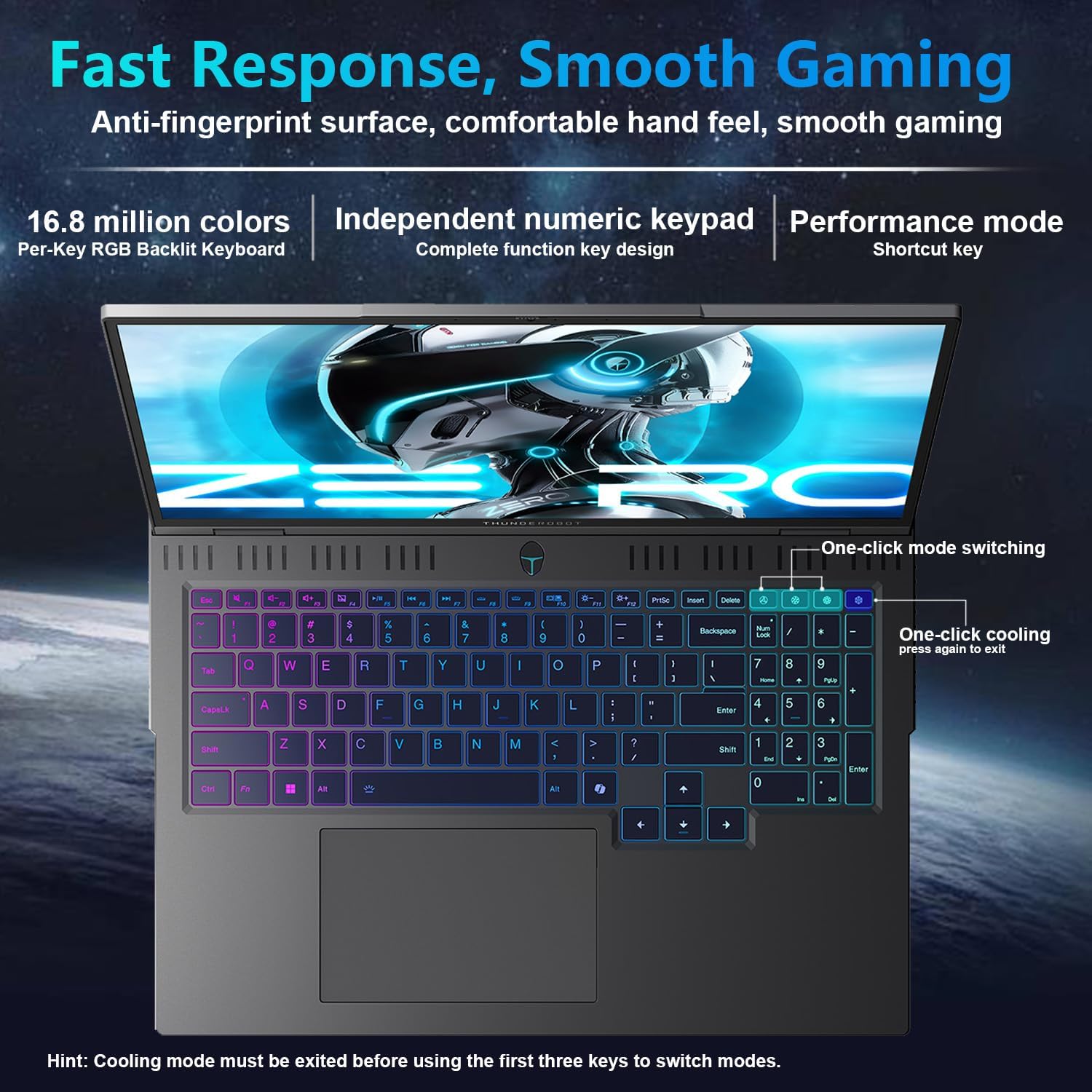
The Thunderobot Zero 16 Pro features a full-size keyboard with per-key customizable RGB lighting and an independent numeric keypad. The touchpad supports multi-touch gestures for intuitive navigation.
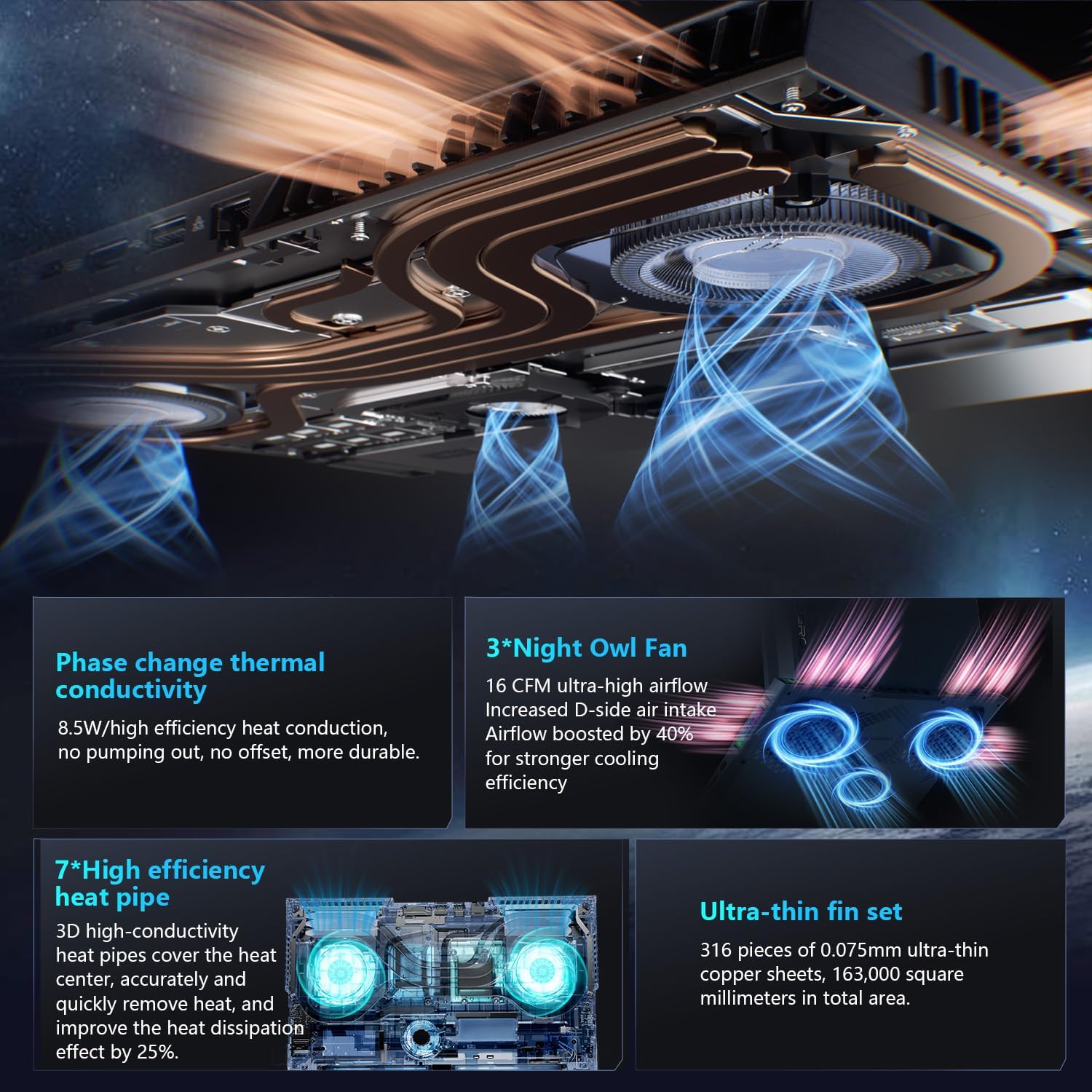
Image: A top-down perspective of the laptop's keyboard, showcasing its per-key RGB backlighting and the layout of the keys, including the numeric keypad.
3.2 디스플레이 설정
The 16-inch QHD+ (2560x1600) display offers a 360Hz refresh rate. To utilize the highest refresh rate, ensure the dedicated graphics direct connection mode is enabled in the control center. The display also incorporates advanced eye-care technology for comfortable view주고받음.
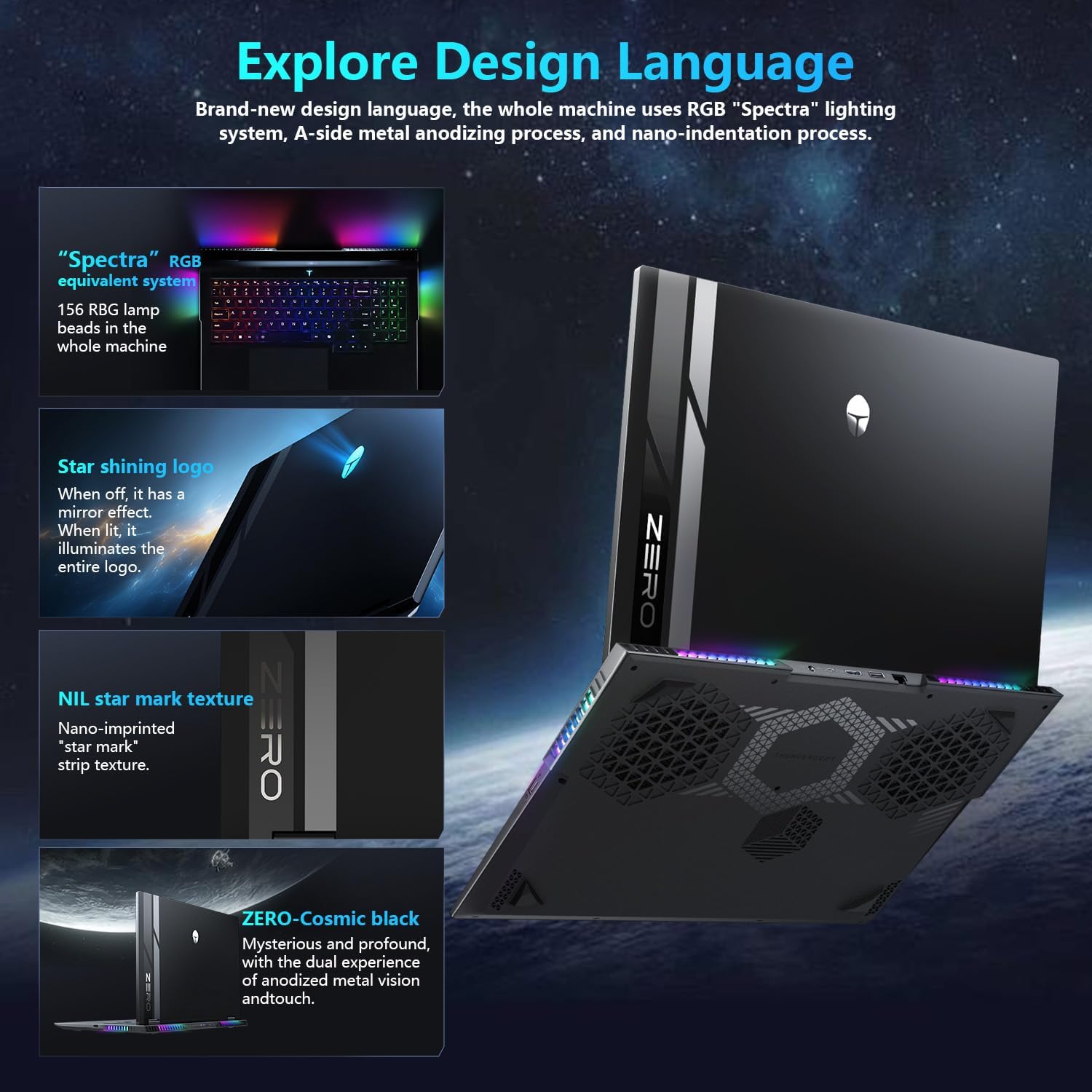
Image: A close-up of the laptop's 16-inch QHD+ display, showcasing its vibrant colors and high resolution, emphasizing its eye-care features.
3.3 AI 지능형 관제센터
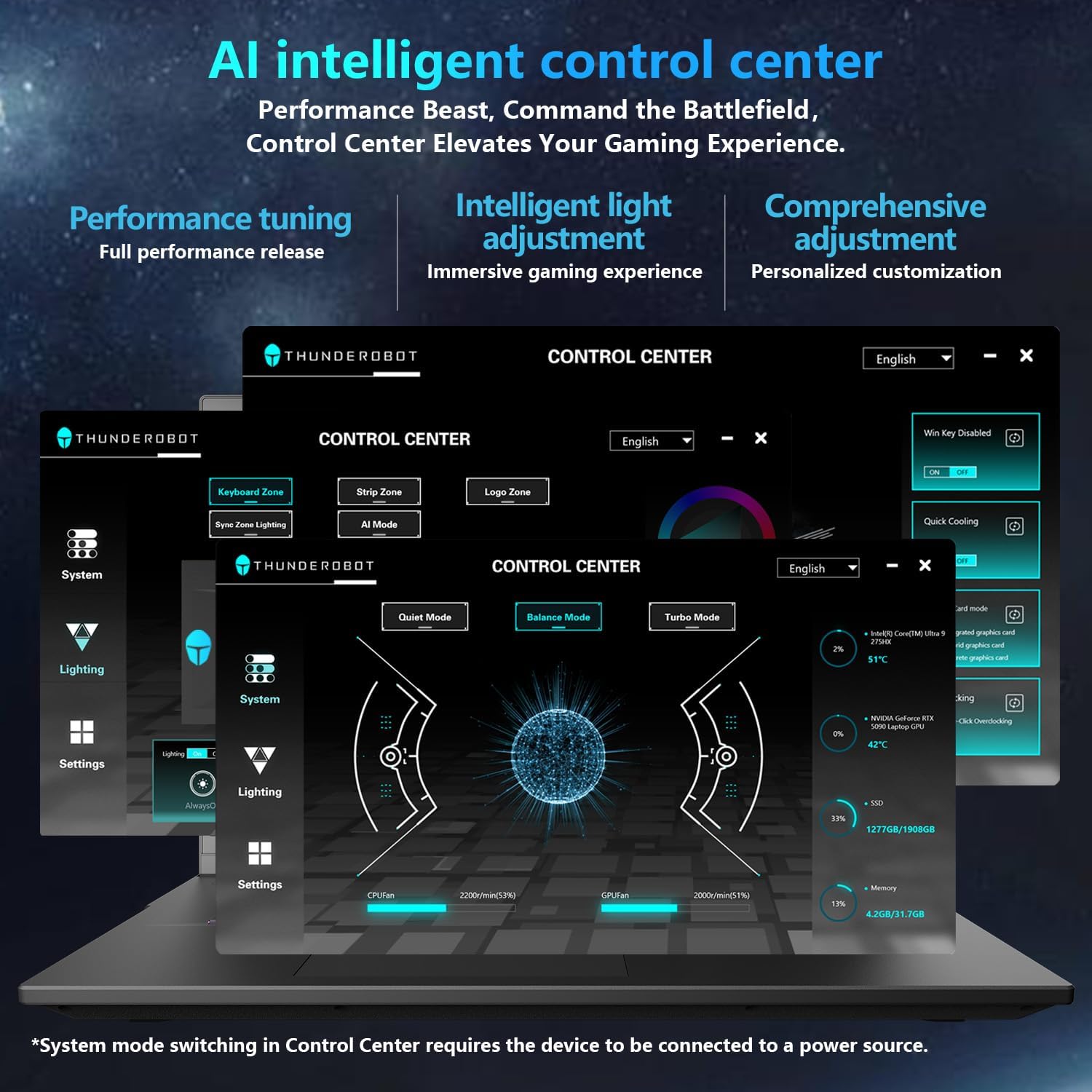
The AI Intelligent Control Center allows for performance tuning, intelligent light adjustment, and comprehensive customization. You can switch between Quiet Mode, Balance Mode, and Turbo Mode, and control the RGB lighting for the keyboard and chassis.
Video: An official video demonstrating the features and capabilities of the Thunderobot Zero 16 Pro Gaming Laptop, including its design and performance.
4. 주요 특징
4.1 AI-Driven Performance
Harness the power of the Intel Core Ultra 9 275HX processor with 24 cores and turbo speeds up to 5.40GHz, combined with NVIDIA GeForce RTX 5080 graphics. This configuration ensures seamless multitasking and immersive visuals for demanding applications and games.

Image: A visual representation detailing the Intel Core Ultra 9 275HX processor and the NVIDIA GeForce RTX 5080 graphics card, highlighting their advanced architecture.
4.2 High-Speed Memory & Storage
Equipped with 64GB DDR5 RAM and a 2TB PCIe M.2 SSD, the Zero 16 Pro delivers ultra-fast responsiveness and vast storage capacity, ensuring instant access and smooth performance.
4.3 고급 냉각 시스템
The laptop features a next-gen cooling design with dual Night Owl fans, 7 extended heat pipes, and 316 ultra-thin copper fins, creating a massive 163,000mm² thermal surface. This system ensures lightning-fast heat dissipation and uninterrupted performance during intense gaming sessions.

이미지: 내부 다이어그램asing the laptop's advanced cooling system, featuring dual fans and multiple heat pipes designed for efficient thermal management.
4.4 Next-Level Connectivity
The Zero 16 Pro is equipped with multiple ports including USB-A ×3, USB-C, HDMI, RJ-45, and an audio port. It also supports Wi-Fi 6E and Bluetooth for high-speed wireless connectivity.
이미지: 사이드 프로file of the laptop, highlighting the array of connectivity ports available for external devices and networks.
4.5 Spectra RGB Lighting System
The laptop features a 'Spectra' RGB lighting system equipped with 156 RGB light beads throughout the machine, offering customizable lighting effects.
4.6 Engineered for Reliability
Built to endure rigorous conditions, the laptop has passed tests for 180G impacts, 74cm drops, 10kg palm stress, 20kg screen pressure, and operates reliably in temperatures from -20°C to 60°C with 20–90% humidity.
영상: 공식 영상 쇼케이스asing the display features of the Thunderobot series, emphasizing its visual quality and eye-care technology.
5. 유지관리
5.1 노트북 청소
Regularly clean the screen with a soft, lint-free cloth and a screen-safe cleaning solution. Use compressed air to clear dust from the keyboard and ventilation grilles. Avoid harsh chemicals or abrasive materials.
5.2 소프트웨어 업데이트
Keep your operating system and drivers updated to ensure optimal performance and security. Check the Thunderobot support website for the latest driver releases for your model.
5.3 배터리 관리
To prolong battery life, avoid fully discharging the battery frequently. If you primarily use the laptop while plugged in, consider enabling a battery care mode (if available in the control center) to limit charging to a certain percentage.
5.4 스토리지 관리
주기적으로 불필요한 것들을 정리하세요 files and applications to maintain optimal SSD performance. Consider external storage for large files to free up internal space.
6. 문제 해결
6.1 노트북 전원이 켜지지 않음
- 전원 어댑터가 노트북과 작동하는 전원 콘센트에 모두 단단히 연결되어 있는지 확인하세요.
- 다른 장치를 연결하여 전원 콘센트가 작동하는지 확인하세요.
- 배터리가 완전히 방전된 경우, 다시 전원을 켜기 전에 최소 30분 동안 충전하십시오.
6.2 디스플레이 문제
- If the screen is black, try connecting an external monitor to check if the issue is with the laptop's display or the graphics output.
- 그래픽 드라이버가 최신 버전인지 확인하십시오.
- If experiencing crashes or a black screen during gaming, especially with the RTX 5080, try turning off 'hardware acceleration' in relevant application settings. This can sometimes resolve compatibility issues.
6.3 성능 저하
- Check the AI Intelligent Control Center to ensure the laptop is in 'Turbo Mode' or 'Balance Mode' for demanding tasks.
- Monitor CPU and GPU temperatures using the Control Center. Excessive heat can lead to performance throttling. Ensure ventilation grilles are clear of obstructions.
- 불필요한 백그라운드 애플리케이션을 닫습니다.
6.4 연결 문제
- For Wi-Fi issues, restart your router and the laptop. Check Wi-Fi driver status in Device Manager.
- For wired network (RJ-45) issues, ensure the cable is properly connected and check network adapter settings.
7. 사양
| 특징 | 세부 사항 |
|---|---|
| 모델명 | 제로 16 프로 |
| 프로세서 | Intel Core Ultra 9 275HX (24 Cores, up to 5.4 GHz) |
| 숫양 | 64GB DDR5(4800MHz) |
| 저장 | 2TB SSD (PCIe x4) |
| 그래픽 코프로세서 | NVIDIA GeForce RTX 5080 (전용) |
| 표시하다 | 16 Inches QHD+ (2560 x 1600 pixels), 360Hz Refresh Rate |
| 운영 체제 | 윈도우 11 홈 |
| 무선 연결 | Wi-Fi 6E, 블루투스 |
| 포트 | 3x USB 3.0, 1x USB-C, HDMI 2.1, RJ-45, Audio Port |
| 품목 무게 | 12파운드 |
| 제품 치수 | 14.09 x 10.52 x 1.03 인치 |
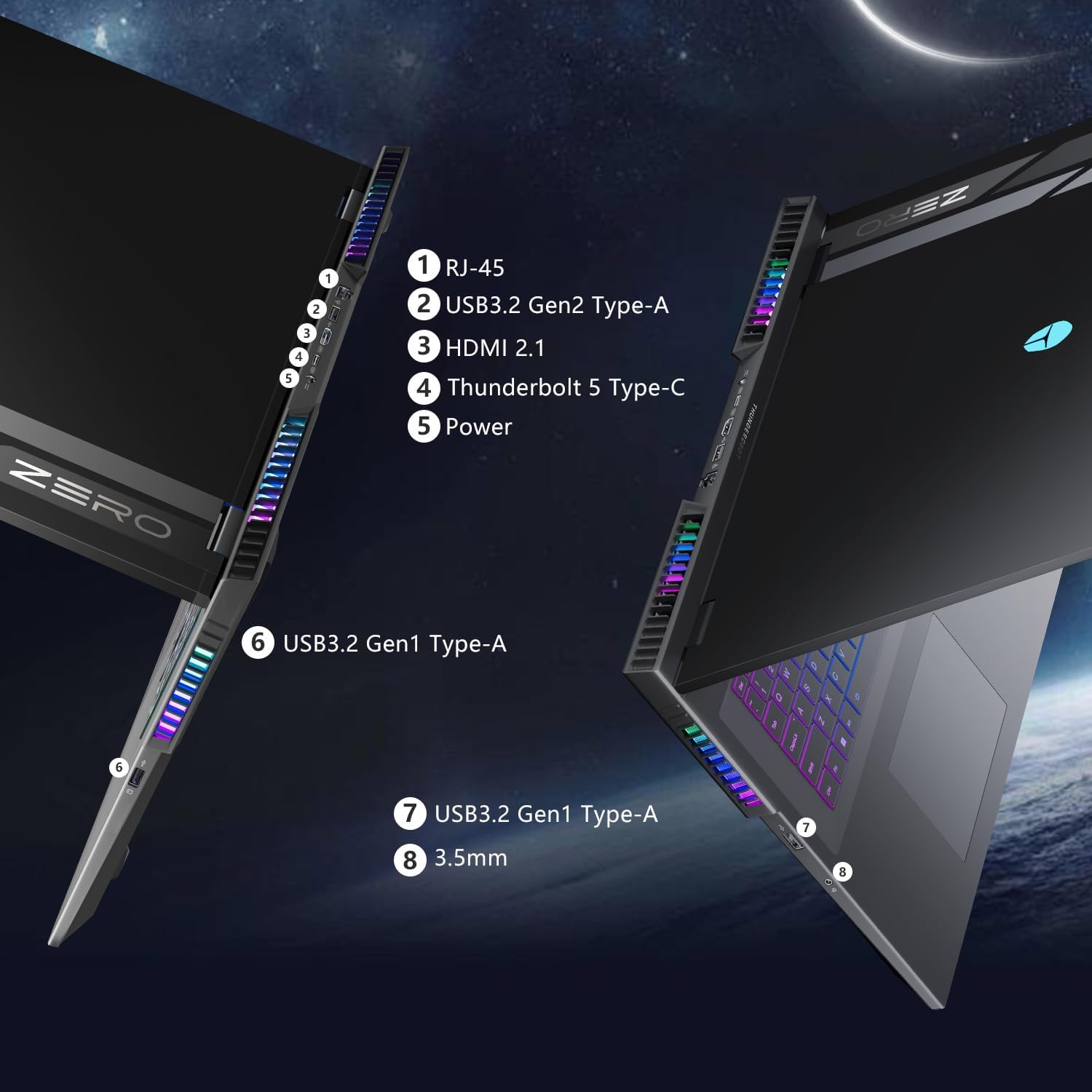
이미지: 클로즈업 view of the laptop's side, showing the various ports and the integrated RGB lighting strip.
8. 보증 및 지원
8.1 보증 정보
Every Thunderobot laptop includes a 12-month warranty, covering manufacturing defects and ensuring expert support. Additionally, a 90-day warranty is provided on all warranty replacement parts, ensuring hassle-free repairs and genuine components.
8.2 고객 지원
For technical assistance, troubleshooting, or warranty claims, please visit the official Thunderobot support web해당 웹사이트를 방문하거나 고객 서비스 센터에 문의하십시오. 더 빠른 서비스를 위해 구매 영수증과 제품 일련 번호를 준비해 두시기 바랍니다.