
1. 서론
This manual provides detailed instructions for the installation, operation, and maintenance of your Hodozzy Carplay DAB+ Car Radio. This unit features an Android 13 operating system, a 9-inch touchscreen, 4GB RAM, and 64GB ROM, offering a stable and responsive user experience. Key functionalities include wireless CarPlay and Android Auto, DAB+ and FM/RDS radio, GPS navigation, Bluetooth 5.0, Wi-Fi connectivity, split-screen multitasking, and support for steering wheel controls and a backup camera.
2. 설정 및 설치
Before installation, ensure all components are present. The package typically includes the main unit, GPS antenna, USB cables, rear camera input cable, RCA cables, camera, installation tools, user manual, microphone, power cable, radio cable, audio cable, and other accessories.
2.1 호환성 검사
This car radio is specifically designed for Peugeot 207 models manufactured between 2005 and 2015. Verify that the interfaces of the various accessories are compatible with your vehicle before proceeding with installation.

Image: Comparison of the Peugeot 207 dashboard before and after the installation of the Hodozzy car radio, showcasing the integrated 9-inch display.
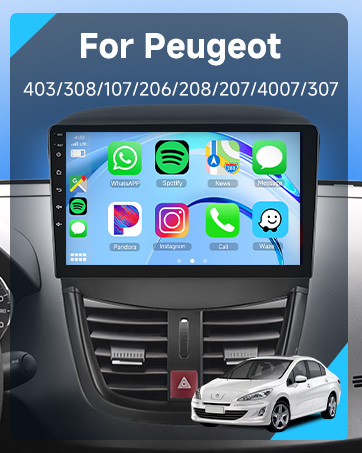
Image: A visual representation of the car infotainment system's interface, integrated into a Peugeot dashboard, displaying various application icons.
2.2 컴포넌트 오버view 및 치수
Refer to the diagram below for the product's dimensions and a visual list of included components. Ensure you identify each part before beginning the installation process.

Image: A detailed diagram illustrating the physical dimensions of the Hodozzy car radio unit and a comprehensive list of all accessories provided in the package, such as GPS antenna, USB cables, and the rear camera.
2.3 Basic Wiring and Connections
- 전원 케이블 : Connect the main power harness to your vehicle's electrical system. Ensure correct polarity.
- GPS 안테나 : GPS 안테나를 깨끗한 곳에 설치하세요. view 하늘에서 볼 수 있는 조명으로, 보통 대시보드나 앞유리 아래에 설치됩니다.
- USB 케이블: Connect the provided USB cables for external device connectivity and data transfer.
- 후방 카메라 입력: Connect the rear camera input cable to the designated port.
- RCA 케이블: Use RCA cables for audio/video output connections if required.
- 마이크로폰: Connect the external microphone for improved hands-free calling audio quality.
3. 사용 설명서
3.1 시스템 종료view
The unit runs on Android 13, providing a familiar and intuitive interface. The 9-inch touchscreen with 1280x720 resolution offers clear visuals and responsive touch control.
3.2 Wireless CarPlay & Android Auto / Mirror Link
Connect your smartphone wirelessly via Bluetooth or Wi-Fi, or using a USB cable, to access CarPlay or Android Auto functionalities. This allows for seamless integration of your phone's navigation, music, and communication apps directly on the car radio screen. The Mirror Link function enables screen mirroring from your phone to the unit (two-way control for Android, one-way for iOS).
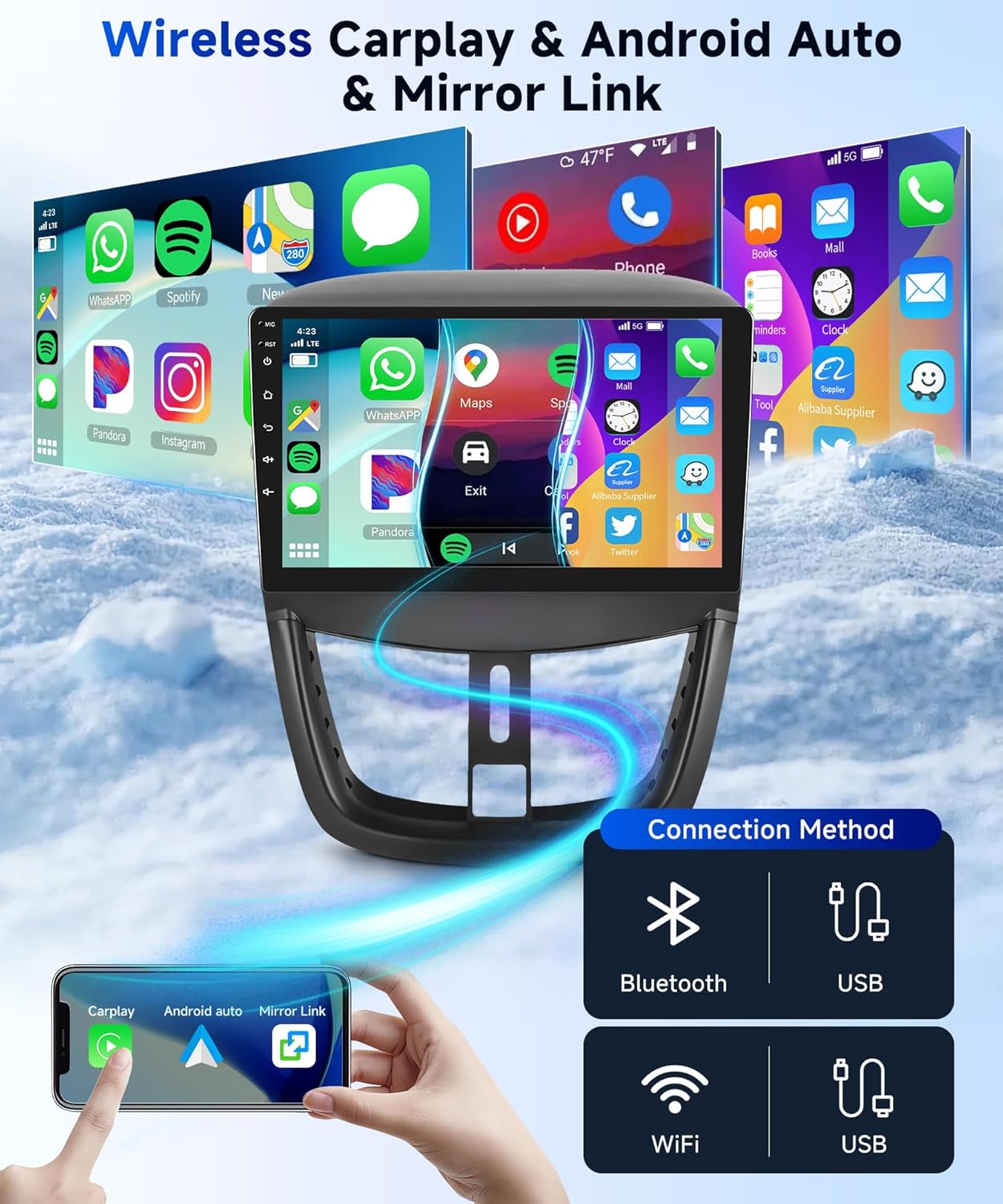
Image: A visual guide demonstrating the various connection methods for Wireless CarPlay and Android Auto, including Bluetooth, USB, and Wi-Fi, with a smartphone mirroring its display to the car radio.
3.3 Radio Functions (DAB+/FM/RDS)
The unit supports both Digital Audio Broadcasting (DAB+) and conventional FM radio with RDS. DAB+ provides superior sound quality, a wider selection of stations, and on-screen information such as song titles. Use the radio application to scan for available stations and save your favorites.

Image: The car radio's display interface for RDS FM radio, showing frequency tuning and preset buttons, alongside a separate screen for DAB+ digital radio station selection and a DAB antenna accessory.
3.4 GPS 내비게이션 및 Wi-Fi
The built-in GPS receiver allows for accurate navigation. You can download free offline maps from the "Here We Go" app or use other online navigation applications. Connect to Wi-Fi via a hotspot to access online services and download additional applications.
3.5 Bluetooth 5.0 & HiFi Audio
Bluetooth 5.0 enables stable and fast connections for hands-free calling with the integrated microphone, contact synchronization, and wireless music streaming. The HiFi audio system ensures excellent sound quality and detailed audio performance for an immersive listening experience.
3.6 분할 화면 기능
Utilize the split-screen feature to run two applications simultaneously, such as navigation and music playback, enhancing convenience during your drive.
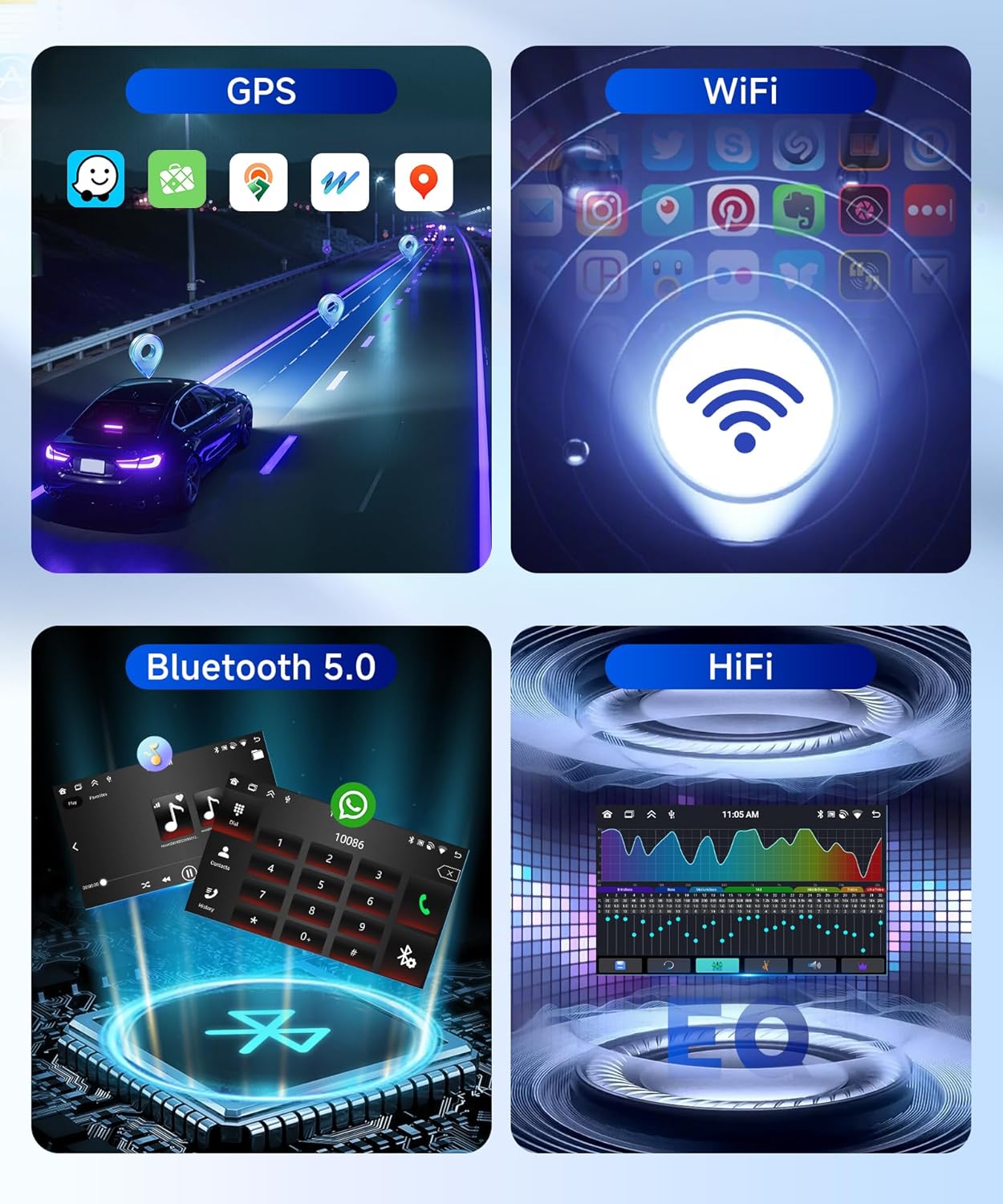
Image: A composite image highlighting key features: GPS navigation with map applications, Wi-Fi connectivity symbol, Bluetooth 5.0 interface for calls and music, and a HiFi audio equalizer display.
3.7 스티어링 휠 컨트롤
The unit supports steering wheel controls, allowing you to manage functions like volume, track changes, and mode selection directly from your steering wheel for safer and more convenient operation.
3.8 후방 카메라
The included AHD rear camera provides clear, waterproof, and night vision capabilities. The display automatically switches to the rear view 차량을 후진 기어로 넣으면 주차 및 조작이 용이해집니다.

Image: The car radio screen displaying the backup camera feed with parking guidelines, alongside an illustration of the steering wheel control programming interface and a visual of a steering wheel.
4. 유지관리
4.1 장치 청소
To clean the touchscreen and the unit's exterior, use a soft, dry cloth. For stubborn smudges, slightly dampen the cloth with water or a screen-safe cleaner. Avoid abrasive materials or harsh chemicals, as these can damage the screen and finish.
4.2 소프트웨어 업데이트
Periodically check for available software updates to ensure optimal performance and access to new features. Updates can typically be downloaded via Wi-Fi or USB. Follow the on-screen instructions for installation.
5. 문제 해결
- 전원 없음: 모든 전원 연결부와 퓨즈를 점검하십시오. 시동이 켜져 있는지 확인하십시오.
- 소리 없음: 스피커 연결 상태, 볼륨 설정 및 오디오 소스 선택을 확인하십시오.
- GPS 신호 손실: GPS 안테나가 제대로 연결되어 있고 장애물이 없는지 확인하십시오. view 하늘의.
- 블루투스 연결 문제: 차량용 라디오와 기기 모두에서 블루투스가 활성화되어 있는지 확인하세요. 기기 연결을 해제했다가 다시 연결해 보세요.
- 터치스크린이 반응하지 않음: Try restarting the unit. If the issue persists, a factory reset may be necessary.
- 공장 초기화 : If experiencing persistent software issues, you can perform a factory reset. The factory setting code is 1234참고로 이렇게 하면 모든 사용자 데이터와 설정이 삭제됩니다.
6. 사양
| 체계 | 안드로이드 13 |
| 칩셋 | 8257 (8코어) |
| 화면 크기 | 9 인치 |
| 메모리(RAM) | 4GB (XNUMX기가바이트) |
| 저장 장치(ROM) | 64GB (XNUMX기가바이트) |
| 디스플레이 해상도 | 1280 x 720 |
| 라디오 칩 | 8035 |
| 출력 전력 | 4 x 45 W (Total 180 Watt) |
| 블루투스 버전 | 5.0 |
| 작동 온도 | -20 °C ~ 75 °C |
| 스티어링 휠 제어 | 지원됨 |
| 성능 Amp리퍼 칩 | YD7388 |
| 고주파 | FM/RDS, DAB+ |
| 비디오 출력 | 지원됨 |
| 후방 입력 | AHD/CVBS |
| 외부 마이크 | 지원됨 |
| 분할 화면 | 지원됨 |
| 지도 | Integrated offline maps (data download required) |
| 무선랜 | 지원됨 |
| USB 인터페이스 | USB 타입 A |
| 오디오 포맷 | APE/FLAC/WAV/MP3/WMA 등 |
| 비디오 형식 | MKV/RMVB/AVI/MP4/MDV 등 |
| 이미지 형식 | PNG/JPEG/JPG/GIF/WBMP/BNP 등 |
| 공장 설정 코드 | 1234 |
| 언어 | 중국어/영어/프랑스어/이탈리아어/한국어/일본어/아랍어/스페인어/포르투갈어/러시아어/터키어/베트남어/히브리어/폴란드어/독일어/루마니아어 등 |
| 제품 치수 | 5 x 10 x 5cm; 1kg |
| 모델 번호 | B0FPLG8FKW |
7. 보증 및 지원
For warranty information and technical support, please contact Hodozzy directly. If you purchased the product through Amazon, you can typically reach the seller through your order details page.
7.1 How to Contact Hodozzy
If you have questions or require assistance, follow these steps to contact Hodozzy via Amazon:
- Click on the seller name 'Hodozzy' on the product page.
- On the seller's page, locate and click the 'Ask a question' button.
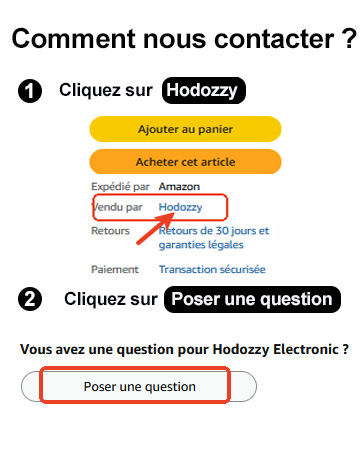
Image: A visual guide demonstrating the steps to contact the Hodozzy seller on Amazon, highlighting where to click 'Hodozzy' and 'Ask a question'.