
1. 서론
The Microsoft Surface Pro 12" is a versatile 2-in-1 device designed for productivity and entertainment. It functions as both a powerful laptop and a flexible tablet, adapting to various tasks and environments. This manual provides essential information for setting up, operating, maintaining, and troubleshooting your device.
Key features include a 12-inch PixelSense Flow Touch Display, a Snapdragon X Plus (8 Core) processor with an integrated AI engine, and up to 16 hours of battery life. It operates on Windows 11 Home and supports various accessories for enhanced functionality.
2. 상자 안에 무엇이 들어있나요?
제품 포장에 모든 구성품이 들어 있는지 확인하세요.
- Microsoft Surface Pro 12" Device
- USB-C 충전 케이블
- 빠른 시작 가이드
- 안전 및 보증 문서

Image: Contents of the Microsoft Surface Pro 12" box, including the device, USB-C charging cable, and documentation.
3. 설정
3.1 초기 충전
Before first use, ensure your Surface Pro 12" is adequately charged. Connect the provided USB-C charging cable to the device and a compatible USB-C power adapter (minimum 45W recommended, sold separately). The device will indicate charging status.
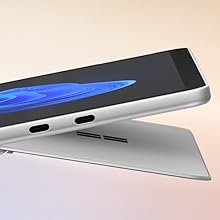
Image: The ports you need. The Surface Pro 12" features two USB-C 3.2 ports for charging, data transfer, and connecting external displays.
3.2 전원 켜기 및 초기 구성
Press and hold the power button located on the side of the device until the Microsoft logo appears. Follow the on-screen instructions to complete the initial Windows 11 Home setup, including language selection, network connection, and user account creation.
4. 사용 설명서
4.1 Device Modes: Laptop and Tablet
The Surface Pro 12" offers flexibility as a tablet or a laptop. Use the integrated kickstand to prop up the device for viewing or attach a Surface Pro Keyboard (sold separately) to transform it into a full laptop experience.
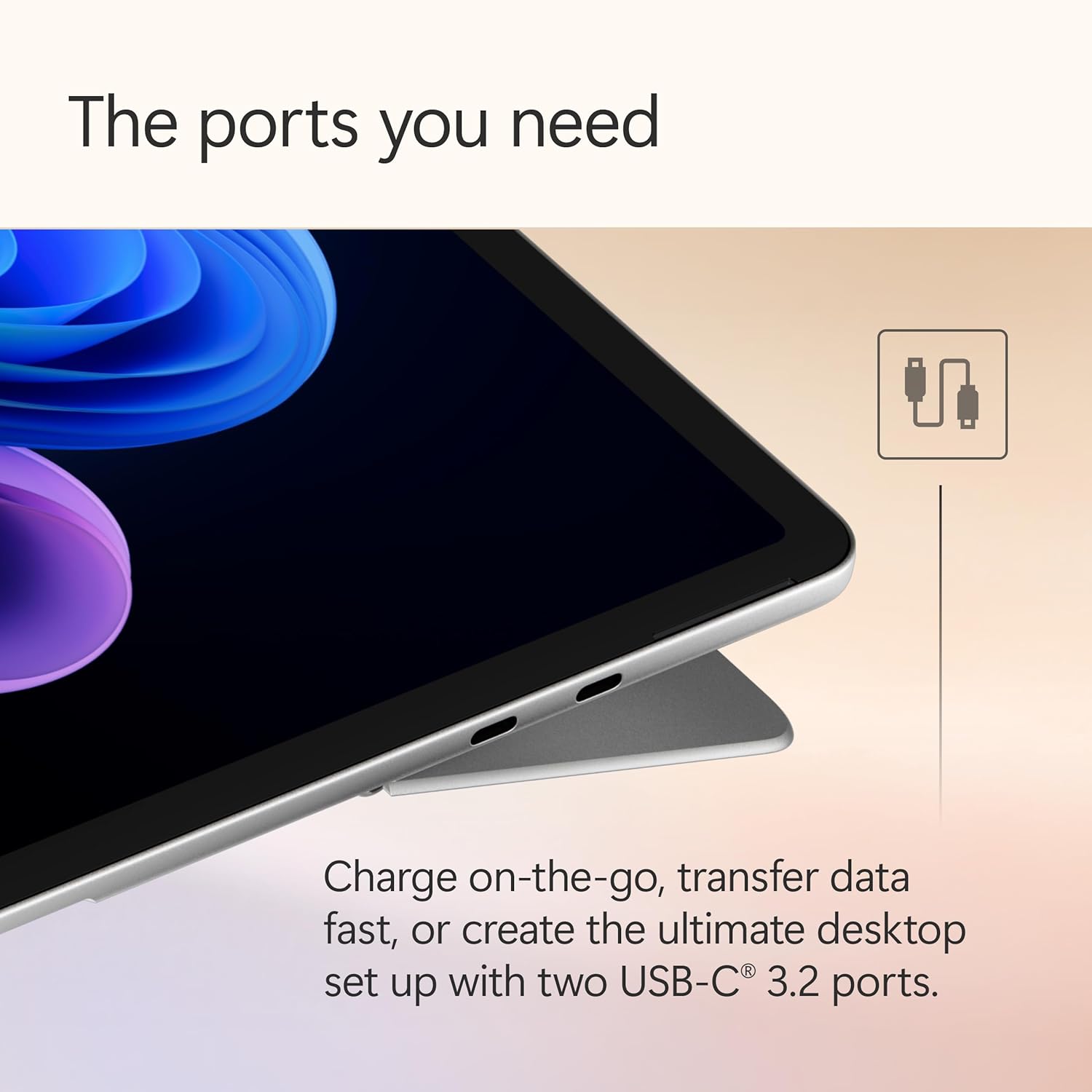
Image: The Surface Pro 12" configured in laptop mode with an attached keyboard, demonstrating its flexible design.
4.2 디스플레이 기능
The device features a 12-inch PixelSense Flow Touch Display with a resolution of 2196 x 1464 pixels and an adaptive refresh rate of up to 90Hz. This display is optimized for touch input and visual clarity.
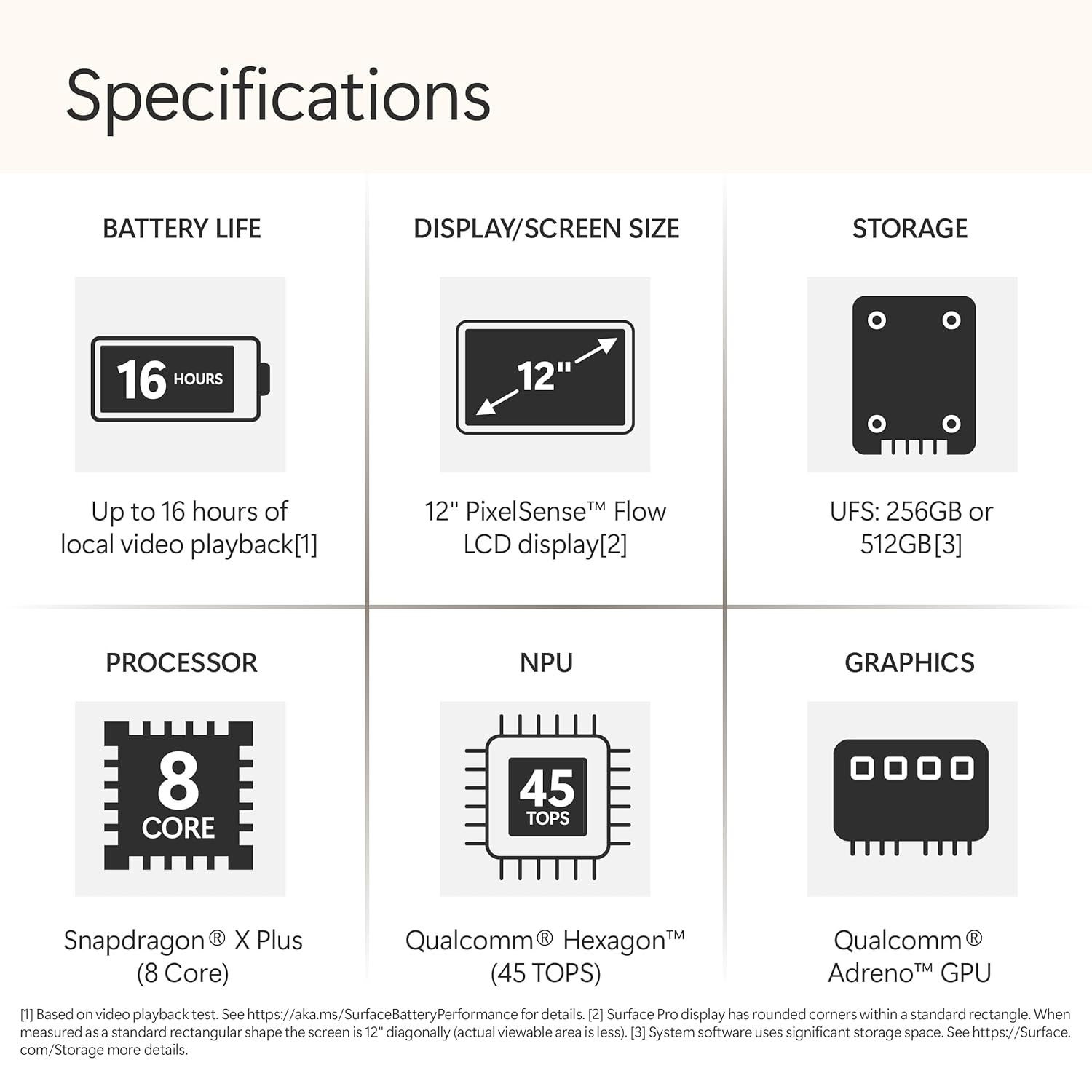
Image: Brilliant 12" PixelSense LCD touchscreen. The display is ideal for streaming and media consumption.
4.3 연결성
The Surface Pro 12" includes two USB-C 3.2 ports for connecting peripherals, external displays, and charging. It also supports Wi-Fi (802.11a/b/g/n/ac/ax) and Bluetooth for wireless connectivity.
4.4 AI Features with Copilot+ PC
As a Copilot+ PC, your device integrates advanced AI capabilities powered by the Snapdragon X Plus processor and its NPU (Neural Processing Unit). These features enhance productivity and creativity:
- 부조종사: Your AI companion accessible from the taskbar to assist with tasks, provide answers, and offer creative inspiration.
- 상기하다: A feature that allows you to find anything you've seen on your PC by describing it, enabling instant retrieval of past activities.
- 공동 창작자: An AI-powered tool for generating and refining images based on text prompts and sketches.
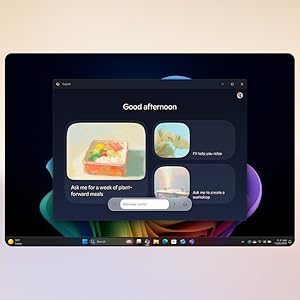
Image: Copilot: Your AI companion. The Copilot interface provides personalized assistance and creative tools.
4.5 Accessories (Sold Separately)
Enhance your Surface Pro 12" experience with compatible accessories:
- Surface Pro Keyboard: Transforms your tablet into a laptop, offering a comfortable typing experience.
- Surface Slim Pen: For natural writing, drawing, and note-taking directly on the touchscreen. The device includes a dedicated storage area on the back for charging and securing the pen.
- Surface Arc Mouse: A portable and ergonomic mouse.
- Surface 45W USB-C Wall Charger: 고속 충전을 위해.
- Surface Dock USB4: For expanded connectivity options.

Image: Ink anywhere. The Surface Slim Pen allows for natural writing and drawing on the Surface Pro 12" screen.

Image: Always charged and ready. The Surface Slim Pen stores and charges directly on the back of the Surface Pro 12".
4.6 보안 기능
The Surface Pro 12" supports Windows Hello, enabling password-less sign-in through facial recognition for enhanced security and convenience.

Image: You are the security. Windows Hello provides secure, password-less sign-in using facial recognition.
5. 유지관리
5.1 장치 청소
화면을 청소하려면 부드럽고 보풀이 없는 천을 가볍게 사용하십시오.ampened with water or a screen cleaner specifically designed for electronics. Avoid harsh chemicals or abrasive materials. For the body of the device, use a soft, dry cloth.
5.2 배터리 관리
To maximize battery lifespan, avoid exposing the device to extreme temperatures. For long-term storage, charge the battery to approximately 50% and store in a cool, dry place.
6. 문제 해결
6.1 장치 전원이 켜지지 않음
- Ensure the device is charged. Connect it to a power source using the USB-C charging cable and a compatible adapter.
- 최소 10~15초 동안 전원 버튼을 길게 눌러 강제 재시작을 실행하세요.
6.2 디스플레이 문제
- 화면이 응답하지 않는 경우 기기를 다시 시작해 보세요.
- Check for available Windows updates, as display drivers are often included in these updates.
6.3 연결 문제
- For Wi-Fi issues, restart your router and the Surface Pro.
- For Bluetooth issues, ensure the accessory is in pairing mode and within range.
7. 사양
Detailed technical specifications for the Microsoft Surface Pro 12" (Model EP2-27670):
| 특징 | 사양 |
|---|---|
| 상표 | 마이크로소프트 |
| 모델명 | 서피스 프로 |
| 모델 번호 | EP2-27670 |
| 화면 크기 | 12 인치 |
| 디스플레이 유형 | LCD PixelSense Touchscreen |
| 최대 디스플레이 해상도 | 2196 x 1464 (220 PPI) Pixels |
| 디스플레이 재생 빈도 | 최대 90Hz |
| 프로세서 | Qualcomm Snapdragon X Plus (8 Core) |
| 프로세서 속도 | 3.4GHz |
| 그래픽 코프로세서 | Qualcomm Adreno GPU |
| RAM 메모리 설치됨 | 16GB (XNUMX기가바이트) |
| 메모리 저장 용량 | 512GB SSD |
| 운영 체제 | 윈도우 11 홈 |
| 배터리 평균 수명 | Up to 16 hours (local video playback) |
| 연결성 | Wi-Fi (802.11a/b/g/n/ac/ax), Bluetooth |
| USB 포트 | 2 x USB-C |
| 생체 인식 보안 | Face Recognition (Windows Hello) |
| 품목 무게 | 685그램 |
| 품목 치수(길이 x 너비 x 두께) | 27.4L x 19W x 0.8Th Centimeters |
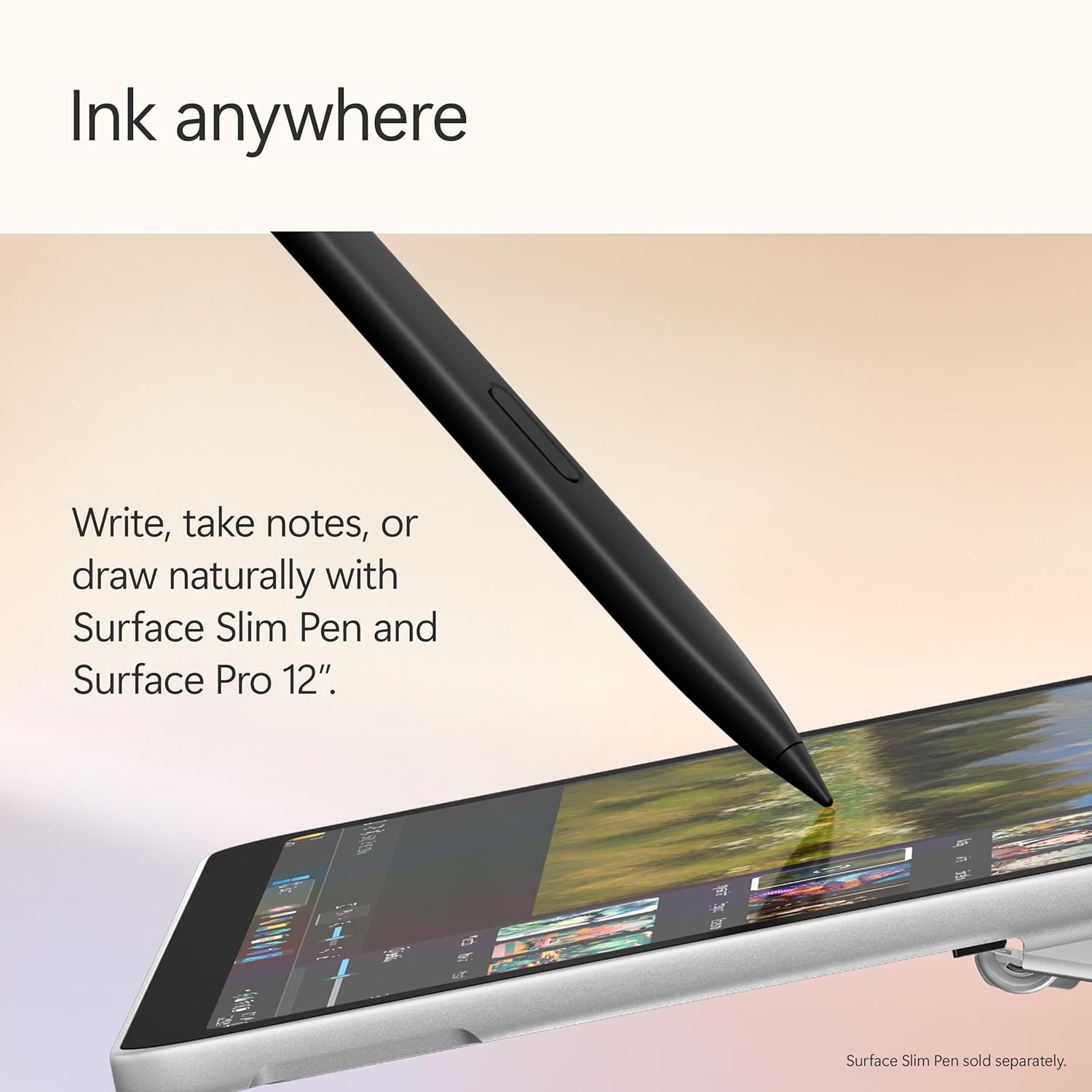
Image: Surface Pro 12" dimensions. The diagram illustrates the physical measurements of the device.
8. 보증 및 지원
8.1 제조업체 보증
The Microsoft Surface Pro 12" comes with a 1-Year Manufacturer Warranty. Please refer to the included Safety and Warranty Documents for full terms and conditions.
8.2 지원 문의
For technical assistance or warranty claims, please contact Microsoft Support. Visit the official Microsoft support web연락처 정보와 자료를 제공하는 사이트입니다.